Note
Access to this page requires authorization. You can try signing in or changing directories.
Access to this page requires authorization. You can try changing directories.
Important
- This is a production-ready preview feature.
- Production-ready previews are subject to supplemental terms of use.
Important
Ensure that the agent is properly configured to avoid editing configurations after starting. Editing the agent changes how records are processed before and after the change, giving different results.
The Start agent option is enabled only after all the configuration sections are completed and marked with a green check mark as shown in the following image.
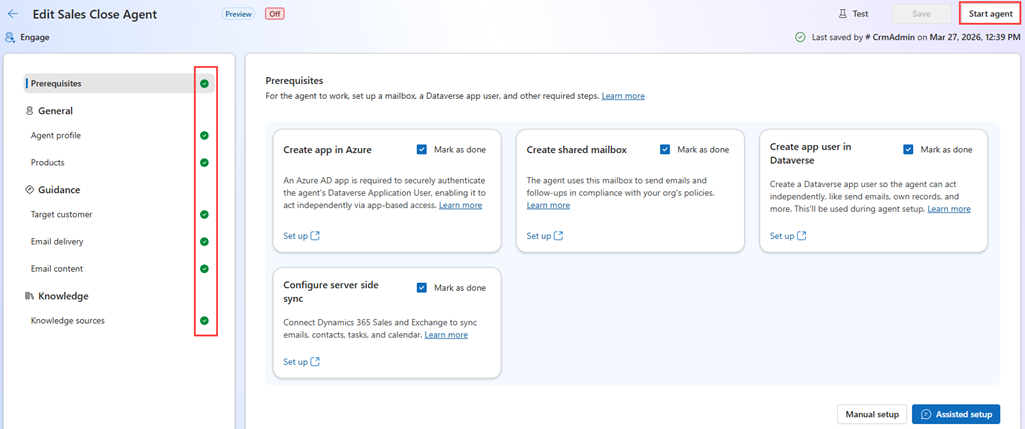
Select Start agent to start the agent. The agent might take a few seconds to start, and you can continue working while the agent is being started. Upon successful activation, the agent is listed under the AI agents home page with status as On. As soon as the agent is started, the agent starts processing the records that match the configured target customers.
When you start the agent, the email engagement feature is enabled by default. It gathers information about email interactions with customers, such as email opens and link clicks, and displays them when you open the email summary from the activities page.
Note
- When the agent is activated for the first time, it might take up to 20 minutes to start sending outreach emails.
- If agent fails to start due to unknown issues, contact Microsoft support for assistance.
Related information
Set up and configure the Sales Close Agent (preview)
Sales Close Agent overview