Note
Access to this page requires authorization. You can try signing in or changing directories.
Access to this page requires authorization. You can try changing directories.
Sounds are a great way to add a sense of immersion to your content. Whether it's blocks, animals, or the ever-important music disc, the sounds you hear while playing Minecraft pull you into the experience. In this tutorial, we'll be adding a custom sound that will play when we open a chest, increasing the immersion and personalization of your world.
Prerequisites
We recommend completing the following before beginning this tutorial:
- Getting Started with Add-On Development
- Introduction to Resource Packs
- Introduction to Behavior Packs
You will also need to download the Vanilla resource pack.
Create a Resource Pack
The first step in our journey is to create a Resource Pack to hold your custom sounds. If you completed the prerequisites as suggested (hint, hint), you're already familiar with this process. Name your Resource Pack custom_sound_pack.
For a quick refresher, check out Introduction to Resource Packs. For more detailed information on Resource Packs, see the Comprehensive Resource Pack guide.
Setting up a sound directory
Now that the Resource Pack has been created, it's time to set up a place for our sound files.
In File Explorer, navigate to the com.mojang folder.
- Press Win+R to open Run.
- If you are using main Minecraft releases, copy and paste the following into the Open field:
%appdata%\Minecraft Bedrock\users\shared\games\com.mojang - Alternatively, if you are using preview Minecraft versions, see more information about the folder to use in this article
- Click OK.
Open the development_resource_packs folder, then open custom_sound_pack.
Create a folder called sounds inside custom_sound_pack.
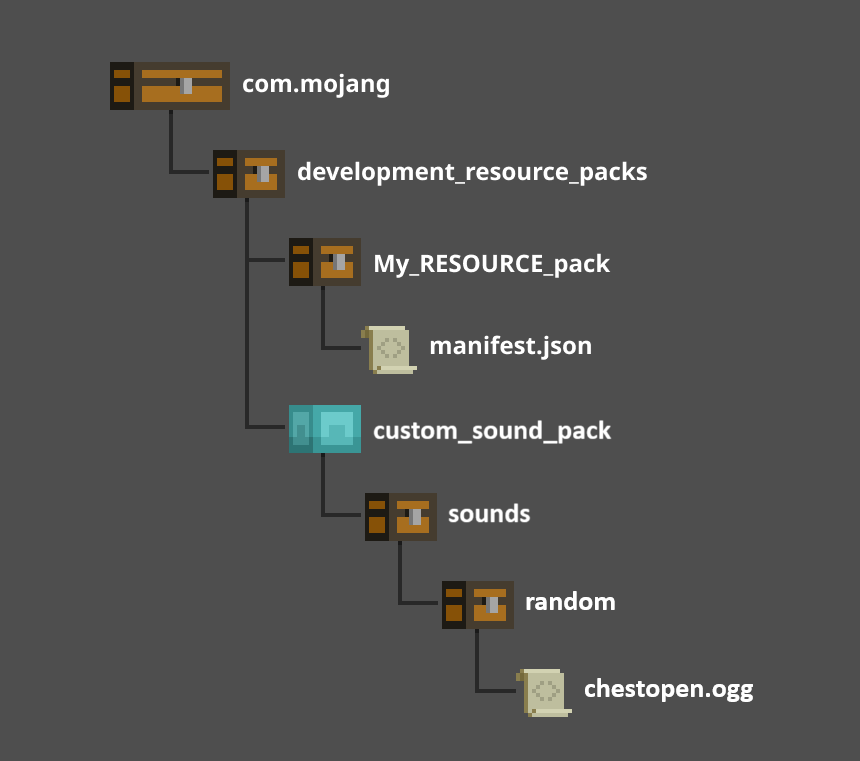
You'll need to create more sub-folders along the way, but we'll get into that in a bit. When you're finished with the tutorial, your file structure should look something like this:
Finding the right sound
The stage is set, and now it's time to get your custom sound ready! For our example, we will be using Audacity. However, any audio processing software will work as long as it can export files in the .OGG format.
You can either record a sound using your audio software, or use the software to open a sound that has been saved to your computer. Once your file is open in the audio software, it needs to be exported as an .OGG file, which can be done in Audacity from the file menu.
For this tutorial, we'll export a custom sound file with the name chestopen.ogg (you'll see why, later).
If you'd like an example sound file to use, download this sample .OGG file.
Housing your sound
Congratulations! Things are moving along nicely—you have a sound to replace, a new sound ready, and your resource pack is set up. Now it's time to figure out where your sound will live.
Tip
The vanilla resource pack contains every sound used in vanilla Minecraft. You can also use this folder as a reference for how to structure your Resource Pack to customize sounds the way you want.
Use Ctrl+F to find the sound file you want to change. For our example, the file we're looking for is called chestopen (found at sounds/random/chestopen).
Now that we know where to place our custom sound file, navigate to the sounds folder we made earlier and create a new folder inside it called random.
Place your custom chestopen.ogg file in random.
If you want to replace other sounds, locate them in the vanilla Resource Pack and duplicate their folder structure in your Resource Pack. For example, if you want to change one of the sounds for rain in your world, you'll need to create a sub-folder (ambient) and place another folder (weather) inside it to house the new sound. Then, you can add files inside the weather folder for the rain sounds you want to replace.
Note
You must give your new sound file the exact same name as the file you want to replace; however, you do not need to use the same format. So, you can replace rain1.fsb with rain1.ogg, as long as the file name before the extension matches exactly.
Testing your sound
The hard work is over, and now it's time to test our custom sound! In order to test our sound, create a test world with your new Resource Pack and cheats enabled.
Note
You'll need cheats enabled to use the /give command, which is important for this step (unless you want to build one in the world).
Open the chat box and type the following command:
/give @s chest.Place the chest somewhere in your world.
Open the chest.
Your custom sound should play when you open the chest. If that doesn't happen, some troubleshooting may be needed. Some common steps include:
- Checking your file structure
- Checking the file type of your custom sound file
Adding new custom sounds
So four different types of rain sounds aren't enough for you? Then let's discover how to add brand new sounds to Minecraft. For this task, we'll dive into the sounds.json and sound_definitions.json files.
Create a new file called sounds.json inside the custom_sound_pack folder if you don't have one there already.
If you don't already have one, create a new file called sound_definitions.json in the sounds folder we created in the first step.
Use the sample sounds.json file in the vanilla resource pack as a reference for how your file should look. You can also use it to locate the category of sound you want to add.
Let's say we want chests in our world to play one of two different sounds randomly when opened. All we have to do to set those parameters is adjust the sounds.json and sound_definitions.json files we created!
Navigate back to random and rename chestopen.ogg to chestopen2.ogg
Add the following code in sounds.json to create a new sound event:
{
    "individual_event_sounds" : {
        "events" : {
            "chest.open" : {
                "pitch" : [ 0.90, 1.0 ],
                "sound" : "random.chestopen",
                "volume" : 0.50
            }
        }
    }
}
Then, add this to sound_definitions.json to define the possible sounds opening a chest could make:
{
    "format_version" : "1.20.20",
    "sound_definitions" : {
        "random.chestopen" : {
            "__use_legacy_max_distance" : "true",
            "category" : "block",
            "max_distance" : null,
            "min_distance" : null,
            "sounds" : [
                "sounds/random/chestopen",
                "sounds/random/chestopen2"
            ]
        }
    }
}
Now you should notice that opening a chest will randomly play one of the two sounds you defined!
Using the /playsound command
You can also add custom sounds that aren't played by in-game events. You can use the /playsound command to play any sound in the game, including the sounds added in your resource packs. Even if your sounds don't play automatically, you can use /playsound to play them manually or use command blocks to play your sounds at appropriate times based on your world and game modes.
To learn more about the /playsound command, see the reference docs.
Next steps
Congratulations, you've successfully added a custom sound to your world! Now you can create a world that sounds the way you want to hear. You can make blocks that squeak, swords that apologize when you attack with them, or a world where everything is voiced by you! As always, the only limit is your imagination.