Note
Access to this page requires authorization. You can try signing in or changing directories.
Access to this page requires authorization. You can try changing directories.
To get support and resolve problems, submit, view, and manage your support requests in the Power Platform admin center. You can see active and resolved requests, details about each request, communications history, and manage advanced diagnostic consent.
Note
Resolved support requests are retained for up to 18 months.
View support requests in the Power Platform admin center
Sign in to the Power Platform admin center.
Select Support in the navigation pane.
Search, sort, and filter the list of support requests by using the following options:
Status: Show either open, closed, or all service requests.
Created by: Show tickets created by you or others for your tenant.
Limit to: Set how many service requests are shown in the list.
Search: Filter by keyword to find the support request you're looking for.
Note
This option doesn't search the contents of support requests.
Export to Excel: Select the arrow icon to download the list of service requests for offline use.
Actions menu: If needed, select the ellipses icon ("…") after the issue title column to open the menu and choose an available action:
Edit: Opens the edit panel to quickly manage support request attributes. See Edit support requests for details.
Close support request: Select to close the support request. Select a reason for closure and confirm the request. Once closed, requests can't be reopened. If a request is closed but the issue remains, create a new support request.
Select the issue title link to view the details page for the selected support request.
Support request details
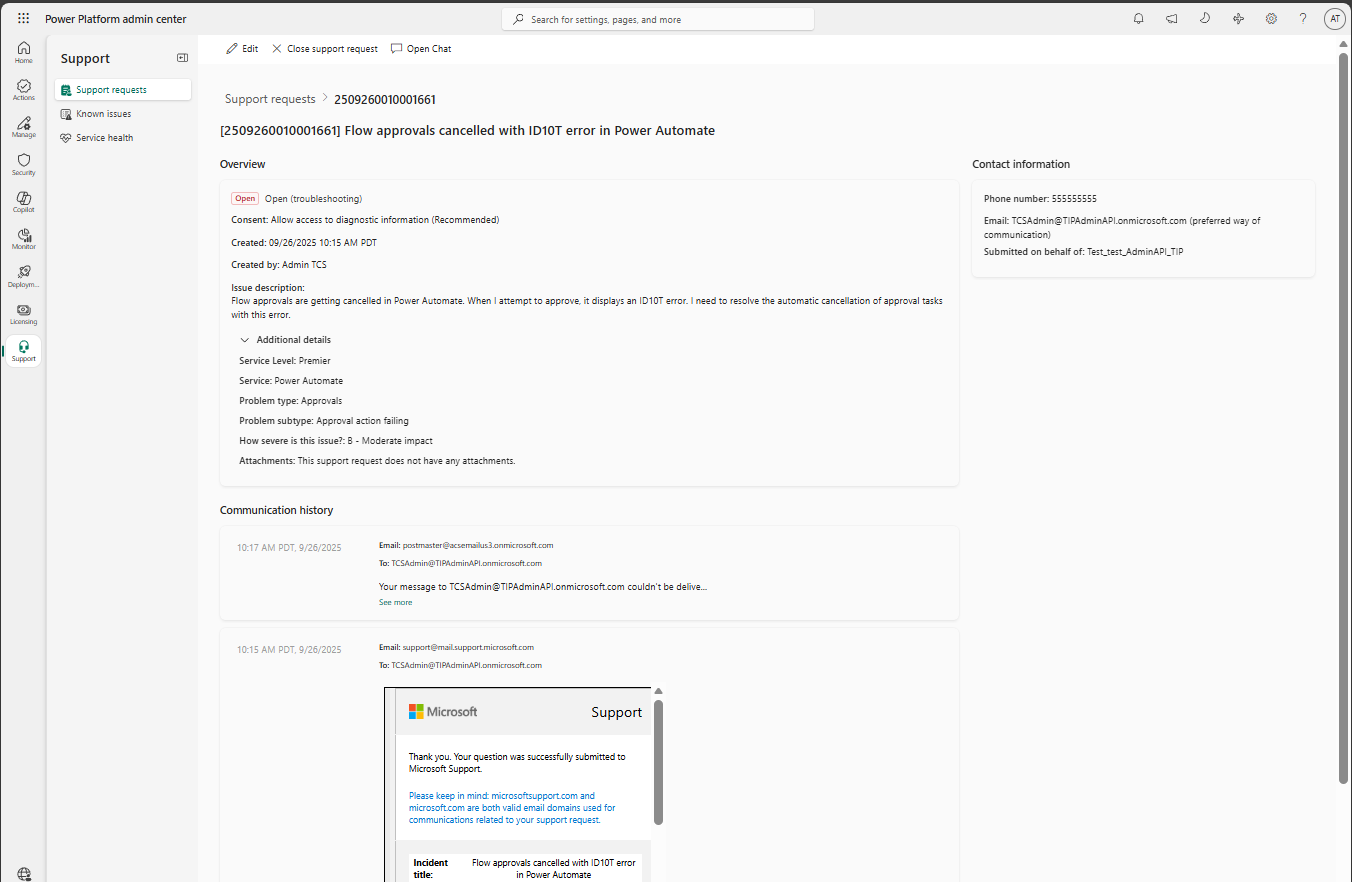
The details page for a support request contains information about the support request, such as the description, current state and consent status, severity, categorization, contact details, attachments, and communication history. The actions ribbon at the top of the details page lists available actions such as Edit, Close support request, and Open chat. For more information about the chat experience, learn more in Use live chat with persistence for support requests.
Support request metadata
The support request details page shows a subset of details about the support request. You can edit some of these details, such as consent status and contact details.
State: Current state of the support request. As Microsoft support triages and acts on your request, this state updates.
Consent: Sets consent state for advanced diagnostics. This setting governs whether Microsoft support can access your data to troubleshoot your issue. You can update this state by editing the support request. A Microsoft representative might ask you to update this state as part of troubleshooting the support request. For more information, see Support environments and consent to access customer data.
Created on: When you created the case.
Created by: The username who created the case.
Issue description: The details about the issue, as provided by the creator on submission.
Additional details: Shows severity and categorization details, as well as any attachments.
Service level: The level of support plan governing the support request.
Service: The application or service for the support request.
Note
Microsoft support might update this value as root cause of the issue becomes better understood.
Problem type and subtype: Categorization which helps Microsoft route and triage the request and provides visibility to responsible engineering teams.
Severity: This value governs and sets SLA and expectations for both Microsoft and the submitting customer. For more information, see Severity and responsiveness.
Attachments: Any file submitted as part of the case. You can't update attachments from the admin center. To manage attachments, contact Microsoft support as part of the support request engagement.
Communications history: Contains all email communications history between the submitting user and Microsoft for the support request.
Contact information: Contact details and preferences. You can update this value by editing the support request.
Editing support requests
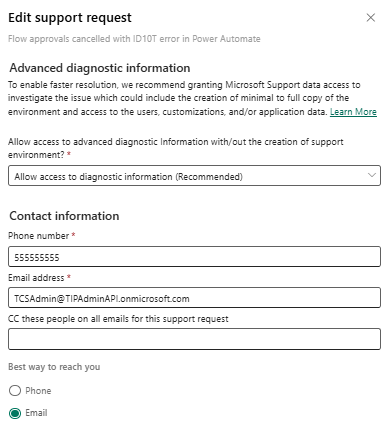
You can edit some details about a support request in the Power Platform admin center, such as diagnostic consent and contact details. To edit a support request:
Support request list: Select the … after the issue title column to open the menu and choose Edit. The Edit support request pane is displayed on the right side of the page.
Support request details page: Choose Edit from the actions ribbon at the top of the support request details page.
When you have made your changes, select Save at the bottom of the pane. To cancel any changes or close the pane, either select the X at the top-right of the pane, or select Cancel at the bottom of the pane.