Note
Access to this page requires authorization. You can try signing in or changing directories.
Access to this page requires authorization. You can try changing directories.
Functions are reusable queries or query parts. Real-Time Intelligence supports two kinds of functions:
Built-in functions, which are hard-coded functions that you can't modify.
User-defined functions, which are divided into two types:
- Stored functions: user-defined functions that you store and manage as database schema entities, such as tables. For more information on how to create and manage stored functions, see Stored functions management overview.
- Query-defined functions: user-defined functions that you define and use within the scope of a single query. You define these functions through a
letstatement. For more information on how to create query-defined functions, see Create a user defined function.
In this article, you learn how to create or alter an existing stored function by using the .create-or-alter function.
For more information on the .create-or-alter function command, see .create-or-alter function.
Prerequisites
- A workspace with a Microsoft Fabric-enabled capacity
- A KQL database with editing permissions
Create functions
This feature enables you to create or alter an existing function by using the .create-or-alter function command. The command stores the function in the database metadata. If the function with the provided functionName doesn't exist in the database metadata, the command creates a new function. Otherwise, the command changes the named function.
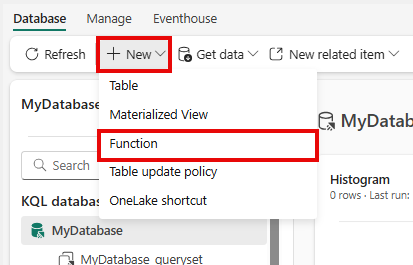
Browse to your KQL database, and select New > Function. The
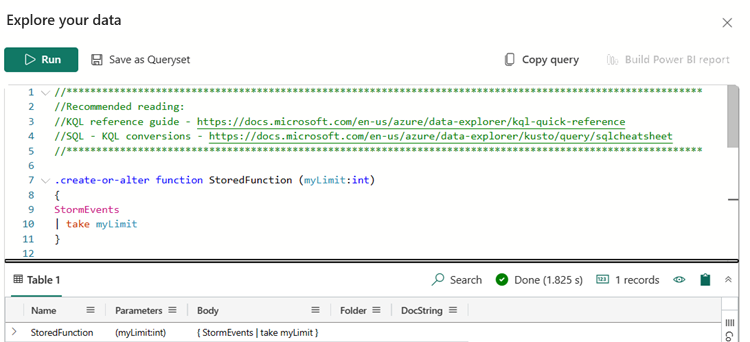
.create-or-altercommand automatically appears in the Explore your data window.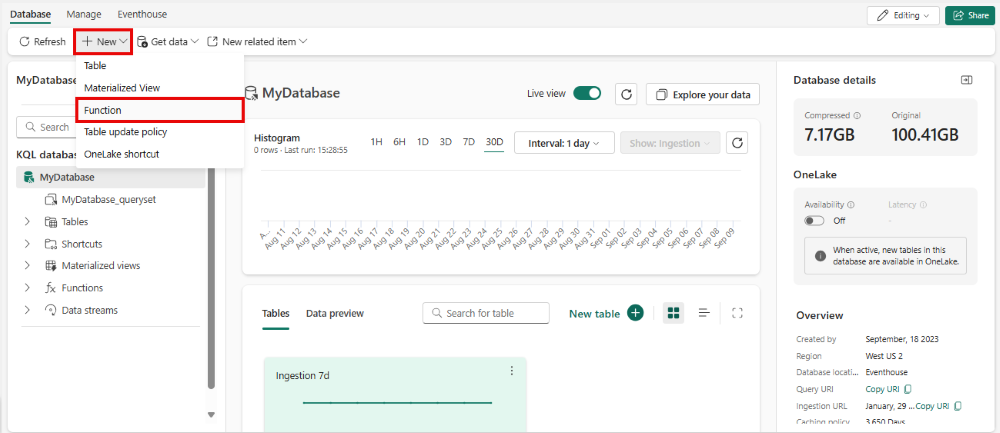
Enter the function name and query parameters for your function instead of the placeholder text, and then select Run.
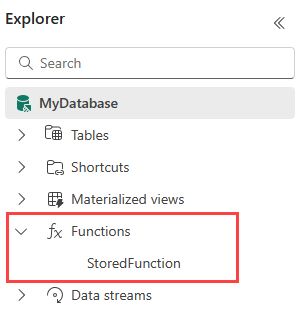
Stored functions appear under Functions in the Explorer pane.
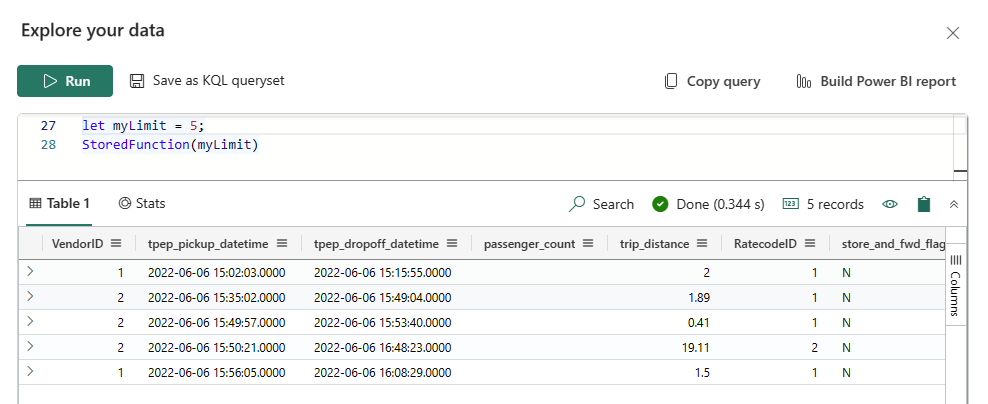
In the Explore your data window, run a query to check that you successfully created or altered your function.
Stored functions list
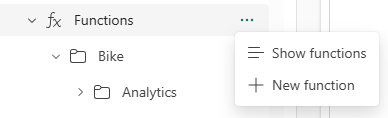
You can view a list of all stored functions in the database. By left-clicking on the Functions option or by selecting Show functions in the dropdown menu, you can open the list of functions.
The list includes:
- The function's folder and its description.
- Optional sort and search capabilities to help you find specific functions.
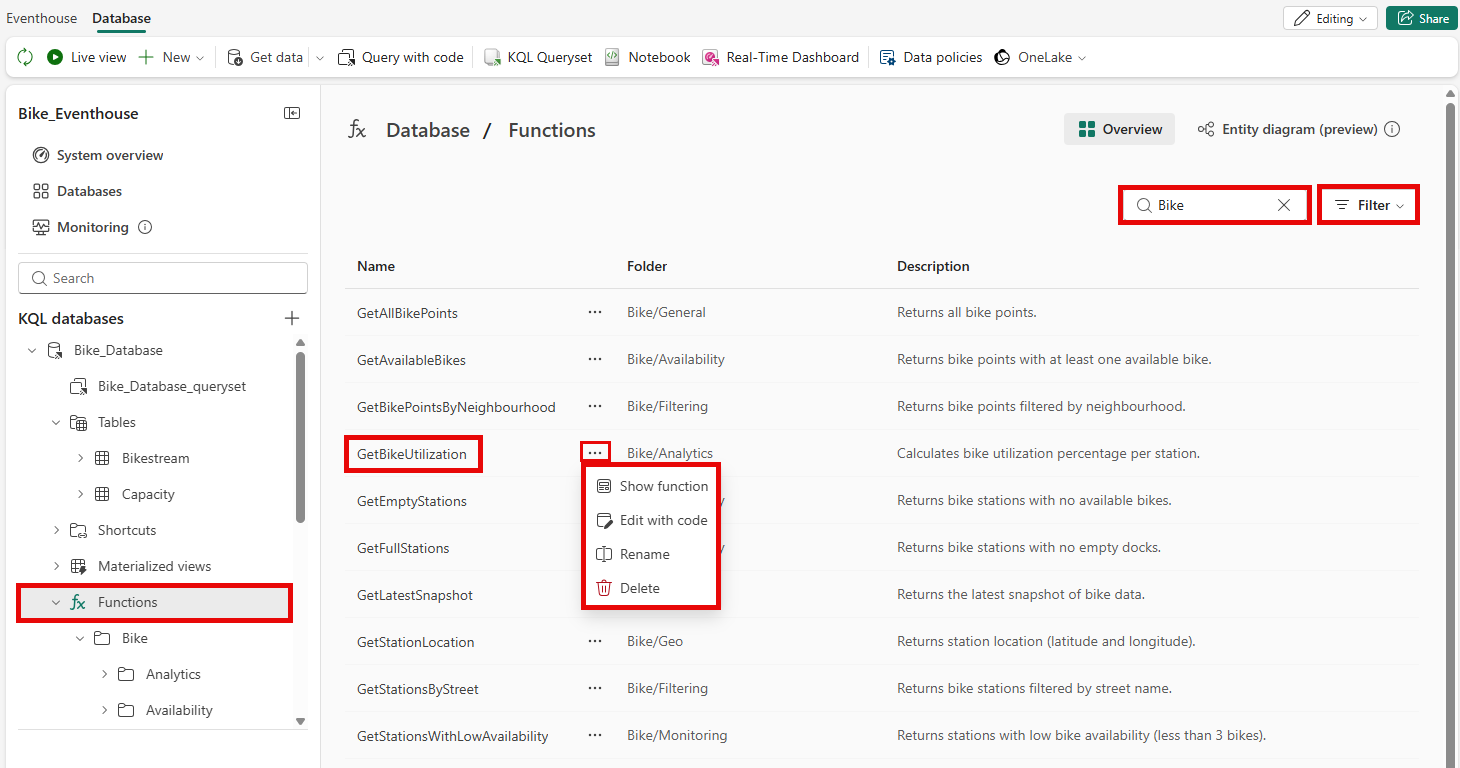
Left-clicking on a function in the list opens a read-only preview version of the function. In the dropdown menu, you can also select Show function to open the preview version of the function, edit, or delete the function.
Organize functions with folders
To create a subfolder or move to an existing folder:
- In the explorer pane, either:
- Right-click on the function and select Move to folder > + New folder.
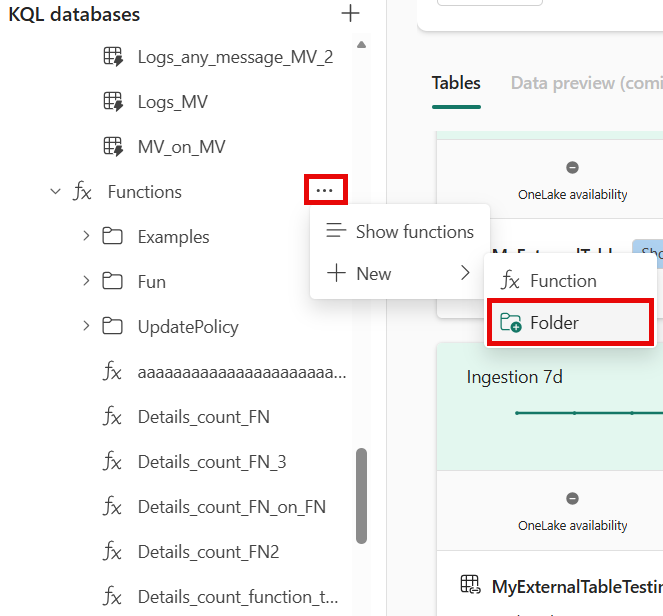
- Or, select the ellipsis (...) next to the specific function and select Move to folder > + New folder or choose an existing folder.
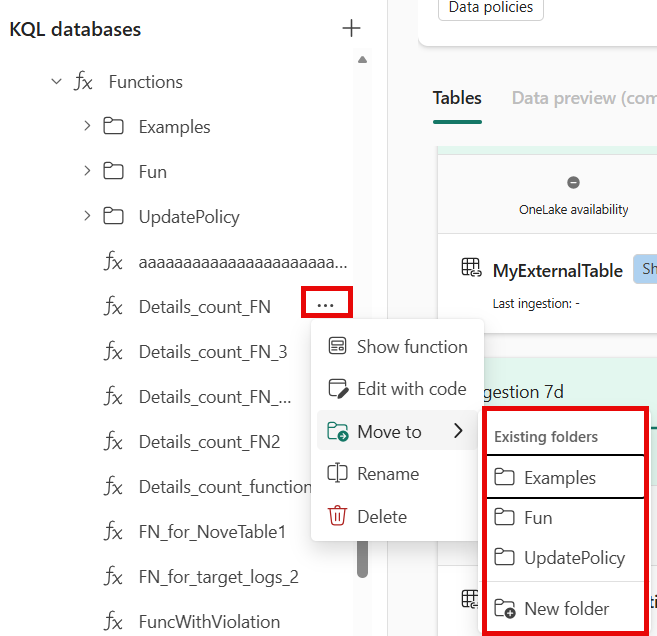
- Right-click on the function and select Move to folder > + New folder.
- To create a folder, enter a name for the folder and select Create. The function is moved to the new folder.
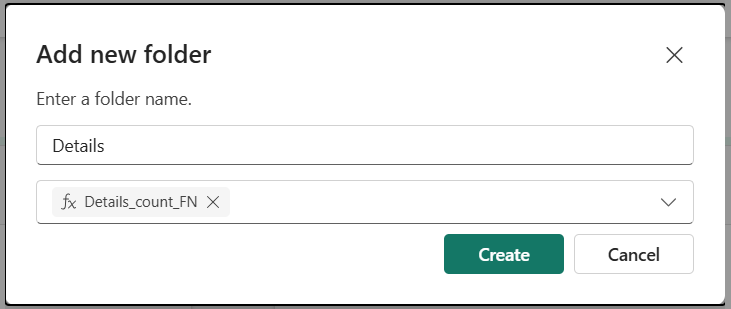
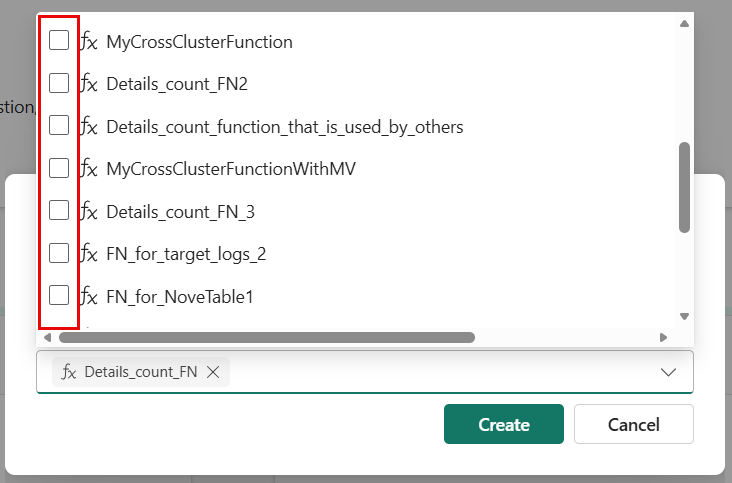
- To move more than one function, either enter another folder name or select the dropdown menu and check the boxes next to the functions you want to move to the same folder.
- You can also move functions to an existing folder. To do so, select Move to folder and then select the folder you want to move the function to, or drag and drop the function into the folder.
Note
- If you delete a subfolder, the functions within the folder aren't deleted but are moved back to the parent folder.
- A subfolder is automatically deleted when there are no functions within the folder.
- Folders can be created per asset type and the name must be unique per asset type. For example, you can have a table folder and a functions folder with the same name, but you can't have two functions folders with the same name.
View and preview a stored function
To view or preview an existing stored function, follow these steps:
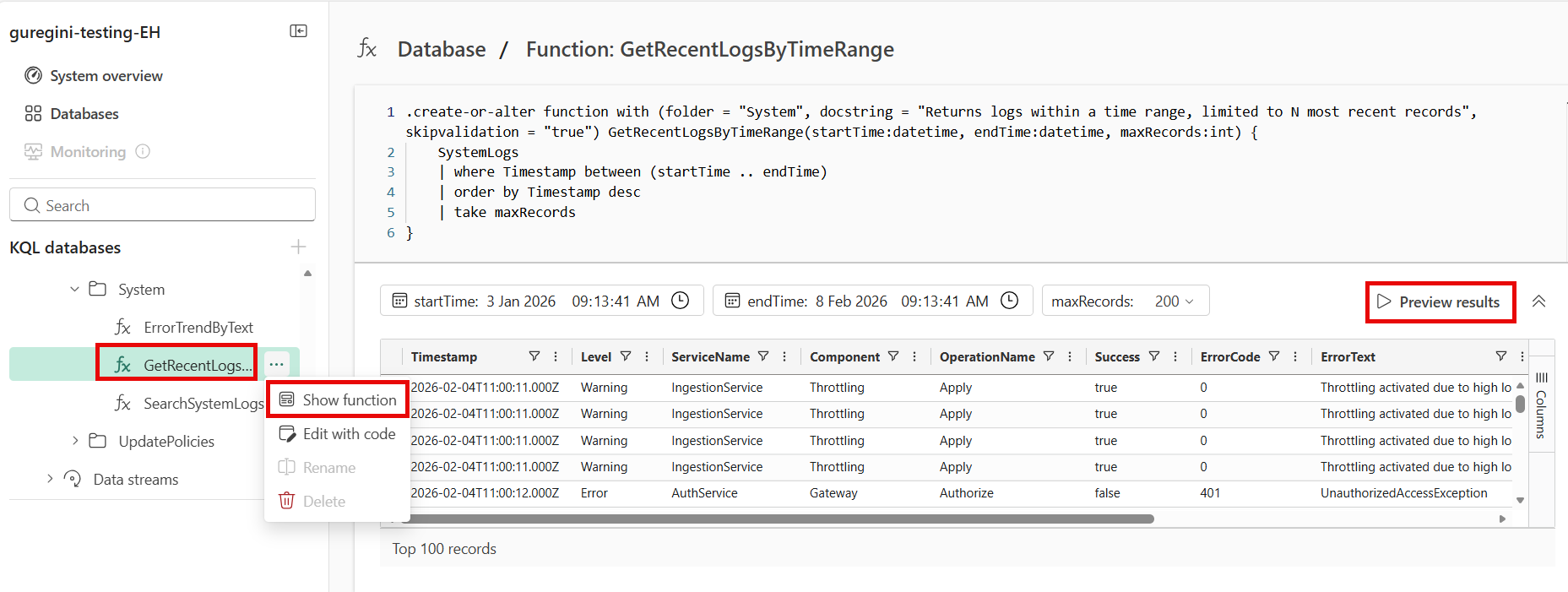
In the Explorer pane, expand the Functions section. Left-click on the desired function to open the preview or select the three dots and show function.
A read-only version of the function script opens in the Explore your data window.
- You can select Preview results to preview the function results.
- If the function includes parameters, you can enter values for those parameters. Then, select Preview results to see the output based on the parameter values you provided.
- The preview results show up to 100 records based on the function query.
Edit or delete a stored function
To edit or delete an existing stored function, use the following steps:
In the Explorer pane, expand the Functions section. Select the three dots next to the desired function.
From the dropdown menu, choose either:
- Edit with code to edit the function script in the Explore your data window.
- Delete
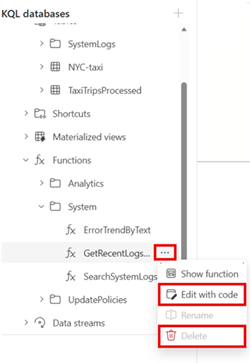
If you modified the function script, select Run to save your changes.
