Note
Access to this page requires authorization. You can try signing in or changing directories.
Access to this page requires authorization. You can try changing directories.
Real-Time Dashboard in Microsoft Fabric helps you monitor live data and react to changes as they happen. To ensure your dashboard always reflects live data, Real-Time Dashboard supports Live refresh.
Live refresh updates dashboard visuals when new data is ingested into the underlying source. For visuals that don't support ingestion detection, or are based on unsupported data sources, the dashboard uses a fallback refresh interval that the dashboard editor defines. Ingestion detection is more efficient than fixed-time intervals, as it queries the data only when the data changes.
Live refresh works well in the following scenarios:
High-frequency data: You need to see data the moment it arrives but want to avoid constant polling during "quiet" periods.
Cost optimization: You want to reduce the compute load and query costs associated with refreshing dashboards that didn't receive new data.
Large-scale monitoring: You're monitoring multiple sources and want the system to intelligently manage refresh triggers based on actual ingestion.
How Live refresh works
Live refresh uses a single lightweight background query per visual based on the ingestion_time() function. Instead of running heavy visual queries on a fixed schedule, the dashboard periodically checks the "high-water mark" of the data for each visual.
If the detection query identifies that new data is ingested, the process triggers a refresh of that dashboard visual. If no new data is detected, no further queries are executed for that visual until the next check.
Configure Live refresh (Editor)
As a dashboard editor, you can configure how your dashboard stays fresh in the Refresh settings.
In your dashboard, enable Editing mode and then select Manage from the top ribbon.
Select Refresh settings.
Choose between the following options:
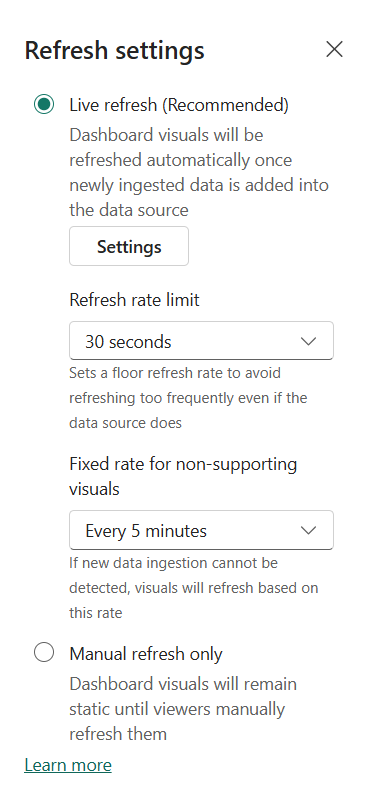
Live refresh (Recommended): Enables Live refresh. The dashboard monitors for new data and updates automatically.
- Select the Settings button to reveal the Live refresh configuration options:
- Refresh rate limit: Sets a minimum time interval between refreshes to prevent excessive updates during high-frequency data ingestion.
- Fallback refresh interval: For visuals that don't support ingestion detection, this interval determines how often they refresh.
- Select the Settings button to reveal the Live refresh configuration options:
Manual update only: The dashboard stays static. Visuals only update when you select the Update button manually.
Monitor and control refresh (Viewer)
Dashboard viewers can monitor the refresh status and pause updates if they need to analyze a specific point in time.
The dashboard ribbon provides visual cues for the current refresh state:
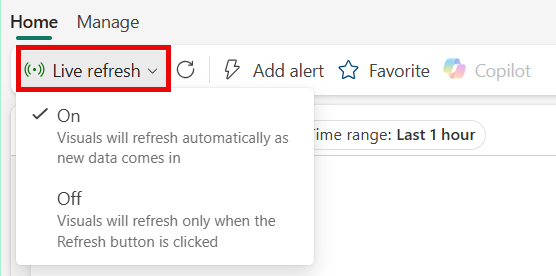
Live refresh (Enabled): The button is active. Hovering over the button shows a tooltip: "Visuals update automatically as new data comes in."
Live refresh (Paused): The button appears with a strike-through. The tooltip indicates: "Visuals don't refresh automatically."
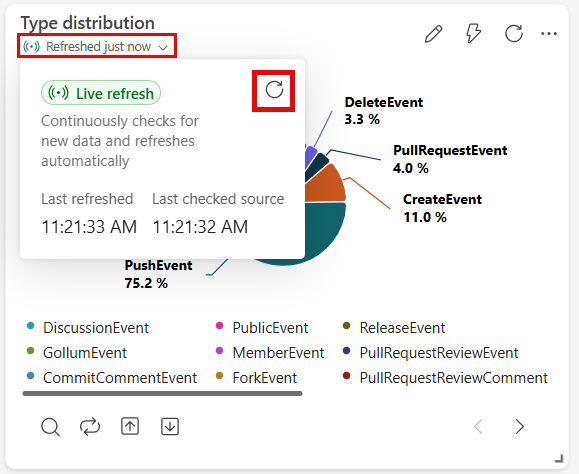
Each visual displays its last refresh timestamp, so you can quickly assess how current the data is. Hover over the timestamp to view additional details, such as when the data was last refreshed and when the source was last checked. To update the data manually, select the Update button on the visual at any time.
Pause or resume updates
If you're investigating a specific data point and don't want the visuals to change, in the dashboard ribbon switch to Viewing mode and select the Live refresh button to turn live refresh Off (Paused). While paused, the dashboard doesn't perform any automated refreshes. Toggle it back to On to resume live refreshing.
Considerations and limitations
Fallback behavior: For unsupported tables or specific visual types, the dashboard uses the Fallback refresh interval defined in the editor settings.
Compute usage: While Live refresh is significantly more efficient than fixed-interval refreshing, the background detection queries still consume some resources.