Note
Access to this page requires authorization. You can try signing in or changing directories.
Access to this page requires authorization. You can try changing directories.
This tutorial is Part 1 of a series that walks you through the basics of digital twin builder (preview) in Microsoft Fabric. Digital twin builder is a tool for creating digital representations of real-world assets and their relationships. In this part, you prepare your environment by uploading sample data to a lakehouse and creating a digital twin builder item.
In this tutorial, you:
- Download and upload sample data to a Fabric lakehouse
- Load CSV files into lakehouse tables
- Create a digital twin builder item in your workspace
Important
This feature is in preview.
Prerequisites
- A Microsoft Fabric subscription or free trial
- A Fabric workspace with contributor or higher permissions
Upload sample data to a lakehouse
Download all the
.csvfiles from the sample folder in GitHub: digital-twin-builder/contoso-energy.Go to Microsoft Fabric and open your workspace.
Select + New item:
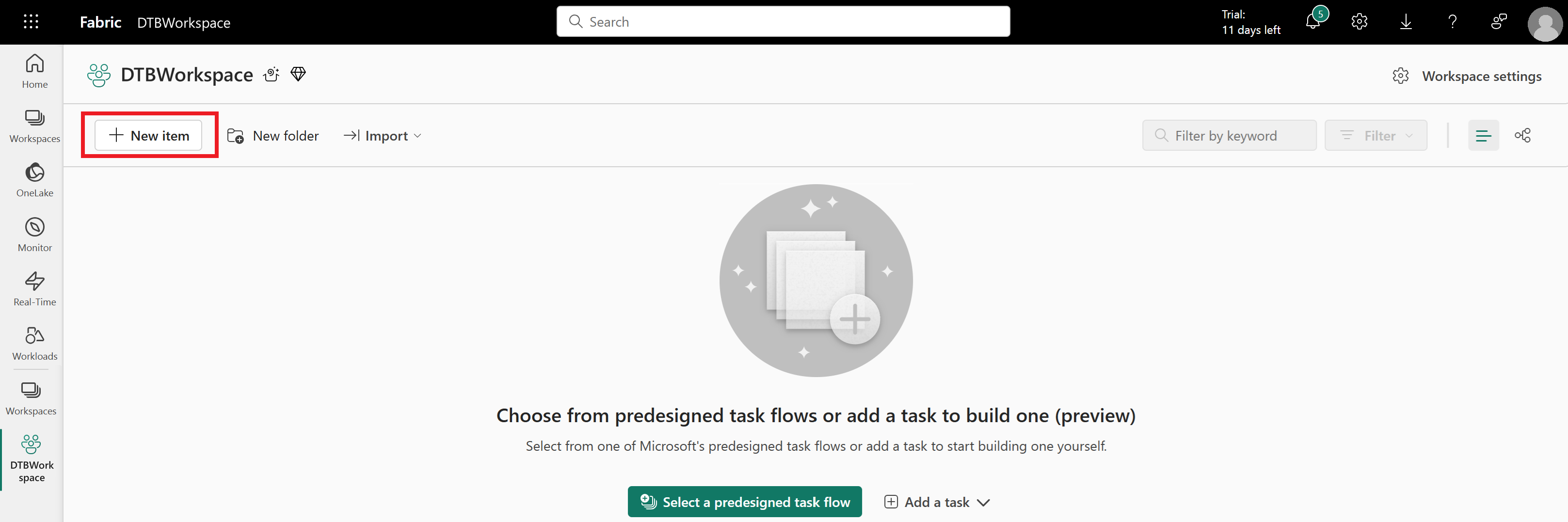
Scroll down or search for Lakehouse and select that item. Name your lakehouse GettingStartedRawData and select Create. Your lakehouse opens when it's done.
In the Explorer pane on the left, select the more options menu (...) next to Files. Select Upload > Upload Files.
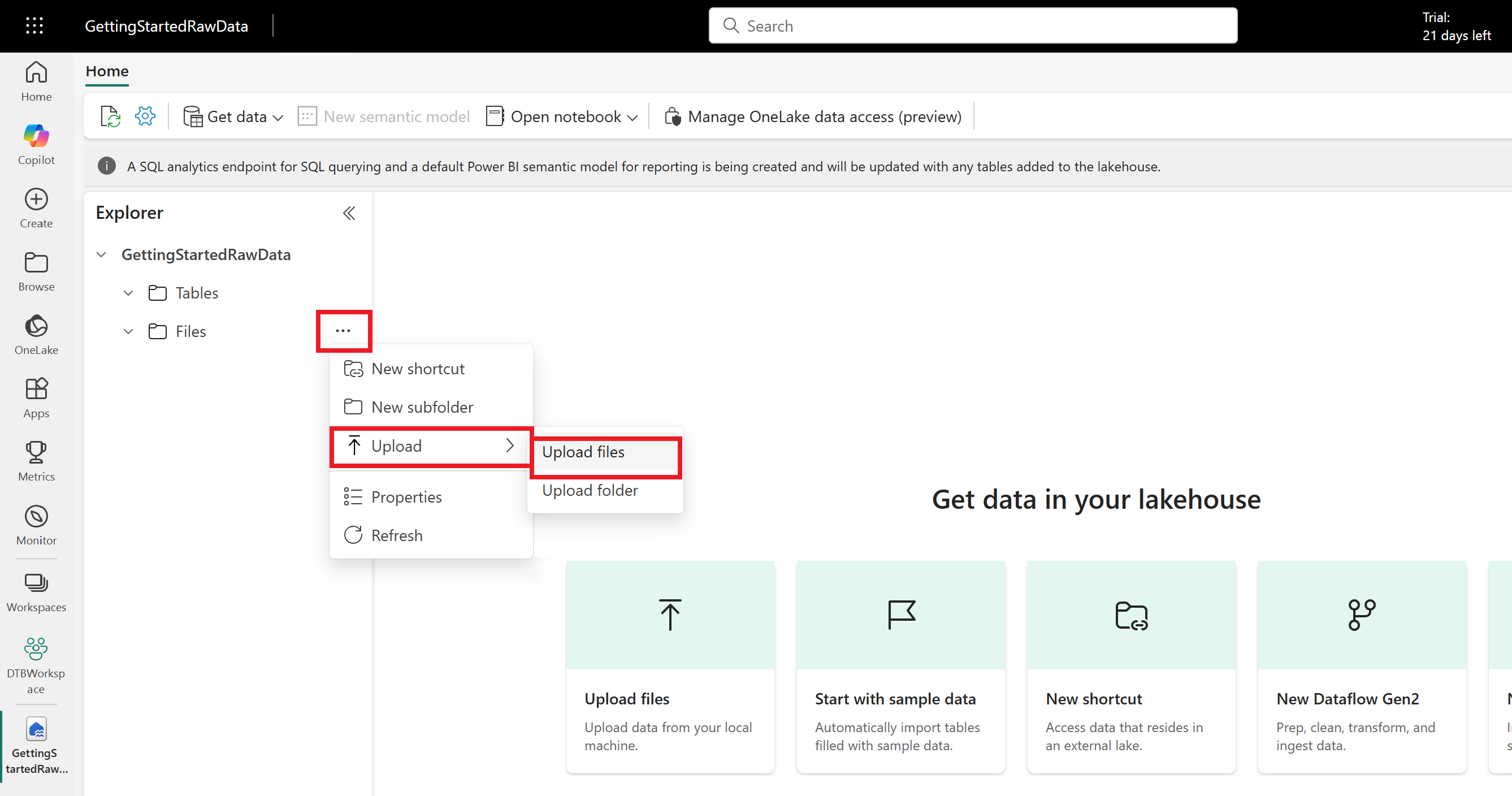
Select the sample data files you downloaded and then select Upload. When the files are finished uploading, close the Upload files pane.
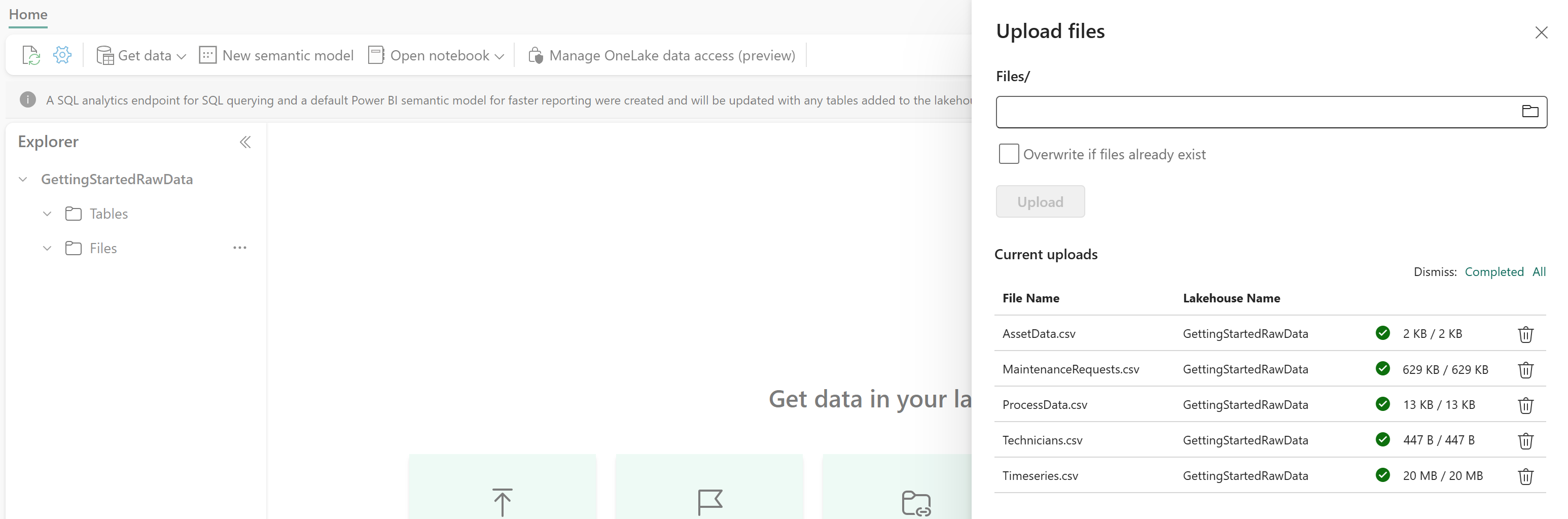
In the Explorer pane on the left, select Files to see the files in the lakehouse. For each file, complete these steps:
Hover over the file name and select the more options menu (...). Select Load to Tables > New table.
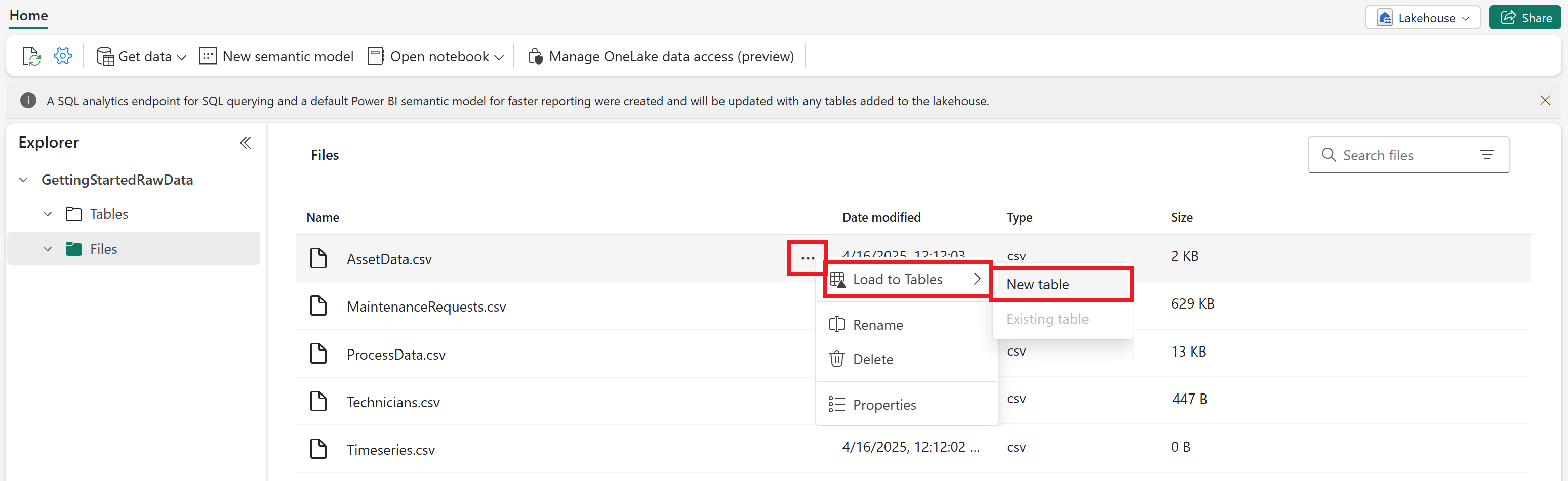
In the new table settings that appear, leave the default settings. Select Load.
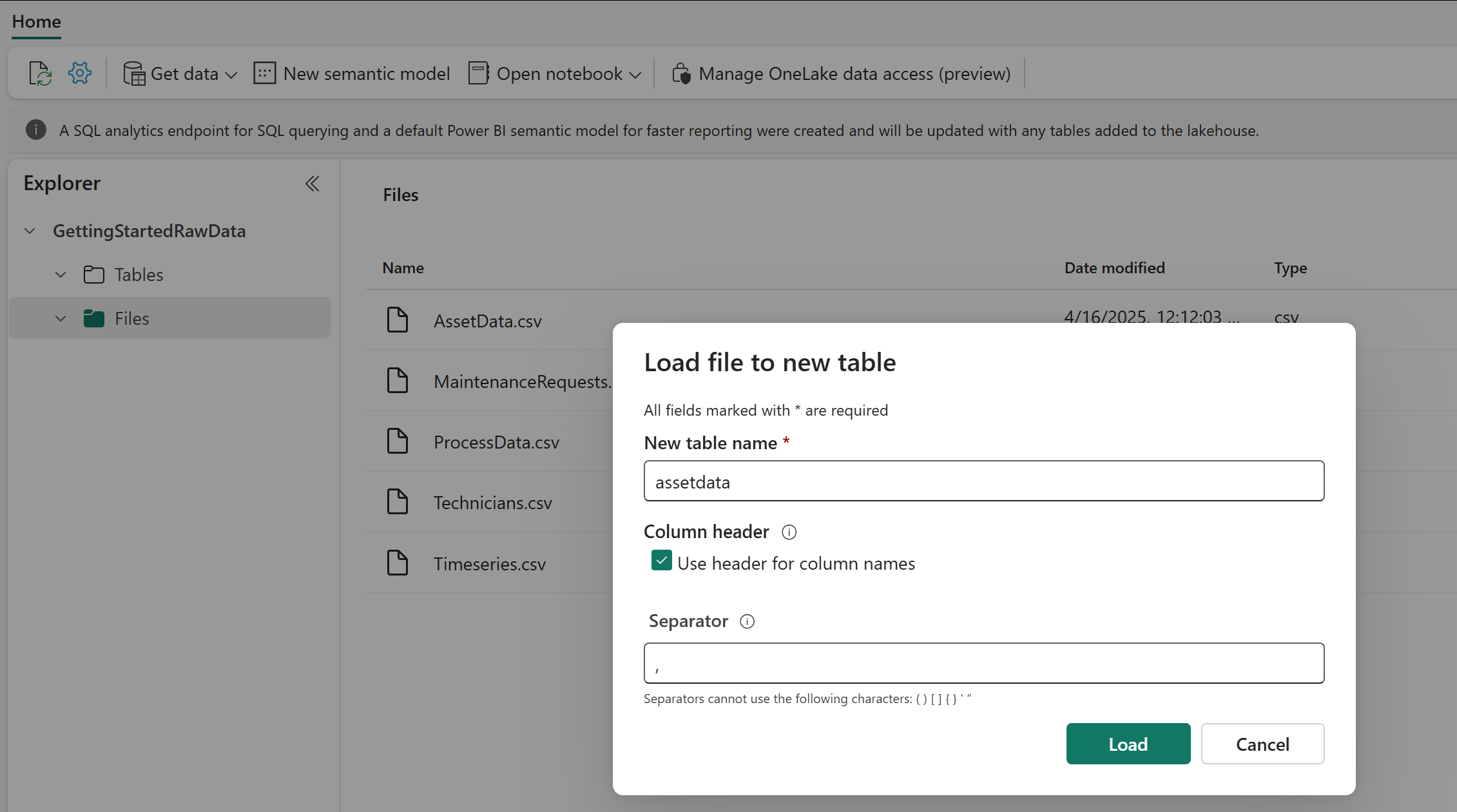
Wait for the table to finish loading before you start loading the next one.
You should now see five tables in the Explorer pane of your lakehouse, under Tables. Open them to verify they contain data.
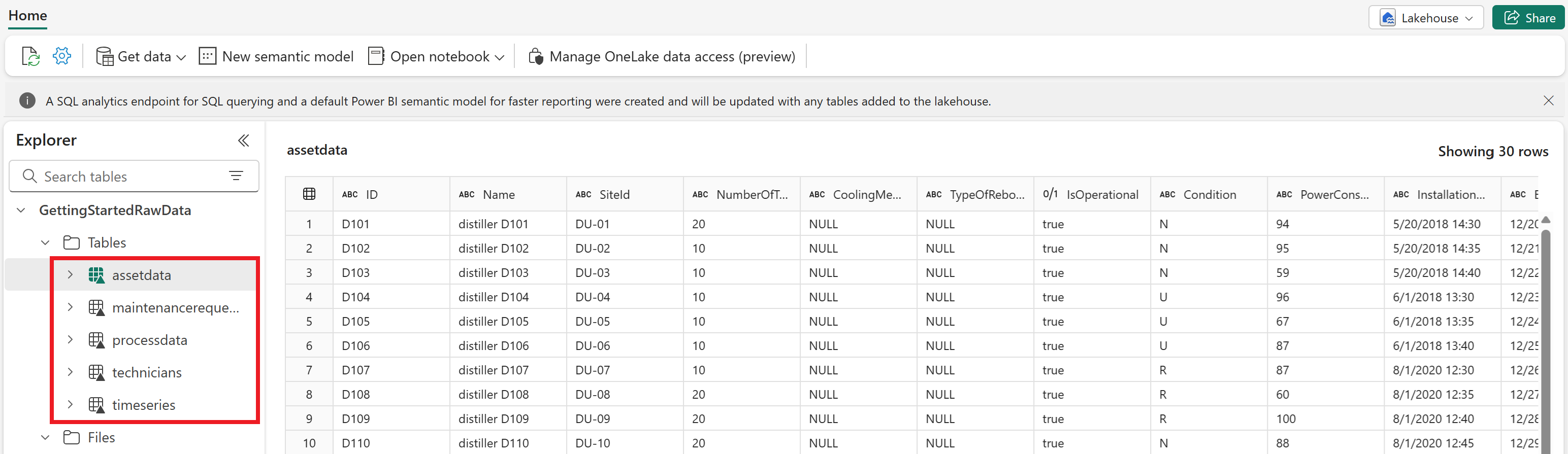
You now have sample data available in your GettingStartedRawData lakehouse. You use the data in this lakehouse throughout this tutorial.
Create new digital twin builder item in Fabric
Note
Recall from the tutorial prerequisites that Digital Twin Builder (preview) must be enabled in your Fabric tenant settings.
Go to your Fabric workspace.
Select New item.
Search for the Digital Twin Builder (preview) item, and select it.
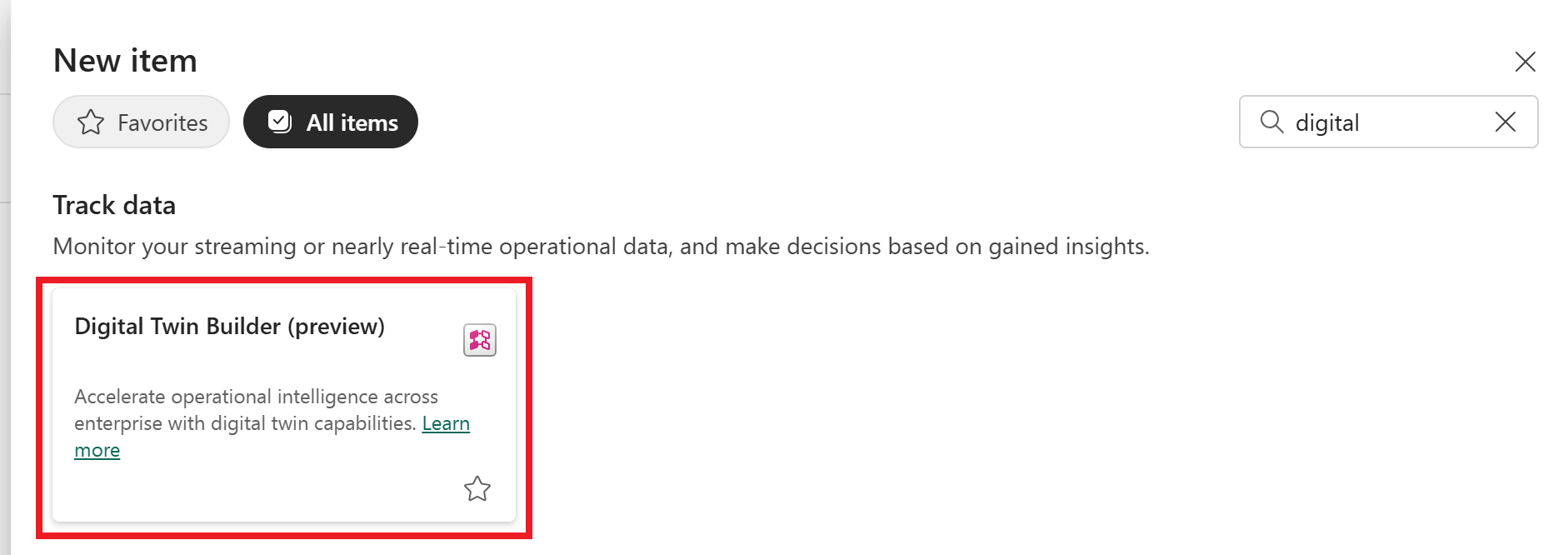
Name your item TutorialDTB and select Create.
Tip
Digital twin builder names can include numbers, letters, and underscores (no spaces or dashes).
Wait for your digital twin builder item to be created. When your digital twin builder item is ready, it opens to the semantic canvas.
In the next step of this tutorial, you use the semantic canvas to define a domain ontology.