Note
Access to this page requires authorization. You can try signing in or changing directories.
Access to this page requires authorization. You can try changing directories.
Real-time analytics workloads often follow predictable patterns. You might see heavy ingestion during business hours, lighter query traffic overnight, quiet weekends, and short but critical pipeline windows. You can customize a minimum capacity schedule that aligns with your workload patterns.
Use cases
A customized schedule prevents using a single minimum capacity value for the entire week, paying for guaranteed resources when they're not needed, or risking performance during peak hours.
The capacity planner scheduler supports common real-world patterns, including:
- Guaranteed ingestion during ETL or streaming windows.
- High query concurrency during business hours.
- Cost-optimized off-hours and weekends.
- Seasonal or campaign-driven load patterns.
- Adapting easily to operational realities.
Capacity planning enables smart, policy-driven capacity management in your Eventhouse. It complements existing investments in autoscale, cost-performance balancing, and helps you fine-tune availability. By separating when capacity must be guaranteed from how much demand actually occurs, Eventhouse gives you control without complexity, and performance without waste.
Minimum capacity schedule
The minimum capacity schedule allows you to define different minimum capacity levels across the week, instead of relying on a single static value. You can:
Configure a 7-day recurring schedule.
Split each day into 60-minute time blocks.
Define a minimum capacity per block, or explicitly mark it as no minimum.
Use the scheduler to raise or lower the minimum capacity for a certain time block, as needed, without disabling autoscale. The scheduler doesn't replace autoscale rather works alongside it.
The schedule only sets a floor, not a ceiling, so you can still benefit from autoscale's ability to handle unexpected spikes without interruption.
The system never forces a scale-down if capacity is already higher due to active demand.
Any scale operation performed on a cluster results in a 24-hour cooldown period when trying to scale down from a physical to virtual cluster due to low utilization.
If no minimum is defined for a time block, the default minimum capacity is 2 CUs (25 GB of premium storage size).
Eventhouse maintains the guaranteed baseline only during the scheduled windows. Outside of scheduled windows, the eventhouse remains fully elastic with autoscale active, scaling up or down based on actual workload demand.
Note
Changes to the schedule take up to 30 minutes to impact capacity. Plan accordingly when setting up or modifying your schedule, especially for critical workloads.
Scheduler UI
The scheduler displays a weekly grid view where each cell represents a 60-minute block. You can enter a minimum capacity value directly in each cell, and the UI performs cell-level validation to ensure entries are within the supported range. An overview banner evaluates and summarizes the total scheduled minimum capacity for the next 24 hours, helping you understand upcoming baseline commitments.
Warning
If a scheduled minimum capacity exceeds the available capacity for your workspace or capacity SKU, a warning appears in the UI. You might need to adjust either the schedule or upgrade your capacity SKU to avoid constraint violations.
Enable capacity planner
When you enable Capacity Planner mode, you don't pay for OneLake Cache Storage. The eventhouse is always active, so you get 100% Eventhouse UpTime without extra premium storage costs. Capacity planner mode (previously known as Always-on) prevents the eventhouse from suspending the service due to inactivity. For highly time-sensitive systems, it prevents the latency of reactivating the eventhouse.
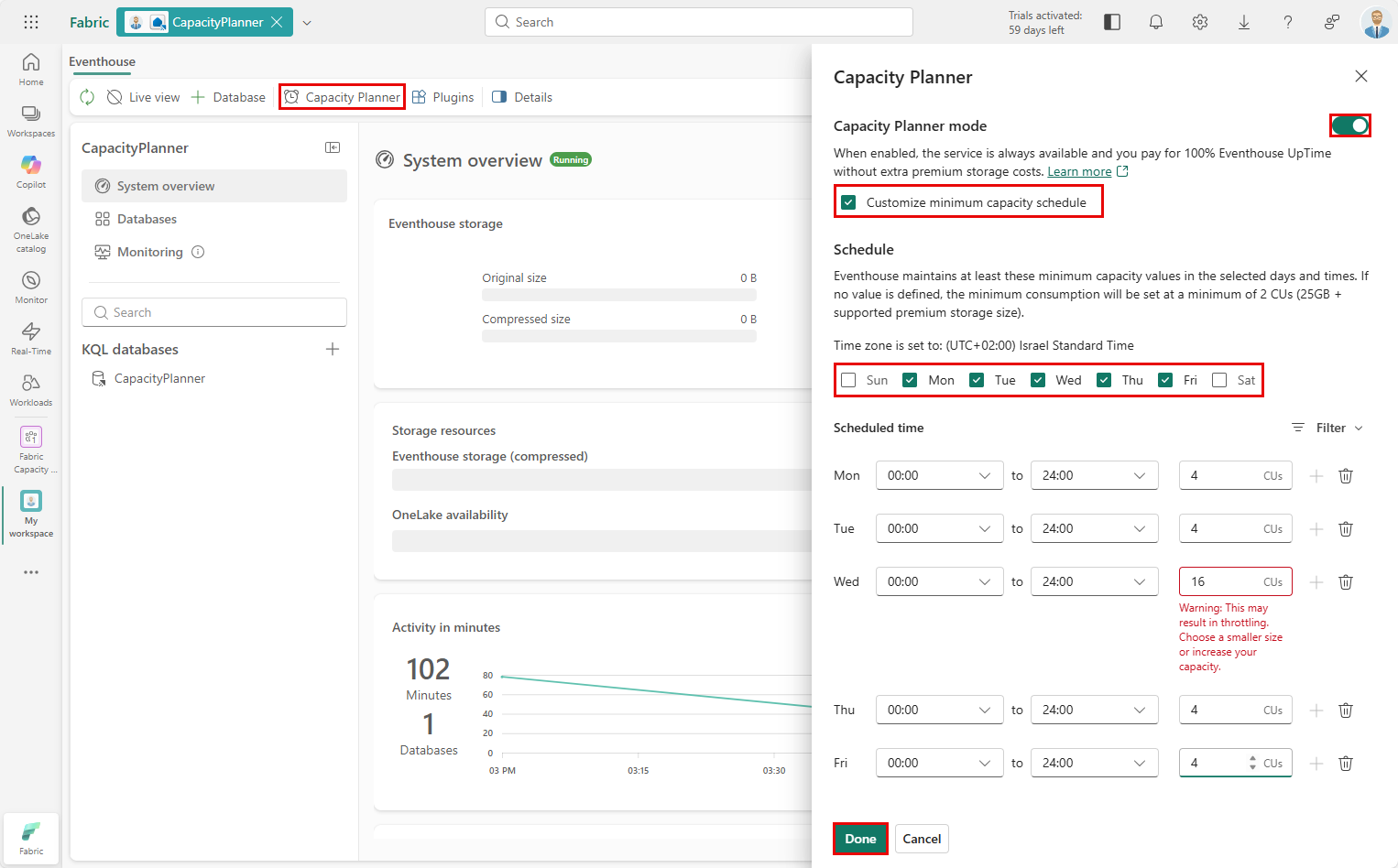
- From the eventhouse ribbon, select Capacity Planner and ensure Capacity Planner mode is enabled.

Note
If you don't continue by scheduling capacity values, the minimum capacity is set at a minimum value of 2 CUs (25 GB of premium storage size).
Schedule minimum capacity
In addition to the always-on Capacity Planner mode, you can further customize a minimum capacity schedule. This schedule sets a minimum available capacity unit (CU) size for an eventhouse using a weekly grid of 60-minute time blocks.
From the eventhouse ribbon, select Capacity Planner and ensure Capacity Planner mode is enabled.
Select the Customize minimum capacity schedule option.
Select the days of the week you want to set a minimum capacity value.
For each selected day, enter a minimum capacity unit (CU) value in the 60-minute block cells on the weekly grid. Each cell corresponds to a one-hour window. Leave a cell empty or select No minimum to let the eventhouse scale freely during that block.
The UI validates your entries at the cell level, ensuring values are within supported ranges.
The higher minimum CU value takes precedence when multiple settings apply to the same time window.
Select Done.
Note
- If you want to ensure a certain minimum capacity starting at a round hour, like 08:00, define the time range to start at the previous hour (07:00) so that the minimum capacity takes effect at the intended time.
- While this feature is in public preview, the minimum capacity takes up to 30 minutes to reach the defined capacity.
Capacity units mapping
Use the following table to determine the appropriate minimum capacity unit (CU) size for your eventhouse based on your expected workload and performance requirements. The minimum CU size you select ensures that your eventhouse has enough resources to handle your workload during the scheduled times. You can also optimize costs by allowing the eventhouse to scale down during periods of low activity.
The table maps storage sizes to minimum capacity units that you can assign to the eventhouse:
| Minimum CUs | SSD capacity (GB) of free storage |
|---|---|
| 2 (default) | 25 |
| 4 | 50 |
| 8 | 200 |
| 12 | 800 |
| 16 | 3500-4000 |
| 24 | 5250-6000 |
| 32 | 7000-8000 |
| 48 | 10500-12000 |
| Custom | ~200/CU (Ex: 100 CU = ~20,000 GB) |
Tip
If you had Always-on enabled with a minimum CU value of 4.25, 8.5, 18, 26, 34, or 50, when you enable Capacity Planner mode the minimum CU value is set to 4, 8, 16, 24, 32, or 48 respectively. If you had a custom minimum CU value that doesn't match the values in the table, when you enable Capacity Planner mode the minimum CU value is set to the closest lower value in the table. For example, if your custom minimum CU value was 10, when you enable Capacity Planner mode the minimum CU value is set to 8.