Note
Access to this page requires authorization. You can try signing in or changing directories.
Access to this page requires authorization. You can try changing directories.
OneLake is a single, unified, logical data lake for Microsoft Fabric to store lakehouses, warehouses, KQL databases, and other items. Shortcuts are embedded references within OneLake that point to other files' store locations without moving the original data. The embedded reference makes it appear as though the files and folders are stored locally but in reality, they exist in another storage location. You can update or remove shortcuts from your items, but these changes don't affect the original data and its source.
In this article, you learn how to create a OneLake shortcut in a KQL database that points to internal Fabric or external sources. You access this kind of shortcut for query in KQL querysets by using the external_table() function. You can't rename shortcuts created in a KQL database, and you can only create one shortcut at a time.
In addition to creating shortcuts from a KQL database, you can also create shortcuts from other Fabric items. These shortcuts also point to data stored in internal Fabric or external sources, but they have different limitations and are accessed differently. For more information, see OneLake shortcuts.
Note
To accelerate queries over OneLake shortcuts, see Accelerate queries over OneLake shortcuts.
Prerequisites
- A workspace with a Microsoft Fabric-enabled capacity.
- A KQL database with editing permissions.
- A Lakehouse.
To access the data in your KQL database in other Microsoft Fabric experiences, see One logical copy.
Create shortcut
Browse to an existing KQL database.
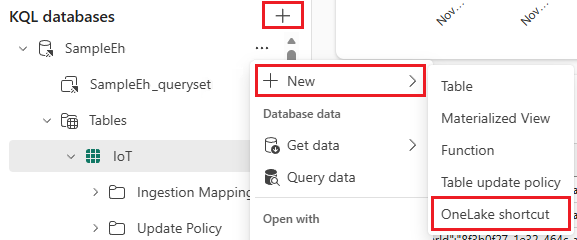
Select + > New > OneLake shortcut.
Select a source
OneLake supports shortcuts to both internal OneLake resources, such as KQL databases, lakehouses, and warehouses, and external resources, such as Azure Data Lake Storage, Amazon S3, or Google Cloud Storage. For a list of all supported shortcut types and links to their specific configuration instructions, see OneLake shortcuts > Types of shortcuts.
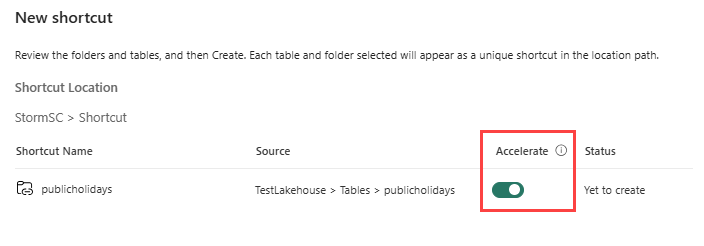
Shortcuts in KQL databases support query acceleration. To enable query acceleration on a new shortcut, toggle the Accelerate button to On.
Note
- You can only connect to one subfolder or table per shortcut. To connect to more data, create additional shortcuts.
- You can't create a shortcut over a table that has an asterisk (
*) in any column name. Rename the columns before creating the shortcut.
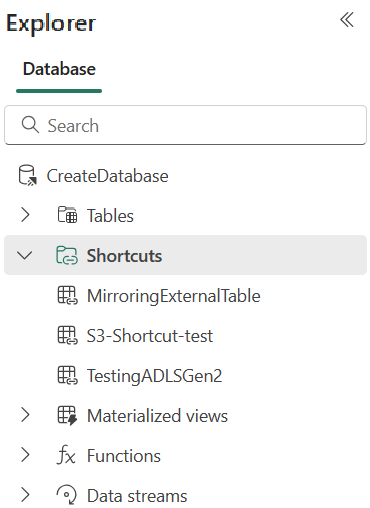
After you create a shortcut, the database refreshes automatically. The shortcut appears under Shortcuts in the Explorer pane. You can now query this data.
Organize shortcuts with folders
To create a subfolder or move to an existing folder:
- In the explorer pane, either:
- Right-click on the shortcut and select Move to folder > + New folder.
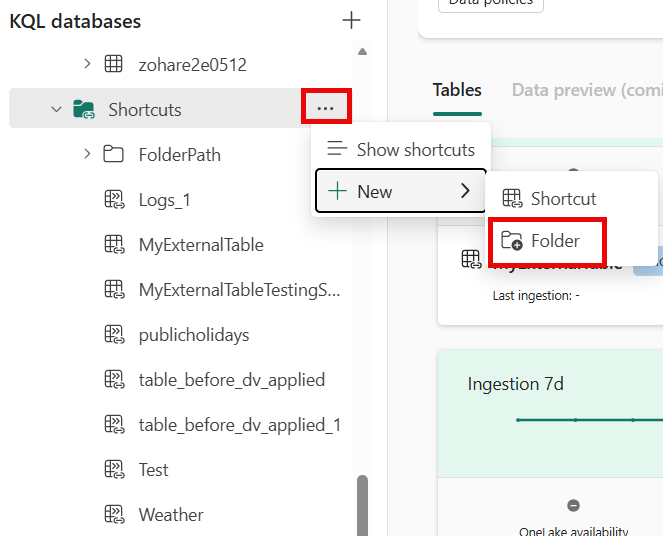
- Or, select the ellipsis (...) next to the specific shortcut and select Move to folder > + New folder or choose an existing folder.
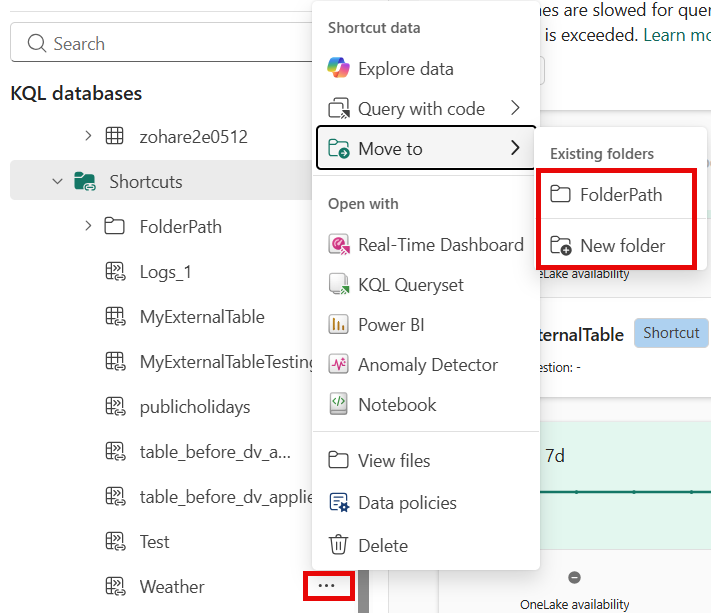
- Right-click on the shortcut and select Move to folder > + New folder.
- To create a folder, enter a name for the folder and select Create. The shortcut is moved to the new folder.
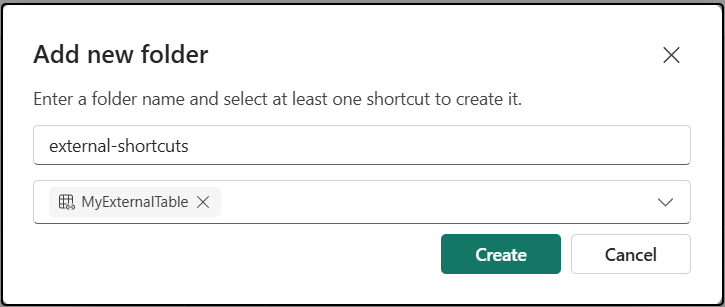
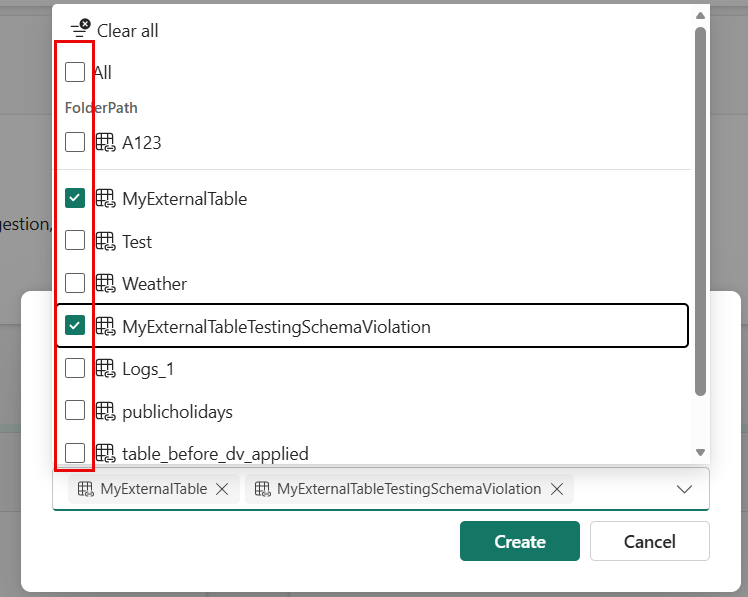
- To move more than one shortcut, either enter another folder name or select the dropdown menu and check the boxes next to the shortcuts you want to move to the same folder.
- You can also move shortcuts to an existing folder. To do so, select Move to folder and then select the folder you want to move the shortcut to, or drag and drop the shortcut into the folder.
Note
- If you delete a subfolder, the shortcuts within the folder aren't deleted but are moved back to the parent folder.
- A subfolder is automatically deleted when there are no shortcuts within the folder.
- Folders can be created per asset type and the name must be unique per asset type. For example, you can have a table folder and a shortcuts folder with the same name, but you can't have two shortcuts folders with the same name.
Query data
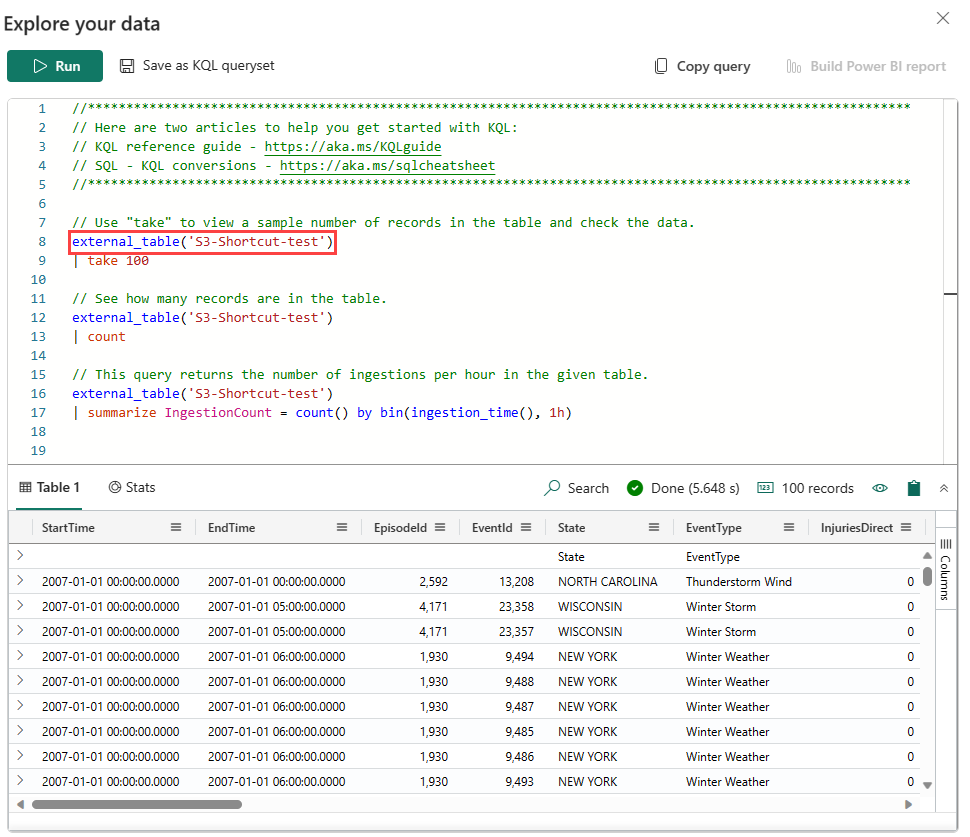
To query data from the OneLake shortcut, use the external_table() function.
- On the rightmost side of your database, select Explore your data. The window opens with a few example queries you can run to get an initial look at your data.
- Replace the table name placeholder with
external_table('Shortcut name'). - Select Run or press Shift + Enter to run a selected query.
Data types mapping
Delta parquet to Eventhouse data types mapping
Delta primitive data types map to Eventhouse scalar data types by using the following rules. For more information on Eventhouse data types, see Scalar data types.
| Delta Type | Eventhouse Scalar Data Type |
|---|---|
string |
string |
long |
long |
integer |
int |
short |
int |
byte |
real |
float |
real |
double |
real |
decimal |
decimal |
boolean |
bool |
binary |
string |
date |
datetime |
timestamp_ntz (without time zone) |
datetime |
struct |
dynamic |
array |
dynamic |
map |
dynamic |