Note
Access to this page requires authorization. You can try signing in or changing directories.
Access to this page requires authorization. You can try changing directories.
You can enable user authentication directly within an agent conversation. You can assign a user's basic properties, such as name and ID, to variables. You can also prompt a user to sign in using an authentication node in a topic, which retrieves a user token, and then use that token to retrieve the user's information from a back-end system.
Note
Agents created in Copilot Studio and in Microsoft Teams are automatically configured for Microsoft Entra ID authentication.
You can also configure single sign-on (SSO) so your users don't need to sign in manually. Learn more in Configure single sign-on with Microsoft Entra ID.
Prerequisites
Add user authentication to a topic to allow your customers to sign in right in the conversation. You can then personalize the conversation with user variables and access back-end systems on the user's behalf.
Configure manual authentication with Microsoft Entra ID
You need to configure user authentication with Microsoft Entra ID before you can use authentication in your topics.
Follow the instructions in Configure user authentication with Microsoft Entra ID.
Add user authentication with the Sign in system topic
When you create an agent, Copilot Studio automatically adds a system topic called Sign in. To use it, you must set your agent's authentication to manual and require users to sign in. When a customer starts a conversation with the agent, the Sign in topic triggers and prompts the user to sign in. You can customize the Sign in topic as appropriate for your agent.
Important
We recommend that the Sign in topic is only used to provide the authentication method provided by Copilot Studio. It shouldn't be modified to call any other actions or flows, or other authentication methods.
- Open your agent in Copilot Studio, select Settings at the top of the page, and then select Security.
- Select Authentication.
- Select Authenticate manually, and then select Require users to sign in.
- Configure all manual authentication fields, as required.
- Select Save.
Add user authentication with a custom topic
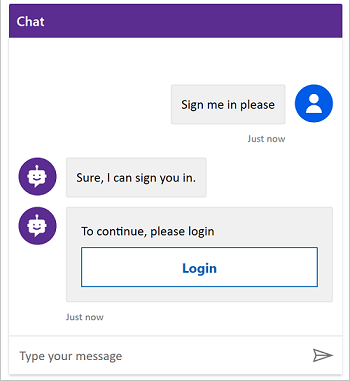
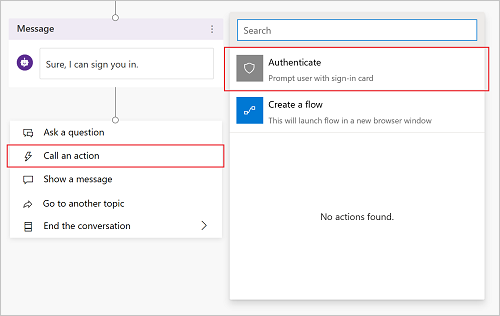
The Sign in topic authenticates the user at the beginning of the conversation. To allow the user to sign in later, you can add an Authenticate node to any custom topic.
When customers enter their user name and password, they might be prompted to enter a validation code. After they sign in, they're not prompted again, even if they reach another Authenticate node.
Select Settings at the top of the page, and then select Security.
Select the Authentication tile.
Note
You must select Authenticate manually to add user authentication to a custom topic.
Select Authenticate manually and clear the Require users to sign in checkbox.
Configure all manual authentication fields, as required.
Select Save.
Select Topics at the top of the page.
Select Add node (
 ) > Advanced > Authenticate.
Test your topic with a user configured with your identity provider.
Tip
It's important that you create paths for both a successful sign-in and failure to sign in. A sign-in might fail for many reasons, including errors with the identity provider's sign-in experience.
Authentication variables
When you configure user authentication for your agent, you can use authentication variables in your topics. The following table compares the availability of these variables based on the authentication option you choose.
| Authentication variable | No authentication | Authenticate with Microsoft | Authenticate manually |
|---|---|---|---|
| User.DisplayName | Not available | Available | Available |
| User.FirstName | Not available | Available | Available |
| User.LastName | Not available | Available | Available |
| User.PrincipalName | Not available | Available | Available |
| User.Email | Not available | Available | Available |
| User.Id | Not available | Available | Available |
| User.IsLoggedIn | Not available | Available | Available |
| User.AccessToken | Not available | Not available | Available |
| SignInReason | Not available | Available | Available |
User.DisplayName
Warning
This variable might not contain a value. Test with a user from your identity provider to ensure your topic works correctly.
The User.DisplayName variable contains the display name stored in the identity provider. Use this variable to greet or refer to the user without their having to explicitly give their name to the agent, making the conversation more personalized.
Copilot Studio automatically sets the value of User.DisplayName from the name claim provided by the identity provider, as long as the profile scope is defined when manual authentication is configured. Learn more in Configure user authentication with Microsoft Entra ID.
User.Id
Warning
This variable might not contain a value. Test with a user from your identity provider to ensure your topic works correctly.
The User.Id variable contains the user ID stored in the identity provider. Use this variable in Power Automate flows to call APIs that take the UserID as a value.
Copilot Studio automatically sets the value of User.DisplayName from the sub claim provided by the identity provider.
User.IsLoggedIn
User.IsLoggedIn is a Boolean variable that stores the user's sign-in status. A value of true indicates the user is signed in. You can use this variable to create branching logic in your topics that checks for a successful sign-in, or to fetch user information only if the user is signed in.
User.AccessToken
Warning
Make sure you pass the User.AccessToken variable only to trusted sources. It contains user authentication information, which, if compromised, could harm the user.
The User.AccessToken variable contains the user's token, obtained after the user signs in. You can pass this variable to Power Automate flows so they can connect to back-end APIs and fetch user information, or take actions on the user's behalf.
Don't use User.AccessToken in Message nodes or in flows that you don't trust.
SignInReason
SignInReason is a choice-type variable that indicates when the user must sign in. It has two possible values:
SignInRequiredindicates the user must sign in at the beginning of the conversation by using the Sign in system topic. Require users to sign in must be turned on.Initializerindicates that when a user isn't signed in, and they reach a point in the conversation that uses authentication variables, they're prompted to sign in.