Note
Access to this page requires authorization. You can try signing in or changing directories.
Access to this page requires authorization. You can try changing directories.
This article shows you how to use the Set-ToolsRepo run command from end to end, how to download and host the correct GuestStore version of the VMware Tools ZIP file, and how to validate success.
When to use the Set-ToolsRepo run command
Use the Set-ToolsRepo run command when you want to:
- Make a specific VMware Tools version available for installation and upgrade of VM guest tools in an Azure VMware Solution private cloud.
- Centrally publish the GuestStore version of the VMware Tools ZIP file to the vSAN central location for VMware Tools so that all relevant hosts can reference the package.
Prerequisites
- A publicly accessible HTTP or HTTPS URL that points to the GuestStore version of your VMware Tools ZIP file. The URL must be reachable from the execution environment for Azure VMware Solution run commands.
- Permission to execute Azure VMware Solution run command packages in the Azure portal for the target private cloud.
Expected ZIP content
The ZIP file that you upload must:
- Include a VMware Tools payload directory in the expected layout.
- Contain the versioned folder under the
vmware/apps/vmtools/windows64/vmtools-<version>/section. The folder name must follow the formatvmtools-<version>(for example,vmtools-12.4.0).
-Validate option
The -Validate option enables a read-only audit mode for the VMware Tools repository. When you specify this option, Set-ToolsRepo inspects the current datastore metadata files without making any changes to your environment.
When to use the -Validate option
- Before you run
Set-ToolsRepo, as a baseline check - After you run
Set-ToolsRepo, to confirm that everything is in sync - If you suspect a repository or sync problem and you want a quick read-only check
What the -Validate option checks
- Identifies all vSAN datastores in the Software-Defined Data Center (SDDC)
- Reads repository metadata (
top-level-metadata.jsonandversion-metadata.json) - Verifies that the metadata and datastore state are consistent and synchronized
Results of the -Validate option
PASS: Versions match and datastores are in sync.FAIL: A mismatch or inconsistency is detected.
Common -Validate option failures
- Metadata mismatch: Rerun
Set-ToolsRepowith a valid VMware Tools ZIP URL (without the-Validateoption) to redeploy or repair the repository. Then runSet-ToolsRepo -Validateto confirm that the metadata is in sync. - GuestStore path not found: The repository might be missing or inaccessible. Deploy or reinitialize by running
Set-ToolsRepowith a valid ZIP URL (without the-Validateoption). Then runSet-ToolsRepo -Validateto verify that the repository is present and synchronized.
VMware Tools ZIP URL
The Set-ToolsRepo run command accepts a publicly accessible HTTP or HTTPS URL to the GuestStore version of the VMware Tools ZIP file that will be published to the vSAN central location for VMware Tools.
Before the command makes any changes, validation of these items occurs:
- The URL uses HTTP or HTTPS and is a direct download link.
- The file is reachable without interactive authentication and can be downloaded end to end.
End-to-end workflow
Download the required VMware Tools version.
Get the GuestStore version of the VMware Tools ZIP file for the specific version that you want to publish to the vSAN central location for VMware Tools.
Host the ZIP at a publicly accessible HTTP or HTTPS URL. For example, use any web server or object storage that can serve the file without interactive authentication.
Then, provide that direct download URL for use with the run command.
Important
The URL must be a direct download link and be reachable without interactive authentication so that the run command can retrieve the ZIP file.
Execute the Azure VMware Solution
Set-ToolsReporun command. Provide the ZIP URL from step 2.When the command finishes, its output indicates success or provides an error message.
The VMware Tools package is published.
The requested version is available from the vSAN central location for VMware Tools for the private cloud.
Hosts are configured to use the vSAN repository.
As part of the run command, the relevant ESXi hosts in the private cloud are updated to use the vSAN central location as the VMware Tools source.
Validation
After successful execution of the Set-ToolsRepo run command, follow these validation steps:
Go to your vCenter client and browse the vSAN datastore. Confirm that the version folder exists under
GuestStore/vmware/apps/vmtools/windows64/.Confirm that the correct VMware Tools version is available to install or upgrade from within a guest test virtual machine (VM).
If any problems occur with VMware Tools after a successful run command operation, capture the command's output and open a support request.
Troubleshooting
If the run command fails, the most common customer-side causes are:
- The URL isn't publicly reachable as a direct download link.
- The ZIP file doesn't contain the expected folder structure.
Use the error message along with the following troubleshooting steps.
URL or download problems
- URL not reachable or failed download. Confirm that the URL opens from an external network and is a direct download link. Also confirm that the URL doesn't require sign-in, multifactor authentication, or time-limited tokens.
- TLS/SSL error. Ensure that the HTTPS endpoint supports modern TLS and presents a valid certificate.
ZIP structure problems
- Expected folder not found. Ensure that the ZIP file contains
vmware/apps/vmtools/windows64/vmtools-<version>(including the leadingvmware/directory). - Multiple versions in one ZIP file. Host a ZIP file that contains only the single version that you intend to publish, with one
vmtools-<version>folder.
Datastore problems
- Service-side publishing or configuration error. If the URL and ZIP structure are correct but the run command still fails, capture the command's full output and open a support request.
- Intermittent failures. Retry the run command after you confirm that the ZIP URL is still valid and reachable.
VMware Tools upgrade option is unavailable and not on the current version
The VMware Tools Install or Upgrade option might be available (appear dimmed) for virtual machines in vCenter. This situation can occur when the VMware Tools repository metadata in the vSAN datastore is inconsistent or incorrect.
For resolution, use the following procedures.
Check repository metadata in GuestStore
Go to vSAN Datastore > GuestStore > vmware > apps > vmtools > windows64.
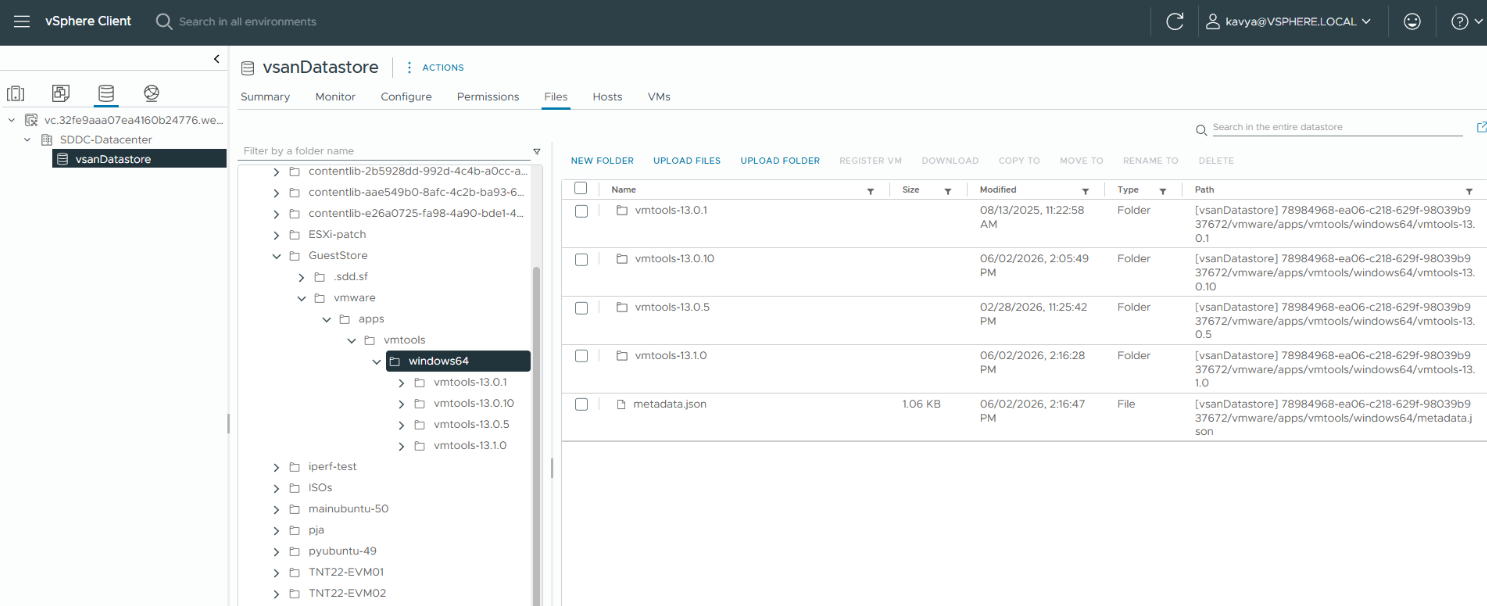
Verify the following files:
Top-level metadata:
windows64/metadata.json.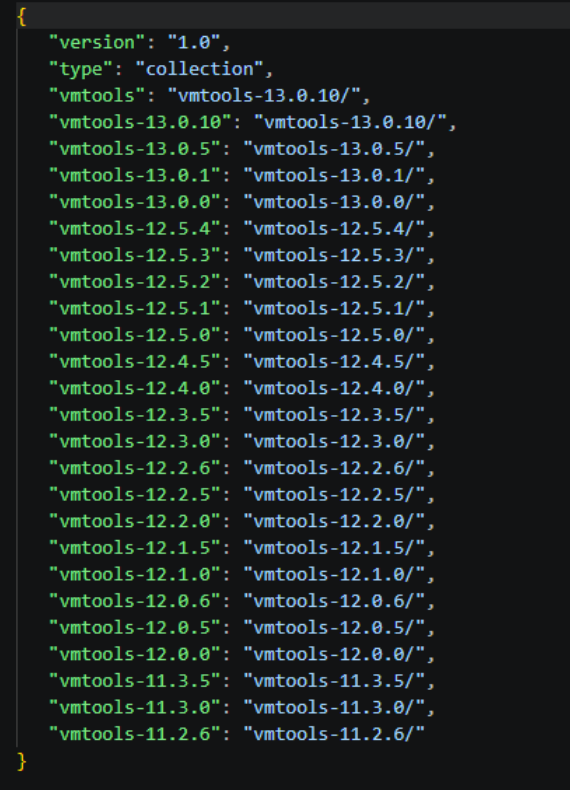
Version-specific metadata:
windows64/vmtools-<version>/metadata.json.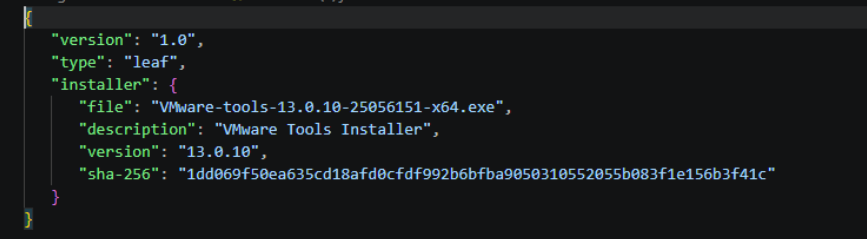
Validate metadata consistency
The top-level metadata.json file and version-specific metadata.json file should:
- Match the same VMware Tools version.
- Be consistent with each other (as shown in reference screenshots).
If they match, the metadata is consistent. If they don't match, the metadata is inconsistent.
Fix metadata mismatch (if identified)
If the top-level file is incorrect:
Delete
windows64/metadata.json(for example,vSAN Datastore/GuestStore/vmware/apps/vmtools/windows64/metadata.json).Upload the correct
windows64/metadata.jsonfile from the highest VMware Tools package that you uploaded.
If the version-specific file is incorrect:
Delete
windows64/vmtools-<version>/metadata.json(for example,vSAN Datastore/GuestStore/vmware/apps/vmtools/windows64/vmtools-<version>/metadata.json).Upload the correct
windows64/vmtools-<version>/metadata.jsonfile from the highest VMware Tools package that you uploaded.
Also ensure that both metadata files match the VMware Tools version.
Wait for host refresh
Allow time for the change to propagate across hosts. It can take up to 24 hours.
Verify the resolution
Recheck the VM in vCenter. The VMware Tools Install or Upgrade option should now be available.
Confirm consistency (optional)
Run Set-ToolsRepo -Validate to confirm metadata consistency.
Related content
- To learn more about run commands, see Use run commands.