Note
Access to this page requires authorization. You can try signing in or changing directories.
Access to this page requires authorization. You can try changing directories.
Microsoft Defender for Cloud integrates with ServiceNow IT Service Management (ITSM). This integration lets you connect your Defender for Cloud account to ServiceNow. You can use ServiceNow workflows to manage recommendations and prioritize remediation work. You can also create and view ServiceNow tickets for recommendations directly from Defender for Cloud.
Prerequisites
Have an application registry configured in ServiceNow. For setup steps, see How to create a ServiceNow API key and secret.
Enable Defender Cloud Security Posture Management (CSPM) on your Azure subscription. For setup steps, see Enable Defender CSPM.
To create the integration, you must have one of these roles: Security Admin, Contributor, or Owner.
To create ServiceNow tickets for recommendations on Amazon Web Services (AWS) or Google Cloud Platform (GCP) resources, configure the ServiceNow integration at the connector level. An integration that is scoped only to an Azure subscription doesn't apply to non-Azure resources.
Connect a ServiceNow account to Defender for Cloud
To connect a ServiceNow account to a Defender for Cloud account:
Sign in to the Azure portal at portal.azure.com.
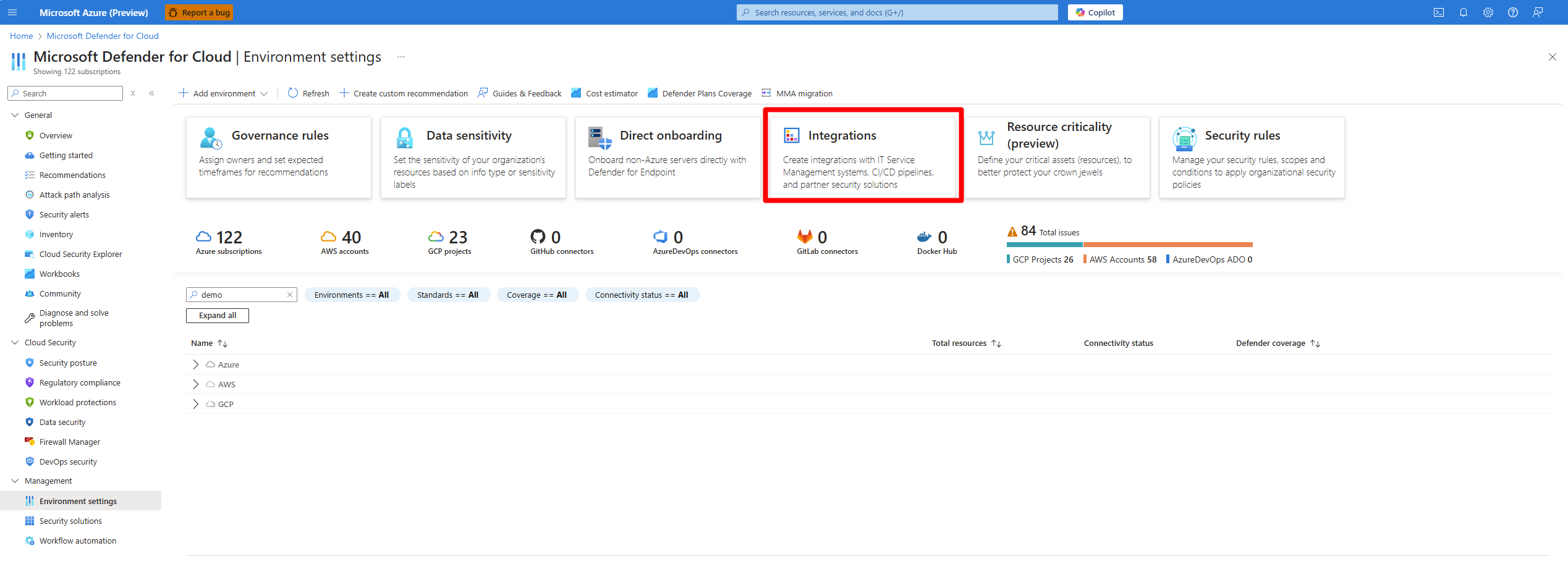
Navigate to Microsoft Defender for Cloud > Environment settings.
Select Integrations.
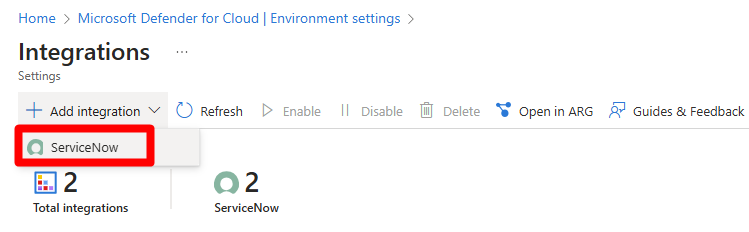
Select Add integration > ServiceNow.
Enter a name and select the scope.
Enter the instance URL, User name, Password, Client ID, and client secret from the application registry that you created in the ServiceNow portal.
Select Next.
Select Incident data, Problems data, and Changes table from the drop-down menus.
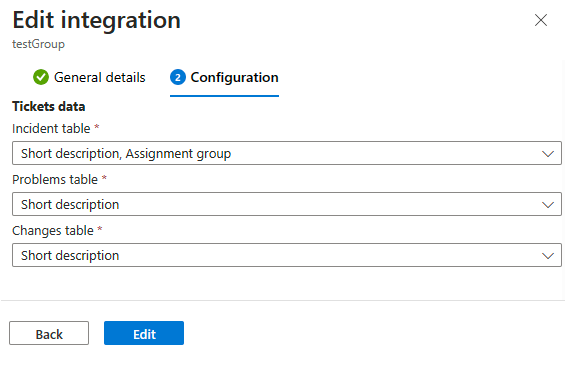
Select Save.
After you save the integration, a success notice appears.