Note
Access to this page requires authorization. You can try signing in or changing directories.
Access to this page requires authorization. You can try changing directories.
Microsoft Defender for Containers connects to your Docker Hub organization to assess vulnerabilities in container images.
To connect Docker Hub to Defender for Containers, you need to:
- Create a dedicated user in your Docker Hub organization with access to all organization registries.
- Generate an access token for the Docker Hub dedicated user.
- Supply the Docker Hub dedicated user name and access token when configuring the Defender for Cloud Docker Hub connector.
Before you begin
Make sure you have these prerequisites:
- You own a Docker Hub organization account and have permissions to create and manage users at the organization scope.
- You created a dedicated user with your organization email account (for example,
mdc_user@contoso.com) for Defender for Cloud connectivity only.
Create a user in Docker Hub
To create a user in Docker Hub:
Verify that you can create and manage users in your Docker Hub organization.
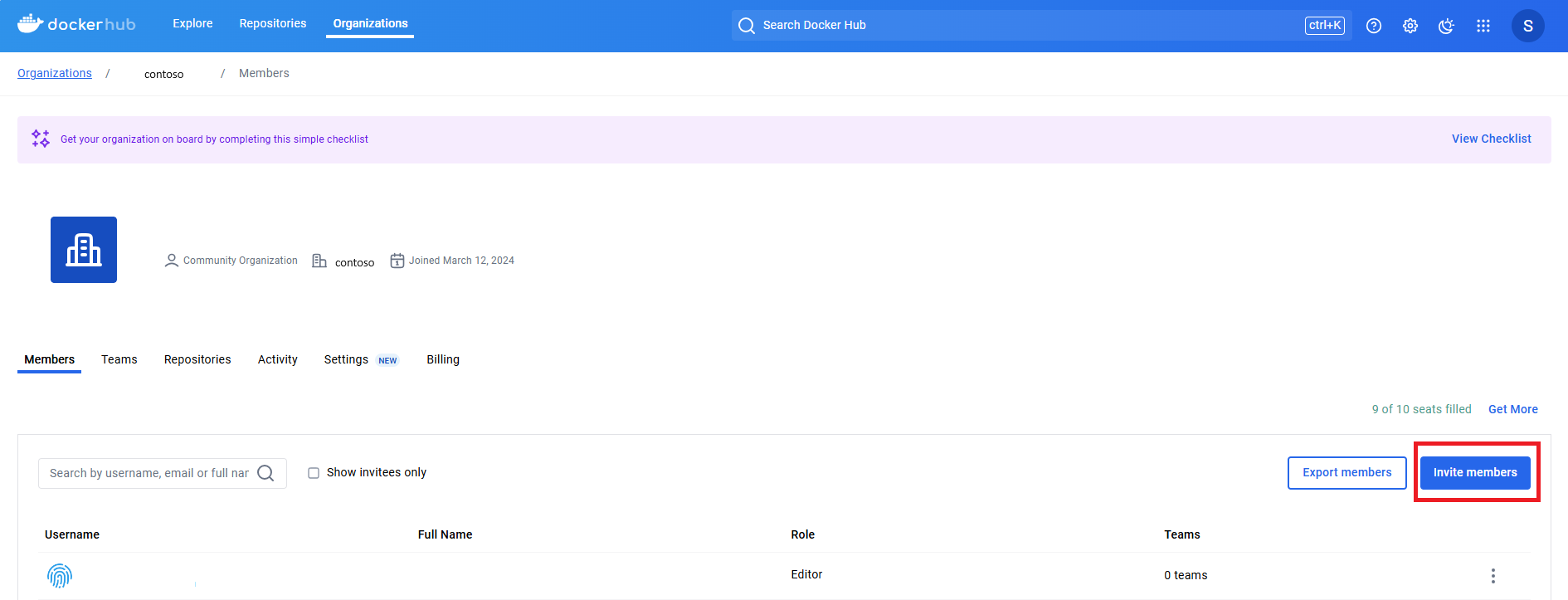
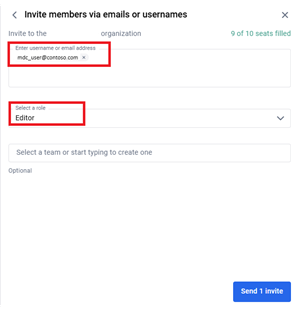
Invite the dedicated user via email to access all repositories in your organization as an "Editor".
Note
While the Editor privilege allows a user to modify Docker Hub registries, the access token created will allow Defender for Cloud read-only access.
An email is sent to the dedicated user with a link to verify the email address. Select the verify link in the email and complete the process of creating a Docker Hub dedicated user.

Create an access token for the dedicated Docker Hub user
To create an access token for the dedicated Docker Hub user:
- Sign in to Docker Hub as the dedicated user.
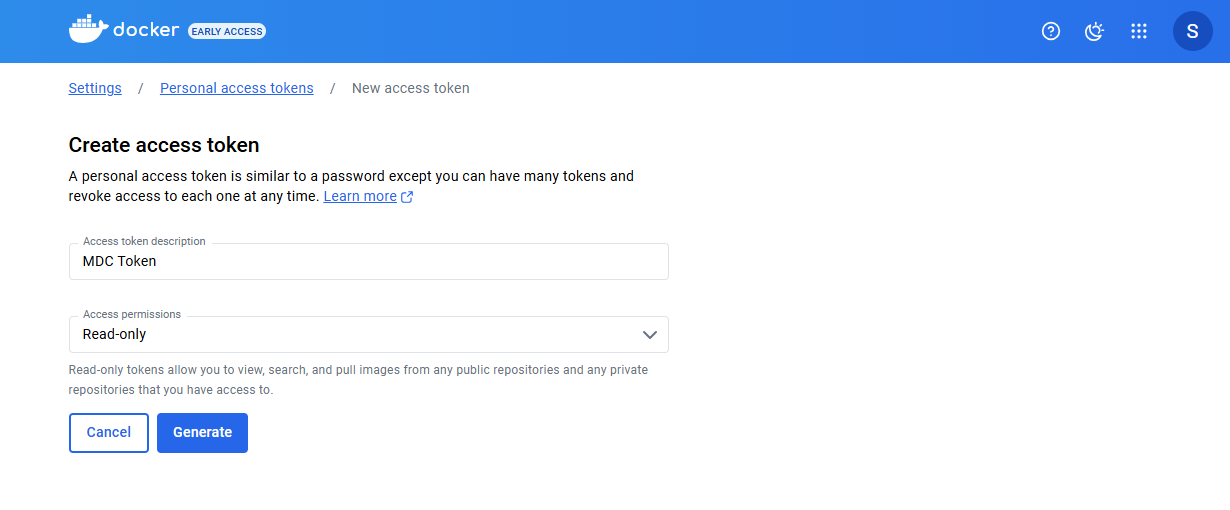
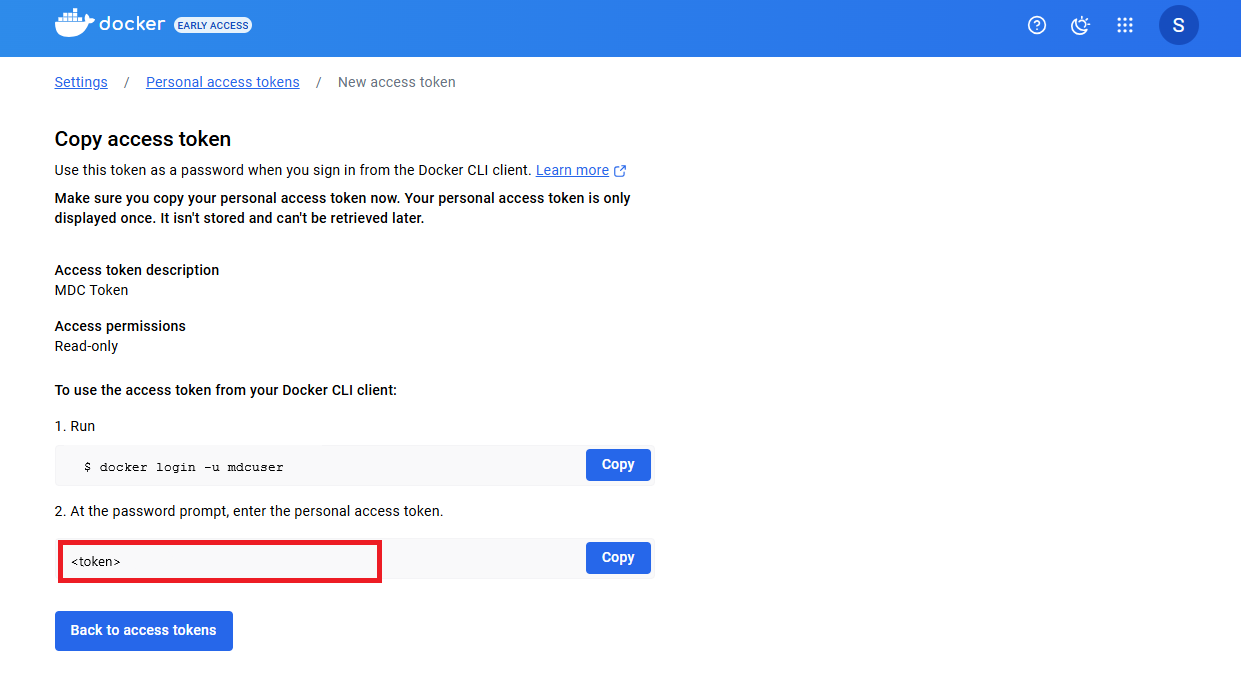
- Generate an access token with Read-Only permissions.
- Save the access token and the Docker Hub user name for later use.
- Continue with configure the Defender for Cloud Docker Hub connector.