Note
Access to this page requires authorization. You can try signing in or changing directories.
Access to this page requires authorization. You can try changing directories.
Use this article to understand how vulnerability assessment works for SQL servers on machines, review scan findings, and manage baselines and disable rules.
Vulnerability assessment for SQL servers on machines
Microsoft Defender for SQL servers on machines extends protection for your Azure-native SQL servers to support hybrid environments and protect SQL servers (all supported versions) hosted in Azure, other cloud environments, and on-premises machines:
- SQL Server on Virtual Machines
- On-premises SQL servers:
The integrated vulnerability assessment scanner discovers, tracks, and helps you remediate potential database vulnerabilities. Scan findings provide an overview of your SQL machines' security state and details about security findings.
Note
- The scan is lightweight, safe, takes only a few seconds per database, and is entirely read-only. It does not make any changes to your database.
- Execute permissions on the following stored procedures are required for some of the vulnerability assessment rules to run correctly: xp_instance_regread, sysmail_help_profile_sp.
Explore vulnerability assessment reports
The vulnerability assessment service scans your databases every 12 hours.
The vulnerability assessment dashboard provides an overview of assessment results across all your databases. It also summarizes healthy and unhealthy databases and failing checks by risk distribution.
You can view the vulnerability assessment results directly from Defender for Cloud.
From Defender for Cloud's sidebar, open the Recommendations page.
Select the recommendation SQL servers on machines should have vulnerability findings resolved. For more information, see the Defender for Cloud recommendations reference page.
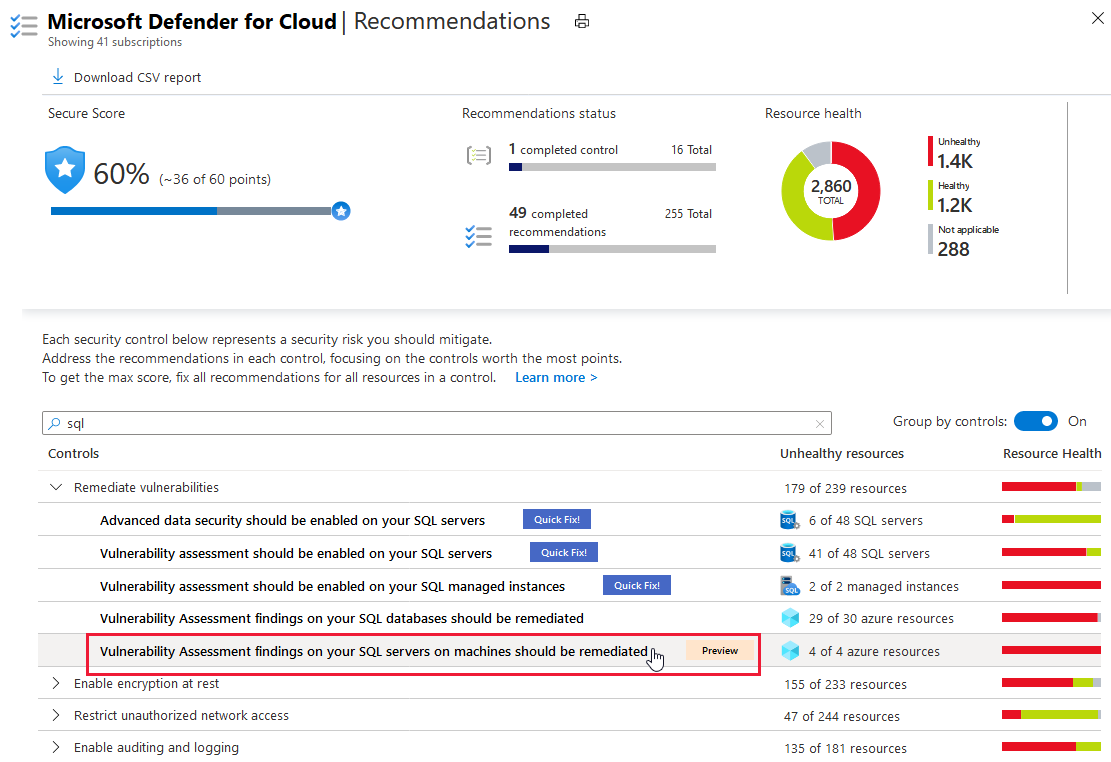
The detailed view for the SQL servers vulnerability recommendation appears.
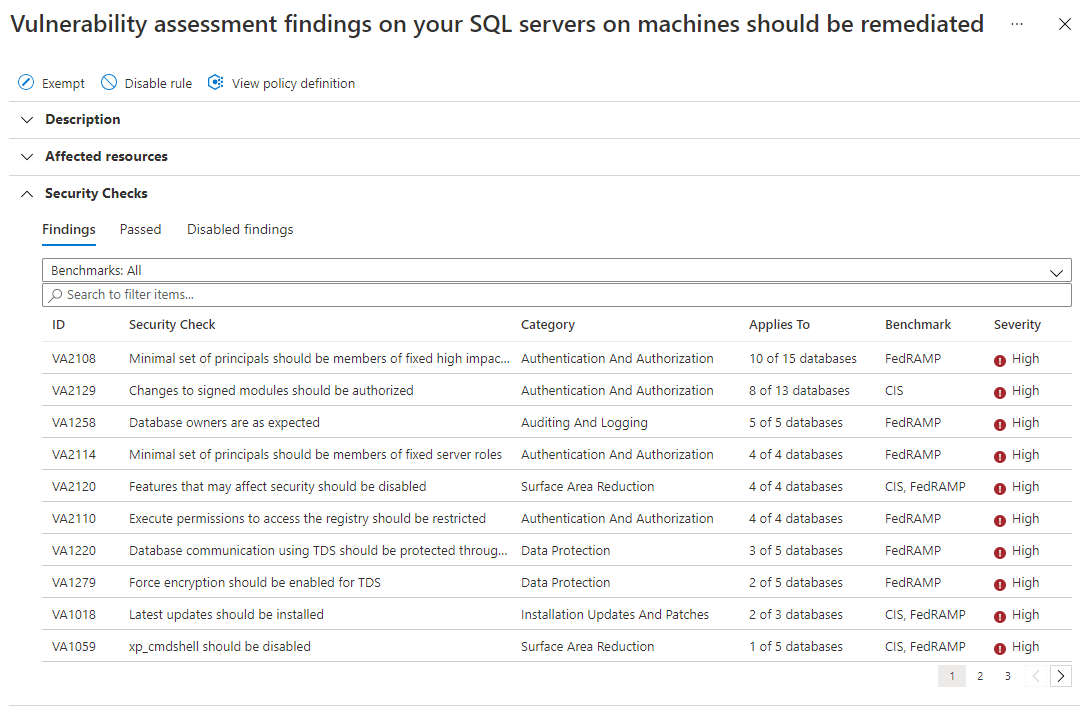
Check out additional information about the recommendation:
For an overview of scanned resources (databases) and the list of security checks that were tested, open the Affected resources and select the server of interest.
For an overview of the vulnerabilities grouped by a specific SQL database, select the database of interest.
In each view, the security checks are sorted by Severity. Select a specific security check to see a details pane with a Description, how to Remediate it, and other related information such as Impact or Benchmark.
Set a baseline
As you review SQL vulnerability assessment results, you can mark specific findings as an acceptable baseline in your environment. A baseline customizes how results are reported. Results that match the baseline are considered passing in later scans. After you establish a baseline security state, the vulnerability assessment scanner reports only deviations from that baseline so you can focus on relevant issues.
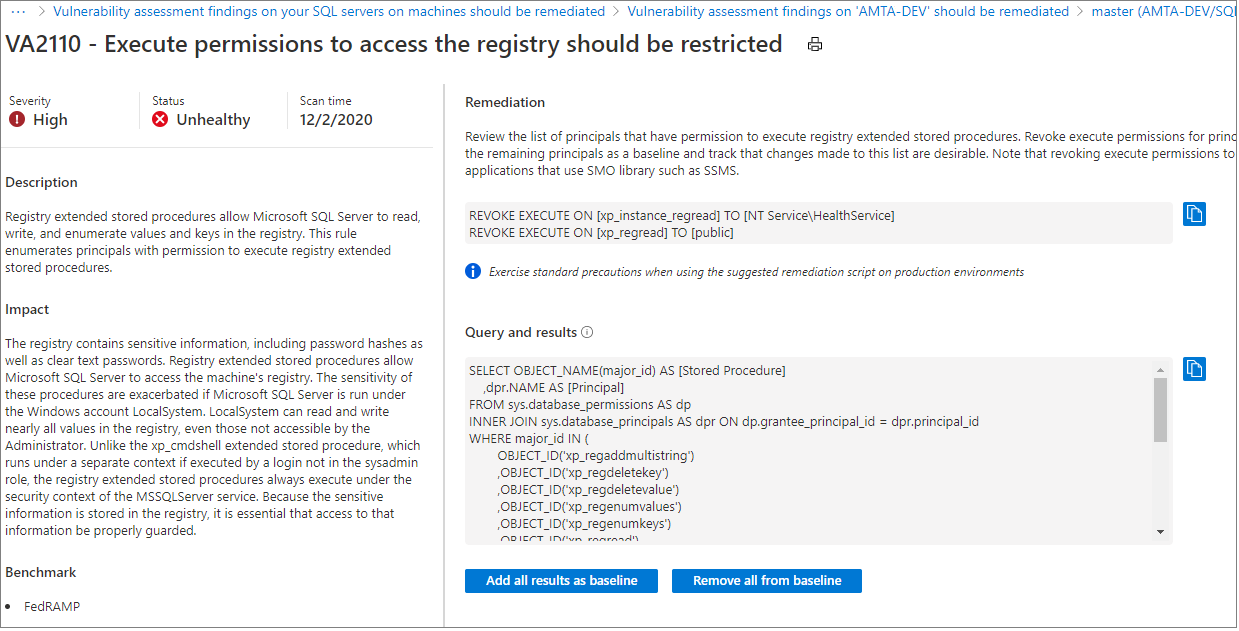
Export results
Use the Continuous export feature of Microsoft Defender for Cloud to export vulnerability assessment findings to Azure Event Hubs or Log Analytics workspace.
View vulnerabilities in graphical, interactive reports
Defender for Cloud's integrated Azure Monitor Workbooks gallery includes an interactive report of findings from vulnerability scanners for machines, containers in container registries, and SQL servers.
Findings for each of these scanners are reported in separate recommendations:
- Machines should have vulnerability findings resolved
- Container registry images should have vulnerability findings resolved (powered by Qualys)
- SQL databases should have vulnerability findings resolved
- SQL servers on machines should have vulnerability findings resolved
The Vulnerability Assessment Findings report gathers these findings and organizes them by severity, resource type, and category. You can find this report in the workbooks gallery from Defender for Cloud's sidebar.
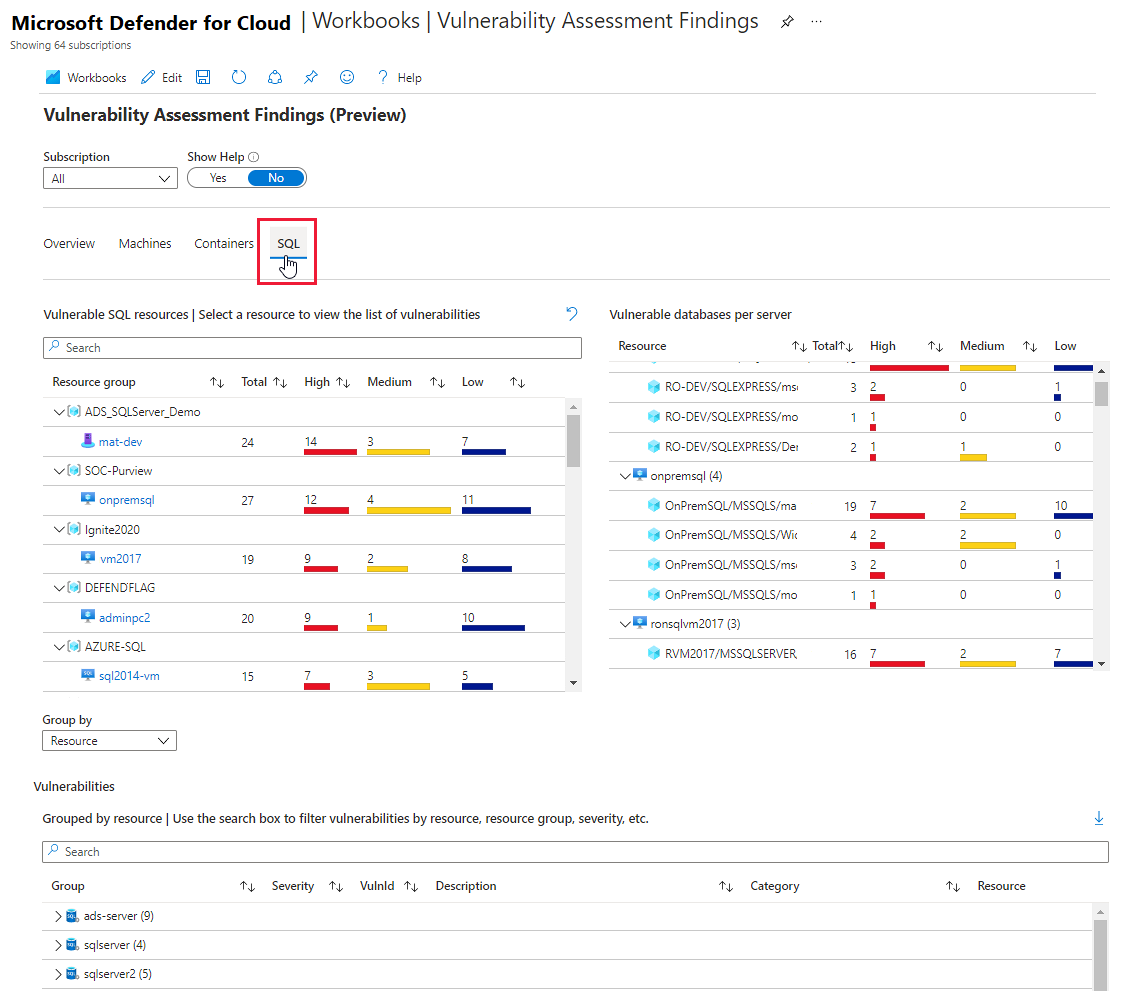
Disable specific findings
If you need to ignore a finding rather than remediate it, you can optionally disable it. Disabled findings don't impact your secure score or generate unwanted noise.
When a finding matches the criteria you've defined in your disable rules, it won't appear in the list of findings. Typical scenarios include:
- Disable findings with severity below medium
- Disable findings that are non-patchable
- Disable findings from benchmarks that aren't of interest for a defined scope
Important
To disable specific findings, you need permission to edit a policy in Azure Policy. Learn more in Azure RBAC permissions in Azure Policy.
To create a rule:
From the recommendations detail page for SQL servers on machines should have vulnerability findings resolved, select Disable rule.
Select the relevant scope.
Define your criteria. You can use any of the following criteria:
- Finding ID
- Severity
- Benchmarks
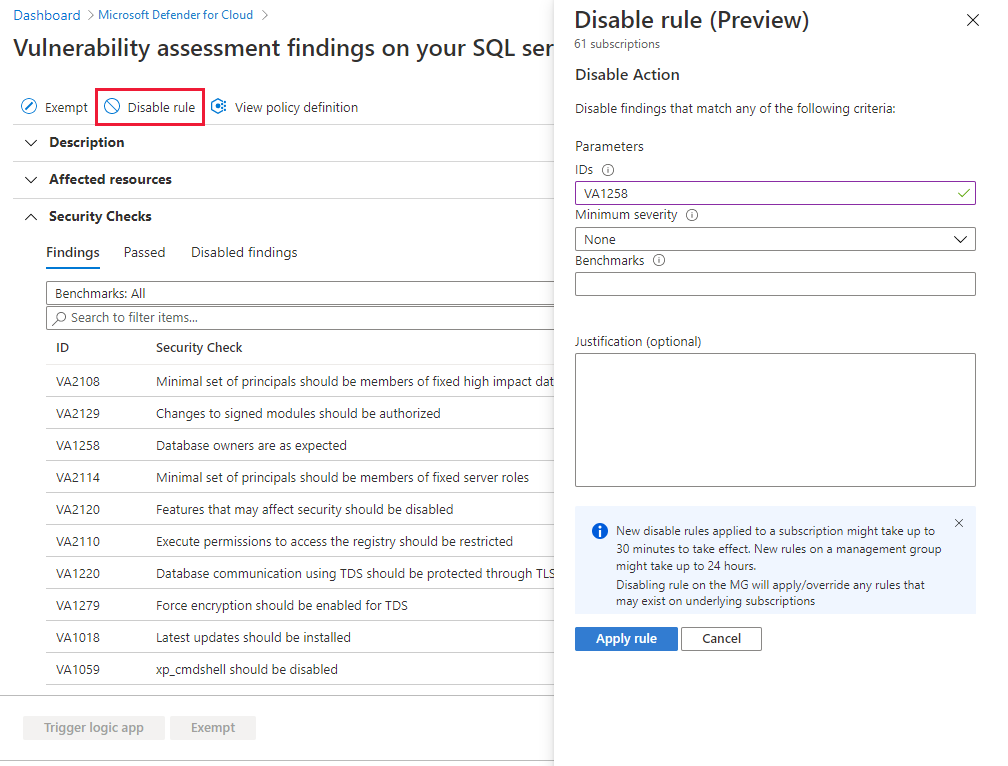
Select Apply rule. Changes might take up to 24 hours to take effect.
To view, override, or delete a rule:
Select Disable rule.
From the scope list, subscriptions with active rules show as Rule applied.
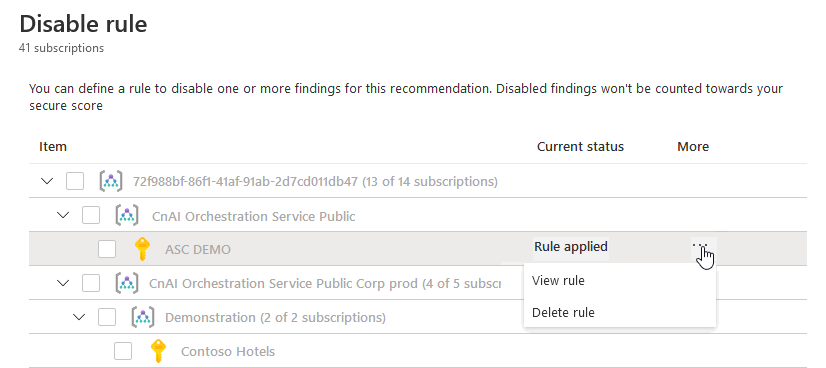
To view or delete the rule, select the ellipsis menu ("...").
Manage vulnerability assessments programmatically
You can manage vulnerability assessments programmatically by using Azure PowerShell cmdlets.
Use Azure PowerShell
You can use Azure PowerShell cmdlets to programmatically manage your vulnerability assessments. The supported cmdlets are:
| Cmdlet name as a link | Description |
|---|---|
| Add-AzSecuritySqlVulnerabilityAssessmentBaseline | Add SQL Vulnerability Assessment baseline. |
| Get-AzSecuritySqlVulnerabilityAssessmentBaseline | Get SQL Vulnerability Assessment baseline. |
| Get-AzSecuritySqlVulnerabilityAssessmentScanResult | Gets SQL Vulnerability Assessment scan results. |
| Get-AzSecuritySqlVulnerabilityAssessmentScanRecord | Gets SQL Vulnerability Assessment scan records. |
| Remove-AzSecuritySqlVulnerabilityAssessmentBaseline | Removes SQL Vulnerability Assessment baseline. |
| Set-AzSecuritySqlVulnerabilityAssessmentBaseline | Sets new SQL Vulnerability Assessment baseline on a specific database discards old baseline if any exists. |
Data residency
Note
Changing the Defender for SQL on Machines plan's Log Analytics workspace resets scan results and baseline settings. If you revert to the original Log Analytics workspace within 90 days, scan results and baseline settings are available again.
SQL Vulnerability Assessment queries the SQL server by using publicly available queries from Defender for Cloud recommendations for SQL Vulnerability Assessment and stores query results. SQL Vulnerability Assessment data is stored in the location of the Log Analytics workspace that the machine is connected to. For example, if you connect a SQL virtual machine to a Log Analytics workspace in West Europe, the results are stored in West Europe. This data is collected only when SQL Vulnerability Assessment is enabled on the Log Analytics workspace.
Metadata information about the connected machine is also collected, specifically:
- Operating system name, type, and version
- Computer fully qualified domain name (FQDN)
- Connected Machine agent version
- UUID (BIOS ID)
- SQL server name and underlying database names
You can specify the region where SQL Vulnerability Assessment data is stored by choosing the Log Analytics workspace location. Microsoft might replicate data to other regions for resiliency, but it doesn't replicate data outside the geography.