Note
Access to this page requires authorization. You can try signing in or changing directories.
Access to this page requires authorization. You can try changing directories.
This article shows you how to find internet-exposed IP addresses in Microsoft Defender for Cloud. You learn how to use cloud security explorer and attack path analysis to find and prioritize risk.
Microsoft Defender for Cloud integrates with Defender External Attack Surface Management (Defender EASM). In cloud security explorer, this capability appears as Defender EASM (DEASM) findings. This integration provides recommendations and attack path visualizations that help reduce risk.
Prerequisites
Before you begin, make sure that you meet the following requirements:
You need a Microsoft Azure subscription. If you don't have an Azure subscription, you can sign up for a free subscription.
You must enable the Defender cloud security posture management (Defender CSPM) plan.
Detect internet exposed IP addresses with the cloud security explorer
Use cloud security explorer to build queries, such as outside-in scans, that detect internet-exposed IP addresses in your environment.
Sign in to the Azure portal.
Search for and select Microsoft Defender for Cloud > Cloud security explorer.
In the dropdown menu, search for and select IP addresses.
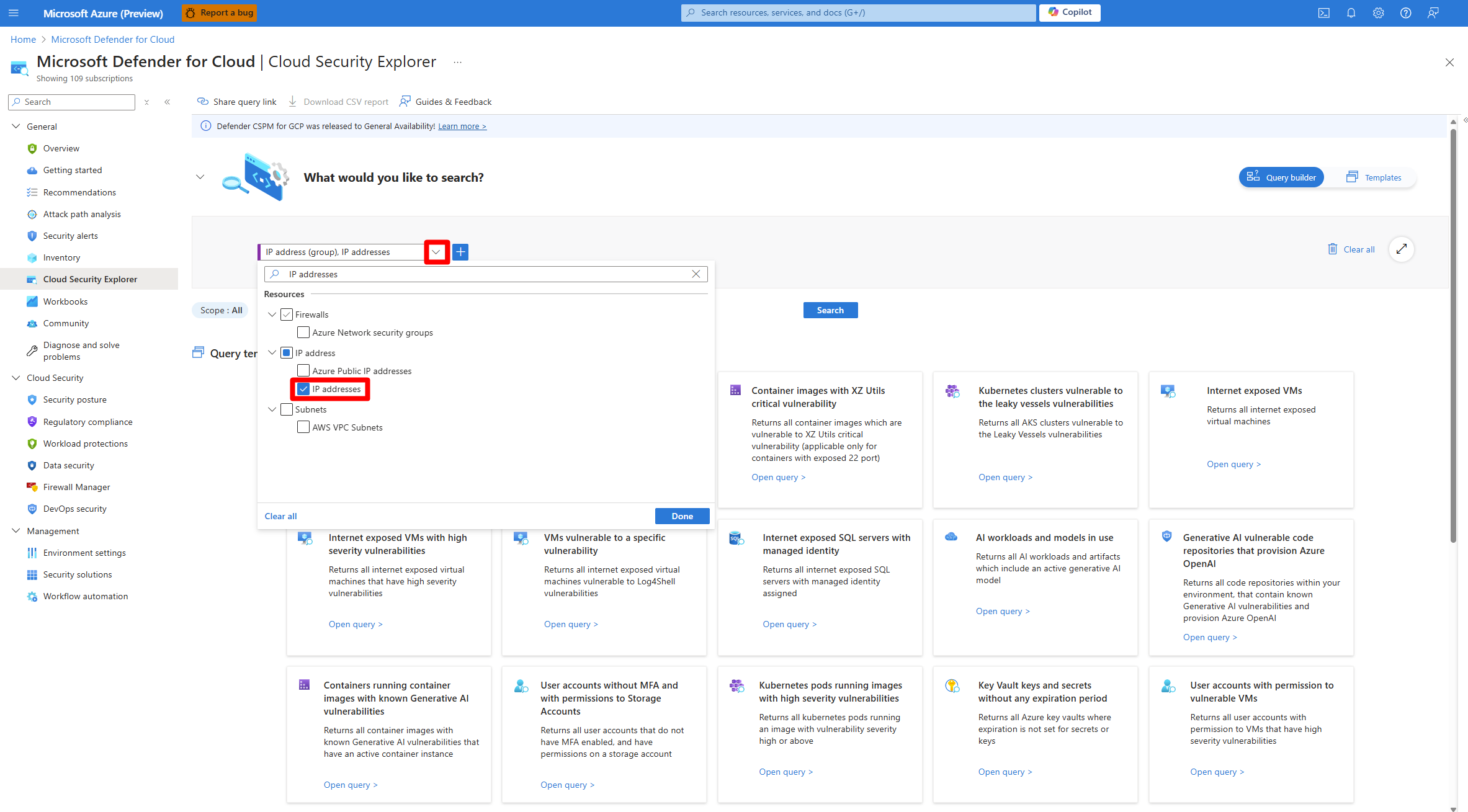
Select Done.
Select +.
In the select condition dropdown menu, select DEASM Findings.
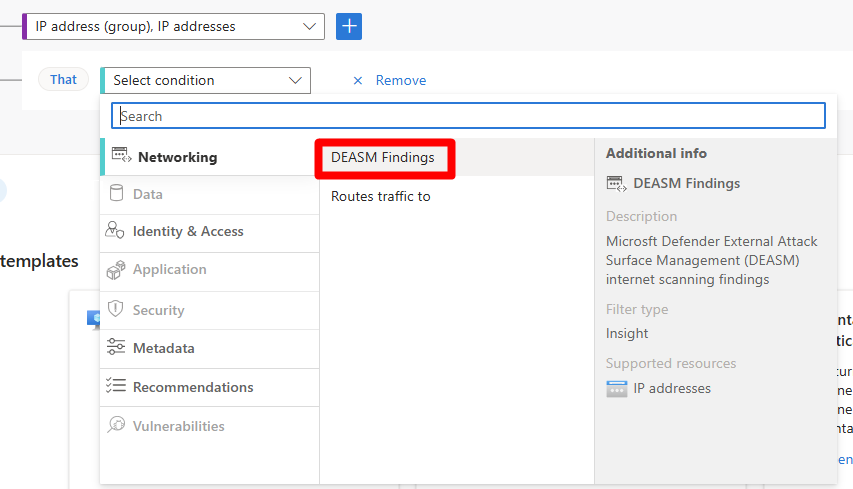
Select the + button.
In the select condition dropdown menu, select Routes traffic to.
In the select resource type dropdown menu, select Select all.
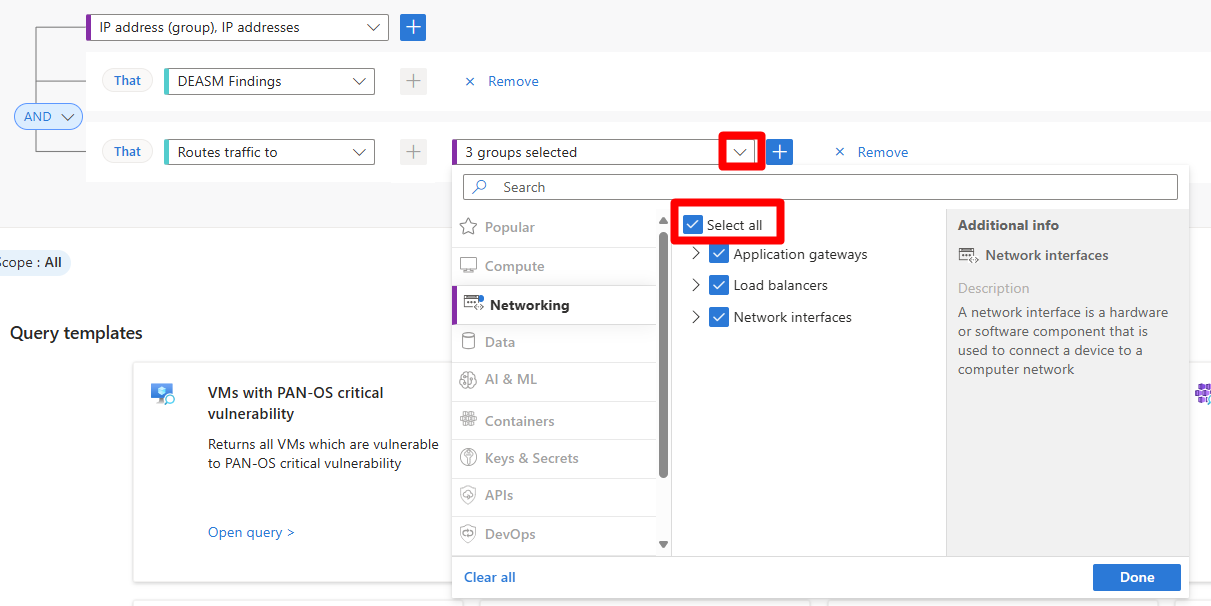
Select Done.
Select the + button.
In the select condition dropdown menu, select Routes traffic to.
In the select resource type dropdown menu, select Virtual machine.
Select Done.
Select Search.
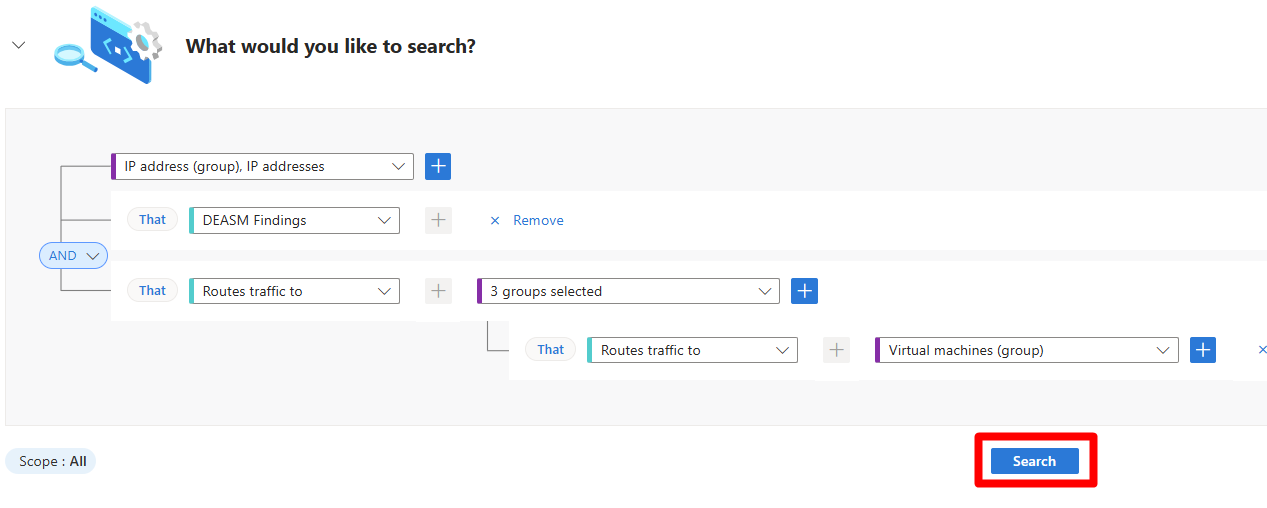
Select a result to review the findings.
Detect exposed IP addresses with attack path analysis
Use attack path analysis to view paths that an attacker could use to reach critical assets.
Sign in to the Azure portal.
Search for and select Microsoft Defender for Cloud > Attack path analysis.
Search for Internet exposed.
Review and select a result.