Note
Access to this page requires authorization. You can try signing in or changing directories.
Access to this page requires authorization. You can try changing directories.
Defender for Cloud uses agentless scanning with Defender for Endpoint integration to surface endpoint detection and response (EDR) misconfiguration recommendations for protected machines. Investigating and remediating these findings helps maintain endpoint protection health and keeps machine posture aligned with Defender for Cloud risk reduction workflows.
Microsoft Defender for Cloud integrates with Microsoft Defender for Endpoint to identify endpoint detection and response configuration issues for machines.
As part of these integrated capabilities, Defender for Cloud uses agentless scanning to evaluate whether Defender for Endpoint is configured correctly on protected machines. Examples of these checks include:
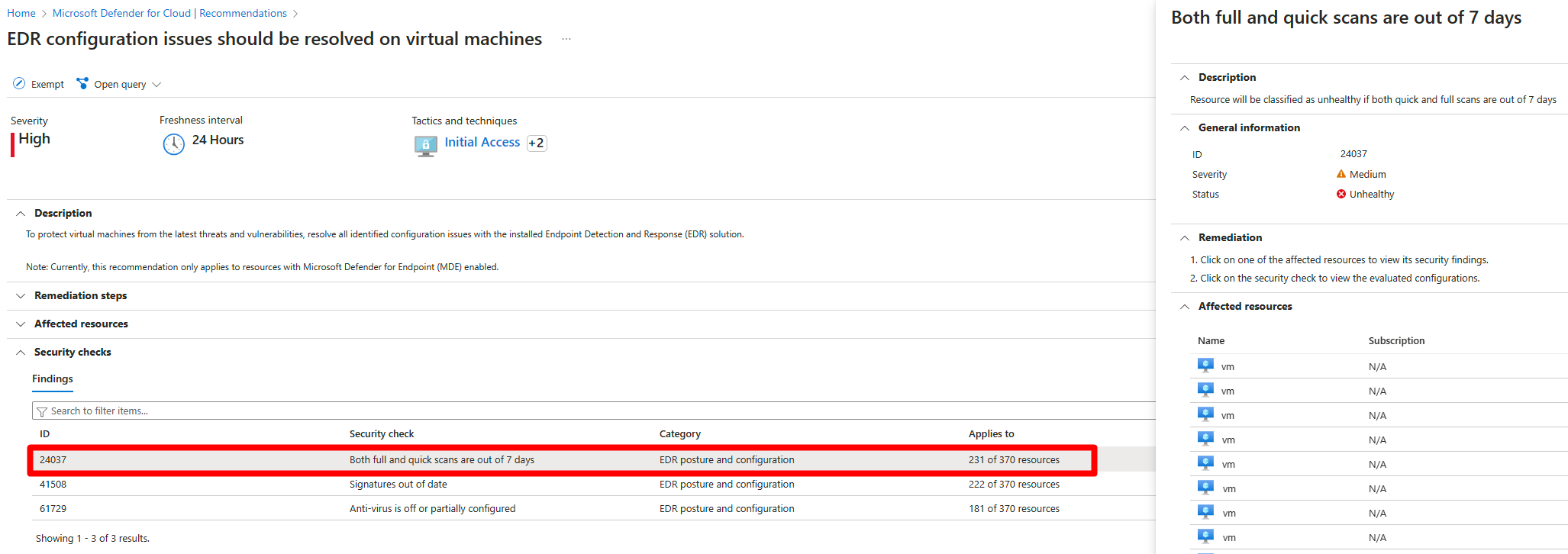
Both full and quick scans are out of 7 daysSignature out of dateAnti-virus is off or partially configured
When misconfigurations are found, Defender for Cloud generates recommendations. Complete remediation actions in Microsoft Defender for Endpoint or on the affected machine.
Note
- Defender for Cloud uses agentless scanning to assess endpoint detection and response (EDR) settings.
- Agentless scanning replaces the Log Analytics agent (also known as the Microsoft Monitoring Agent (MMA)), which was previously used to collect machine data.
- The use of MMA is retired. Scanning using the MMA was deprecated in November 2024.
Prerequisites
Before you start, make sure that:
- Defender for Cloud is enabled on your subscription with one of the following plans:
- Agentless scanning for machines is enabled. If needed, you can enable agentless scanning manually.
- Defender for Endpoint is running as the EDR solution on the virtual machines.
Investigate misconfiguration recommendations
To investigate and remediate misconfiguration recommendations for Defender for Endpoint, perform the following steps:
Sign in to the Azure portal.
Search for and select Defender for Cloud.
In the Defender for Cloud menu, select Recommendations.
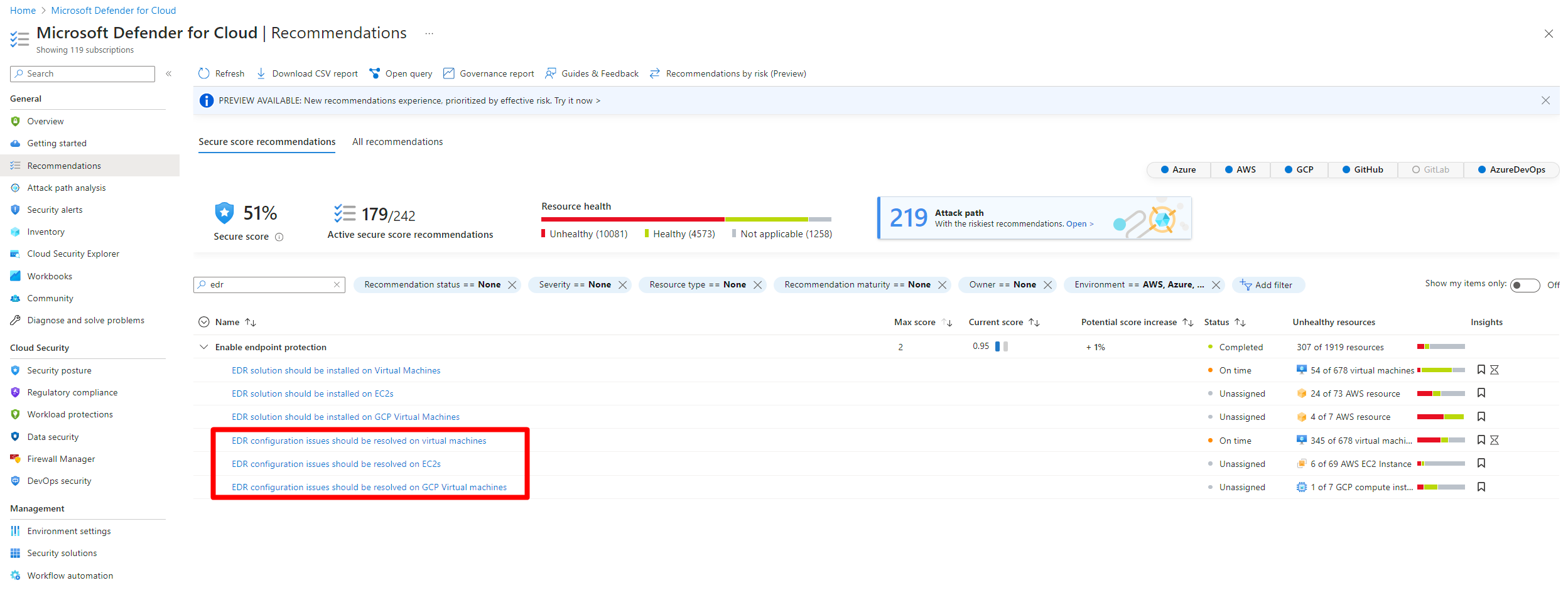
Search for and select one of the following recommendations:
EDR configuration issues should be resolved on virtual machinesEDR configuration issues should be resolved on EC2sEDR configuration issues should be resolved on GCP virtual machines
Select a security check to review the affected resources.
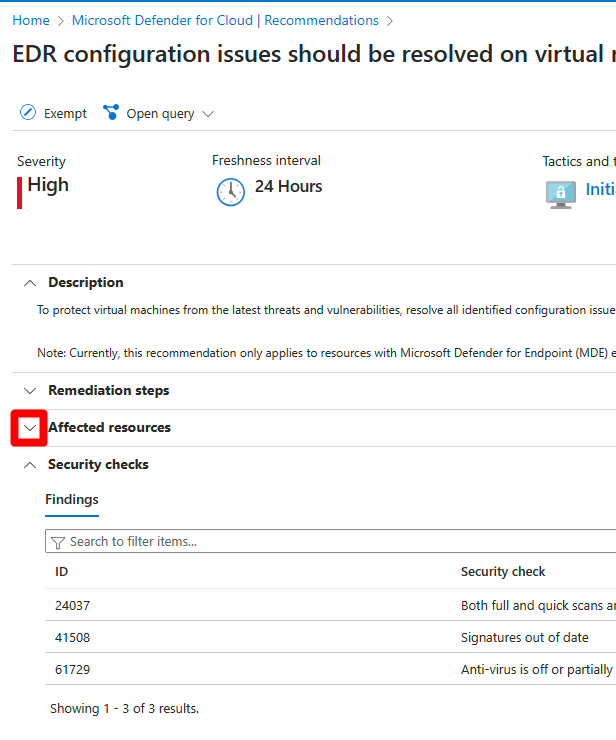
Expand Affected resources.
Review the resource findings.
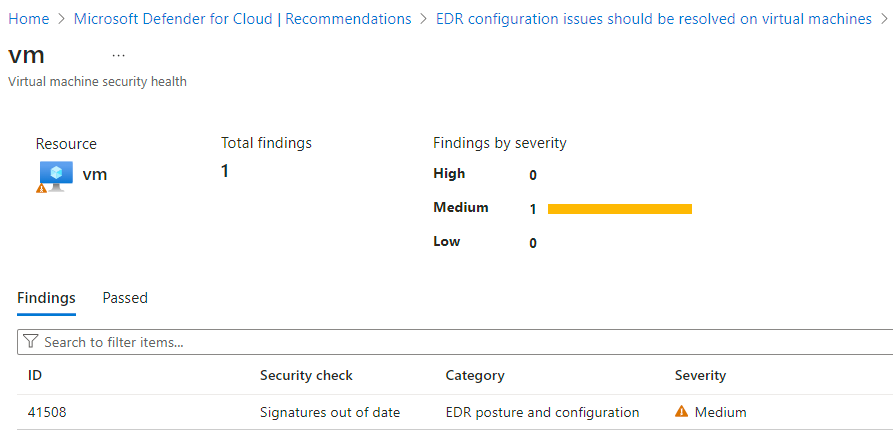
Drill into the security check to view the remediation steps provided with the recommendation, and complete the remediation in Defender for Endpoint or on the affected machine.
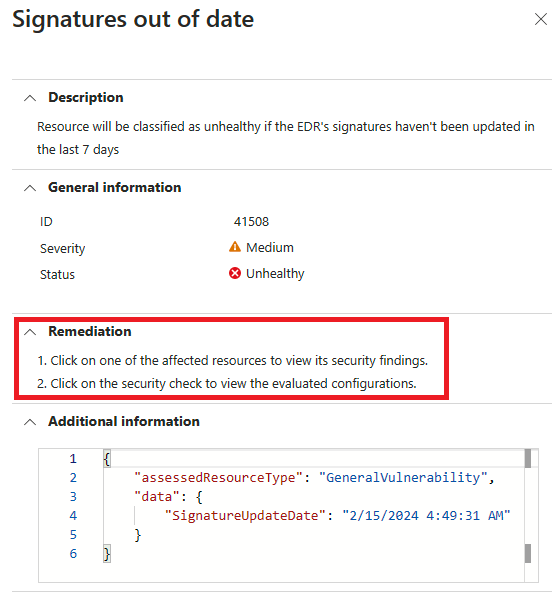
After remediation is complete, it can take up to 24 hours for the machine to appear in the Healthy resources tab.