Note
Access to this page requires authorization. You can try signing in or changing directories.
Access to this page requires authorization. You can try changing directories.
Microsoft Defender for Cloud includes endpoint detection and response (EDR) capabilities to improve security posture for supported machines. Defender for Cloud:
- Integrates natively with Microsoft Defender for Endpoint as an EDR solution for machine protection.
- Scans connected machines, including Azure virtual machines (VMs) and AWS or GCP machines, to check whether an EDR solution is installed and running. The EDR solution can be Microsoft Defender for Endpoint or a supported non-Microsoft solution.
Based on EDR solution findings, Defender for Cloud provides recommendations to ensure that EDR solutions are installed and running correctly on machines. This article describes how to remediate those recommendations.
Note
- Defender for Cloud uses agentless scanning to assess EDR settings.
- Agentless scanning replaces the Log Analytics agent (also known as the Microsoft Monitoring Agent (MMA)), which was previously used to collect machine data.
- Scanning using the MMA was deprecated in November 2024.
- To exempt resources from these EDR assessments, ensure that the Azure CSPM initiative is assigned. This initiative is enabled by default when Defender cloud security posture management (Defender CSPM) is turned on.
Prerequisites
| Requirement | Details |
|---|---|
| Plan | Defender for Cloud must be available in the Azure subscription and one of these plans must be enabled: - Defender for Servers Plan 2 - Defender cloud security posture management (Defender CSPM) |
| Agentless scanning | Agentless scanning for machines must be turned on. It's enabled by default in the plans. If you need to turn it on manually, see Enable agentless scanning for VMs. |
Investigate EDR solution recommendations
To investigate EDR solution recommendations for your machines:
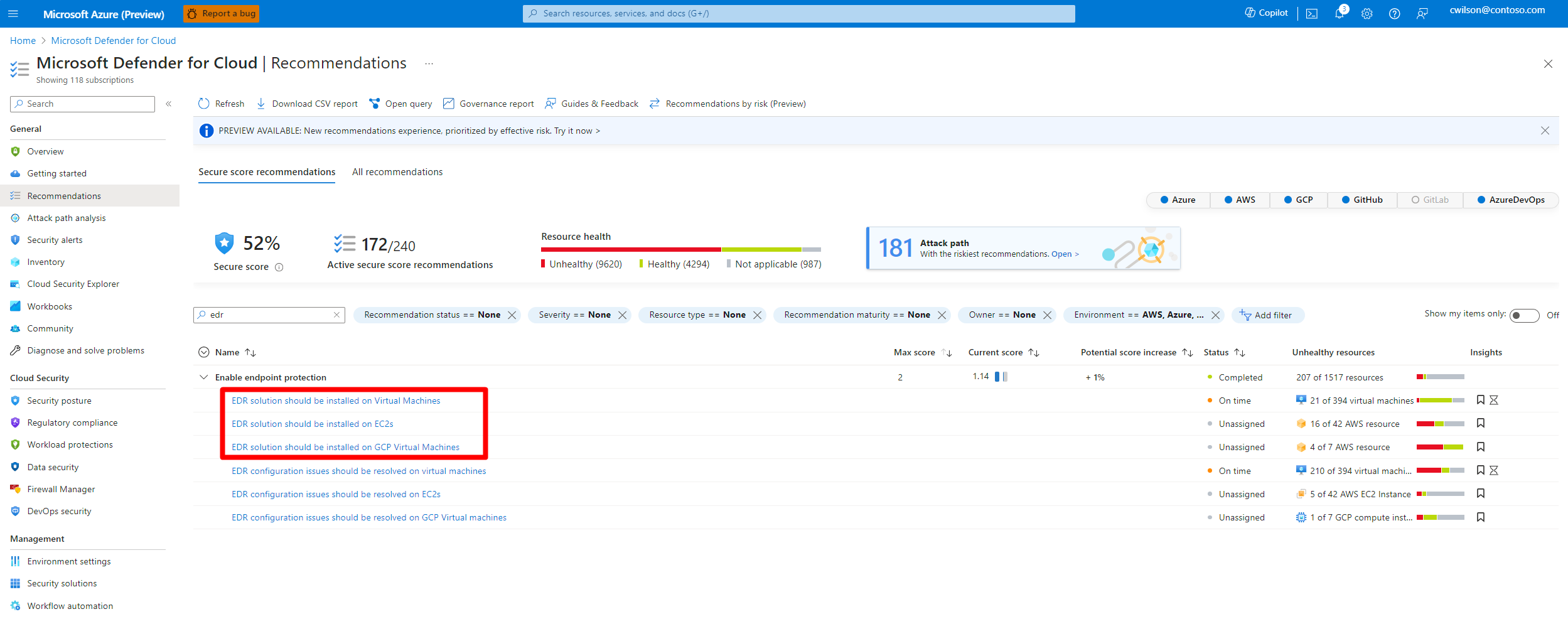
In Defender for Cloud, go to Recommendations.
Search for and select one of the following recommendations:
EDR solution should be installed on Virtual MachinesEDR solution should be installed on EC2sEDR solution should be installed on Virtual Machines (GCP)
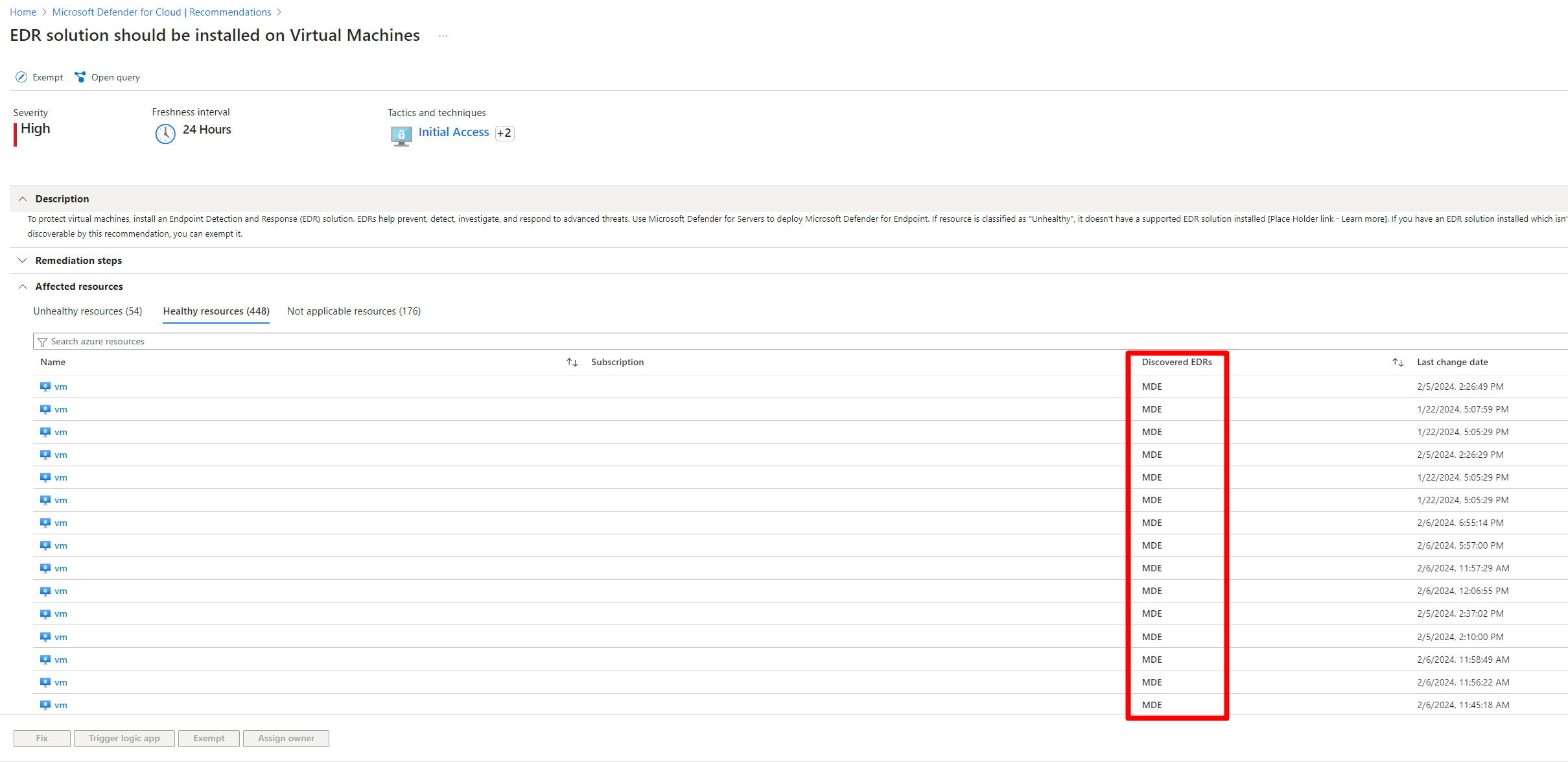
In the recommendation details, select the Healthy resources tab.
The EDR solution deployed on the machine is displayed in the Discovered EDRs column.
Remediate EDR solution recommendations
To remediate EDR solution recommendations:
Select the relevant recommendation.
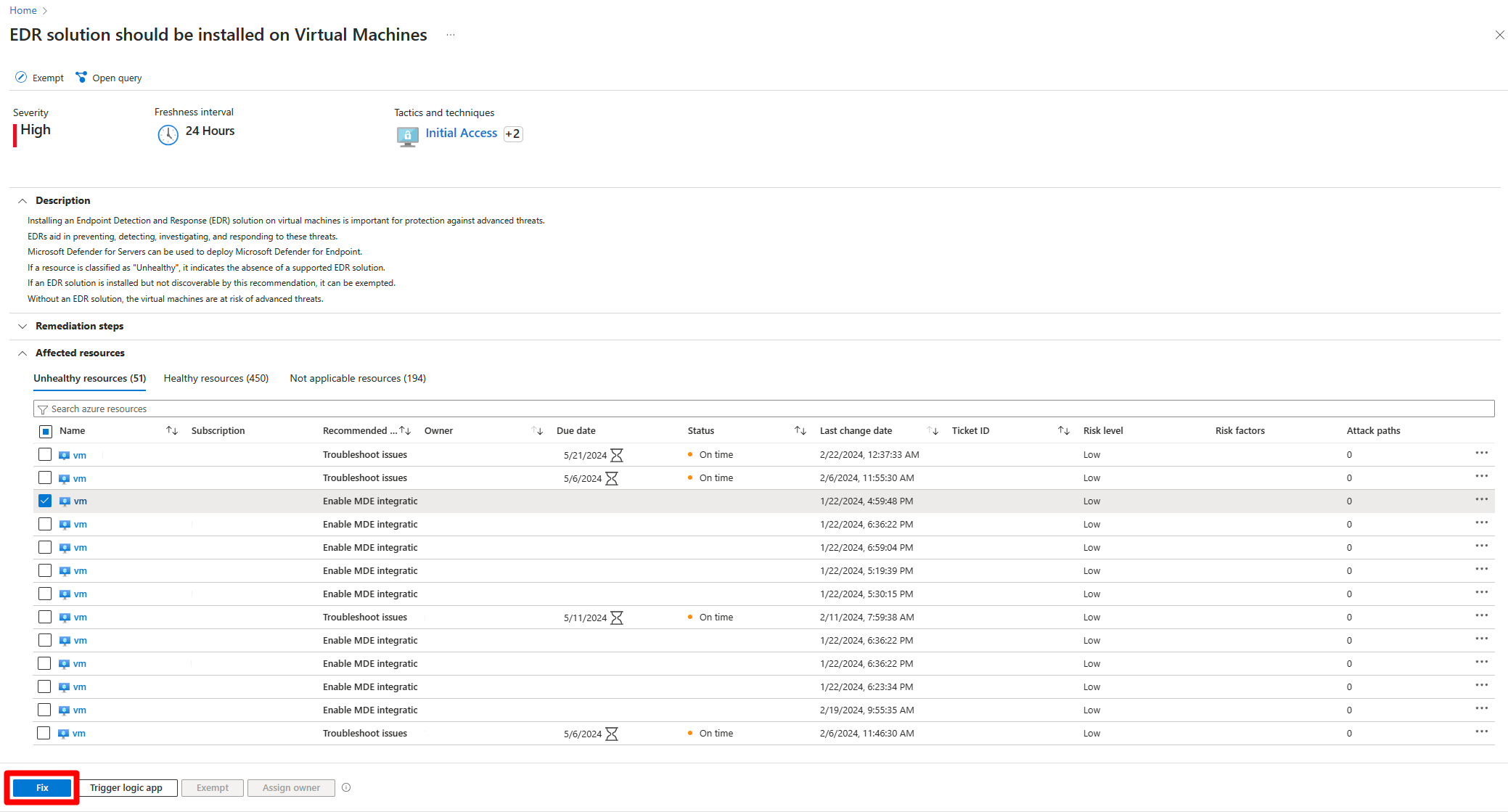
Select one of the listed recommended actions to see the remediation steps.
Enable Defender for Endpoint integration
The Enable Microsoft Defender for Endpoint integration action is available when Defender for Endpoint can be installed on a machine and a supported non-Microsoft EDR solution isn't detected on the machine.
Enable Defender for Endpoint on the machine as follows:
Select the affected machine. You can also select multiple machines with the
Enable Microsoft Defender for Endpoint integrationrecommended action.Select Fix.
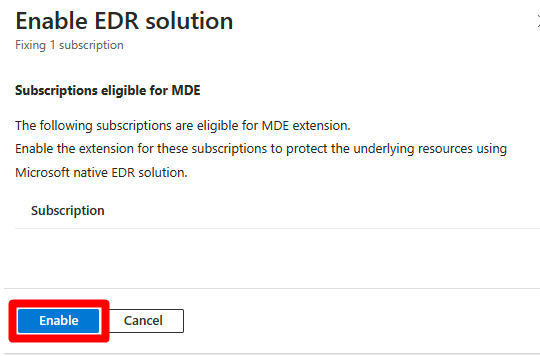
In Enable EDR solution, select Enable. This setting installs the Defender for Endpoint sensor automatically on all Windows and Linux servers in the subscription.
After the process completes, it can take up to 24 hours for your machine to appear in the Healthy resources tab.
Turn on a plan
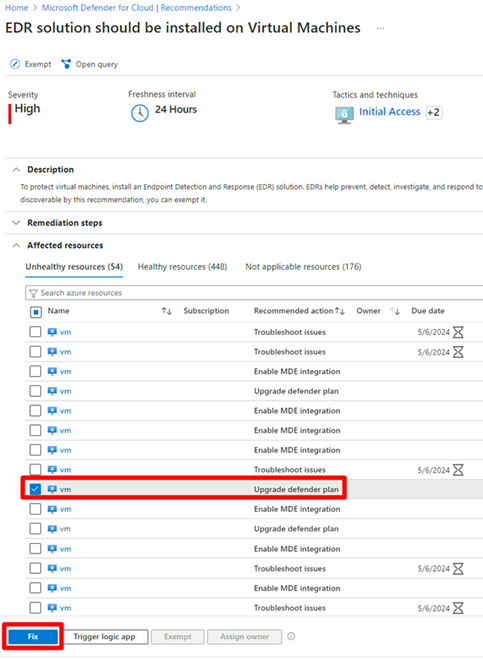
The Upgrade Defender plan action is available when:
- A supported non-Microsoft EDR solution isn't detected on the machine.
- A required Defender for Cloud plan (Defender for Servers Plan 2 or Defender CSPM) isn't enabled for the machine.
Fix the recommendation as follows:
Select the affected machine. You can also select multiple machines with the
Upgrade Defender planrecommended action.Select Fix.
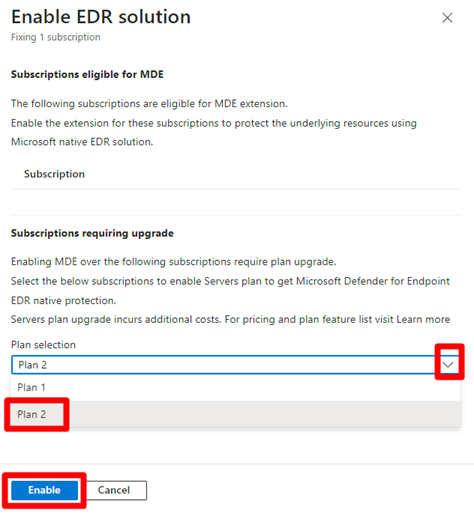
In Enable EDR solution, select a plan in the dropdown menu. Each plan has a cost. See Defender for Cloud pricing details.
Select Enable.
After the process completes, it can take up to 24 hours for your machine to appear on the Healthy resources tab.
Troubleshoot Defender for Endpoint onboarding
The Troubleshoot onboarding action is available when Defender for Endpoint is detected on a machine but wasn't onboarded properly.
Select the affected VM.
Select Remediation steps.
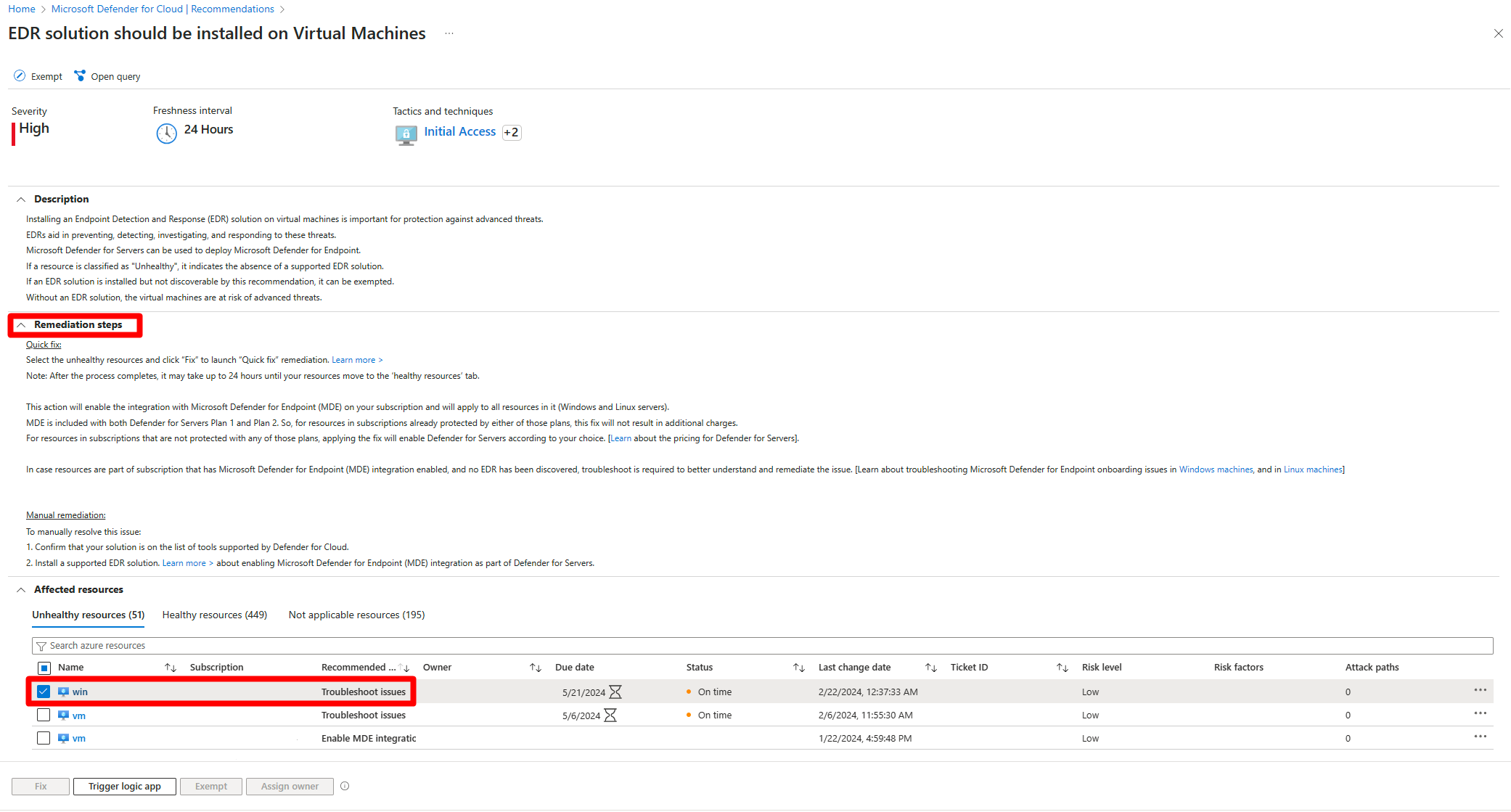
Troubleshoot onboarding issues by platform:
After the process completes, it can take up to 24 hours for your machine to appear in the Healthy resources tab.