Microsoft 365 and Office | Development | Other
Building custom solutions that extend, automate, and integrate Microsoft 365 apps.

This browser is no longer supported.
Upgrade to Microsoft Edge to take advantage of the latest features, security updates, and technical support.
' cx='32' cy='32' r='32' /%3E%3Ctext x='50%25' y='55%25' dominant-baseline='middle' text-anchor='middle' fill='%23FFF' %3EBL%3C/text%3E%3C/svg%3E)
Hello!
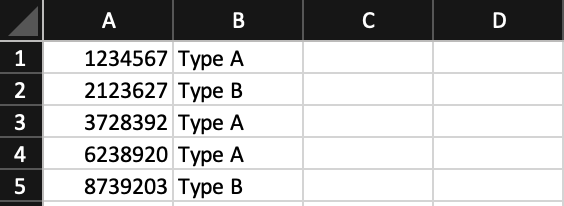
I need to separate number the numbers in one column (Column A) based on the identifiers in another column (Column B). In the attached example, I need all of the identifiers in Column B to be separated out and placed into new columns. For example, Type A numbers need to be in one column and all of the Type B numbers in another column.
How would I go about doing this?
Thank you for any help that you can provide!
' cx='32' cy='32' r='32' /%3E%3Ctext x='50%25' y='55%25' dominant-baseline='middle' text-anchor='middle' fill='%23FFF' %3EHS%3C/text%3E%3C/svg%3E)
Excel 365 Pro Plus with Power Query.
Separate column into custom columns.
https://www.mediafire.com/file/9tq1m0yn6oa714o/01_20_22a.xlsx/file
https://www.mediafire.com/file/w2nlqjp80y7u4fp/01_20_22a.pdf/file

Hi @Brian Lambert ,
You could try the Index and Match function.
Enter the formula =IFERROR(INDEX($A$1:$A$6,SMALL(IF($B$1:$B$6=D$1,ROW($1:$6),4^8),ROW(1:1)))&"","") in Cell D2 on my sample.
As this formula is an array formula, I need to press Ctrl + Shift + Enter.
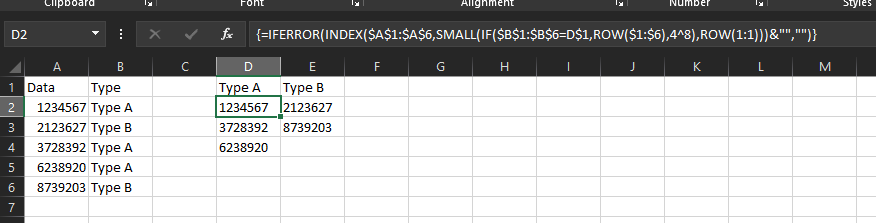
Then drag down and right.
If the answer is helpful, please click "Accept Answer" and kindly upvote it. If you have extra questions about this answer, please click "Comment".
Note: Please follow the steps in our documentation to enable e-mail notifications if you want to receive the related email notification for this thread.
@Brian Lambert
If you have a chance to be back, please check whether our information is helpful.

Hi,
In cell D1, enter this formula
=DROP(PIVOTBY(BYROW(B2:B6,LAMBDA(a,COUNTIF(B2:a,a))),B2:B6,A2:A6,SINGLE,0,0,,0),,1)
Hope this helps.
Hi,
This M code in Power Query works as well
let
    Source = Excel.CurrentWorkbook(){[Name="Data"]}[Content],
    #"Grouped Rows" = Table.Group(Source, {"Text"}, {{"Count", each _[Number], type table [Number=number, Text=text]}}),
    Custom1 = Table.FromColumns(#"Grouped Rows"[Count],#"Grouped Rows"[Text])
in
    Custom1