Note
Access to this page requires authorization. You can try signing in or changing directories.
Access to this page requires authorization. You can try changing directories.
Through application routing or configuration routing options, you can configure what traffic is sent through the virtual network integration. For more information, see the overview section.
Prerequisites
Your app is already integrated using the regional virtual network integration feature.
Configure application routing
Application routing defines what traffic is routed from your app and into the virtual network. You can configure routing at two levels:
- All traffic routing (
outboundVnetRouting.allTraffic): Routes all outbound traffic from your app through the virtual network integration, including application traffic and configuration traffic (such as container image pulls, content share access, and backup operations). - Application traffic only (
outboundVnetRouting.applicationTraffic): Routes only application-generated traffic through the virtual network integration, while configuration traffic continues to use the public route by default (unless individually configured in the configuration routing section).
We recommend that you use the outboundVnetRouting.allTraffic property to enable routing of all traffic. Using this property allows you to audit the behavior with a built-in policy.
Note
The legacy vnetRouteAllEnabled site setting and WEBSITE_VNET_ROUTE_ALL app setting are still supported for backwards compatibility.
Configure in the Azure portal
Follow these steps to configure application traffic routing in your app through the portal.
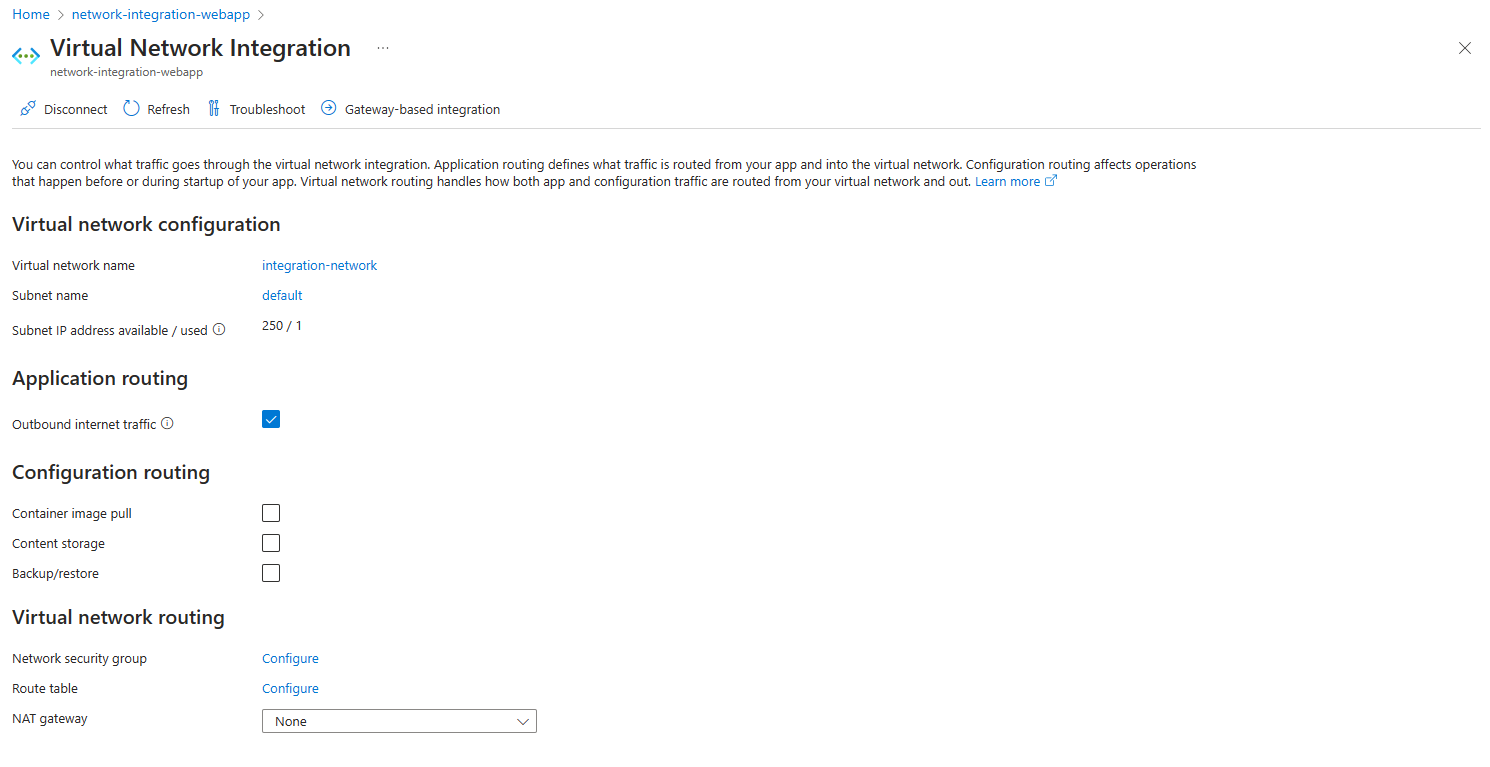
Go to Networking > Virtual network integration in your app portal.
Configure the Outbound internet traffic setting:
- Checked: Routes application traffic through the virtual network (sets
outboundVnetRouting.applicationTraffic=true). - Unchecked: Application traffic uses the default route.
- Checked: Routes application traffic through the virtual network (sets
To route configuration traffic (container image pull, content storage, backup/restore), use the Configuration routing checkboxes or configure via Azure CLI.
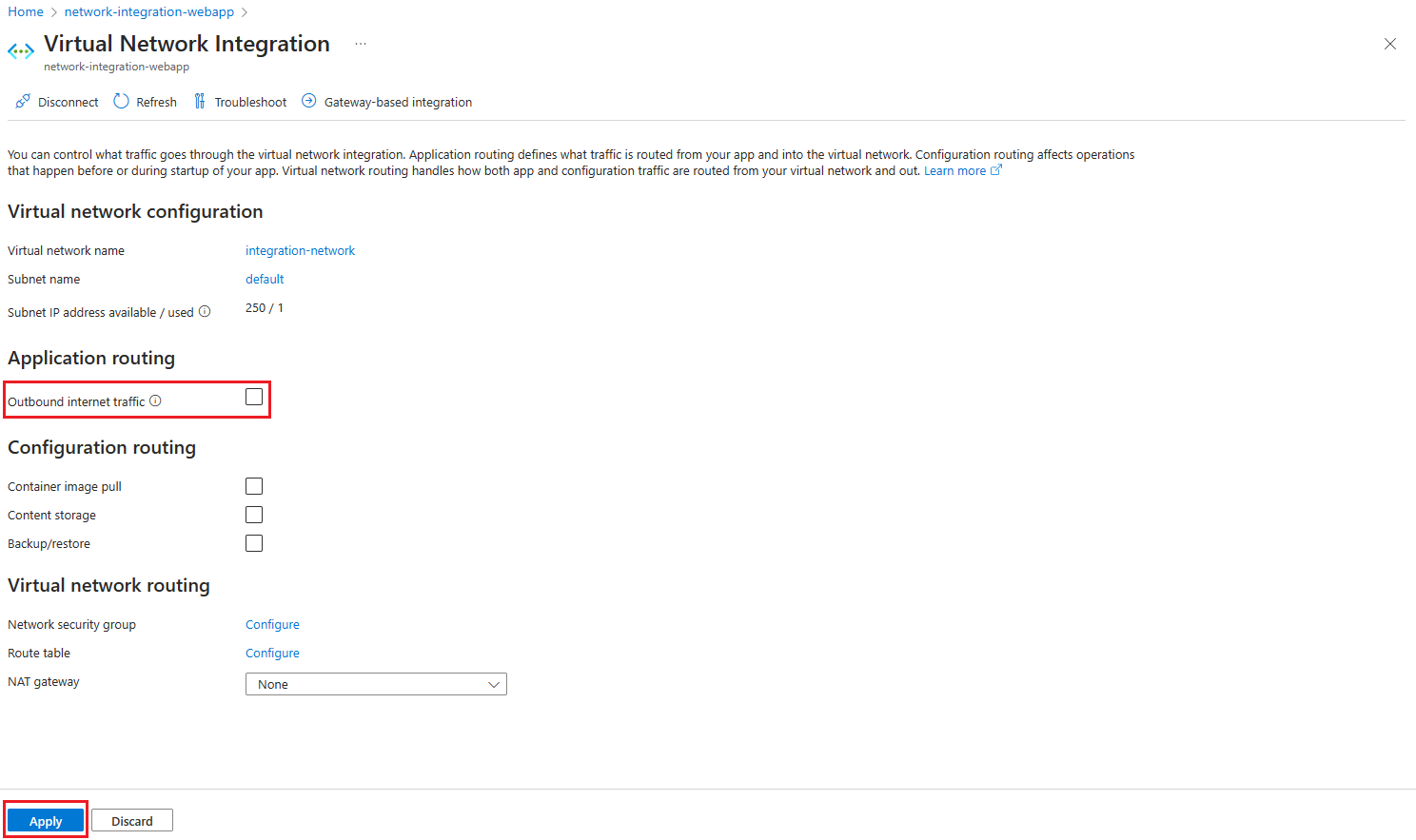
Select Apply to confirm.
Note
The portal doesn't provide a direct way to configure outboundVnetRouting.allTraffic. To route all traffic (application and configuration) through the virtual network, use the Azure CLI.
Configure with the Azure CLI
You can also configure outbound traffic routing by using the Azure CLI.
Route all traffic (application and configuration) through the virtual network:
az resource update --resource-group <group-name> --name <app-name> --resource-type "Microsoft.Web/sites" --set properties.outboundVnetRouting.allTraffic=true
Route only application traffic through the virtual network:
az resource update --resource-group <group-name> --name <app-name> --resource-type "Microsoft.Web/sites" --set properties.outboundVnetRouting.applicationTraffic=true
Disable all traffic routing through the virtual network:
az resource update --resource-group <group-name> --name <app-name> --resource-type "Microsoft.Web/sites" --set properties.outboundVnetRouting.allTraffic=false
Configure configuration routing
When you're using virtual network integration, you can configure how parts of the configuration traffic are managed. By default, configuration traffic goes directly over the public route, but for the mentioned individual components, you can actively configure it to be routed through the virtual network integration.
Note
If you enable outboundVnetRouting.allTraffic=true, all configuration traffic is automatically routed through the virtual network, and the individual configuration routing settings aren't needed. The individual settings described in the following section are useful when you want to route only specific configuration traffic through the virtual network while keeping outboundVnetRouting.applicationTraffic=true or when selectively routing configuration components.
Container image pull
Routing container image pull over virtual network integration can be configured using the Azure CLI.
az resource update --resource-group <group-name> --name <app-name> --resource-type "Microsoft.Web/sites" --set properties.outboundVnetRouting.imagePullTraffic=true
We recommend that you use the outboundVnetRouting.imagePullTraffic property to enable routing image pull traffic through the virtual network integration. Using this property allows you to audit the behavior with Azure Policy.
Note
For backwards compatibility, the legacy vnetImagePullEnabled property and the WEBSITE_PULL_IMAGE_OVER_VNET app setting with the value true are still supported.
Content share
Routing content share over virtual network integration can be configured using the Azure CLI. In addition to enabling the feature, you must also ensure that any firewall or Network Security Group configured on traffic from the subnet allow traffic to port 443 and 445.
az resource update --resource-group <group-name> --name <app-name> --resource-type "Microsoft.Web/sites" --set properties.outboundVnetRouting.contentShareTraffic=true
We recommend that you use the outboundVnetRouting.contentShareTraffic property to enable content share traffic through the virtual network integration. Using this property allows you to audit the behavior with Azure Policy.
Note
For backwards compatibility, the legacy vnetContentShareEnabled property and the WEBSITE_CONTENTOVERVNET app setting with the value 1 are still supported.
Backup/restore
Routing backup traffic over virtual network integration can be configured using the Azure CLI. Database backup isn't supported over the virtual network integration.
az resource update --resource-group <group-name> --name <app-name> --resource-type "Microsoft.Web/sites" --set properties.outboundVnetRouting.backupRestoreTraffic=true
Note
For backwards compatibility, the legacy vnetBackupRestoreEnabled property is still supported.