Azure Device Registry uses jobs to apply software updates to groups of IoT Hub-connected devices. A software update job targets a group of devices and applies a software update to the compatible members of that group. In contrast, an onboarding update job targets devices that onboard to a namespace. Deploying a software update as a job lets you roll out the same update to many devices at once, so you can keep your IoT Hub-connected devices current without updating each device individually.
This article shows you how to define or validate a target group, use the Azure portal, the Azure CLI, or Bicep to create a standard software update job, run or schedule the job, and monitor the results. Use this article after you import the software update that you want to apply. To learn how jobs, groups, and software updates work together, see Software updates in Azure Device Registry.
Important
Azure Device Registry software updates is currently in preview. The current preview is scoped to IoT Hub-connected devices. This preview is provided without a service-level agreement, and the capability and its portal experience might change before it becomes generally available. For more information, see Supplemental Terms of Use for Microsoft Azure Previews.
Note
During the preview, you can use software updates only with IoT hubs that don't have an existing Device Update for IoT Hub instance. To use software updates, connect a different IoT hub to your namespace, or first delete the hub's Device Update for IoT Hub instance. For more information, see Choose between software updates and Device Update for IoT Hub.
Prerequisites
- IoT Hub-connected devices whose properties identify the devices that you want to update. Use these properties to define the target group.
- A software update imported into the namespace. To learn more, see Import a software update (preview).
- Software updates enabled on the namespace that contains your devices. To learn more, see Get started with Azure Device Registry for Azure IoT Hub.
- Azure Resource Manager control-plane permissions, such as the Contributor role, to create, read, update, and delete jobs.
- To run jobs, the namespace's managed identity must have access to the software updates instance that's linked to the namespace. If you enable software updates in the Azure portal, these role assignments are created for you.
- To use the Azure CLI, the Azure CLI with preview version
1.1.0b1 of the azure-iot extension. For installation steps, see Azure CLI setup.
Define or validate the target group
A software update job targets a group instead of every device in the namespace. Create a group with a filter that selects only the IoT Hub-connected devices that should receive the update, or reuse an existing group whose membership matches that scope. For example, use device properties such as manufacturer, model, or software revision to target a specific device cohort. Use the Azure portal, the Azure CLI, or Bicep to create the group.
To create a group in the Azure portal:
In the namespace navigation, open Operations > Groups (preview), and then start group creation from the command bar.
On the Basics page, enter a descriptive Name and, optionally, a Description that identifies the intended device cohort.
On the Definition page, under Define filter conditions, enter a query that selects the IoT Hub-connected devices that you want to update.
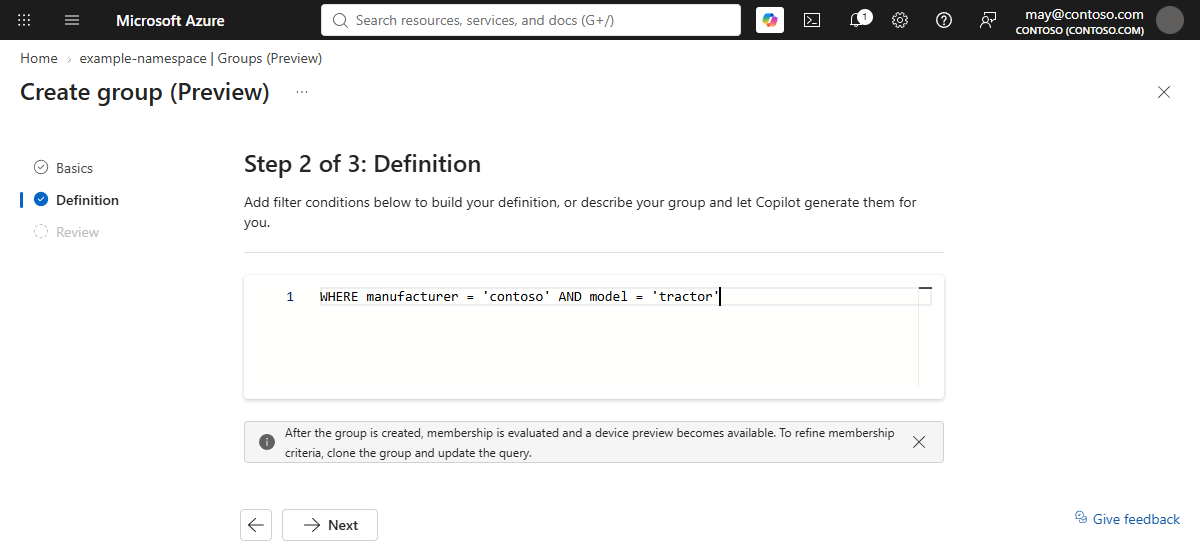
You can't change a group's filters after you create it. To use different membership criteria, create another group with a different query.
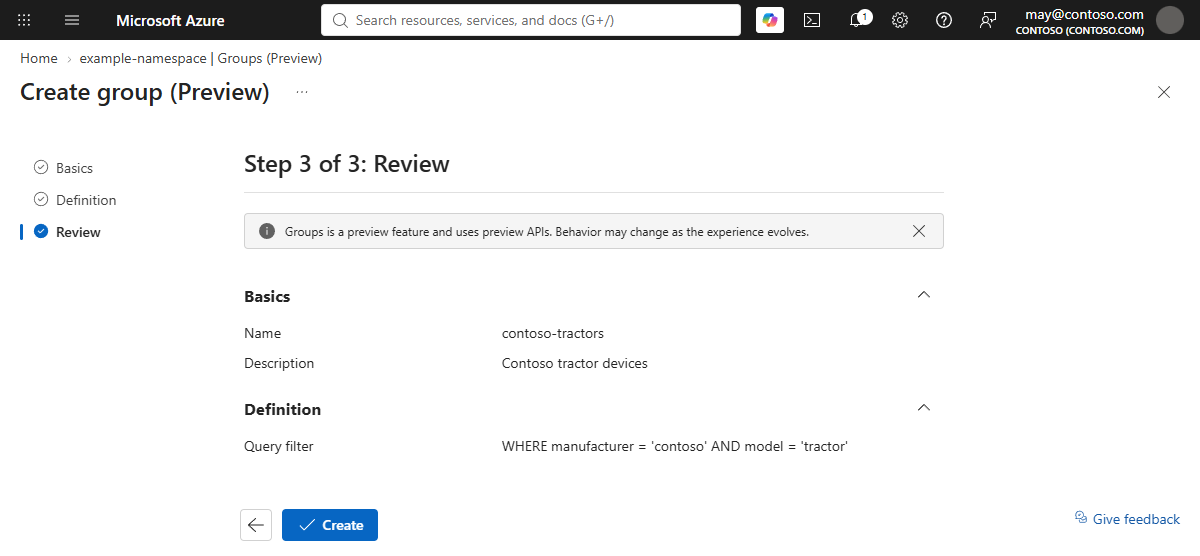
On the Review page, verify the Basics, Definition, and Query filter, and then select Create.
Set the values that the commands in this article reuse. Then run az iot adr ns group create with a --query-string that selects the IoT Hub-connected devices that you want to update, and wait for the initial membership calculation to finish:
RG="<resource-group>"
NS="<namespace-name>"
GROUP="contoso-tractors"
az iot adr ns group create --name $GROUP --ns $NS --resource-group $RG --query-string "WHERE manufacturer = 'contoso' AND model = 'tractor'" --description "Devices to receive the software update"
az iot adr ns group wait --name $GROUP --ns $NS --resource-group $RG
Group queries are immutable after creation. To use different membership criteria, create another group with a different query.
Set the values that the commands in this article reuse. Then run az iot adr ns group create with a --query-string that selects the IoT Hub-connected devices that you want to update, and wait for the initial membership calculation to finish:
$RG = "<resource-group>"
$NS = "<namespace-name>"
$GROUP = "contoso-tractors"
az iot adr ns group create --name $GROUP --ns $NS --resource-group $RG --query-string "WHERE manufacturer = 'contoso' AND model = 'tractor'" --description "Devices to receive the software update"
az iot adr ns group wait --name $GROUP --ns $NS --resource-group $RG
Group queries are immutable after creation. To use different membership criteria, create another group with a different query.
A group is a Microsoft.DeviceRegistry/namespaces/groups resource. The properties.query value selects the registered IoT Hub-connected devices that become members of the group, based on device properties such as manufacturer, model, or softwareRevision. After you create the group, you can't change its query. To use different membership criteria, create another group with a different query.
Create a Bicep file with the following content. Replace the placeholder values, such as <NAMESPACE_NAME> and <GROUP_NAME> with your own.
param namespaceName string = '<NAMESPACE_NAME>'
param groupName string = 'contoso-tractors'
param groupDescription string = 'Devices to receive the software update'
param groupQuery string = 'WHERE manufacturer = \'contoso\' AND model = \'tractor\''

resource namespace 'Microsoft.DeviceRegistry/namespaces@2026-11-02-preview' existing = {
  name: namespaceName
}

resource group 'Microsoft.DeviceRegistry/namespaces/groups@2026-11-02-preview' = {
  parent: namespace
  name: groupName
  location: namespace.location
  properties: {
    description: groupDescription
    query: groupQuery
  }
}
Group membership is calculated and cached when you create or refresh the group. Before you use a group for a software update job:
- Refresh the group's membership if device properties might have changed. In the Azure portal, Refresh is available from the group detail command bar. With the Azure CLI, run
az iot adr ns group refresh. You can refresh a group's membership once per hour.
- Wait until the group status is Ready. With the Azure CLI, run
az iot adr ns group wait.
- On the group detail view, verify the resolved query filter and the member count. The member list previews up to 10 devices, so treat it as a spot check rather than a complete listing, and confirm that the member count matches the devices that you intend to update. With the Azure CLI, run
az iot adr ns group count and az iot adr ns group list-members.
Create a software update job
A software update job targets a group of devices and applies an imported software update to the compatible members of that group. Use the Azure portal, the Azure CLI, or Bicep to create the job.
In the Azure portal, go to your Azure Device Registry and select the namespace that contains the devices you want to update.
In the namespace, select Operations > Jobs. The Jobs screen lists the defined jobs with their status, job type, and target group. From this screen, you can also view the groups and software updates in the namespace.
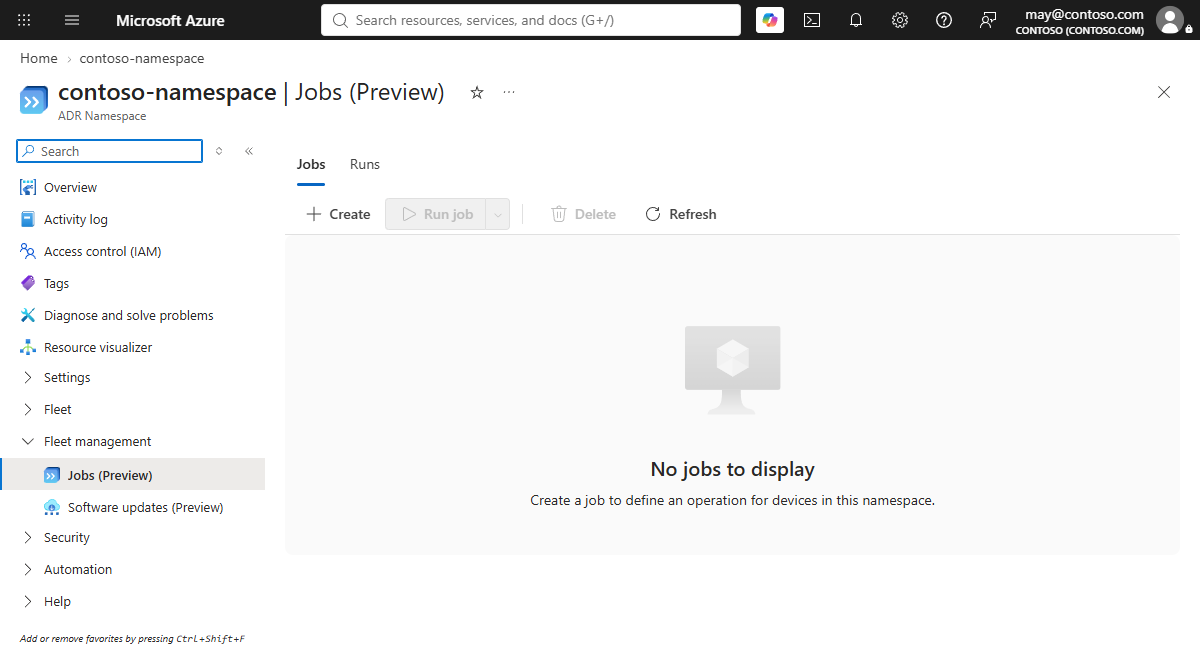
Select Create to create a new job.
On the Basics page, provide a name and description for the job.
For the job type, select Software update.
In preview, the available job types are Software update and Onboarding update. A software update job targets a group of devices, and an onboarding update job targets devices that onboard to a namespace. This article covers the software update job.
Select the group that you want to target. Use the group picker to search for and select a group. The picker shows the approximate number of devices in each group.
For information about how group membership refreshes, see Groups concepts (preview).
Save the group selection. The portal shows a sample of the devices in the group and the device count.
Define the action to run by selecting one of the software updates imported into the namespace. Each software update includes a compatibility check that determines whether it applies to a device. The portal runs a compatibility check for the selected group to determine whether the software update is compatible.
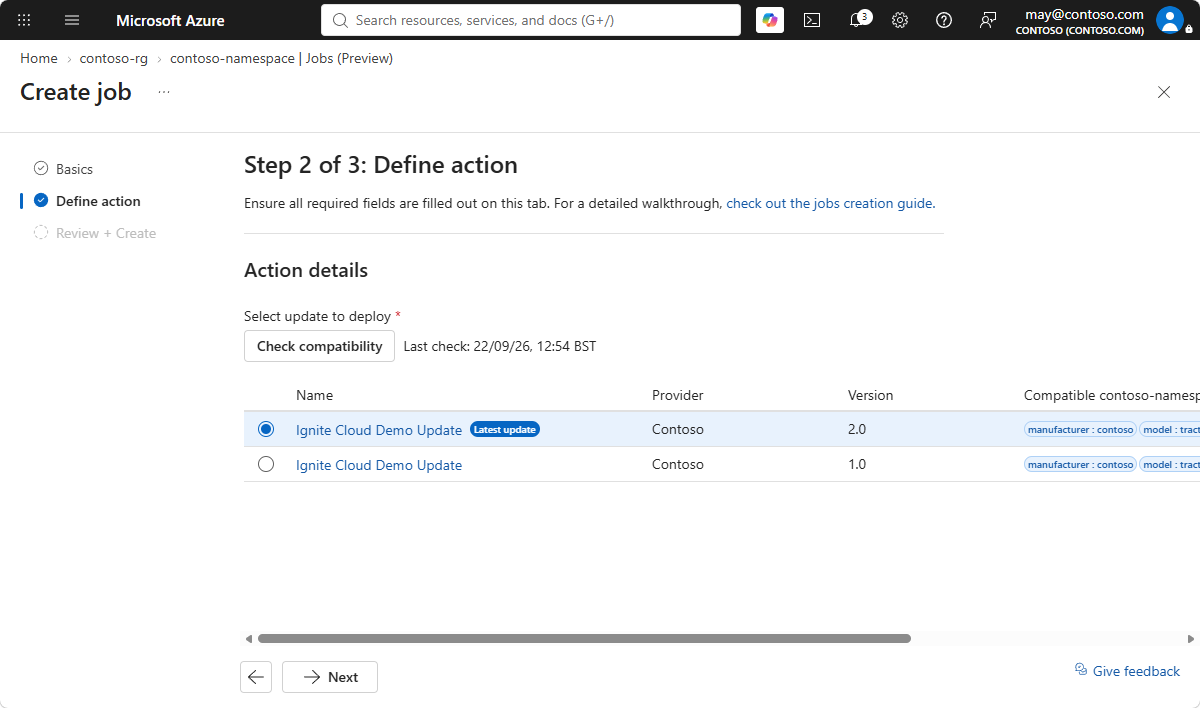
Select Next to view a summary of the job. The summary shows the number of group members and an estimate of the number of compatible members that the job is likely to update successfully.
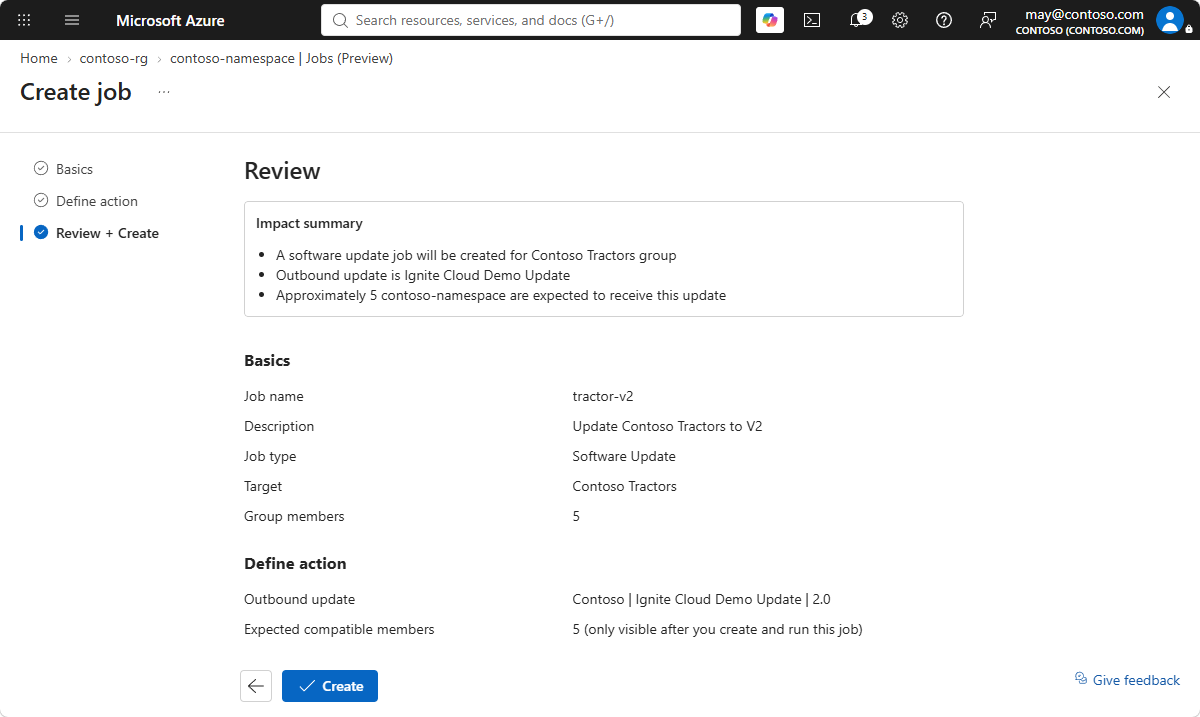
Select Create. The job status shows Creating and then changes to Ready after a moment.
Run az iot adr ns job create with --type SoftwareUpdate. Set --target-group-name to the group that you want to target, and identify the imported software update by its provider, name, and version from the import manifest. Then wait for the job to be ready:
JOB="<job-name>"
az iot adr ns job create --name $JOB --ns $NS --resource-group $RG --type SoftwareUpdate --target-group-name $GROUP --update-id-provider <provider> --update-id-name <name> --update-id-version <version> --description "Software update job"
az iot adr ns job wait --name $JOB --ns $NS --resource-group $RG
After you create the job, you can't change its target group or software update. To change them, delete the job and create a new one.
Run az iot adr ns job create with --type SoftwareUpdate. Set --target-group-name to the group that you want to target, and identify the imported software update by its provider, name, and version from the import manifest. Then wait for the job to be ready:
$JOB = "<job-name>"
az iot adr ns job create --name $JOB --ns $NS --resource-group $RG --type SoftwareUpdate --target-group-name $GROUP --update-id-provider <provider> --update-id-name <name> --update-id-version <version> --description "Software update job"
az iot adr ns job wait --name $JOB --ns $NS --resource-group $RG
After you create the job, you can't change its target group or software update. To change them, delete the job and create a new one.
A software update job is a Microsoft.DeviceRegistry/namespaces/jobs resource with properties.jobType set to SoftwareUpdate. The target.resourceId property references the group that the job applies the update to, and must be a resource ID for a Microsoft.DeviceRegistry/namespaces/groups resource in the same namespace. The definition.update.updateId property identifies the software update to apply by its provider, name, and version. Currently, definition.schedulingType only supports the value Continuous.
After you create the job, its properties—including target and definition—are immutable. To change the target group or update definition, delete the job and create a new one.
Create a Bicep file with the following content. Replace the placeholder values, such as <NAMESPACE_NAME>, <GROUP_NAME>, and the update identifier values, with your own.
param namespaceName string = '<NAMESPACE_NAME>'
param jobName string = '<JOB_NAME>'
param groupName string = '<GROUP_NAME>'
param updateProvider string = '<UPDATE_PROVIDER>'
param updateName string = '<UPDATE_NAME>'
param updateVersion string = '<UPDATE_VERSION>'

resource namespace 'Microsoft.DeviceRegistry/namespaces@2026-11-02-preview' existing = {
  name: namespaceName
}

resource group 'Microsoft.DeviceRegistry/namespaces/groups@2026-11-02-preview' existing = {
  parent: namespace
  name: groupName
}

resource softwareUpdateJob 'Microsoft.DeviceRegistry/namespaces/jobs@2026-11-02-preview' = {
  parent: namespace
  name: jobName
  location: namespace.location
  properties: {
    description: 'Software update job'
    jobType: 'SoftwareUpdate'
    target: {
      resourceId: group.id
    }
    definition: {
      schedulingType: 'Continuous'
      update: {
        updateId: {
          provider: updateProvider
          name: updateName
          version: updateVersion
        }
      }
    }
  }
}
Run or schedule the job
After a job is ready, you can run it immediately or schedule it to run later.
On the Jobs screen, select the job that you want to run.
Select one of the following options:
- Run now: The job runs immediately.
- Schedule for later: Pick a time in the next seven days. The job runs at the time you select.
After you run or schedule the job, the portal moves to the Runs tab.
Run az iot adr ns job schedule. Each time you run or schedule the job, the command creates a run and returns its name. Use --run-name to choose the name yourself, which makes the run easier to monitor.
Run now: Omit --scheduled-time.
RUN="<run-name>"
az iot adr ns job schedule --name $JOB --ns $NS --resource-group $RG --run-name $RUN
Schedule for later: Set --scheduled-time to a UTC date and time in ISO 8601 format.
RUN="<run-name>"
az iot adr ns job schedule --name $JOB --ns $NS --resource-group $RG --run-name $RUN --scheduled-time 2026-11-15T14:30:00Z
Run az iot adr ns job schedule. Each time you run or schedule the job, the command creates a run and returns its name. Use --run-name to choose the name yourself, which makes the run easier to monitor.
Run now: Omit --scheduled-time.
$RUN = "<run-name>"
az iot adr ns job schedule --name $JOB --ns $NS --resource-group $RG --run-name $RUN
Schedule for later: Set --scheduled-time to a UTC date and time in ISO 8601 format.
$RUN = "<run-name>"
az iot adr ns job schedule --name $JOB --ns $NS --resource-group $RG --run-name $RUN --scheduled-time 2026-11-15T14:30:00Z
Bicep declares resources, so it can't directly trigger an action like running or scheduling a job. Instead, use the job's schedule action, which you can call with Azure CLI. To run the job immediately, omit scheduledTime. To schedule the job, include a scheduledTime value.
az rest --method post \
  --uri "https://management.azure.com/subscriptions/<SUBSCRIPTION_ID>/resourceGroups/<RESOURCE_GROUP>/providers/Microsoft.DeviceRegistry/namespaces/<NAMESPACE_NAME>/jobs/<JOB_NAME>/schedule?api-version=2026-11-02-preview" \
  --body '{
    "scheduledTime": "2026-11-15T14:30:00Z",
    "timeout": "PT1H"
  }'
scheduledTime: The UTC date and time to run the job. Omit this property to run the job immediately.timeout: An ISO 8601 duration that limits how long the run is allowed to take, for example PT1H for one hour. This property is optional.
After you run or schedule the job, use the Azure portal, or the job run APIs, to monitor the run.
Monitor the job run
The Runs tab shows the jobs, including running, completed, and scheduled runs.
Select the Runs tab to view the runs and their status.
Select a completed run to view its statistics. The run details show the number of updated devices and details of those devices.
Check a specific device. To confirm whether a specific device was updated, use the search box in the run details to find the device.
List the runs for the job and their status:
az iot adr ns job run list --job-name $JOB --ns $NS --resource-group $RG
View the statistics for a run. The az iot adr ns job run summary command returns the number of devices that succeeded, failed, are in progress, are pending, were canceled, or weren't applicable:
az iot adr ns job run summary --name $RUN --job-name $JOB --ns $NS --resource-group $RG
Check a specific device. List the per-device results for the run. To show only the devices that failed, add a filter:
az iot adr ns job run results --name $RUN --job-name $JOB --ns $NS --resource-group $RG --filter "status eq 'Failed'"
Job runs are read-only resources, so you monitor them by querying the Microsoft.DeviceRegistry/namespaces/jobs/runs resource type instead of declaring them in Bicep. Use Azure CLI to list the runs for the job and check their status:
az rest --method get \
  --uri "https://management.azure.com/subscriptions/<SUBSCRIPTION_ID>/resourceGroups/<RESOURCE_GROUP>/providers/Microsoft.DeviceRegistry/namespaces/<NAMESPACE_NAME>/jobs/<JOB_NAME>/runs?api-version=2026-11-02-preview"
Each run includes a status value, such as Scheduled, Running, or Ended, and a results summary with counts of succeeded, failed, in-progress, pending, and canceled devices.
To check a specific device, get the results for a run and filter by status:
az rest --method post \
  --uri "https://management.azure.com/subscriptions/<SUBSCRIPTION_ID>/resourceGroups/<RESOURCE_GROUP>/providers/Microsoft.DeviceRegistry/namespaces/<NAMESPACE_NAME>/jobs/<JOB_NAME>/runs/<RUN_NAME>/listResults?api-version=2026-11-02-preview" \
  --body '{
    "filter": "status eq '\''Failed'\''"
  }'
Each entry in the results identifies the target device and its per-device status. Omit the filter property in the request body to return all device results for the run.
Related content
