Note
Access to this page requires authorization. You can try signing in or changing directories.
Access to this page requires authorization. You can try changing directories.
One of the benefits of the next version of Microsoft Edge is that Microsoft can provide new features regularly. However, as the admin who deploys Microsoft Edge to users in your organization, you might want more control over how often your users get these new features. Microsoft provides four options, called channels, to control how often Microsoft Edge is updated with new features. Here's an overview of the four options.
For more information on support for each channel, read: Microsoft Edge Lifecycle
Channel overview
| Channel | Primary purpose | How often updated with new features | Supported? |
|---|---|---|---|
| Stable | Broad Deployment | ~two weeks | Yes |
| Extended Stable | An enterprise release option for Stable aligned to a longer release cycle | ~eight weeks | Yes |
| Beta | Representative validation in the organization | ~two weeks | Yes |
| Dev | Planning and developing | Weekly | No |
| Canary | Bleeding edge content | Daily | No |
The update channel you decide to deploy depends on several factors. For example, the number of line-of-business applications in use affect your testing requirements every time there's a Microsoft Edge update. To help you make this decision, review the following information about the four update channels that are available for Microsoft Edge.
Stable Channel
The Stable Channel is intended for broad deployment in your organization, and it's the channel that most users should be on. It's the most stable of the channels and is the result of the stabilization of the feature set available in the prior Beta Channel release. New features ship about every two weeks. Security and quality updates ship as needed. A release from the Stable Channel is serviced until the next release from the channel is available.
Beta Channel
The Beta Channel is intended for production deployment to a representative sample set of users. It's a supported release, and each release from Beta is serviced until the next release is available. This channel provides a great opportunity to validate that things work as expected in your environment. If you find an issue, it can be remediated before the release is published to the Stable Channel. New features ship about every two weeks. Security and quality updates ship as needed.
Dev Channel
The Dev Channel is intended to help you plan and develop with the latest capabilities of Microsoft Edge, but with higher quality than the Canary Channel. This channel is your opportunity to get an early look at what is coming next and prepare for the next Beta release.
Canary Channel
The Canary Channel ships daily and is the most bleeding edge of all the channels. If you want access to the newest investments, they appear here first. Because of the nature of this cadence, problems will arise over time. You may want another channel installed side by side if you're using the Canary releases.
Extended Stable Channel
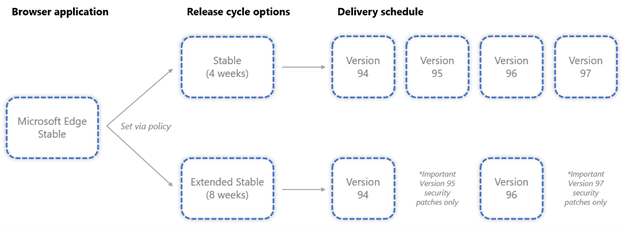
Unlike our preview channels (Canary, Dev, and Beta), Microsoft Edge Extended Stable isn’t a separate browser application. It’s an enterprise release option for the Microsoft Edge Stable application that provides a longer 8-week major release cycle, compared to the two-week major release cycle for Stable. While we generally recommend staying on the two-week Stable cadence, Extended Stable is designed for organizations that need another time to test and validate new browser versions before broad deployment.
With the eight-week Extended Stable option, feature updates are delivered every fourth Stable release. Organizations on Extended Stable remain on the same major version and receive security and critical fixes as needed between feature releases. For example, organizations starting on Extended Stable version 152 receive subsequent feature updates with versions 156, 160, and so on. Organizations can opt into Extended Stable at any time; the change takes effect with the next Extended Stable release.
Security updates and critical fixes are delivered as needed, independent of the feature-release cadence, to help maintain browser security. Extended Stable follows the same Chromium security patching model; when a security fix is addressed in Chromium Extended Stable channel, it's also addressed in Microsoft Edge Extended Stable. This ensures organizations remain protected while adopting the slower feature‑update cycle.
Opting in to the Extended Stable Release Cadence
Opting in to Extended Stable on Windows with Automatic Updates (recommended)
If you automatically update Microsoft Edge, you can use group policy objects to opt in to the Extended Stable Release Cadence. Follow this guide for more information on downloading and installing the latest Microsoft Edge Group Policy administrative templates.
- Open the local Group Policy Editor and go to Computer Configuration>Administrative Templates>Microsoft Edge Update>Applications>Microsoft Edge>.
- Select Target Channel override and then select Enabled.
- Under Options, pick "Extended Stable" from the Policy dropdown list.
When the next update to the Extended Stable channel is released that has a version number higher than what's currently installed on your device, Microsoft Edge will automatically update onto the Extended Stable channel. The version string on edge://settings/help indicates that you're running a different channel.
Note
Opting-in to Extended Stable takes effect when there's a new update on the Extended Stable channel with a larger version number (major or minor) than what is currently installed on your device. If you're running the latest version of Microsoft Edge Stable and opt-in to Extended Stable, it takes effect with the next patch or update of Microsoft Edge.
By default, Microsoft Edge won't downgrade itself. If you're currently running a Stable version that's newer than the latest available Extended Stable release, you won't receive feature updates until the next Extended Stable release becomes available. Security and quality updates continue to be provided as applicable.
If you want to ensure that all of your devices start with a specific version of Extended Stable, you can deploy that specific version of Microsoft Edge Stable as an MSI with rollback enabled. For example, if you want to start with a specific Extended Stable release but some devices have already updated to a newer Stable release, you can deploy an MSI of that Extended Stable version with rollback enabled. For more information on how to deploy Microsoft Edge MSIs with rollback enabled, see our rollback guide.
Opting in to Extended Stable on Windows via Intune
Microsoft Edge Administrative Templates can be managed similarly to local Group Policy Objects from the Microsoft Endpoint Manager admin center. Follow our guide on configuring Microsoft Edge with Intune.
The "Target Channel override" setting can be found under the "Microsoft Edge Update >Applications>Microsoft Edge" subfolders. It should be set to "Extended Stable"
When the next update to the Extended Stable channel is released that has a version number larger than what your device currently has installed, Microsoft Edge will automatically update onto the Extended Stable channel. The version string on edge://settings/help indicates that you're running a different channel.
Opting in to Extended Stable on Windows via Configuration Manager
For more information, see our guide on updating Microsoft Edge with Configuration Manager for more information on how to synchronize and approve Microsoft Edge updates in Configuration Manager.
Extended Stable updates are distributed in the software library under the "Microsoft Edge" product category, similar to existing updates for the Stable, Beta, and Dev channels. However, unlike Beta and Dev, which apply to their own browser applications, the Extended Stable updates apply to Microsoft Edge Stable application. Therefore, for your Windows Update client to determine whether to apply Stable or Extended Stable updates, it checks the status of the "Target Channel override" group policy. If the policy isn't configured or is set to "Stable," Stable updates apply. If it's set to "Extended Stable," then Extended Stable updates apply. Follow the previous instructions for opting in to Extended Stable with Automatic Updates for instructions on how to properly set the Group Policy.
Note
If you use Configuration Manager or MSI packages to install an Extended Stable update, the page at edge://settings/help won't indicate that Extended Stable channel is in use. This page will only show Extended Stable as the channel name when EdgeUpdate is used to update Microsoft Edge.
Flighting Prerelease Channels in your Organization
The "Target Channel override" group policy can also be used to seamlessly flight prerelease channels of Microsoft Edge in your organization without your users needing to use a second web browser application. For example, you can set the "Target Channel override" policy to "Beta" for a representative sample set of users in your organization. When those users open Microsoft Edge, they're running the Beta channel release rather than Stable (probably without even realizing it!). This policy setting can give you an early insight into how the next version of Microsoft Edge will perform in your enterprise and help validate that everything works as expected. You get early signals from your users who encounter any issues and can ensure they're remediated before the release is published to the Stable Channel. As a part of troubleshooting a user's problem, the version string at edge://settings/help informs you if the user's channel is different than the default Stable channel.
Note
Since build on the "Beta" and "Dev" channels of Microsoft Edge have major version numbers larger than that of "Stable," if you take an update to the "Beta" or "Dev" channel and wish to revert back to Stable, Microsoft Edge's rollback feature is required. Simply setting "Target Channel override" back to Stable means you receive NO updates until the latest Stable release has a greater version number than the version of Microsoft Edge you're presently running on your device.