Note
Access to this page requires authorization. You can try signing in or changing directories.
Access to this page requires authorization. You can try changing directories.
As a seller, you can review the suggestions made by Data Enrichment for opportunity records that you own and choose to accept or reject them. If your admin has configured Data Enrichment to automatically update fields, you can still review the changes and revert them if necessary.
Note
- Data Enrichment suggestions are available only for opportunity records that individual users own. Team-owned opportunity records aren't supported.
- Suggestions and logs are retained for 180 days. After 180 days, suggestions are automatically deleted and are no longer visible in the Data Enrichment pane.
Prerequisites
Ensure that your admin has set up and configured the AI-powered Data Enrichment feature. Learn more in Set up and configure AI-powered Data Enrichment.
Provide consent for Data Enrichment to read your emails
When you open an opportunity record for the first time after Data Enrichment is enabled, you see a prompt asking for your consent to allow the agent to read your emails in Microsoft 365. Select Allow to provide consent.
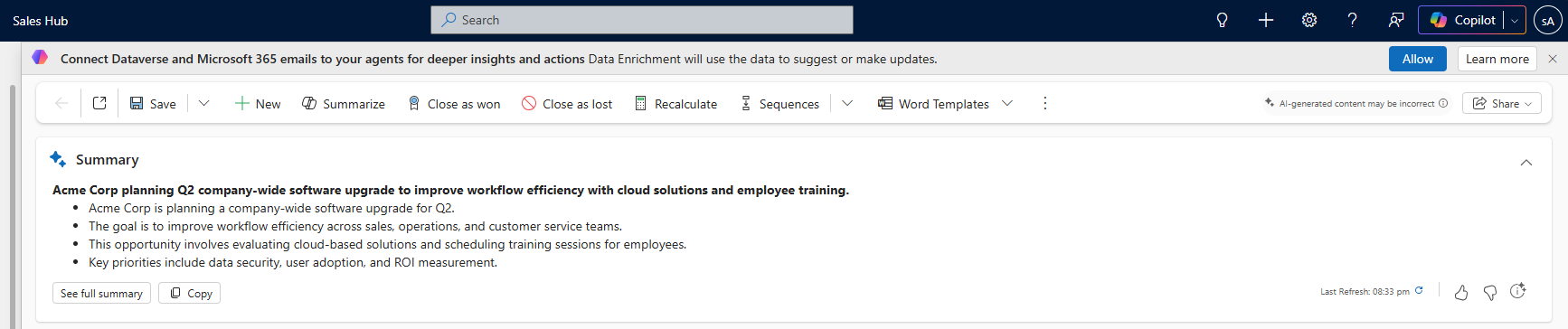
After you provide consent, the agent takes about four hours to analyze your emails and generate suggestions, provided the requirements for generating suggestions are met. You must provide consent for both automatic updates and manual updates.
Note
The agent only reads emails that are relevant to opportunities that you own.
Requirements for generating suggestions based on your emails
For data enrichment suggestions to appear based on your emails, the following conditions must be met:
- The opportunity must have at least one email received from an external contact.
- The sender's email address must map to a contact who is associated with the opportunity (for example, as the primary contact, a stakeholder, or the primary contact of the parent account).
- There can be a delay in Outlook-to-Graph synchronization. Learn more about expected latency.
- Email insight generation runs as a background process, so enrichment suggestions might take some time to appear.
Access data enrichment suggestions
You can access the Data Enrichment suggestions for your opportunities in two ways:
- By selecting the suggestions in the Suggested actions carousel in the opportunity list view. This option allows you to see all available suggestions for your opportunities in one place.
- By opening the Data Enrichment pane from an opportunity record. This option allows you to review suggestions specific to the opportunity.
View Data Enrichment suggestions for all your opportunities
The Suggested actions carousel provides a quick view of the next best actions available for your opportunities, including the suggestions generated by Data Enrichment. The carousel surfaces suggestions for all opportunities that you own, allowing you to easily access and review them. This option eliminates the need to open each opportunity record individually to check for suggestions.
Note
The option to view suggestions in the Suggested actions carousel is turned on by default in the Data Enrichment settings. If you don't see suggestions in the carousel, check with your admin to ensure that the Recommended action skill is enabled. Learn more in Enable or disable connected skills.
- In the Sales Hub app, select Opportunities from the left navigation pane.
- Switch to the read-only grid view by selecting Show As > Read Only Grid from the top of the opportunity list.
The Suggested actions carousel appears at the top of the opportunity list. The enrichment suggestions appear at the end of the carousel as stacked cards if suggestions for multiple opportunities are available.

- Select the New enrichment suggestions stacked card. The list of opportunities with suggestions appears in the Opportunities with pending enrichment view. The Data Enrichment pane for the first opportunity in the list opens on the right side.
- To view suggestions for a different opportunity, follow these steps:
- Select an opportunity from the list. Wait for the Summary component to load on the right pane.
- Expand the Summary component and select the Data Enrichment suggestions button if it's available. Alternatively, you can also select the Data Enrichment suggestions button in the notification banner if it's available. The Data Enrichment pane opens, showing you the suggestions generated by the agent based on its analysis of your emails.
View Data Enrichment suggestions for a specific opportunity
- Open your opportunity record in the Sales Hub app. Wait for the Summary component to load.
- Expand the Summary component and select the Data Enrichment suggestions button if it's available. Alternatively, you can also select the Data Enrichment suggestions button in the notification banner if it's available. The Data Enrichment pane opens, showing you the suggestions generated by the agent based on its analysis of your emails.
Review and approve suggestions manually
If your admin has configured the agent for manual updates, you need to manually review and approve the suggestions. How do I know if my administrator has enabled manual updates or automatic updates?
In the Suggestions tab of the Data Enrichment pane, hover over the information icon next to each suggestion to see details about the source of the suggestion.
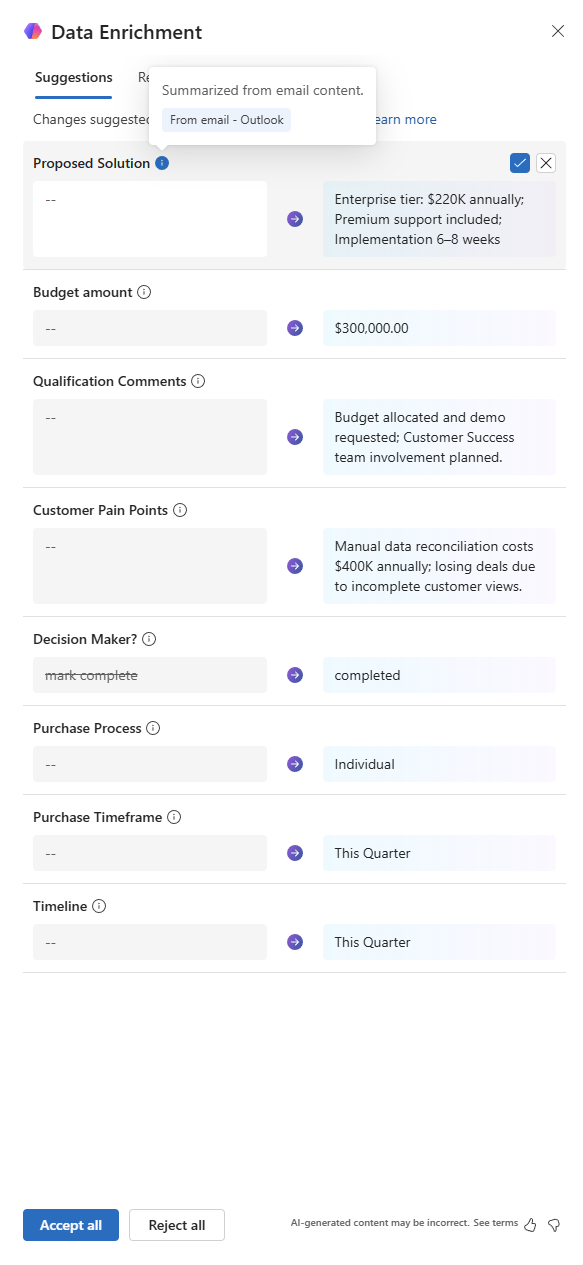
Review the suggestions and perform one of the following actions:
- To accept or reject all the suggestions, select Accept all or Reject all at the bottom of the pane.
- To accept or reject individual suggestions, hover over each suggestion and select the Accept icon (check mark) or the Reject icon (cross mark).
Note
- If you reject a suggestion for an opportunity, you won't see that suggestion again for that opportunity record. There's no option to undo or recover rejected suggestions.
- To view the changes you have accepted, select the History tab in the Data Enrichment pane. Learn more in View change history.
The changes are applied to the opportunity record immediately after you accept the suggestions. If you're not sure about a suggestion, you can leave it without taking any action. The suggestion remains in the pane until you accept or reject it. However, suggestions are periodically refreshed based on new email interactions, and some suggestions might be removed if they become irrelevant based on updated context.
Review and revert automatic updates
If your admin has configured Data Enrichment to automatically update fields in your opportunity records, you can review the changes and revert them if necessary.
- In the Updates tab of the Data Enrichment pane, hover over the information icon next to each suggestion to see details about the source of the suggestion. Review the suggestions and do one of the following:
- To keep or revert all the changes, select Keep all or Undo all respectively at the bottom of the pane.
- To keep or revert individual updates, hover over each suggestion and select the Keep icon (check mark) or the Undo icon (cross mark) respectively.
- To keep a few changes and revert the rest, select Keep for the changes you want to retain. Then, select Undo all at the bottom of the pane to revert the remaining changes; this works both ways. If you undo an update, the change is tracked in the History tab along with the name of the user who reverted it. Learn more in View change history.
View emails associated by Data Enrichment
The AI-powered Data Enrichment feature associates emails with an opportunity based on several criteria to ensure relevance and context. The key criteria include:
- Email participants: The email involves the seller assigned to the opportunity and at least one contact associated with the opportunity.
- Relevance: The email content contains keywords or phrases that indicate relevance to the opportunity, such as mentions of products, services, or deal terms.
To view the associated emails:
Open your opportunity record in the Sales Hub app.
In the Timeline section, look for emails with the agent icon (
 ). These emails are not tracked by default and are visible only in your timeline, even if your admin has configured Data Enrichment for automatic updates.
Select Track on the email to track it in the opportunity record and make it visible to other users.
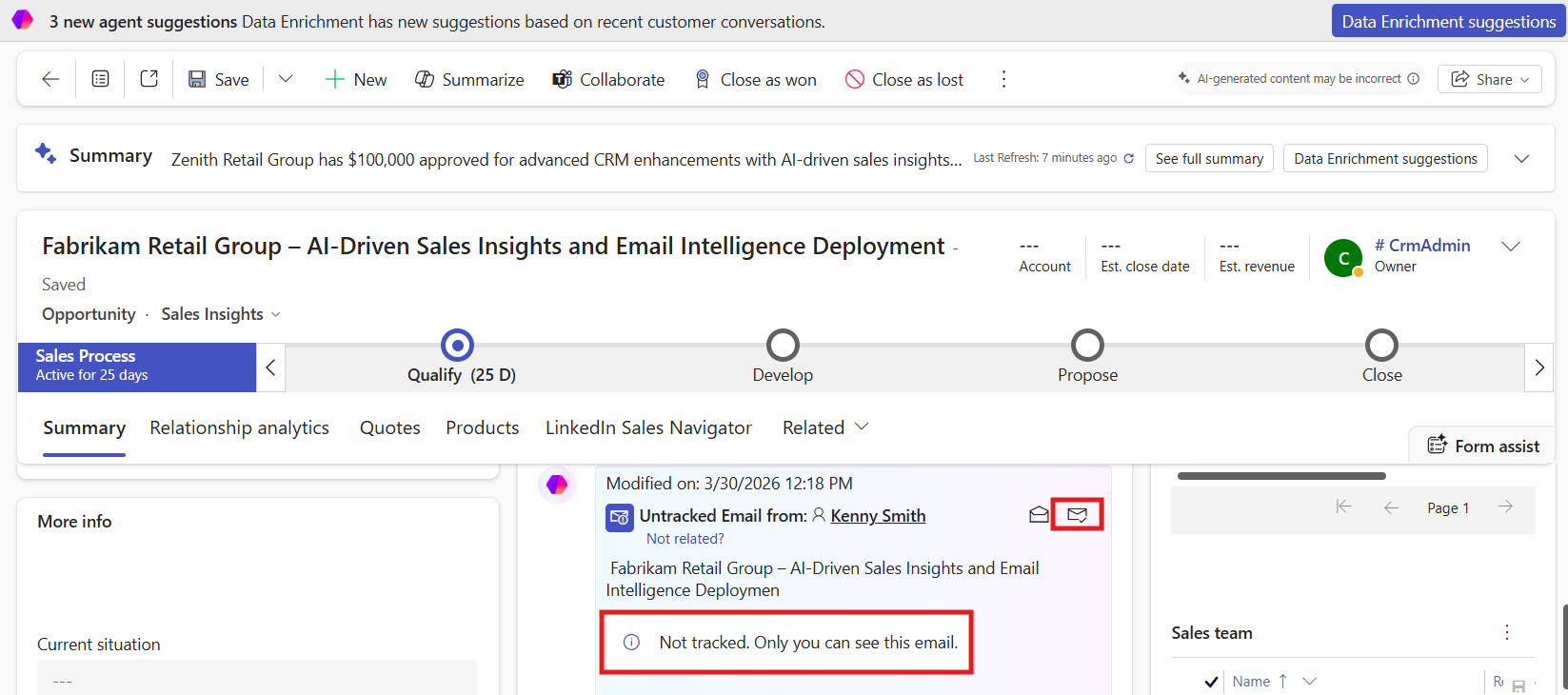
- Select Not related? if you believe the email isn't related to the opportunity. You can then select whether you want to remove the email from the current opportunity or reassign it to another opportunity.
View stakeholder suggestions
When an existing Dynamics 365 contact is added to an email thread related to an opportunity, the AI-powered Data Enrichment feature identifies the contact as a potential stakeholder for the opportunity and suggests adding them as a stakeholder in the opportunity record.
To view the stakeholder suggestions:
- In the Related records tab of the Data Enrichment pane, view the list of suggested stakeholders based on recent email interactions.
- Hover over the stakeholder suggestion and select the Information icon to view the source of the suggestion.
- (Manual update) Hover over the suggestion and take one of the following actions:
- Select the Accept icon (check mark) to add the stakeholder to the opportunity record or
- Select the Reject icon (cross mark) to dismiss the suggestion.
- (Automatic update) The stakeholder is added to the opportunity record automatically. Hover over the suggestion and take one of the following actions:
- Select the Keep icon (check mark) to retain the stakeholder.
- Select the Undo icon (cross mark) to remove the stakeholder from the opportunity record if you think the suggestion is incorrect.
- (Optional) To change the stakeholder's role, follow the instructions in Add stakeholders and decision makers for the opportunity.
View change history
Changes made by the agent for Data Enrichment are tracked separately in the Data Enrichment change history.
Note
Change history is maintained only for 180 days. After 180 days, it's automatically deleted.
The information that you see depends on how Data Enrichment is configured:
- Automatic updates: Shows updates made by the agent and any changes you have reverted.
- Manual updates: Shows the changes that you have accepted from the suggestions.
To view the change history:
In the History tab of the Data Enrichment pane, view the list of changes made to the opportunity record based on Data Enrichment suggestions.