Note
Access to this page requires authorization. You can try signing in or changing directories.
Access to this page requires authorization. You can try changing directories.
Organizations that use Conditional Access policies to protect access to resources should establish standards and patterns to stay organized. For example, having a consistent naming convention can keep you organized and prevent policy overlap or gaps. The Conditional Access Optimization Agent can use a document from your organization that maps out these standards so that agent reasons with context using the patterns that you design.
Instead of relying only on generic best practices, the agent incorporates your organization's own conventions, such as how you name policies, how you separate admins from regular users, and which accounts must always be excluded. This helps produce recommendations that better reflect how Conditional Access is managed in your tenant.
Knowledge Bases are especially useful in environments where:
- Different user personas require distinct policy sets, such as admins, workforce users, and contractors
- Policy naming standards are enforced
- Breakglass accounts must be consistently excluded
- A defined set of desired Conditional Access policies should be maintained across the tenant
How the knowledge base works
The general process for setting up and using the knowledge base is as follows:
Upload guidance: An administrator uploads a single Word (.docx) or PDF document that describes organizational Conditional Access standards. You can download a template or upload your own document.
Interpretation by the agent: The agent parses the document and extracts Conditional Access–related guidance, even when it's embedded within broader governance or operational documentation.
Structured understanding: The agent generates a natural‑language summary representing its understanding of the uploaded guidance.
Application to future recommendations: The approved understanding is applied to future Conditional Access recommendations generated by the agent. Existing recommendations aren't modified retroactively.
Knowledge base file components
A usable and effective knowledge base file should be detailed, specific, and structured. The file should contain clear and actionable information that the Conditional Access Optimization Agent can use to make informed decisions.
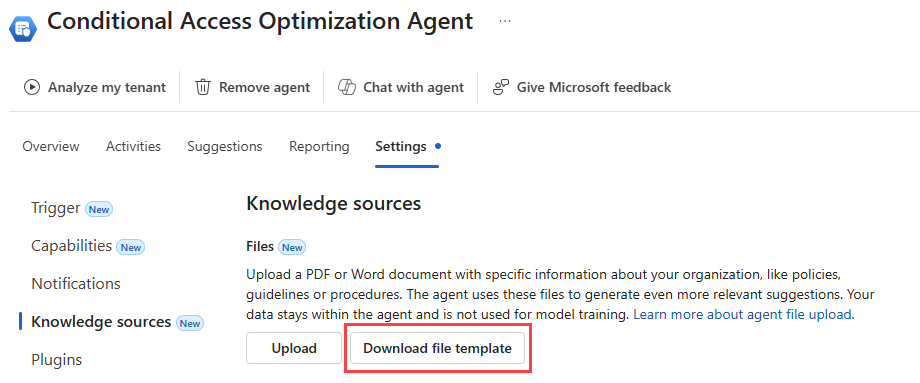
You can download a template from the agent settings to use as a starting point. The template provides a structured format with sections for each supported category, so you can fill in your organization's specific details.
Persona‑based policy design
Describe how different user populations in your organization are secured with Conditional Access policies. When multiple policies enforce the same control (such as MFA), the agent uses this guidance to select the correct policy based on the user's persona. Examples include:
- Regular workforce users are included in baseline policies
- Administrators might be included in the baseline policies as well as a dedicated set of policies for their specific needs
- Contractors are governed by their own policies separate from the baseline
If your Conditional Access strategy applies certain policies to full-time employees, describe how full-time employees are defined. For example, are these employees defined with specific user attributes or group membership?
Be explicit. If your person-based policy design is based on roles, provide the exact Microsoft Entra ID built-in roles. For example, say "Conditional Access Administrator" not "users with administrative privileges".
Policy naming conventions
Specify how Conditional Access policies should be named, including required structure, ordering, and terminology.
The agent uses this guidance when:
- Creating new policies
- Merging similar policies
- Generating policy rename recommendations
Breakglass account handling
You can define which accounts or groups represent emergency access (breakglass) identities and how they must be excluded.
The agent applies this guidance when:
- Creating new policies
- Identifying missing exclusions
- Recommending updates to existing policies
Desired Conditional Access policies
Define the set of Conditional Access policies that your organization expects to have in place across the tenant. For each desired policy, describe the target users, applications, conditions, and grant controls that the policy should enforce.
The agent uses this guidance to:
- Audit your current Conditional Access policies against your desired state
- Identify gaps where required policies are missing or incomplete
- Propose new policies to close coverage gaps and align with your organization's intended configuration
For example, if your organization requires that all guest users authenticate with MFA when accessing any cloud application, describe that expectation in the knowledge base. The agent compares your desired state against the policies currently configured in your tenant and surfaces recommendations for any missing policies.
Write each desired policy as a complete instruction. For example:
- "Create a Conditional Access policy that requires MFA and a compliant device for all users accessing Office 365 from Windows or macOS. Exclude breakglass and service accounts. Set the policy to report-only."
- "Create a Conditional Access policy that blocks legacy authentication for all users accessing all apps. Exclude the EmergencyAccess group. Set the policy to enabled."
Add a file to the knowledge base
To simplify the setup process, you can download a template to use as a starting point. The template is available directly in the agent settings.
Sign in to the Microsoft Entra admin center as at least a Security Administrator.
Browse to Conditional Access Optimization Agent > Settings > Knowledge sources.
Select Download file template to download the knowledge base template file.
Open the template (CA_Knowledge_Base_Template.docx) and replace the placeholder content with your organization's specific Conditional Access standards, naming conventions, breakglass accounts, and desired policies.
Save the file as a Word (.docx) or PDF document.
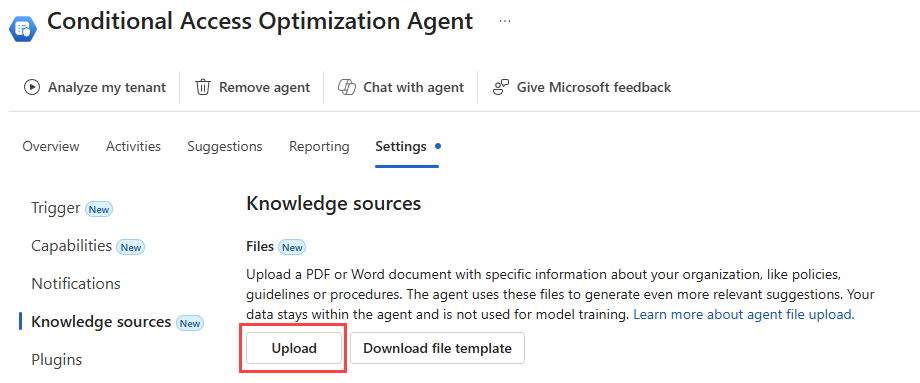
Return to the Knowledge sources section and select the Upload button.
Either drag and drop the file into the panel that opens or select Upload file to navigate to the file on your computer.
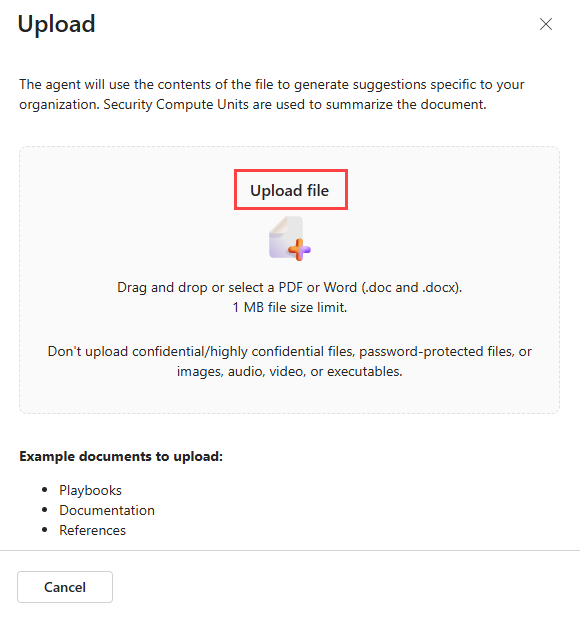
The agent processes the file and analyzes it to ensure it includes the necessary information.
Note
You aren't required to use the template. You can upload any Word (.docx) or PDF document that contains your organization's Conditional Access standards. The template provides a convenient starting point with sections for each supported category.
Recommendations influenced by the knowledge base
Once you've successfully added your guidance to the knowledge base, the Conditional Access Optimization Agent can follow your guidance in the following scenarios:
Baseline policy creation: Newly recommended policies follow your tenant's naming standards and include the correct exclusions.
Policy merge suggestions: When similar policies are consolidated, the resulting policy reflects your organization's standards.
User drift remediation: When new users fall outside existing coverage, the agent selects the appropriate policy based on persona guidance.
Breakglass remediation: Recommendations to exclude emergency access accounts include the correct users or groups.
Policy naming remediation: If a policy doesn't follow defined naming standards, the agent recommends an appropriately named replacement.
Desired policy audit: When you define your intended Conditional Access policies, the agent compares them against your current configuration and recommends new policies to close any gaps.
When should you use the knowledge base?
Consider using the knowledge base if your organization:
- Maintains strict Conditional Access naming standards
- Separates policies by user persona or risk profile
- Audits Conditional Access policies regularly
- Needs recommendations to align with internal governance processes
- Wants to define and enforce a specific set of Conditional Access policies across the tenant
Best practices for writing a knowledge base document
The quality of the agent's recommendations depends on the clarity and specificity of your knowledge base document. Follow these guidelines to get the best results:
- Be explicit and specific. Use exact Microsoft Entra object names, group names, and role names. For example, say "Conditional Access Administrator" instead of "users with administrative privileges."
- Write complete instructions. Each statement should be actionable on its own. Instead of listing bullet points, write full sentences that describe the intended behavior.
- Define your terms. If your organization uses personas like "Admin" or "Guest," define exactly who belongs to each persona using roles, group membership, or user attributes.
- Include scope for every requirement. Specify which users, apps, conditions, controls, and exclusions apply. Don't leave the agent to infer missing details.
- Use the provided template. Download the knowledge base template from the Knowledge sources section of the agent settings to ensure your document follows the expected structure.
The knowledge base template includes sections for:
- Naming conventions: The exact pattern and allowed values for naming Conditional Access policies.
- Breakglass accounts: The identities or groups designated as emergency access and the rules for excluding them.
- Persona definitions and policy coverage: How user populations are segmented and what policies apply to each persona.
- Baseline policy requirements: A list of expected policy states that describe the minimum access controls your organization enforces.
Tip
Replace all placeholder text in the template with information specific to your tenant. Generic or vague descriptions reduce the agent's ability to produce relevant suggestions.
Scope and limitations
The knowledge base has the following constraints:
- One knowledge base document per tenant
- Supported file formats: Word (.docx) and PDF
- Maximum file size: 5 MB
- The knowledge base only applies to future agent runs
The upload process might fail if the document doesn't meet the listed criteria. If the document has a sensitivity label applied, the upload might also fail. Because organizations can customize the criteria for sensitivity labels, we can't suggest a specific sensitivity label.