Note
Access to this page requires authorization. You can try signing in or changing directories.
Access to this page requires authorization. You can try changing directories.
Fabric HorizonDB exposes a stable PostgreSQL endpoint for applications and PostgreSQL tools. Use Microsoft Entra authentication and the connection properties shown by the HorizonDB database.
Important
Fabric HorizonDB is in public preview. Capabilities, limits, and behavior might change before general availability. For more information, see Microsoft Fabric preview features.
Prerequisites
- Access to the Fabric workspace and HorizonDB database.
- Sign-in as the Microsoft Entra identity that created the database. Other users and principals can't connect in the current preview.
- The host, port, database name, user format, token guidance, and TLS settings from the released Fabric HorizonDB connection experience.
Being able to open or share the item doesn't enable another PostgreSQL identity. Don't substitute a service principal or managed identity for the creator.
Choose the correct endpoint
Use the PostgreSQL endpoint for:
- The Fabric SQL editor.
- Visual Studio Code and
psql. - Python and application drivers.
- PostgreSQL DDL, DML, transactions, role inspection, and diagnostic views.
Don't use the SQL analytics endpoint for operational connections. The SQL analytics endpoint is a read-only analytical surface over asynchronously mirrored data and can have different health and freshness.
Connect with the Fabric SQL editor
Open the HorizonDB database in the Fabric portal.
Open a new SQL query.
Run:
SELECT
    current_database() AS database_name,
    current_user AS signed_in_user,
    pg_backend_pid() AS session_id,
    clock_timestamp() AS connected_at;
Confirm the expected database and effective identity.
The editor uses your signed-in Microsoft Entra context. The calling principal determines the effective PostgreSQL identity. If the editor opens but a statement fails with a permission error, verify that the Fabric permission exposed by the current experience supports the operation. For editor behavior and shortcuts, see Query with the SQL editor.
Connect with Visual Studio Code
Install:
- Visual Studio Code.
- The PostgreSQL extension for Visual Studio Code published by Microsoft.
Open the connection from the Fabric toolbar:
Select Visual Studio Code. If necessary, open More options (...) first.
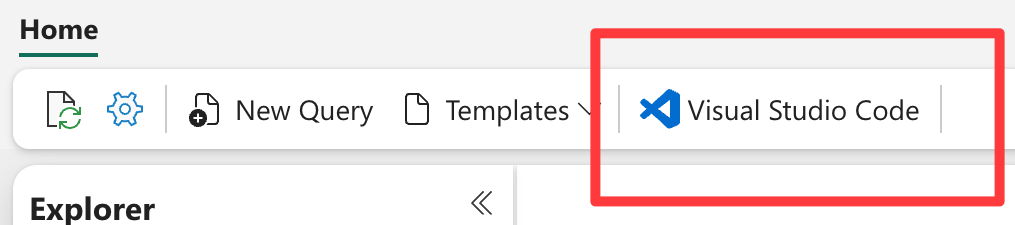
In the connection pane, review the installation prerequisites and PostgreSQL connection details.
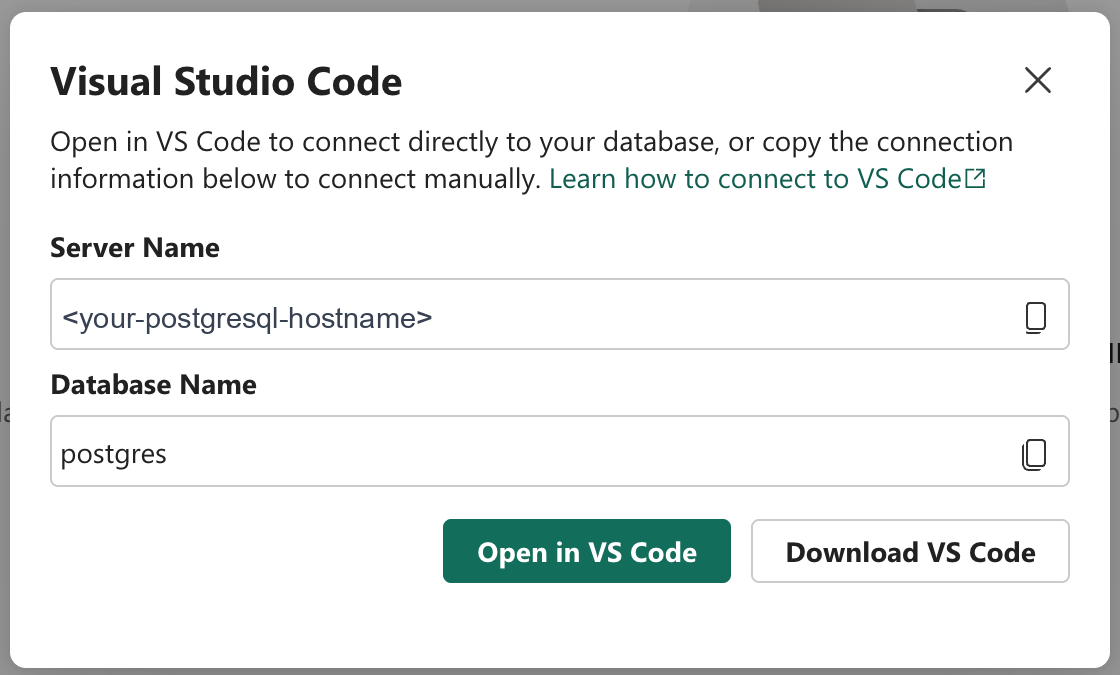
Select Open in VS Code, and allow the browser's
vscodeprotocol prompt.If the connection dialog hasn't opened after approximately 40 seconds, return to Fabric and select Retry Opening in Visual Studio Code.
Verify the prefilled host, port, and database. The database name is
postgresin the current preview, not the Fabric item display name.For Authentication Type, select Entra Auth.
Sign in as the database creator.
Enter a recognizable Connection Name, and select Save & Connect.
Open a query and run the validation query in the previous section.
In Visual Studio Code, select the PostgreSQL elephant icon, expand Connections, and expand your database and schema. Right-click a table and select Select Top 1000 to preview rows, or right-click the database and select Connect with PSQL. Refresh the tree after DDL changes.
If the toolbar action isn't available, confirm preview enablement and that you're viewing the HorizonDB database item, not its mirrored SQL analytics endpoint. Don't copy connection values from another service.
Connect with psql
Install a PostgreSQL client compatible with the version reported by your database. Use the coordinates and TLS mode published for your preview:
psql "host=<postgresql-endpoint> port=<port> dbname=<database-name> user=<entra-identity> sslmode=<documented-mode>"
Acquire a fresh Microsoft Entra token through the released client flow. Provide it securely when the client requests a password-equivalent credential. Don't put the token in the command, shell history, environment dumps, or a committed service file.
After connecting, run:
SELECT
    current_database(),
    current_user,
    current_setting('server_version'),
    clock_timestamp();
Build application connections
Use a PostgreSQL driver that supports your language and Microsoft Entra token credentials. New Python examples use Psycopg 3. For a complete example, see Connect with Python.
Configure these values outside source code:
| Setting | Guidance |
|---|---|
| Host and port | Copy them from the Fabric HorizonDB connection experience. |
| Database | Use postgres in the current preview, as shown in the item's connection pane. Don't use the Fabric item display name. |
| User | Use the released Microsoft Entra identity format. |
| Credential | Acquire a short-lived token through the released authentication flow. |
| TLS | Use the exact published sslmode and certificate guidance. |
| Application name | Set a stable, nonsensitive name for diagnostics. |
| Timeouts | Use a finite connection timeout and application-appropriate statement timeout. |
Connection pooling and token refresh
Access tokens are short-lived. A pool must not keep creating physical connections with an expired token.
- Acquire a fresh token for each new physical connection or pool refresh.
- Set the pool lifetime so connections are replaced before their credential expires.
- Validate a borrowed connection after a pause or disruptive transition.
- Close or recycle broken connections.
- Keep pool size within the released Fabric HorizonDB connection limits.
- Keep the connection under the creator's identity; a permission change doesn't enable additional PostgreSQL users.
Retry safely after pause or a transition
The first eligible connection to a paused database starts resume. Scaling, maintenance, or resume can interrupt a connection.
- Set a finite connection timeout.
- Retry retryable connection failures with bounded exponential backoff and jitter.
- Open a new connection instead of reusing a failed one.
- Retry a transaction only when you know it didn't commit or when the operation is idempotent.
- Reconcile an indeterminate commit by using an application transaction or business key.
Don't retry authentication failures, invalid configuration, unsupported operations, or permission errors in a tight loop. Fabric HorizonDB doesn't automatically replay SQL or transactions.
Troubleshoot connections
| Symptom | Check |
|---|---|
| Name resolution or TLS failure | Verify the host, released DNS path, TLS mode, certificate guidance, and client clock. |
| Authentication failure | Confirm that you're the database creator, then verify tenant, audience or scope, user format, and token expiry. |
| Authorization failure after authentication | Inspect the effective database privileges and verify that the operation is supported. |
| Connection waits after idle time | The database might be resuming. Use bounded retry and inspect item state. |
| Connection drops during a transition | Open a new connection and safely retry the whole transaction if appropriate. |
| Portal works but an external client fails | Compare endpoint, database, user, token flow, and TLS settings. |
| SQL analytics endpoint rejects writes | Switch to the PostgreSQL endpoint. |