Note
Access to this page requires authorization. You can try signing in or changing directories.
Access to this page requires authorization. You can try changing directories.
Embed an existing Fabric Map item as a visual in your Real-Time Dashboard. Unlike the built-in map visual, which renders directly from a KQL query defined in the tile, a Fabric Maps visual embeds a pre-authored, multilayer map item as-is. This approach lets you reuse the same map across dashboards without redefining its data sources, queries, or styling.
The embedded map is a self-contained visual: its data sources, queries, layers, and styling stay authored and maintained in the original map item. Any changes you make to the map appear automatically in the tile. In the dashboard, although you can't edit the map's settings, you can adjust the tile's layout position and size.
The map tile renders in map view mode, so viewers can pan, zoom, hover, select features, switch the basemap style, toggle layer visibility, and modify unlocked filters at runtime. Locked filters, set by the map's author, are always applied and can't be removed. Any changes a viewer makes are temporary and reset the next time the map is opened.
Important
This feature is in preview.
Prerequisites
- An existing Real-Time Dashboard with a data source configured.
- An existing Fabric map, or permission to create one.
- Access to the Fabric map item that you want to embed.
Add a Fabric Maps tile
In your dashboard, switch to Editing mode.
Select New visual from the top menu bar, and then select Fabric Map.
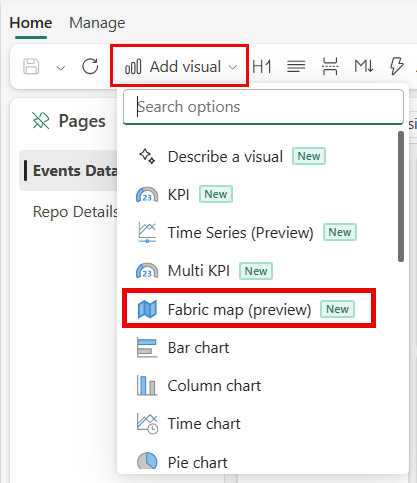
In the catalog picker, select either:
- An existing map to embed it as-is, in its published state.
- Or Create a new map to open the map creation flow in a new browser tab. After you save the new map, return to your dashboard and select the new map from the catalog.
Adjust the visual's layout position and size as needed.
In the dashboard toolbar, select the Save icon to save the dashboard with the new map visual.
Note
If the referenced map item is deleted, or if the dashboard is duplicated to a workspace where the map item doesn't exist, the tile shows an error state.
Work with the Fabric Maps tile
The visual renders in map view mode. Dashboard viewers can:
- Pan and zoom the map.
- Hover over and select features.
- Switch the basemap style.
- Toggle layer visibility.
- Modify unlocked filters.
Locked filters, set by the map's author, are always applied and can't be removed from the visual. Any changes a viewer makes to unlocked filters are temporary and reset the next time the map is opened. You can't edit the map's data sources, queries, layers, or styling from the dashboard. To change those settings, open the source map item directly.
Permissions
Embedding a map in a dashboard doesn't grant access to the map or to its underlying data. A dashboard viewer needs:
- Access to the Real-Time Dashboard.
- Access to the source map item.
- Access to every underlying data source required by the map.
The dashboard viewer's identity and permissions authorize access to the map and its underlying data sources.