Note
Access to this page requires authorization. You can try signing in or changing directories.
Access to this page requires authorization. You can try changing directories.
Microsoft Fabric Eventhouse is built to adjust the compute according to your usage patterns, which means that the capacity usage automatically scales to meet your workload requirements. Eventhouse compute can be influenced by both reactive factors—such as cache utilization, ingestion load, and query load—and proactive controls, such as scheduled minimum capacity via the Capacity Scheduler. During scheduled windows, capacity may stay at a configured baseline even if workload temporarily subsides.
This article walks you through some of the most common factors that determine the size of your eventhouse compute so that you can make the right decisions to optimize your eventhouse.
Key factors influencing compute size
Several factors determine the right size for your eventhouse compute. By understanding these factors, you can make informed decisions to optimize your usage.
Cache utilization
The amount of data kept in the hot cache is a main factor affecting the size of your eventhouse compute. Each compute size provides a certain amount of hot cache capacity. As you approach this limit, both compute and cache space increase accordingly. Therefore, it's critical to manage your hot cache utilization effectively.
Understand capacity level of the current cache
To understand your current hot cache usage, run the following command:
.show diagnostics
| project HotDataDiskSpaceUsage
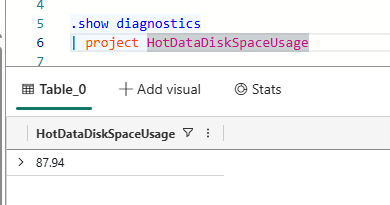
This command displays the percentage of hot cache space currently used.
- If the hot cache usage reaches ~95%, your compute scales up to the next level irrelevant of other usage (CPU, ingestion, etc.).
- If the hot cache usage goes under ~35% and all other scale-in factors are met (CPU, ingestion, etc.), your compute scales into the next smaller size.
To understand where the hot cache is being consumed, drill down to specific tables. Start by running the following command.
.show tables details
| summarize HotExtentSize=format_bytes(sum(HotOriginalSize),2)
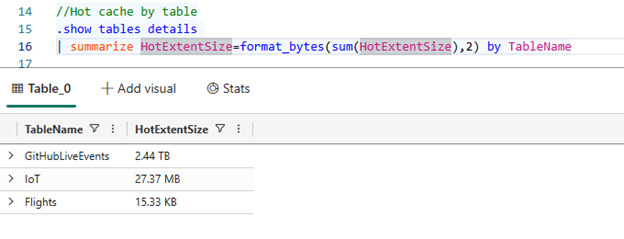
To adjust the caching policy at the table level, modify the table-level caching policy.
Capacity Scheduler (scheduled minimum capacity)
You can configure a 7-day recurring schedule with 60-minute blocks to set a minimum capacity per block (or no minimum) while autoscale remains enabled. This lets you align guaranteed capacity with workload patterns—for example, ensuring higher baseline compute during peak hours and lower costs during off-hours.
Eventhouse maintains the guaranteed baseline only during the scheduled windows. Outside of scheduled windows, the eventhouse remains fully elastic with autoscale active. For more information, see Configure Capacity Scheduler.
Ingestion capacity
Another factor in the size of your eventhouse is the ingestion utilization. To ensure timely ingestion, Fabric monitors your ingestion load and adjusts the Eventhouse compute capacity to accommodate the data being ingested.
Check ingestion load
When looking at the ingestion load, you want to observe it over time. The best way to accomplish it is by enabling workspace monitoring.
After you enable it, run a query similar to the following query to see your current ingestion load:
EventhouseMetrics
| where Timestamp > ago(1d)
| where ItemName == "FieldDemos"
| where MetricName == "IngestsLoadFactor"
| summarize MinValue=min(MetricMinValue), max(MetricMaxValue) by bin(Timestamp,15m)
| render timechart
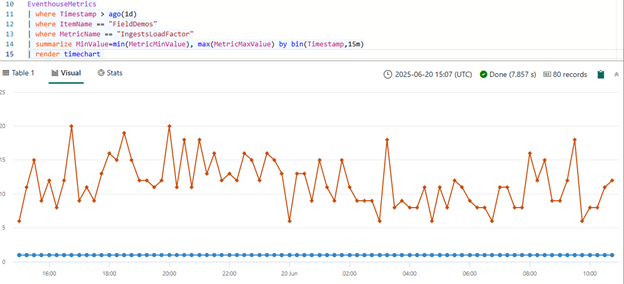
This command shows the percentage of the ingestion capacity being used by the current eventhouse compute size. A few takeaways from this number:
- If you're taking up consistently 70% or more of the ingestion capacity at the current size, the compute is sized based on ingestion. It means that unless the ingestion pattern changed, you continue to run at this compute size or larger, irrelevant of other activity.
- If this percentage consistently drops below 70%, it means that the compute is sized based on other factors. They could be cache utilization, query load, or scheduled minimum capacity via the Capacity Scheduler. If Capacity Scheduler is configured with a minimum for the current time block, the eventhouse maintains that baseline even when ingestion pressure is low.
This setting is also available in the Workspace Monitoring Dashboard in the EH | Table Ingestions tab.
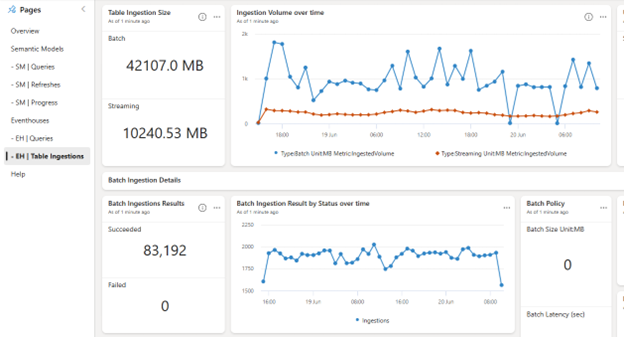
Query load
Load and performance of a query factors in the size of compute eventhouse needs. The best way to monitor this performance is to enable workspace monitoring and utilize the Workspace Monitoring Dashboard.
You can start with the Eventhouses tab in the dashboard. The Eventhouse Queries section provides
- Query count
- Query status over time
- Applications executing queries
- Most queried databases
- Users running the most queries
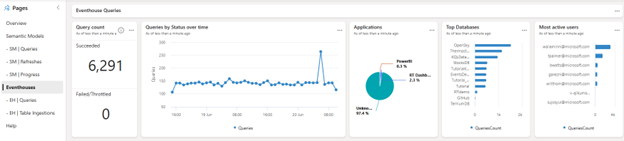
To see more detailed information, use the EH | Queries tab. This tab gives you the details down to specific queries and provides the following parameters to help you quickly drill down to specific issues.
| Parameter name | Description |
|---|---|
| Top Queries Table Order | Allows you to order the queries by timestamp, CPU Time, Duration, Cold Storage Access, Memory Peak. |
| Eventhouse Name | Allows you to filter to a specific eventhouse or look across multiple eventhouses. |
| Database Name | Allows you to select the databases you're interested in. |
| Users | Allows you to specify or exclude users. |
| Query Status | Filter based on query state. |
| Application | Allows you to filter to the application that is running the query. |
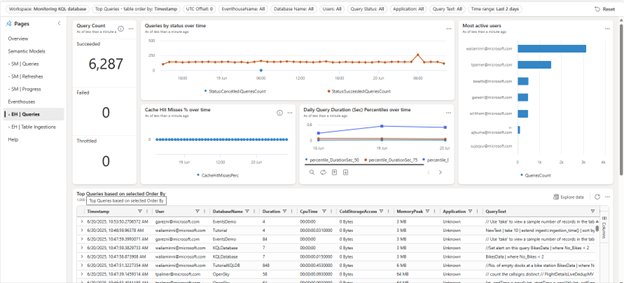
A couple of common issues that would be easy to spot using this dashboard:
- Filter by Top CPU Time to see what queries might be causing high CPU Utilization.
- Filter by Top Duration to see what queries are taking the longest to execute.
- Filter by Memory Peak to see what queries might be causing memory issues.
- Using Queries by status over Time to see if you had a spike in queries.
- Using the Throttled tile to see if the Fabric Capacity throttled any queries.
Note
If you observe unexpected persistent sizing or autoscale behavior, check whether Capacity Scheduler has a scheduled minimum configured for the current time window. Check the Eventhouse overview banner and the schedule view to understand upcoming baseline commitments and whether scheduled minimums are governing the current compute size.
Using this report, you can get down to the specific applications, users, and queries that might need your attention. This article doesn't cover query optimization but finding the actual query text that needs optimization lets you start that process.
Configure and validate scheduled capacity
The Capacity Scheduler UI provides a weekly grid view where each cell represents a 60-minute block. You can enter a minimum CU value per cell, and the UI performs cell-level validation to ensure values are within the supported range. The overview banner in the Eventhouse UI evaluates and summarizes the total scheduled minimum capacity for the next 24 hours, helping you anticipate guaranteed baseline usage.
If a scheduled minimum capacity exceeds the available capacity for your workspace or SKU, a warning appears in the UI. In that case, adjust either the schedule or your capacity SKU to avoid constraint violations. For more information on scheduling, see Configure Capacity Scheduler.
Automate responses
In this article, you walked through observing usage of your eventhouse using control commands, queries against the Workspace Monitoring eventhouse, and using the Workspace Monitoring Dashboard.
To set up notifications from any of these scenarios, use Activator. Activator allows you to respond to your data from multiple locations in Fabric including creating actions from:
It gives you the ability to set up actions from KQL querysets for the control commands and from Real-Time Dashboards for the tiles in the Monitoring Dashboard. You can send out emails, messages in Teams, or initialize Microsoft Power Automate according to your requirements.
Summary
Observability for your eventhouse compute is provided using Eventhouse Overview, Database Overview, KQL Database control commands, and the Workspace Monitoring database. In this article, you walked through the most common scenarios and how to use either KQL Database control commands or the Workspace Monitoring database to allow you to understand your compute usage.
Eventhouse compute is influenced by both reactive factors—cache utilization, ingestion load, and query load—and proactive controls such as scheduled minimum capacity via the Capacity Scheduler. During scheduled windows, capacity may remain at a configured baseline even if workload temporarily subsides. Use the Eventhouse overview banner and Workspace Monitoring Dashboard together to get a complete picture of your capacity usage.