Note
Access to this page requires authorization. You can try signing in or changing directories.
Access to this page requires authorization. You can try changing directories.
In this article, you learn how to create and manage event schema sets in Microsoft Fabric Real-Time Intelligence. Event schema sets help you organize and standardize data structures (schemas) for your real-time analytics workflows, making it easier to process and analyze streaming data consistently.
Prerequisites
To create an event schema set, you need the Admin, Member, or Contributor role on the workspace. Users with the Viewer role can view an existing schema set but can't create or modify one. For more information, see Permissions.
Create a schema set
Sign in to Microsoft Fabric.
Open the workspace where you want to create the schema set.
Select + New item on the command bar.
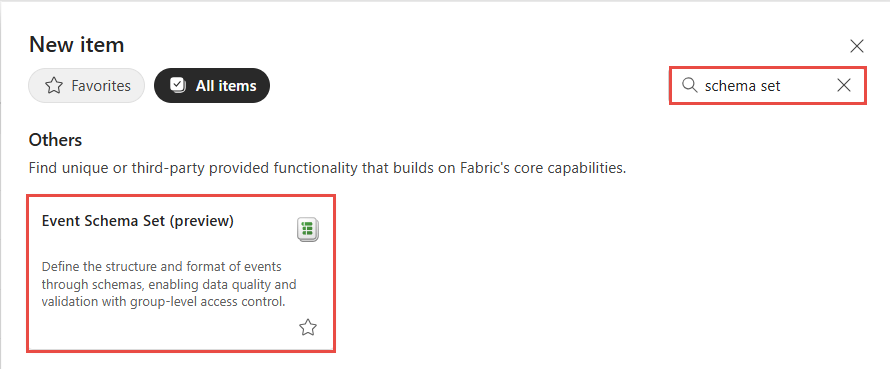
On the New item page, search for Event schema set, and then select Event schema set.
In the New event schema set window, enter a name for the schema set, such as
Fabrikam device telemetry, and then select Create. The name must contain fewer than 256 UTF-8 characters.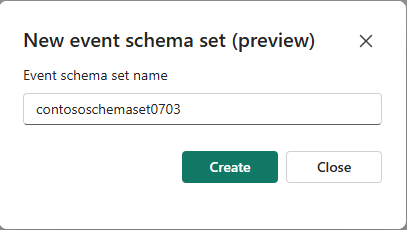
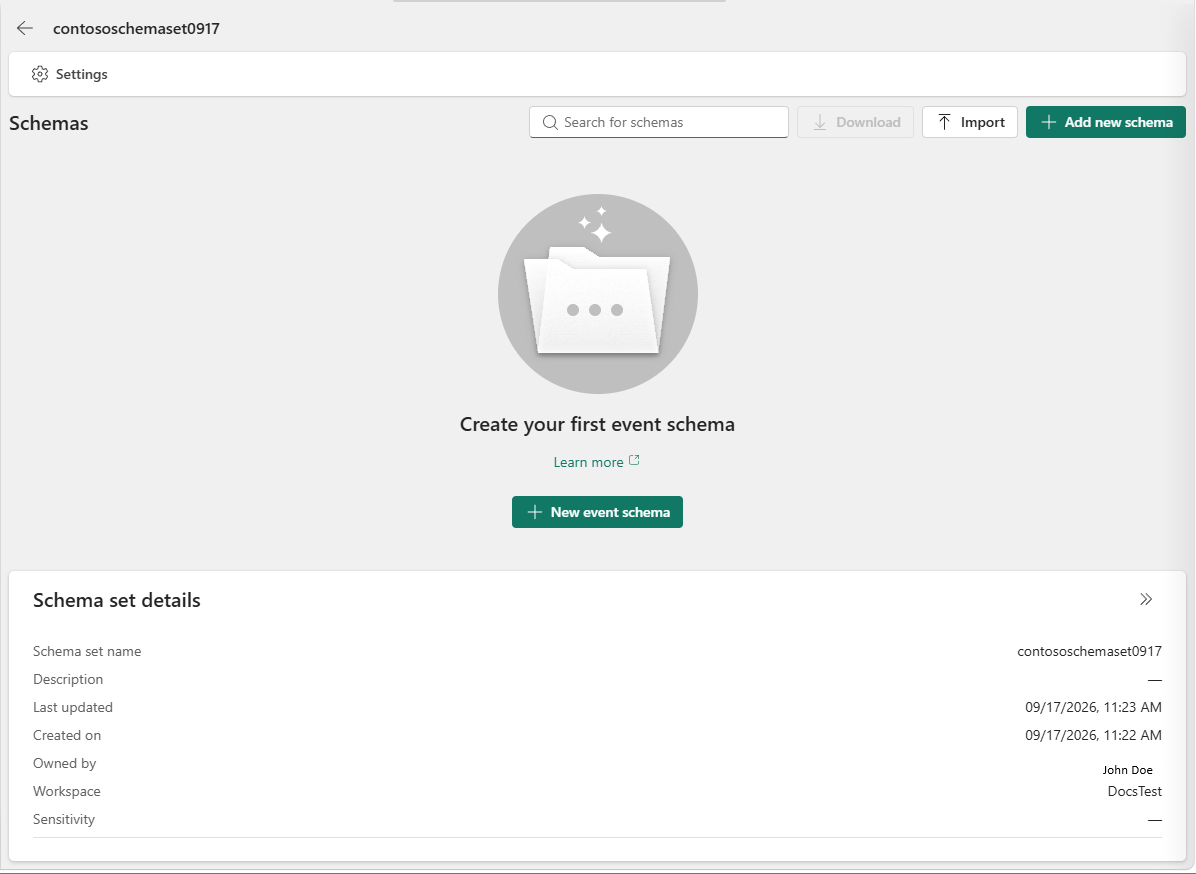
Wait for creation to finish. The schema set page opens. You can create a schema or import existing Avro schemas.
Explore a schema set
Open the event schema set from its workspace or from the Event schema registry page in Real-Time hub. The schema set page lists the schemas in that set.
- Search for a schema by name.
- Preview a schema to inspect its definition without leaving the list.
- Open a schema to view its definition and version history.
- Select multiple schemas to download their definitions.
The schema set page and the individual schema page are separate views. Use the containing schema set link when you want to return to the group of related schemas.
Configure settings for a schema set
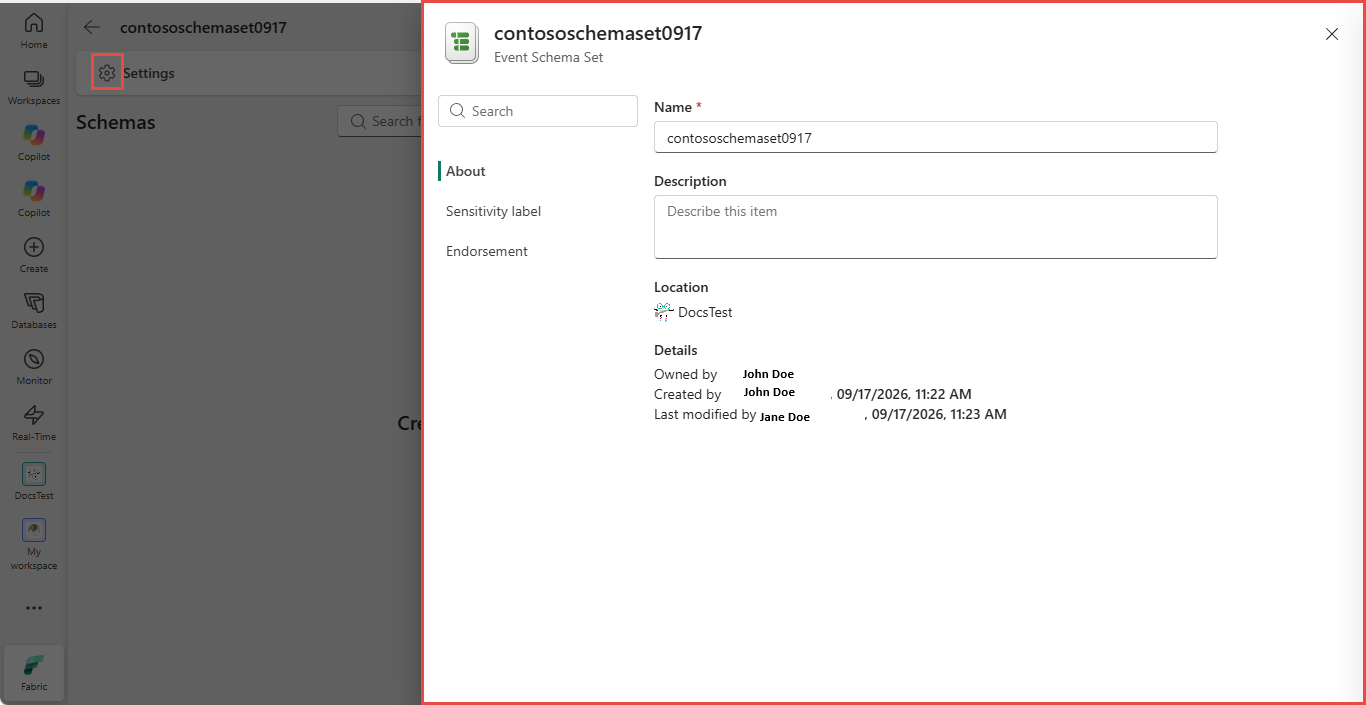
Open the schema set settings to manage its name and description. Fabric governance settings, such as sensitivity labels and endorsement, apply to the schema set item. For access requirements, see Permissions.