Note
Access to this page requires authorization. You can try signing in or changing directories.
Access to this page requires authorization. You can try changing directories.
Applies to:
- iOS
- Windows
View your current device, application, setting, and health inventory in Intune for Education. Download reports to review or share offline.
Access reports
Sign in to Intune for Education and go to Reports.
Select the report you want to view.
Use the search boxes to find specific devices, apps, and settings.
To export a report, select Download report. Intune for Education downloads the report to your computer as a comma-separated value (.csv) file. View and modify the file in a spreadsheet app, such as Microsoft Excel.
Available reports
The following reports are available in Intune for Education.
- Device inventory
- Device actions
- Application inventory
- Settings errors
- Windows Defender
- Autopilot deployment
Device inventory
View all of your school's managed devices and device details. If a device is malfunctioning or didn't receive an app or setting, use this report to find out when it last checked in with Intune.
Device actions
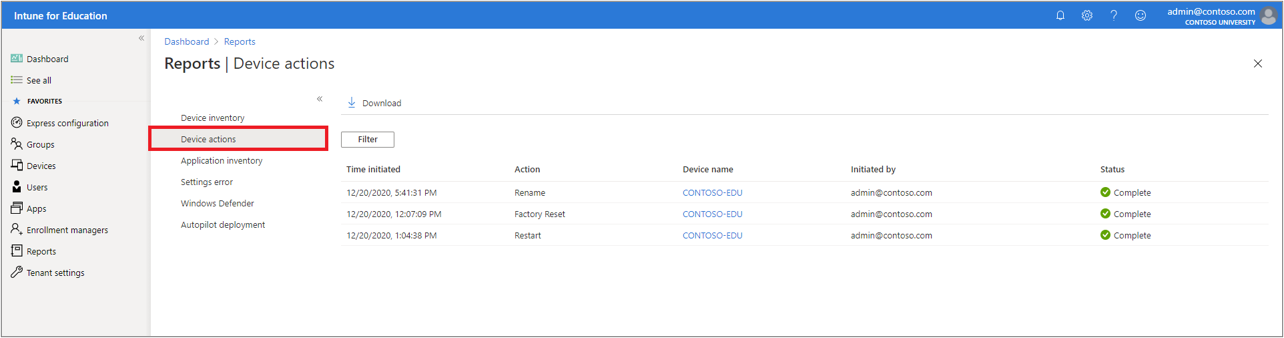
View all remote device actions that you initiated on managed devices. This report provides details such as Restart, Factory Reset, Autopilot Reset, and Rename actions that an admin initiated.
Application inventory
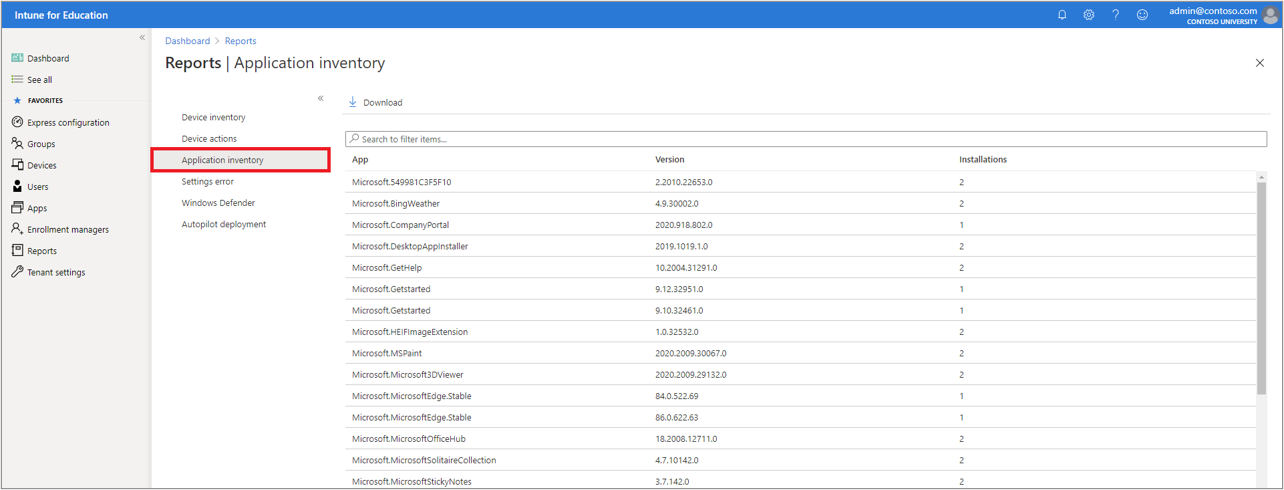
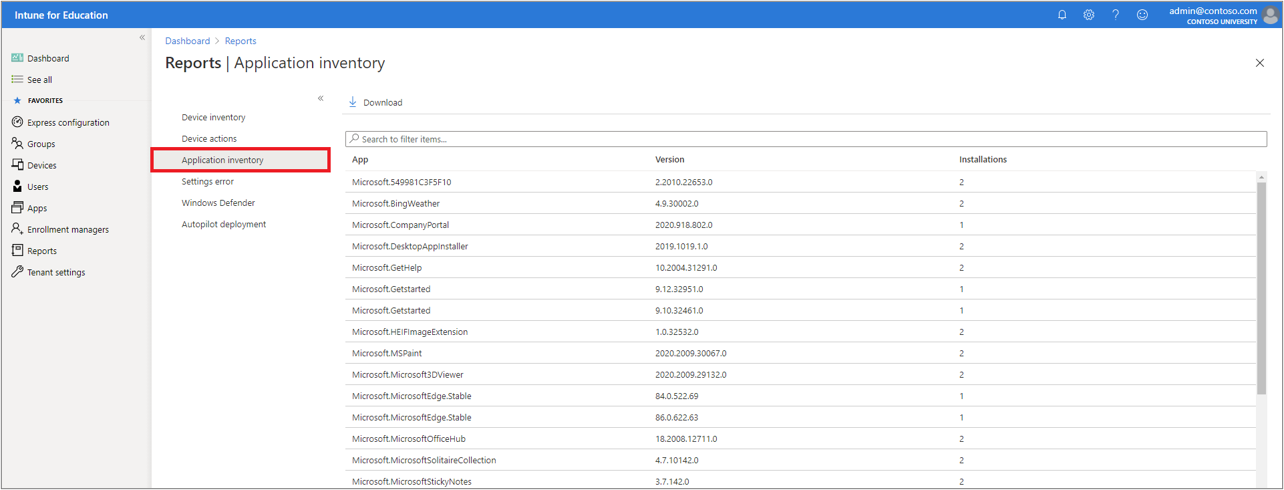
View all apps installed on the managed devices in your school. This report provides details to help you troubleshoot deployment problems. See important details such as the number of devices the app belongs to and the current version installed.
Settings errors
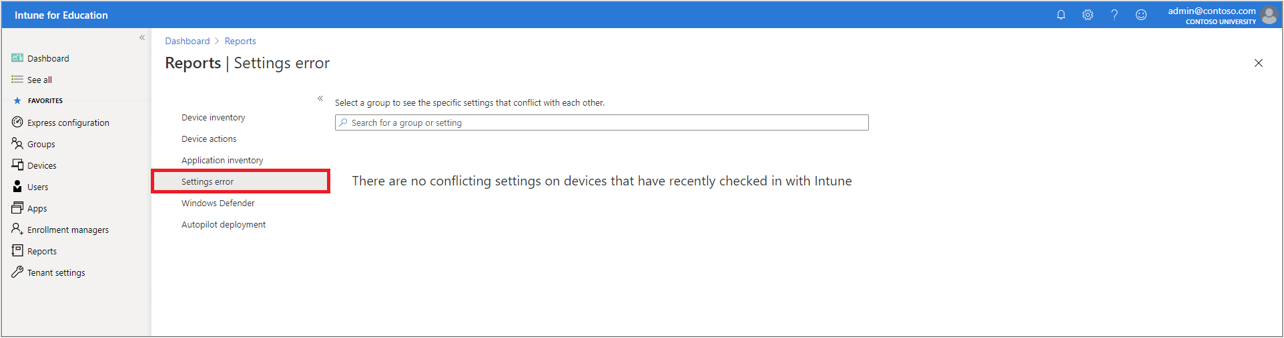
View a list of current setting errors and the groups affected. This report lists both the devices and users that have conflicting, unresolved settings.
Windows Defender
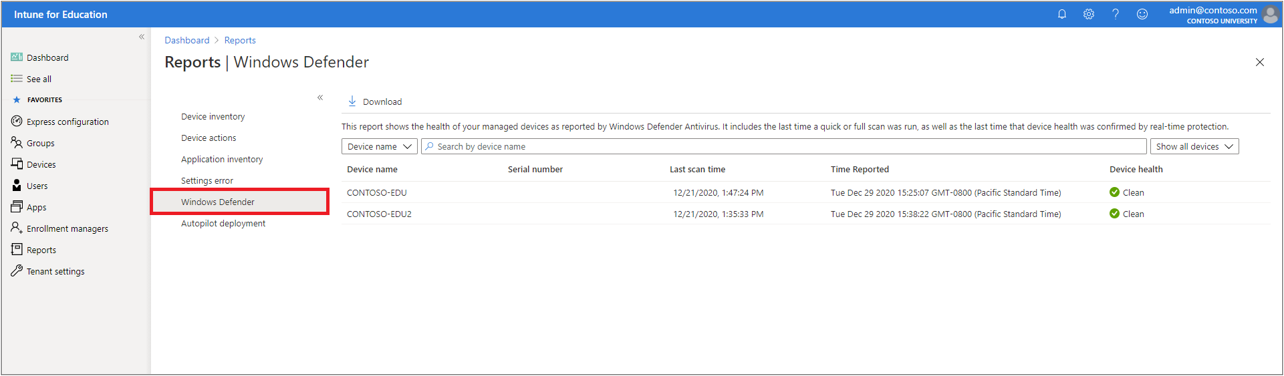
View the Windows Defender device health status for every managed device in your school. This report lists a device health status to alert you to devices that aren't fully secure.
Autopilot deployment
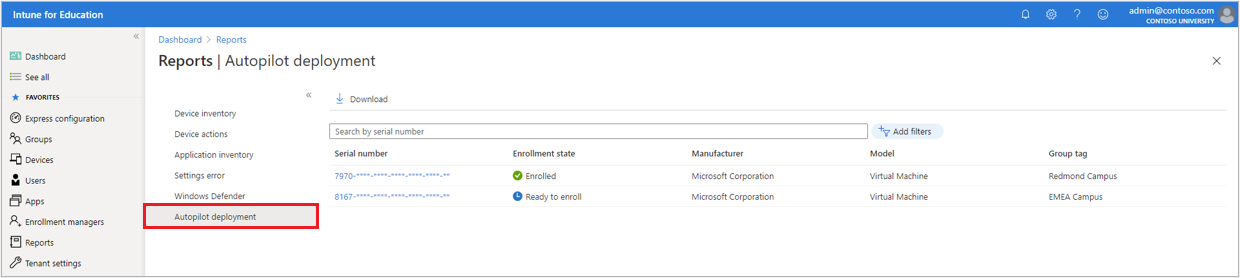
View the Windows Autopilot report for your tenant. This report provides a list of managed Autopilot devices and current enrollment state.
Next steps
To learn more, see the full reporting experience in Intune or reporting using Microsoft Graph.