Note
Access to this page requires authorization. You can try signing in or changing directories.
Access to this page requires authorization. You can try changing directories.
Use this article to set up People Skills for the first time in your organization by using quick or custom setup. After setup, use Manage your skills library to update skills and sharing settings.
Admin roles required for setup
The following roles have permission to set up People Skills:
- AI administrator
- Knowledge administrator
For more information, see assigning roles.
Quick setup with out-of-the-box skill library
Most organizations can quickly set up skills using our out-of-the-box People Skills library of more than 16,000 skills. If you prefer to curate your own library by importing custom skills, refer to the next section Advanced setup.
Sign in to the Microsoft 365 admin center.
From the left navigation bar, select … Show all, and then select Copilot to expand it.
Under Copilot, select Settings.
In the Copilot settings page, select the View all tab.
In the list of Copilot settings, select People Skills in Microsoft 365 Copilot.
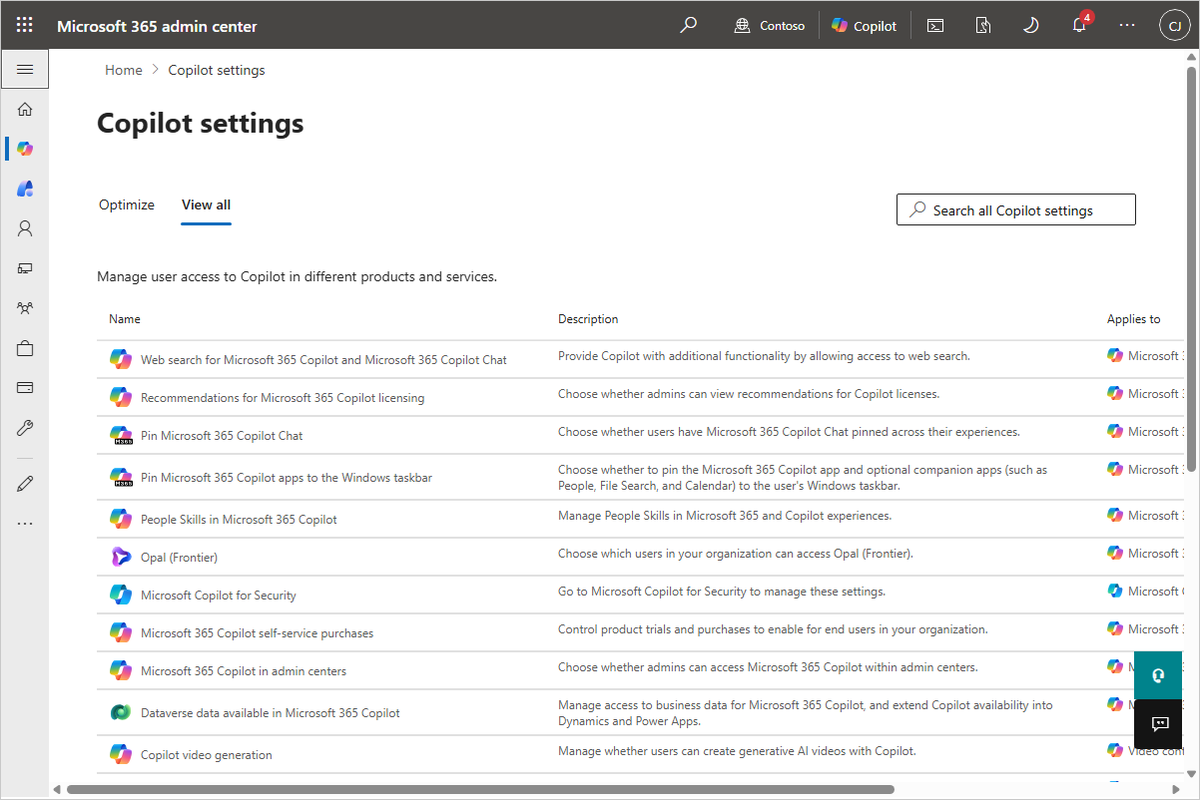
In the People Skills in Microsoft 365 Copilot pane, select Go to People Skills to set up and manage.
Tip
You can also reach People Skills in the Microsoft 365 admin center by selecting … Show all, Settings > Viva > Data Management > People Skills.
In the Set up People Skills for your organization page, select Get started.
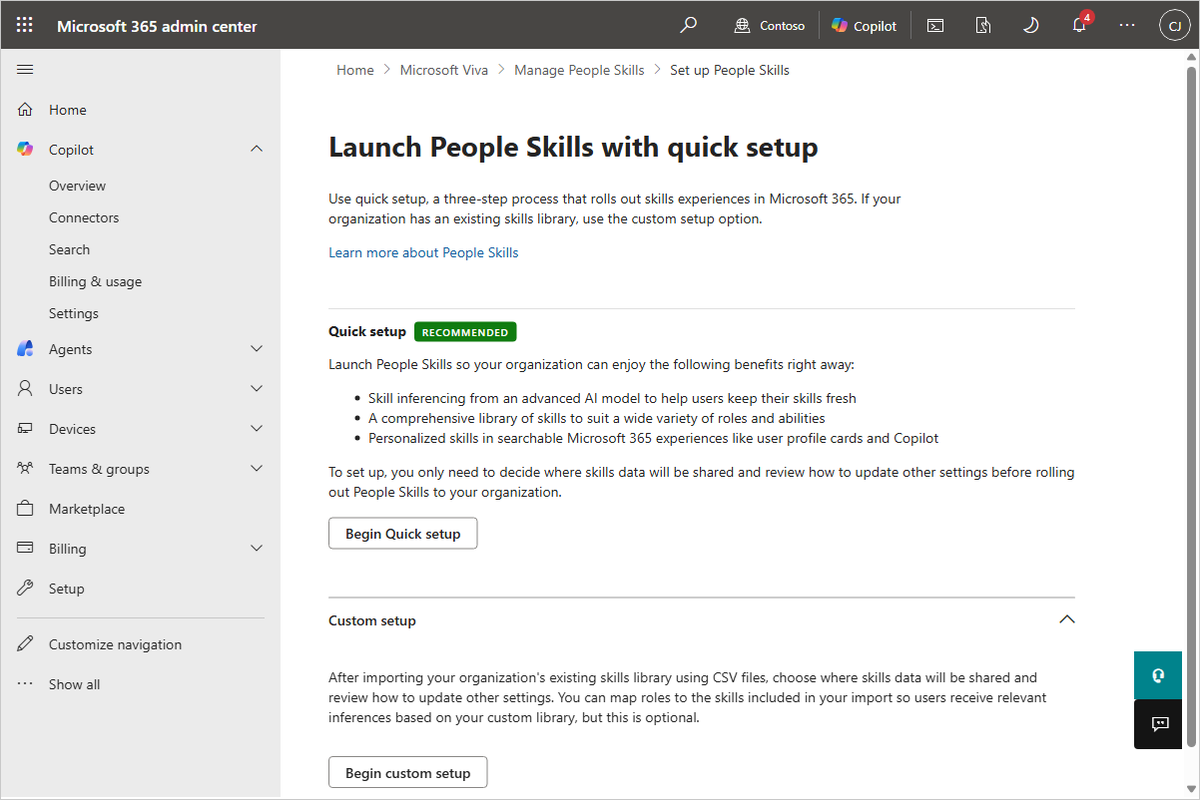
In the Launch People Skills with quick setup page, select Begin Quick setup.
In the Launch People Skills with quick setup wizard, select the View and edit People Skills link.
In the Edit skills from the default skills library in Viva pane, select the skills you want to use from the out-of-the-box library. By default, the entire People Skills library is preselected.
Tip
The more skills you include from the default library, the more specific AI-generated skills are available for users.
- If you want to remove skills from your library, unselect them from the list.
- You can add or remove skills later after setting up People Skills. For more information, see Manage your skills library.
If you made any changes to the default library selection, select Save to save those changes and return to the Launch People Skills with quick setup wizard. Otherwise, select Close to return to the Launch People Skills with quick setup wizard.
In the Launch People Skills with quick setup page, some tenants contain two additional options to choose from:
Allow Skills in Viva Insights (Recommended): You can choose whether to share skill data with Viva Insights. People Skills in Viva Insights allows organizations and leaders to discover skills within their workforce and assess skill distribution across groups. Learn more about the skills landscape report in Viva Insights. You can update this selection later from People Skills settings. For more information, see Overview of People Skills.
Allow skills inferencing for users with Microsoft 365 E3 and E5 licenses: Skills inferencing offers users a personalized, convenient way to keep their skills fresh. Once you allow inferencing, inferencing is turned on for Microsoft 365 E3 and E5-licensed users. For more information, see Overview of People Skills.
Select Confirm and then Done to finish quick setup.
Note
People Skills initial AI inferences should start showing up for users within 48 hours and might take up to five days to complete for all users in your tenant.
You can change the settings confirmed during this setup by Managing your skills library in the settings page. Learn more about sharing controls to manage which skills are shared across your organization.
Advanced setup using custom skills library
Organizations can build their own custom skills library with a combination of skills from the out-of-the-box skills library and by importing your own custom skills.
Sign in to the Microsoft 365 admin center.
From the left navigation bar, select … Show all, and then select Copilot to expand it.
Under Copilot, select Settings.
In the Copilot settings page, select the View all tab.
In the list of Copilot settings, select People Skills in Microsoft 365 Copilot.
In the People Skills in Microsoft 365 Copilot pane, select Go to People Skills to set up and manage.
Tip
You can also reach People Skills in the Microsoft 365 admin center by selecting … Show all, Settings > Viva > Data Management > People Skills.
In the Set up People Skills for your organization page, select Get started.
In the Launch People Skills with quick setup page, select Custom setup to expand it and then select Begin custom setup.
To use a custom skills library, download the template files from the Import custom skills library page of the Manage skills library wizard. Select Download library template and Download mapping template to download the templates.
This step is optional if you're only using skills from the out-of-the-box People Skills library. You can skip this step by selecting Next.
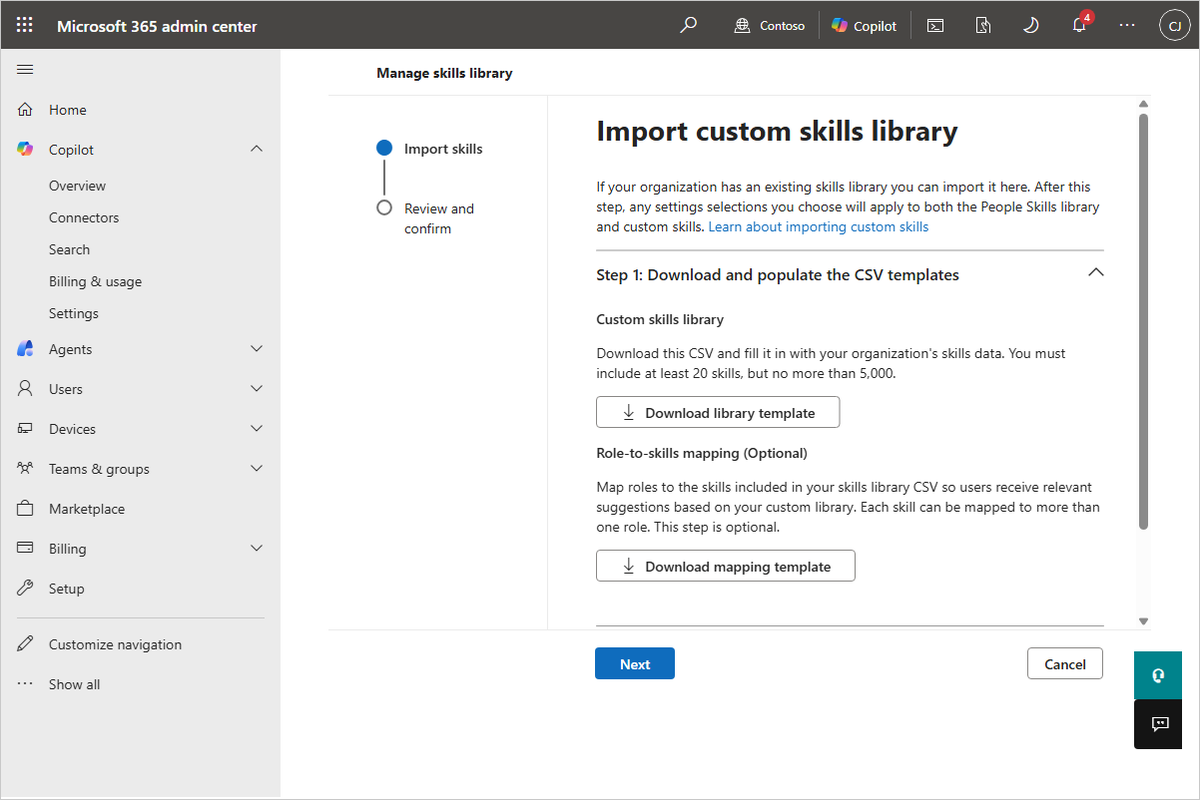
To create the library and mapping files, fill out the templates as described in the sections Create custom skills files and Create role to skill mapping file (Optional) of this article.
Once the templates are completed, in the Import custom skills library page, select Step 2: Upload CSV files to SharePoint and import data to expand the section.
Under the Step 2: Upload CSV files to SharePoint and import data section:
Select Upload from your device.
Select Browse for Upload Skills library file.
Navigate to the location of your completed skills library .csv file, select the file, and then select Open.
Select Browse for Upload Skills mapping file (Optional).
Navigate to the location of your completed skills mapping .csv file, select the file, and then select Open.
Select Next to begin file validation. If there's a problem with the file, an error message is displayed.
In the Review and confirm page, review the following skills library details for your organization:
The number of skills from the out-of-the-box People Skills library.
Note
You can select which skills you want to include from the default library of skills by selecting View People Skills. You can also select skills later after the initial setup. For more information, see Manage your skills library.
The number of skills and number of roles or job titles from your custom import.
The number of duplicate skills identified in your selection. If you have duplicates, your organization's custom data takes priority over data from the out-of-the-box library.
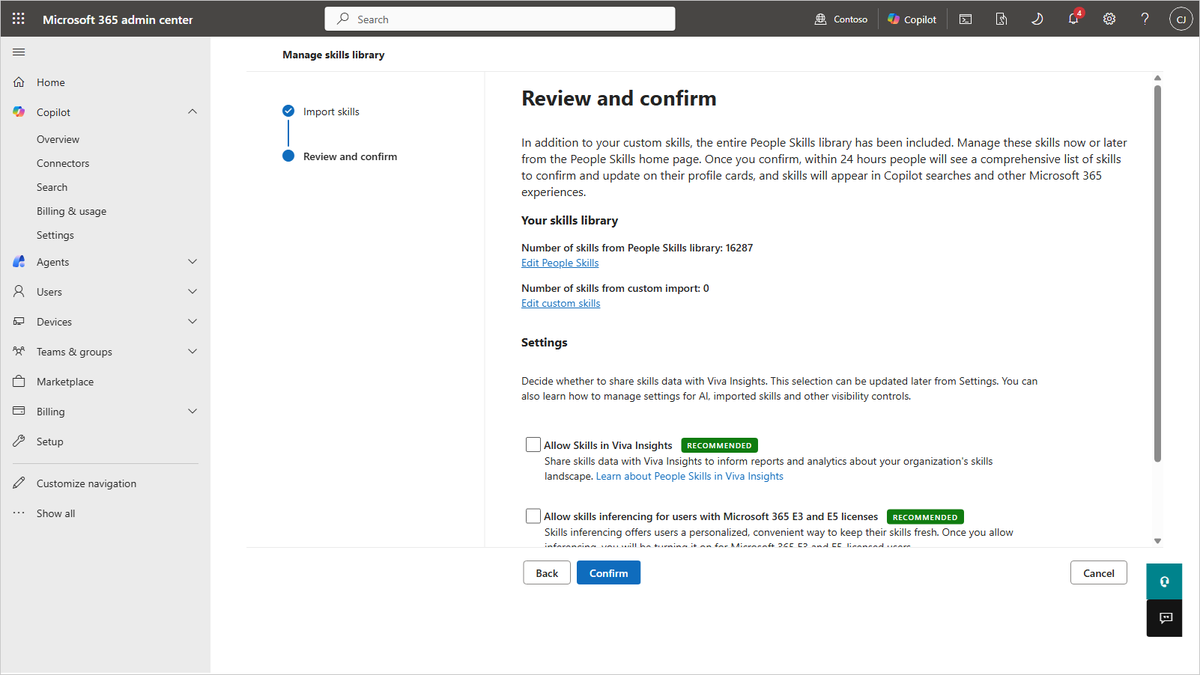
In the Review and confirm page, some tenants contain two additional options to choose from:
Allow Skills in Viva Insights (Recommended): You can choose whether to share skill data with Viva Insights. People Skills in Viva Insights allows organizations and leaders to discover skills within their workforce and assess skill distribution across groups. Learn more about the skills landscape report in Viva Insights. You can update this selection later from People Skills settings. For more information, see Overview of People Skills.
Allow skills inferencing for users with Microsoft 365 E3 and E5 licenses: Skills inferencing offers users a personalized, convenient way to keep their skills fresh. Once you allow inferencing, inferencing is turned on for Microsoft 365 E3 and E5-licensed users. For more information, see Overview of People Skills.
If everything looks correct, select Confirm.
Your skills library is created, and your settings are saved. Initial AI inferences display to users within 48 hours for up to a maximum of five days. You can change the setting confirmed during this setup by managing your skills library in the settings page. For more information, see Manage your skills library in People Skills.
When complete, you're taken to the Manage People Skills for your organization page, where you can:
Review People Skills settings. You can disable skill AI inferencing or set default skill sharing for specific users, groups, or your entire tenant by using an access control policy. Configure these settings through People Skills settings. For more information, see People Skills AI Inference engine.
Review your skills library and settings information. Edit the settings if there are any changes you want to make.
To learn more about managing which skills are shared across your organization, see sharing controls.
Create custom skills files
To import custom skills into your skills library, create a file that lists those custom skills and their descriptions. You can also create a file that maps skills to specific jobs in your organization.
Before you get started, review these guidelines:
- You need at least 20 skills to import custom skills.
- Each file must be under 100 MB.
- You can't use certain characters as a prefix in any imported field, such as
+,-,@,=,\t, and\r. - Save your template files as .csv files (comma separated), with no spaces in the file name.
- Use only a comma as the delimiter. Your system might default to a different delimiter. In European countries, for example, the delimiter is often set to a semicolon.
To create your custom skills files:
Open the template files you downloaded during People Skills setup.
Enter the skills for your custom skills library into the library template.
- Required fields: Skill ID (externalCode), Skill Name (name.en_US)
- Recommended fields: Skill Description (description.en_US)
- Optional field: Restricted Skill tag (mark Yes or No)
See the following example input. Replicate for each custom skill in your file:
- Skill ID: SN0001
- Skill Name: Customer Insights
- Skill Description: The ability to understand customer needs and validate that their needs are being met.
- Restricted Skill: Yes
Save the templates as .csv files in a secure SharePoint location.
Get the file paths for your .csv files.
Select the file, and then select the ellipsis (...).
Select Details, and then scroll to find the Path.
Select the option to copy the selected file's path to the Clipboard. The file path should be formatted like the following example:
https://contoso.sharepoint.com/TeamAdmin/Shared%20Documents/Skills_Library.csv
Create role to skill mapping file (optional)
Admins can upload a file to map your custom skills to specific roles or jobs in your organization.
Before you get started, review the following information:
- Skill ID (externalCode) in the library file must map to Skill ID (SkillExternalCode) in the role to skill mapping file.
- You can't use certain characters as a prefix in any imported field, such as
+,-,@,=,\t, and\r. - Save your template files as .csv files (comma separated), with no spaces in the file name.
- Use comma as the delimiter. Your system might default to a different separator. In European countries, for example, the delimiter is often set to a semicolon.
To create your role to skill mapping file:
Open the template file you downloaded during People Skills setup.
Enter the role and skills information into the library template.
- Required fields: Job Title, Skill ID (externalCode)
- Recommended fields: Skill Name (Name.en_US)
See the following example input. Replicate for each custom skill in your file:
- Job Title - Software Engineer II
- Skill ID - SN0001
- Skill Name - Cloud Security
Save the templates as .csv files in a secure SharePoint location.
Get the file paths for your .csv files.
Select the file, and then select the ellipsis (...).
Select Details, and then scroll to find the Path.
Select the option to copy the selected file's path to the Clipboard. The file path should be formatted like the following example:
https://contoso.sharepoint.com/TeamAdmin/Shared%20Documents/Skill_Mapping.csv