Note
Access to this page requires authorization. You can try signing in or changing directories.
Access to this page requires authorization. You can try changing directories.
Applies to: ✅ Power BI Desktop and Power BI service
The Display units setting scales large numbers in a visual and adds a suffix. For example, with Auto, a card might show 1.23M instead of 1,234,567. Display units apply on top of the value's format string, so a suffix such as K or M can appear even when you set a custom format string such as #,##0.
This article describes how to set display units on a visual, how to define a custom display unit, and how to turn off automatic scaling for a whole report.
Display units options
| Option | Description |
|---|---|
| Auto | Power BI picks a unit based on the size of the value and adds the matching suffix: K, M, bn, or T. |
| None | No scaling. The format string alone controls the output. |
| Thousands | Divides the value by 1,000 and adds K. |
| Millions | Divides the value by 1,000,000 and adds M. |
| Billions | Divides the value by 1,000,000,000 and adds bn. |
| Trillions | Divides the value by 1,000,000,000,000 and adds T. |
| Custom | Defines your own display unit with a format code, such as 12 thousand instead of 12K. For more information, see Define a custom display unit. |
Most visuals default to Auto.
Set display units on a visual
- Select the visual.
- Open the Format pane.
- In the Search box at the top of the Format pane, enter Display units.
- Select a display unit. To show the value exactly as the format string defines it, select None.
Note
In the new card visual, Display units doesn't appear when Apply settings to is set to All in Callout values. Select a specific card under Apply settings to first, and then the Display units setting appears.
Define a custom display unit
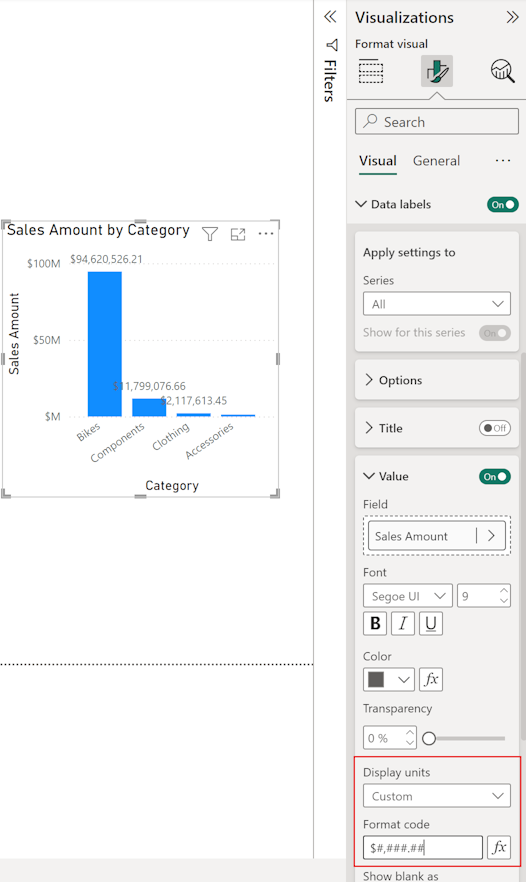
Select Custom in Display units to define your own display unit. Instead of a built-in suffix such as K or M, choose how the value scales and what text follows it. For example, you can spell out thousand instead of showing K.
To scale the value, end the number format with a period (.), and put one comma immediately before the period for each factor of 1,000. A comma between digit placeholders, such as in #,##0, only adds a thousands separator and doesn't scale the value. To add your own suffix, put the text in double quotation marks.
| Format code | Value | Output |
|---|---|---|
#,." thousand" |
12,345 | 12 thousand |
#,##0,,." million" |
12,345,678 | 12 million |
#,##0,,,." B" |
12,345,678,901 | 12 B |
#,##0" units" |
12,345 | 12,345 units |
Important
Use scaling commas only with Display units set to Custom or None. If Display units is Auto, Power BI scales the value again, so a value formatted as #,##0,,." million" can display as 0M.
You can set the format code in two ways:
- Enter a format code. Under Display units, enter the format string in Format code.
- Use a field value. Select Conditional formatting (fx) next to Format code. Set Format style to Field value, select a field or measure that returns a format string as text, and then select OK. Use this option to change the display unit based on context, such as the size of the value or a unit selected in a slicer.
A custom display unit is an element format string. It overrides the visual and model format strings for that element only. Format codes use the same syntax as other format strings that a visual applies. For the supported syntax, see Use custom format strings in Power BI Desktop. Custom isn't available for every visual element.
Tip
To change the format for a measure everywhere it's used, rather than for one element, use a dynamic format string in the model instead.
Turn off automatic scaling for a report
Turn on Default display units to 'none' to make None the default for every visual in the report. You don't have to change each visual. A visual that has Display units explicitly set keeps its setting.
- Select File > Options and settings > Options.
- Under Current file, select Regional settings.
- Under Default format string locale for dates and numbers, select Default display units to 'none'.
- Select OK.
This setting works even when the format string locale is set to Auto. For more information about the locale setting, see Set the default format string locale for a Power BI report.
You can also set display units for all visuals by using a custom report theme. For an example theme, see Known problems and considerations for dynamic format strings.
Troubleshoot unwanted display unit suffixes
If a value shows a K, M, bn, or T suffix you didn't expect, Display units is probably set to Auto. Display units apply on top of custom and dynamic format strings, so the suffix can appear even when the format string doesn't include one. Display units can also revert to Auto when you remove a field or visual calculation and add it back.
To fix it, set Display units to None or Custom, or turn off automatic scaling for the report.
If the suffix still appears, check that:
- No other element in the visual, such as data labels, is still set to Auto.
- The format string doesn't contain a literal suffix, such as
0" K". - The measure's DAX doesn't already scale the value, for example, by dividing by 1,000.
- The format string doesn't use scaling commas, such as
#,##0,,., while Display units is Auto. Power BI scales the value twice, and it can display as 0M.
| Visual | Display units | Format string | Result |
|---|---|---|---|
| Card | Auto | #,##0 |
12K |
| Card | None | #,##0 |
11,732 |
| Data label (clustered column) | Auto | 0 |
12K |
| Data label (clustered column) | None | 0 |
11732 |
| New card | Auto | #,##0" °C" |
23K °C |
| New card | None | #,##0" °C" |
23,400 °C |
Tip
To use your own abbreviation or spell out the unit, define a custom display unit.
Considerations and limitations
- Some legends use Auto display units, and you can't turn it off. The Default display units to 'none' setting doesn't apply to them.