Note
Access to this page requires authorization. You can try signing in or changing directories.
Access to this page requires authorization. You can try changing directories.
This article explains how to configure Microsoft Purview to scan Azure Databricks Unity Catalog metadata and set up a data quality connection for profiling and scanning your Databricks data. It covers prerequisites, supported assets, Data Map scan configuration, and connection setup. Use this guide if you're a data quality steward or admin who manages Azure Databricks data governance in Microsoft Purview.
Prerequisites
Before you begin, enable your Azure Databricks workspace for Unity Catalog. Attach the workspace to a Unity Catalog metastore. Recent workspaces are enabled automatically. For older workspaces, an account admin might need to enable Unity Catalog manually.
After Unity Catalog is enabled, complete these steps:
- Create catalogs and schemas to contain database objects like tables and volumes.
- Create managed storage locations to store the managed tables and volumes in these catalogs and schemas.
- Grant user access to catalogs, schemas, and database objects.
Workspaces that are automatically enabled for Unity Catalog provision a workspace catalog with broad privileges granted to all workspace users. The workspace catalog is a convenient starting point for trying out Unity Catalog.
Before you configure a scan or connection, store your Azure Databricks Access Token in Azure Key Vault and grant the product (service) MSI read (secret) access to the Key Vault. Microsoft Purview only needs read-level permissions to discover metadata, run profiling, and execute data quality scans.
For detailed setup instructions, see Set up and manage Unity Catalog.
Supported Unity Catalog assets
When you scan Azure Databricks Unity Catalog, Microsoft Purview supports the following assets:
- Metastore
- Catalogs
- Schemas
- Tables including the columns
- Views including the columns
When you set up a scan, you can choose to scan the entire Unity Catalog or scope the scan to a subset of catalogs.
Configure a Data Map scan for Databricks Unity Catalog
To catalog your Azure Databricks Unity Catalog data in Microsoft Purview, configure a Data Map scan.
- Register an Azure Databricks workspace in Microsoft Purview.
- Create a scan for the registered workspace:
- Enter the name of the scan.
- Select Unity Catalog as the extraction method.
- Connect through an integration runtime (Azure Integration runtime, Managed Virtual Network IR, or a Kubernetes-supported self-hosted integration runtime).
- Select Access Token authentication while creating a credential. For more information, see Credentials for source authentication in Data Map.
- Specify the Databricks SQL Warehouse HTTP path that Microsoft Purview uses to perform the scan.
- On the Scope your scan page, select the catalogs you want to scan.
- Select a scan rule set for classification. You can choose the system default, existing custom rule sets, or create a new rule set inline. For more information, see Data classification in Data Map.
- For Scan trigger, choose whether to set up a schedule or run the scan once.
- Review your scan and select Save and run.
- View your scans and scan runs to verify that cataloging completed successfully.
After scanning, the scanned Unity Catalog asset is available in Microsoft Purview Unified Catalog search. For more information, see Connect to and manage Azure Databricks Unity Catalog in Microsoft Purview.
Note
Data quality scans for Microsoft native data sources (Microsoft Fabric, Azure Data Lake Storage Gen2, Azure SQL, Azure Synapse Analytics, and Azure SQL Managed Instance) use managed identity authentication. For Azure Databricks, Snowflake, and Google BigQuery, managed identity isn't available as an authentication option — use an Access Token stored in Key Vault instead.
Set up a connection for a data quality scan
After the Azure Databricks Unity Catalog scan completes, the scanned asset is ready for cataloging and governance. To run data quality scans, create a data quality connection for your Azure Databricks source and associate it with a data product in a governance domain.
Important
- Data quality stewards need read only access to Azure Databricks Unity Catalog to set up a data quality connection.
- If public access is disabled, select the Allow trusted Microsoft services checkbox for Key Vault. This requirement applies only to Key Vault, not to your Azure Databricks workspace.
- Virtual network support is generally available to all supported Azure regions. It's temporarily included in the Data Governance SKUs to maintain flexibility during this phase. Virtual network pricing isn't yet available to include in billing.
In the Microsoft Purview portal, open Unified Catalog.
Under Health management, select Data quality.
Select a governance domain from the list, then select Connections from the Manage dropdown list.
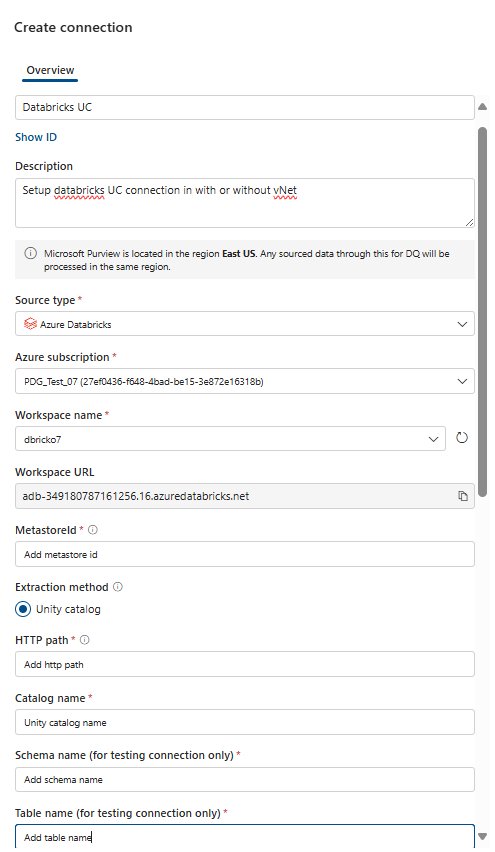
Configure the connection on the Connections page:
- Add connection name and description.
- Select source type Azure Databricks.
- Select Azure subscription.
- Select workspace URL.
- Add Databricks metastore ID.
- Select Unity catalog as extraction method.
- Select HTTP path.
- Select unity catalog name.
- Select schema name.
- Select table name.
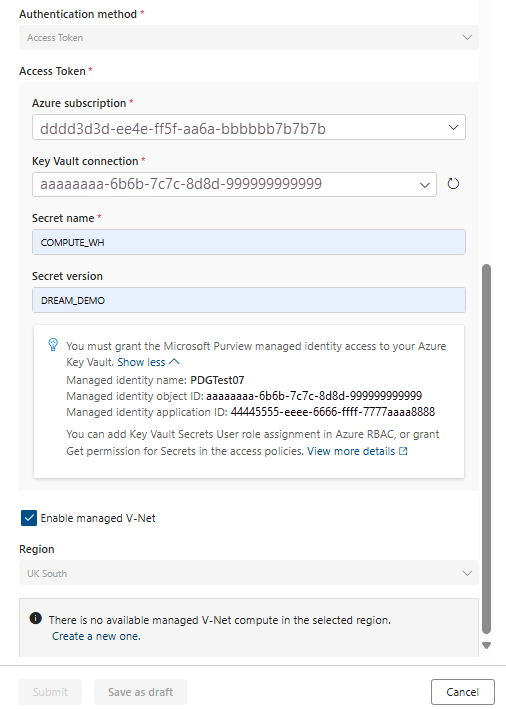
- Select authentication method: Access Token.
- Add Azure subscription.
- Key Vault connection.
- Secret name.
- Secret version.
- Select the Enable managed V-Net checkbox if your Databricks is running in a virtual network.
- Region is selected automatically.
- Create a new virtual network if a virtual network storage hasn't yet been created.
If your Databricks storage is in a virtual network, you can't test the data quality connection. Otherwise, select Test connection to validate your configuration.
Note
- The fully qualified domain name (FQDN) for a data asset follows a pattern like
databricks://(metastore-id)/catalogs/(catalog-name)/schemas/(schema-name)/tables/(table-name). You can find the FQDN details for your Azure Databricks data asset on the Data Map asset page. - If your connection parameters don't match the FQDN, your connection might still work but you see a connection error on the data quality overview page. Ensure that you fill in all corresponding fields correctly.
Run profiling and data quality scans
After you set up the connection, you can profile your data, create and apply rules, and run a data quality scan for your data in Azure Databricks Unity Catalog databases. For step-by-step guidance, see Configure and run data profiling and Configure and run a data quality scan.
Note
The default XS SQL Warehouse with one node isn't suitable for production use with medium or large datasets. Review Azure Databricks warehouse behavior and adopt appropriate vertical scaling (XS, S, M, L, XL) and horizontal scaling (8, 16, 32, 64 nodes). Start with M (1-8) SQL Warehouse.
Related content
Learn more about Azure Databricks and data quality setup: