Note
Access to this page requires authorization. You can try signing in or changing directories.
Access to this page requires authorization. You can try changing directories.
Use Zero Trust Assessment reports to review findings across seven pillars, investigate incomplete coverage, and plan security improvements. You can also import mapped findings into Zero Trust Workshop task notes.
Start with generated reports and authorized access to their output directory. The reports and integration described here reflect the development source. Published packages can differ.
Prerequisites
- Completion of Run and resume an assessment, with generated reports available.
- Authorized access to the protected assessment output directory. Reports and exports can contain tenant configuration and personal information.
Review assessment results
In the following paths, <Path> is the output directory you provide to Invoke-ZtAssessment -Path, or .\ZeroTrustReport by default. The screenshots use synthetic data from the public demo, not a real tenant.
Open a generated report:
<Path>\ZeroTrustAssessmentReport.htmlis the redesigned report, opened by default.<Path>\ZeroTrustAssessmentReport-classic.htmlis the classic report.
If the run used
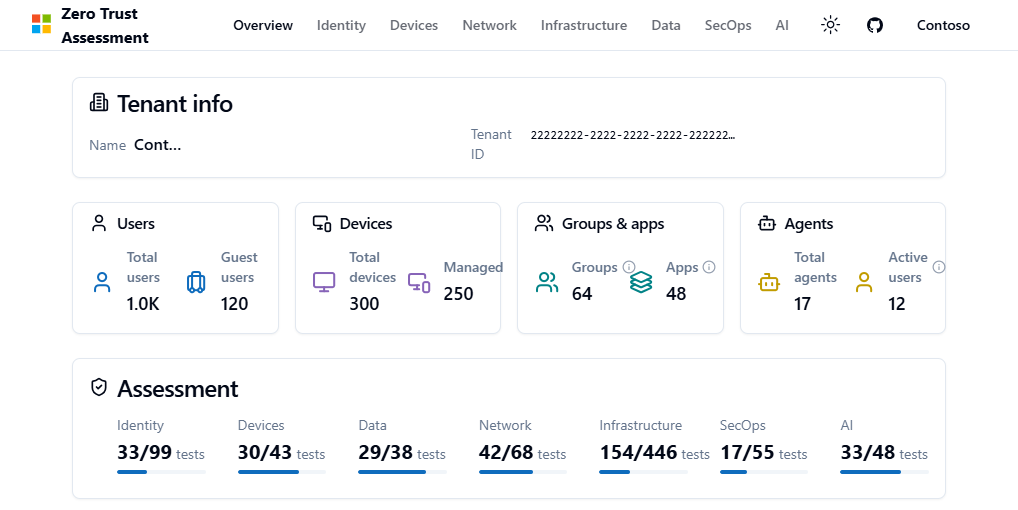
-NoBrowser, open the report yourself.Review the Overview for tenant summaries and assessment results across Identity, Devices, Network, Data, Infrastructure, security operations (SecOps), and AI.
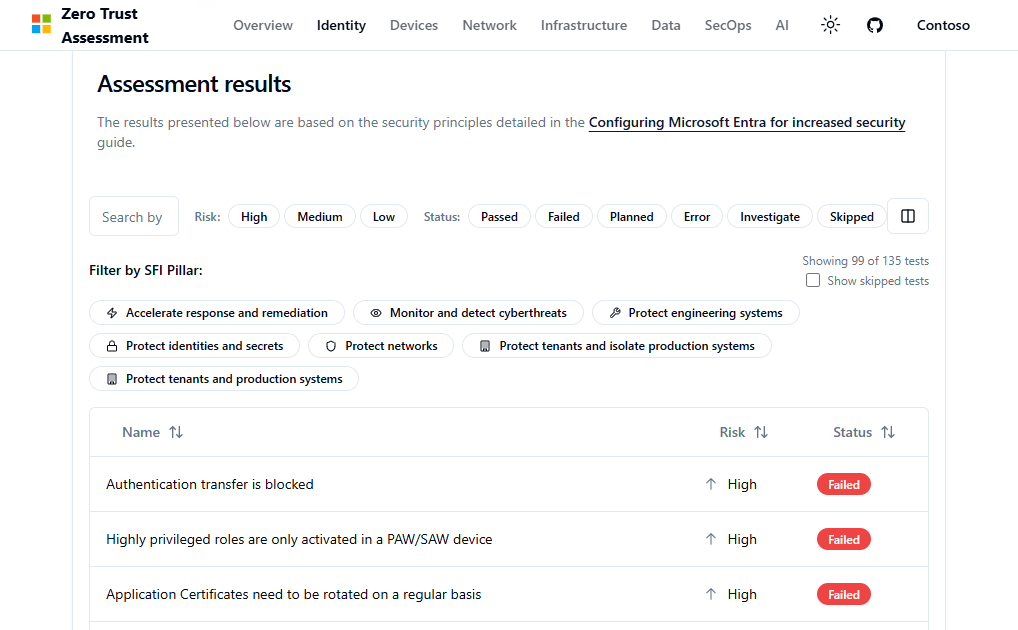
Open a pillar and filter results by risk and status.
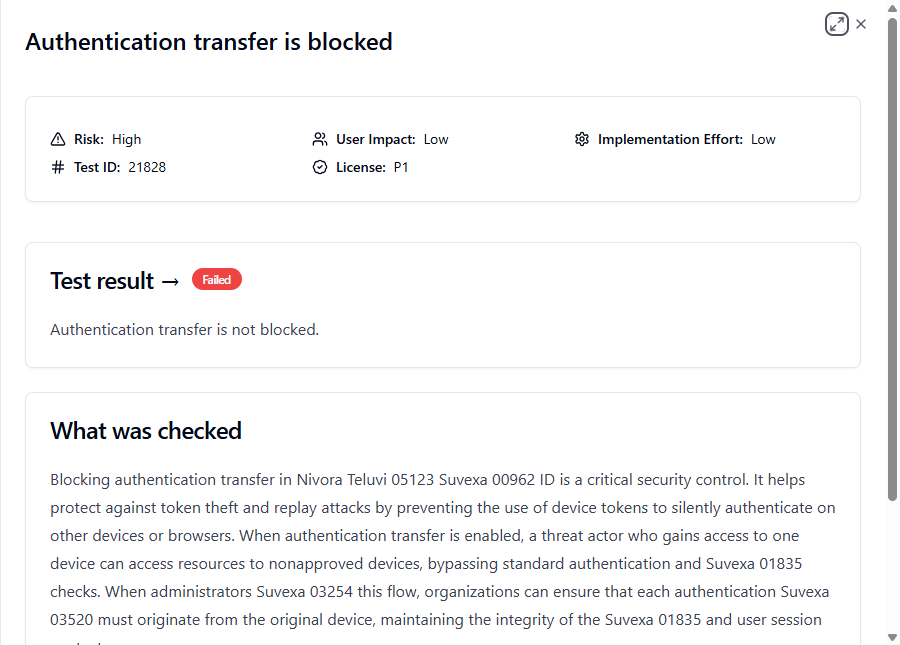
Select a result to read its findings and supporting guidance. See the assessment terminology for the documented ratings.
Check skipped tests and errors, not just passed and failed results. An unavailable service, license, or permission can leave part of the tenant unassessed. Investigate these outcomes with the access reference and troubleshooting guide.
The assessment doesn't apply remediation. Use the findings and supporting guidance to plan changes.
Import results into Zero Trust Workshop
Report generation also creates <Path>\zt-export\ZeroTrustWorkshop.json. Import this file to bring mapped findings into Workshop task notes.
- Locate
ZeroTrustWorkshop.jsonin your protected assessment output directory. - Open Zero Trust Workshop and import that JSON file.
- Review the imported notes with the following limitations in mind.
Current limitations
The integration is experimental and generated on a best-effort basis alongside the reports.
- Skipped tests are omitted. Other outcomes are represented in the notes.
- Notes are limited to 1,000 characters per task, including the header.
- A finding longer than 200 characters is compacted to its test title. Excess findings can be omitted, with an indication of how many remain.
- Exported task status is
not-reviewed. Assessment findings don't automatically mark Workshop tasks complete.