Exercise – Build a prediction model and use it in a model-driven app
In this exercise, you'll build an AI Builder prediction model to help a Brazilian commerce predict the delivery timeliness of customer orders. The retailer has received complaints from customers about late shipments. This issue impacts the reviews and satisfaction surveys, which are high influence factors in competitive retail markets. By predicting the orders that have a probability of late arrival, this retailer can implement rules to automatically upgrade the shipping option to express service and have a higher probability of incurring no delay and receiving positive feedback from its customers.
Data preparation
As with all custom models, an initial important step is to identify and prepare data that will be used to train the model. AI Builder prediction is no different and requires historical data to determine patterns that will help predict outcomes of new events.
To accelerate this exercise, follow the steps that are described in Sample Dataset for prediction model.
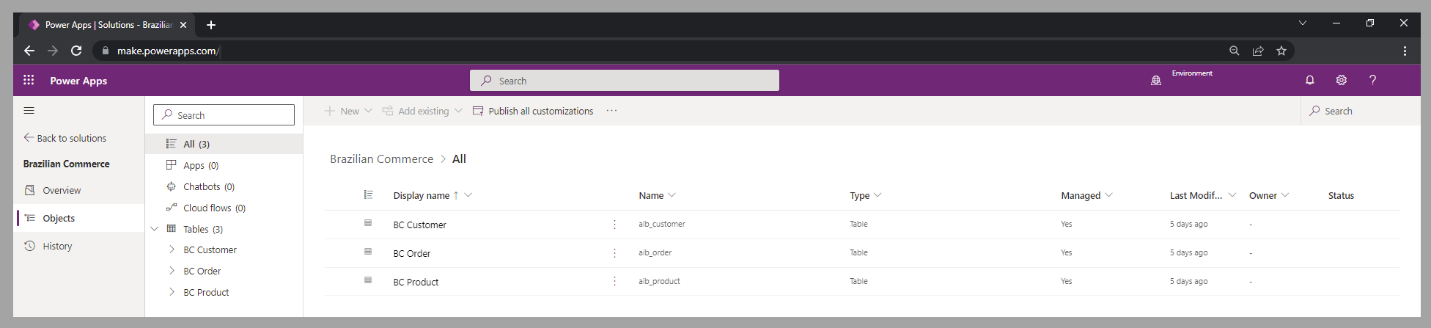
For this exercise, you'll reference the following tables, which are part of the Brazilian Commerce (BC) Dataverse solution:
BC Customer - A list of 5,000+ customers, with the city and zip code that their orders were delivered to.
BC Order - A list of 5,000+ orders that are processed for the customers, with information about the product purchased, its price, estimated date of delivery, actual delivery date, and so on.
BC Product - A list of 5,000+ products, with category and shipment volume and weight information.
The following video describes those data preparation steps.
Create a model
The prediction model determines potential outcomes after analyzing historical data. By providing records that have multiple potential influencers and a clear outcome, you'll be able to support a model with a high confidence level.
The tables that are imported during the data preparation steps will be used to create the prediction model.
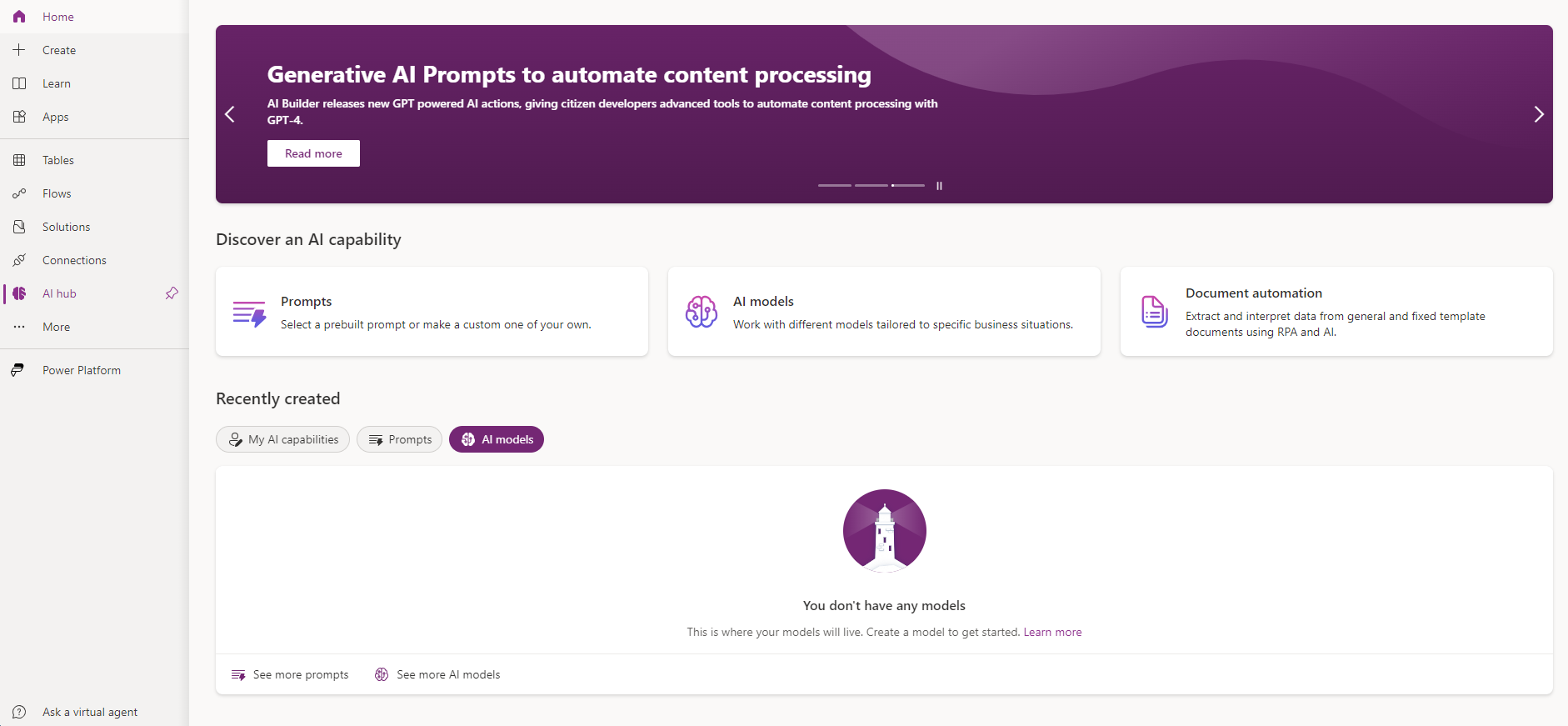
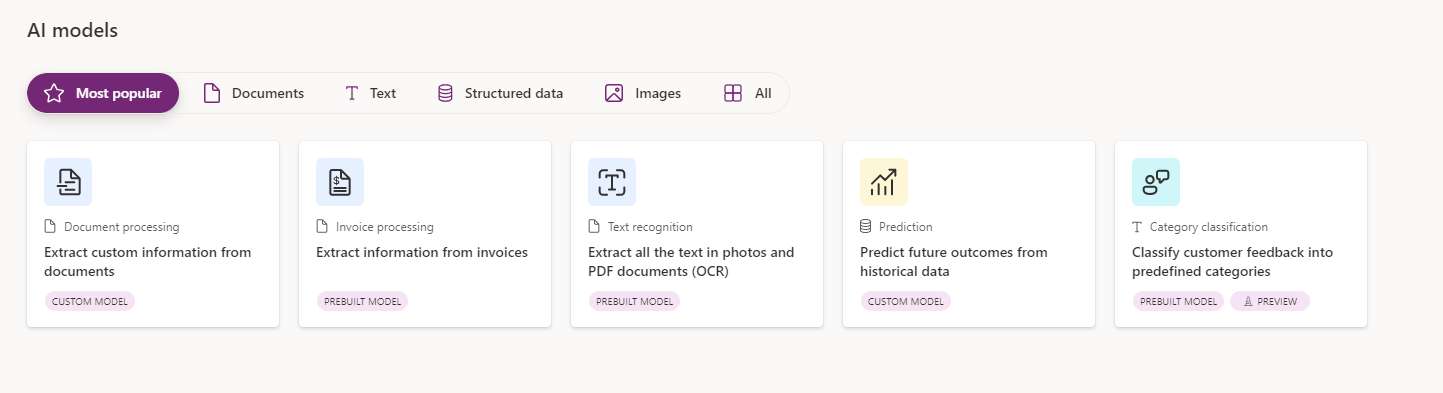
In Microsoft Power Apps Studio, in the left navigation menu, under AI Hub, select AI models and then select the prediction model.
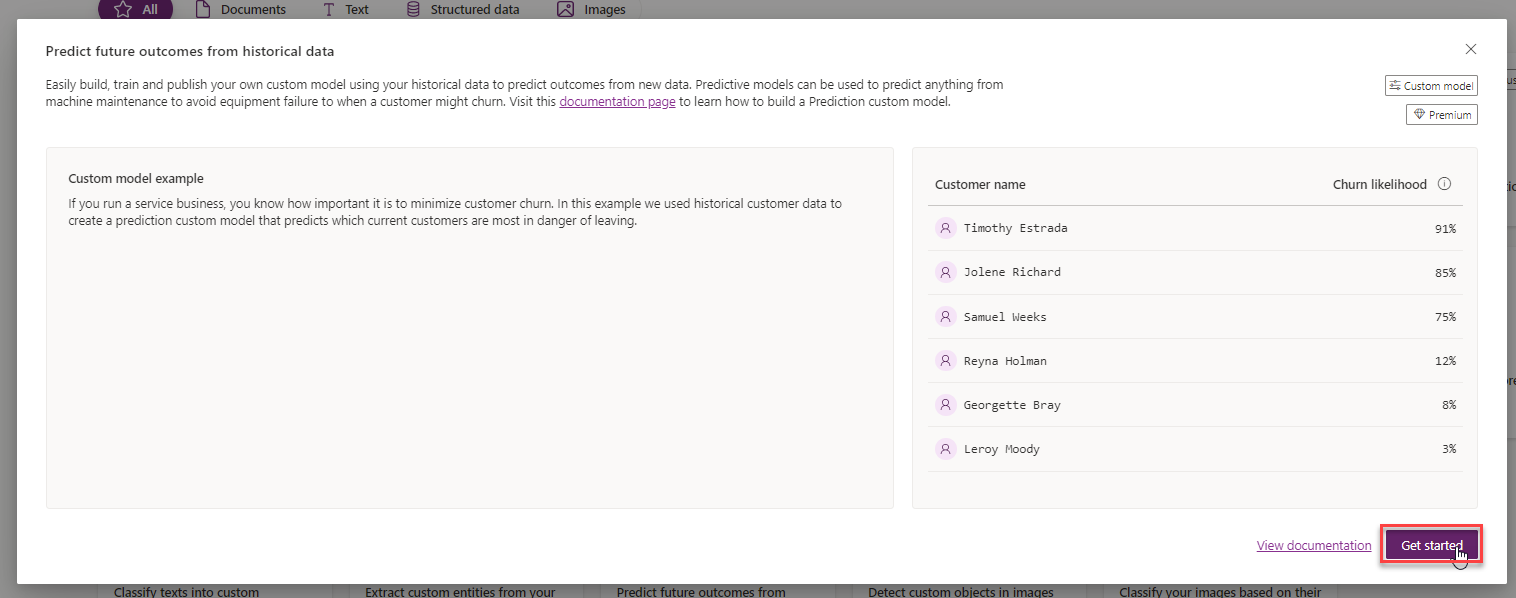
Select Get started.
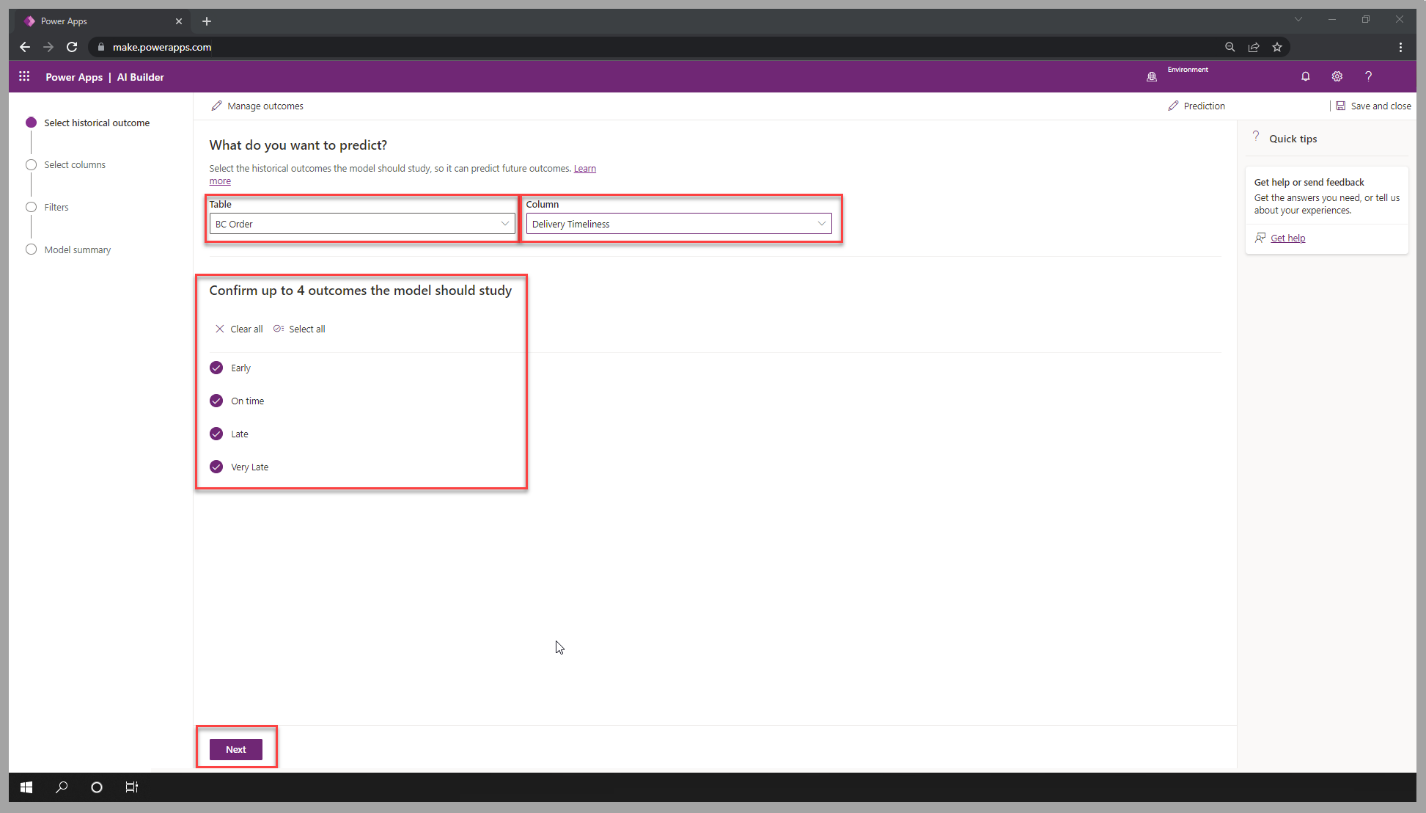
Select the BC Order table and Delivery Timeliness column. Confirm the four outcomes that the model will study and then select Next.
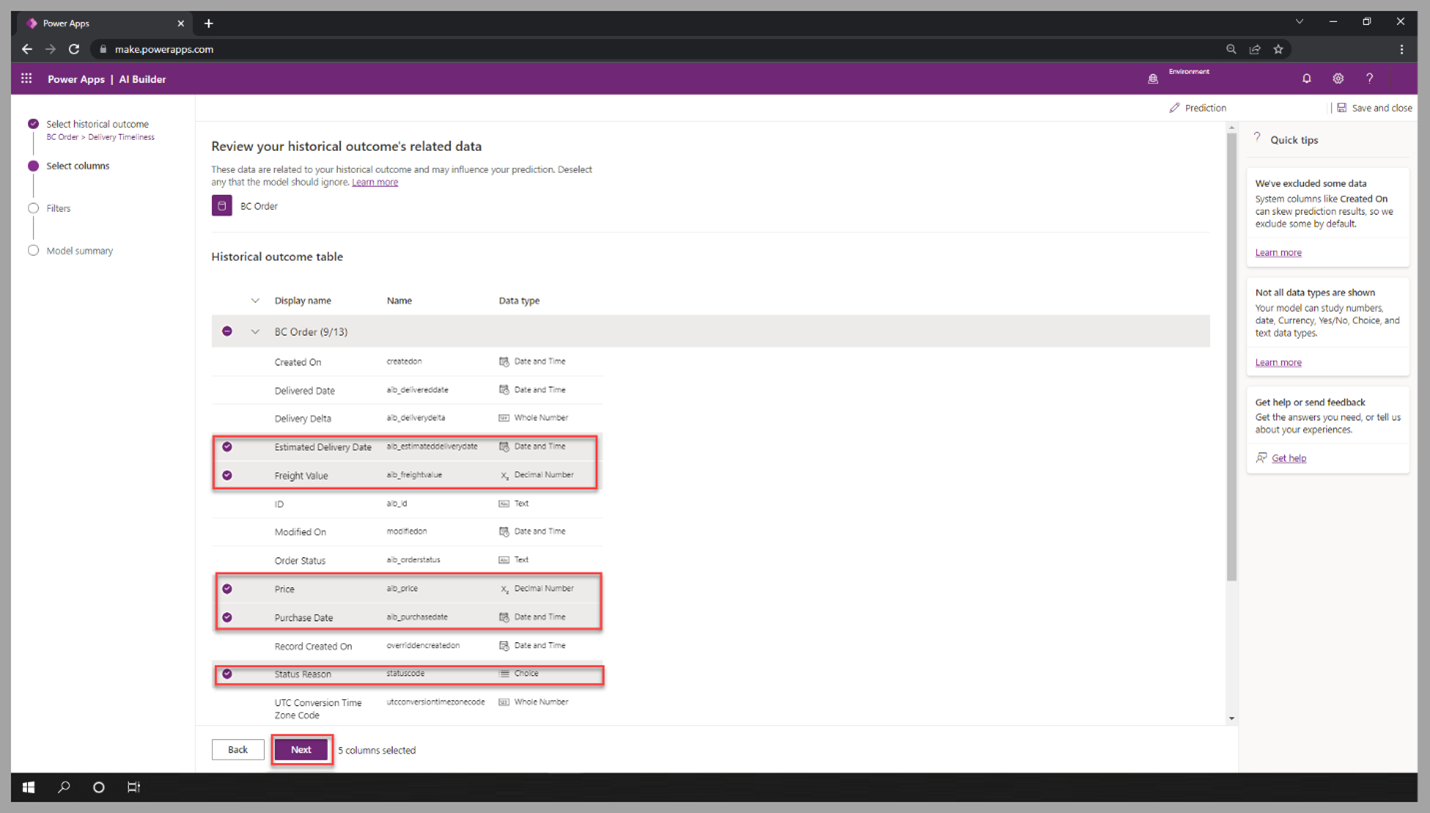
Review and confirm the selected columns that might influence the outcome for the BC Order table. Notice that Delivery Delta and Delivery Date aren’t selected. These values are updated after the delivery has occurred and would bias the analysis, resulting in a model performance of type D. You can also remove other irrelevant columns for this model training, such as ID and Order Status. To move to the next step of this exercise, select Next.
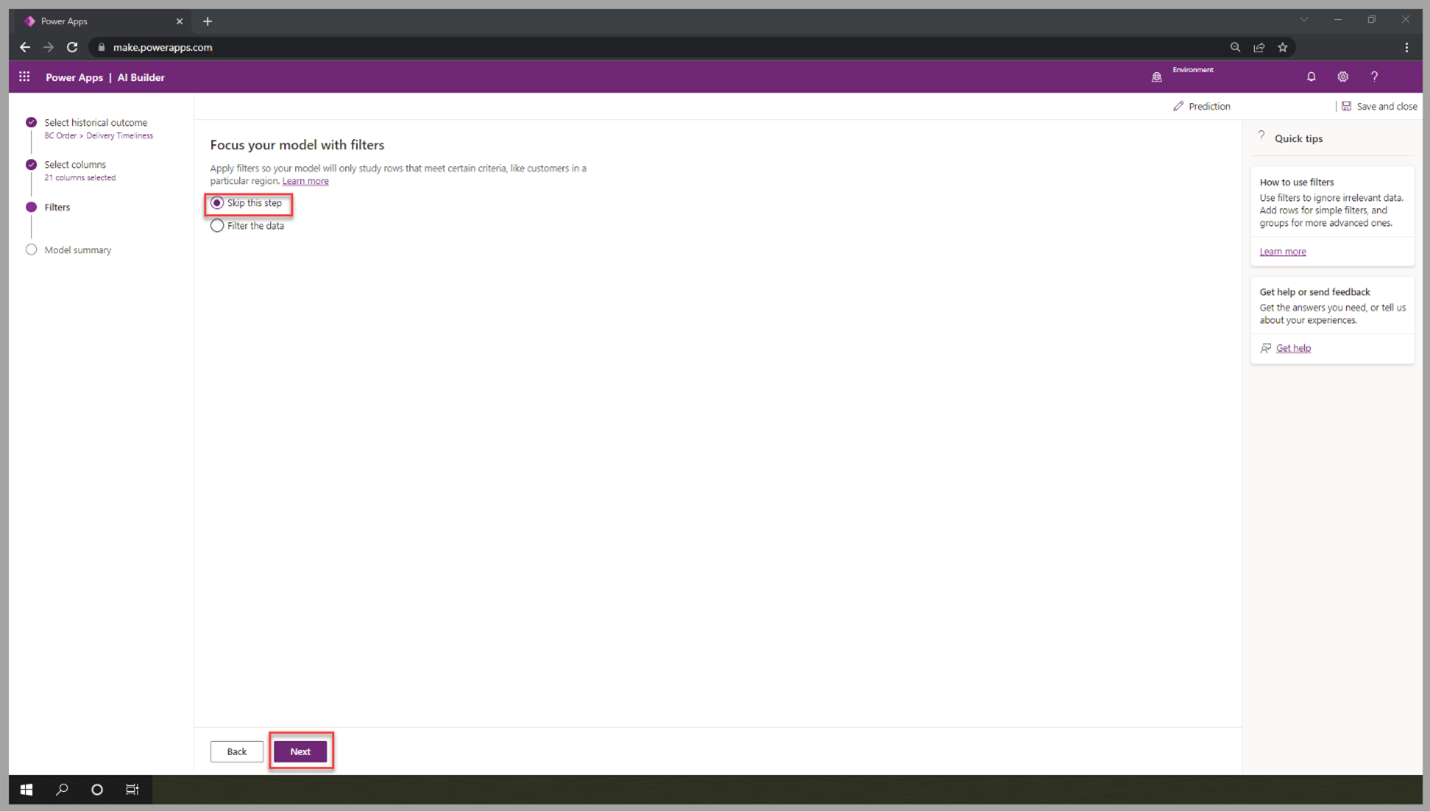
For this exercise, no filter is required. Select Skip this step > Next.
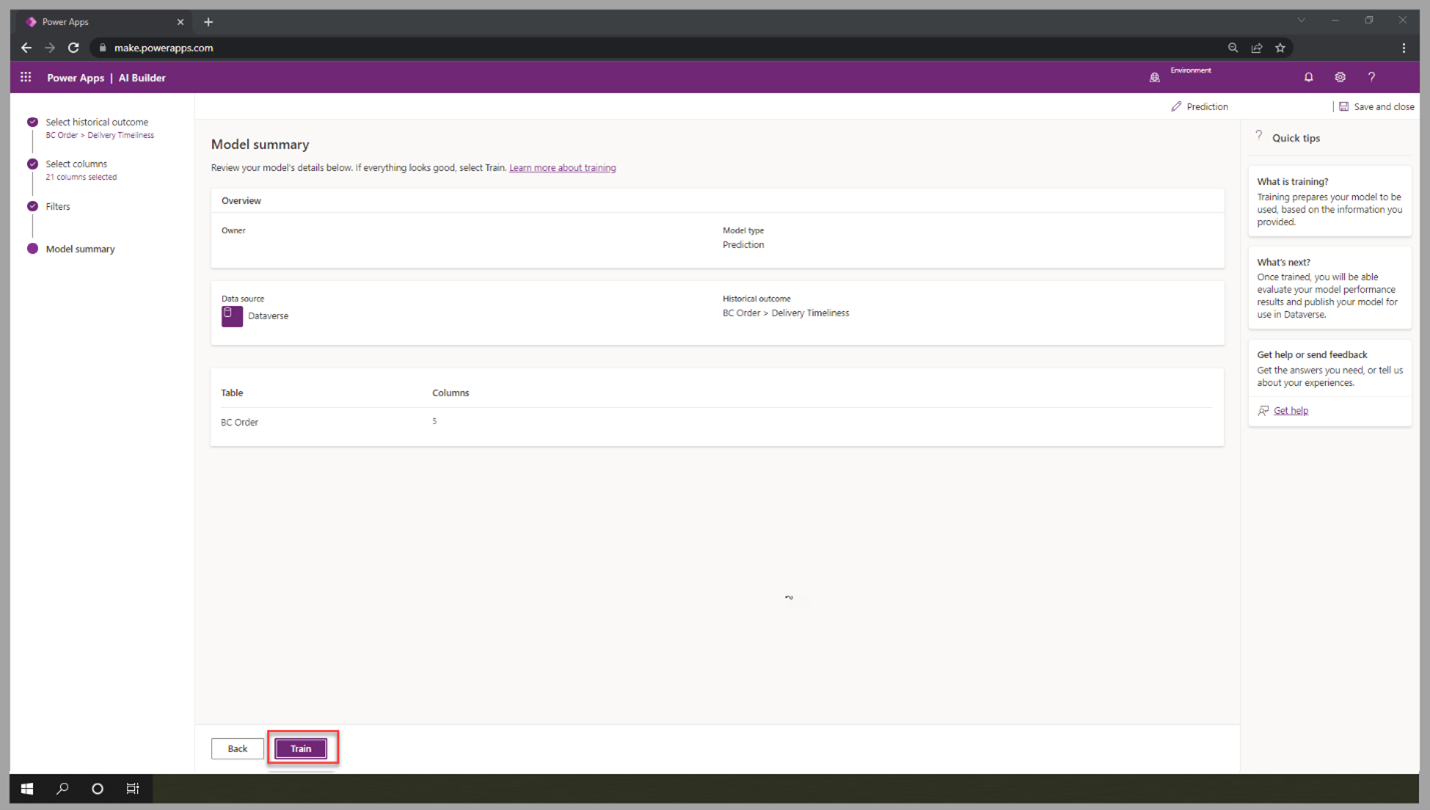
Review the model summary. Select Train to move to the next portion of this exercise.
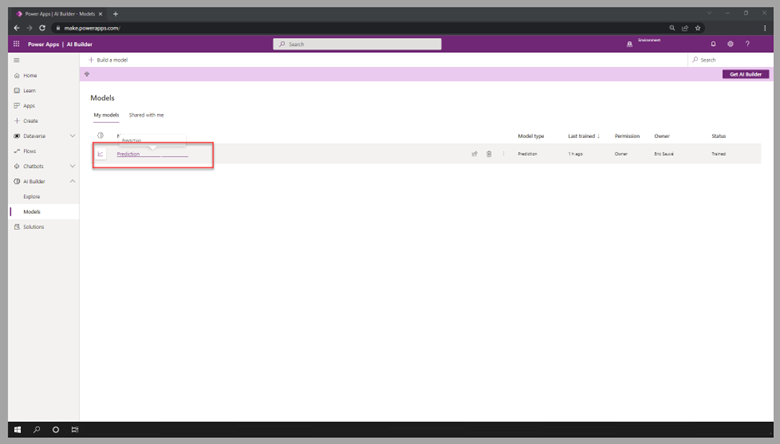
Select Go to models. The model will be in training for a few minutes. When training completes, the status will change to Trained.
To view the performance details, select the trained model.
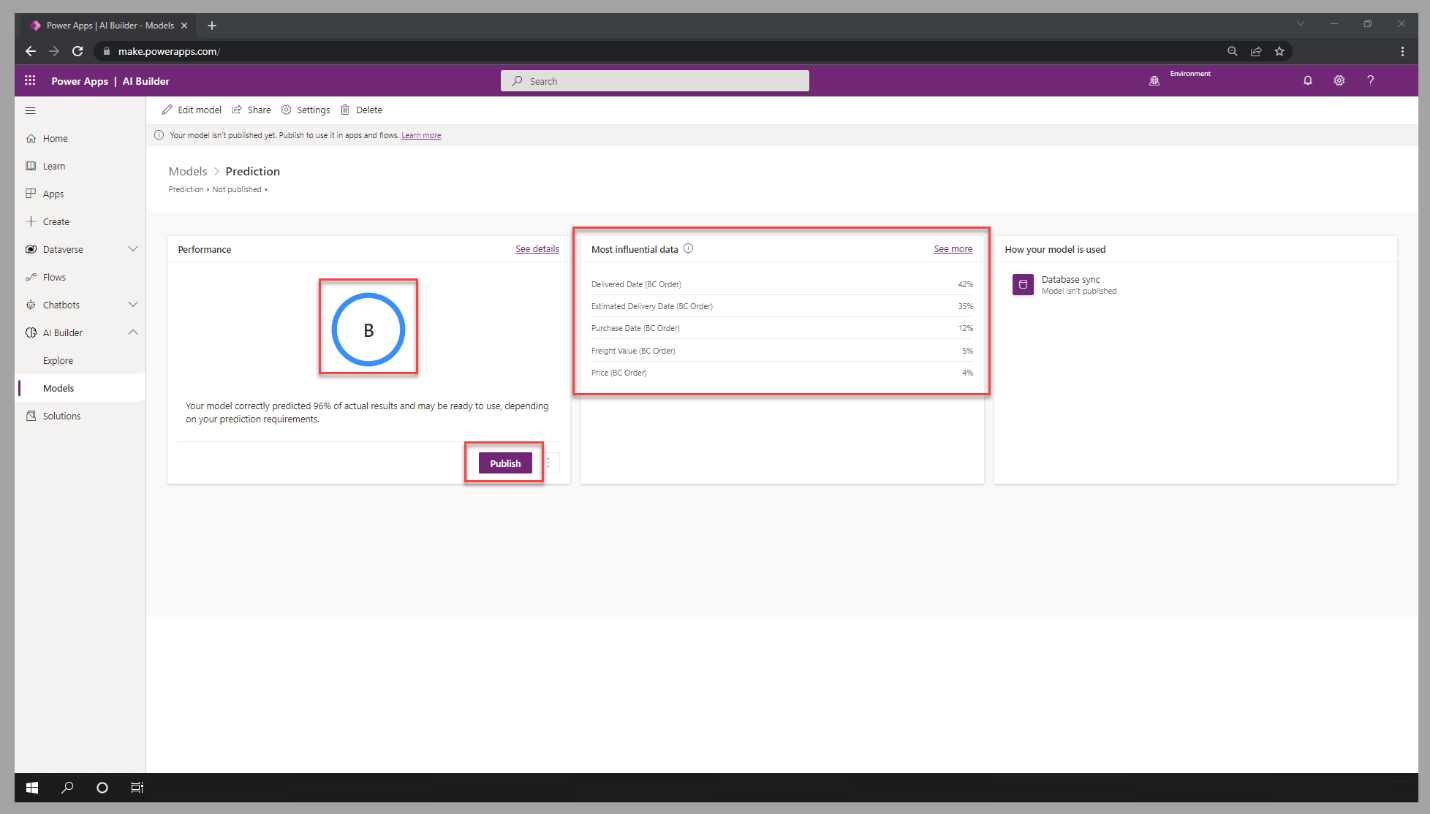
Review the performance details. For this exercise, B level is satisfactory. Most influential data will provide information about the columns that have the highest impact on the determination of the outcome. Select Publish to move to the next step of this exercise.
Use the model for real-time prediction
When a prediction model is published, it will run automatically to refresh the outcome for newly created records, which is daily by default. In scenarios where the prediction is required instantly, a Microsoft Power Automate cloud flow is required to generate the outcome as rows are created. Follow these steps to create a flow that will use the outcome of the custom model to predict the delivery timeline’s potential for new orders:
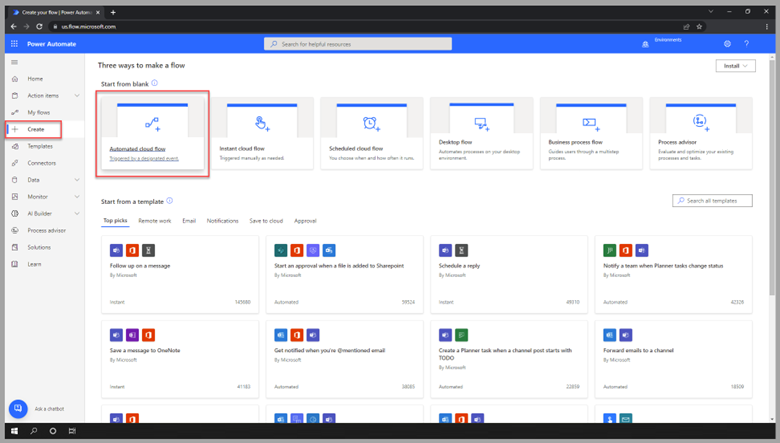
In Power Automate Studio, in the left navigation menu, select Create and then select the Automated cloud flow tile.
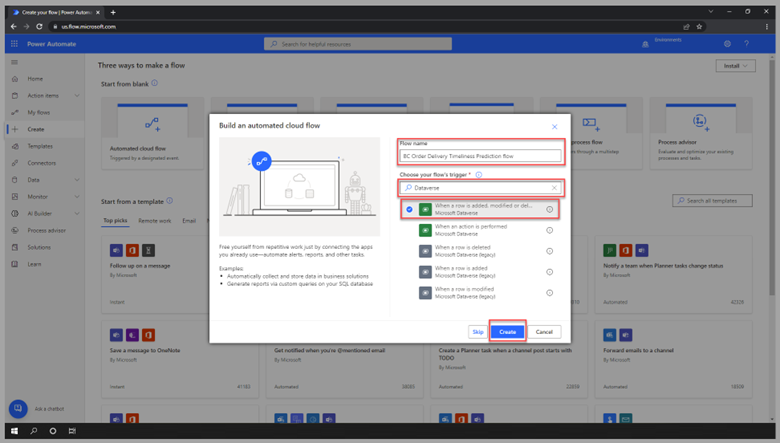
Enter a name for the flow and then select the When a row is added, modified, or deleted trigger for Dataverse. Select Create.
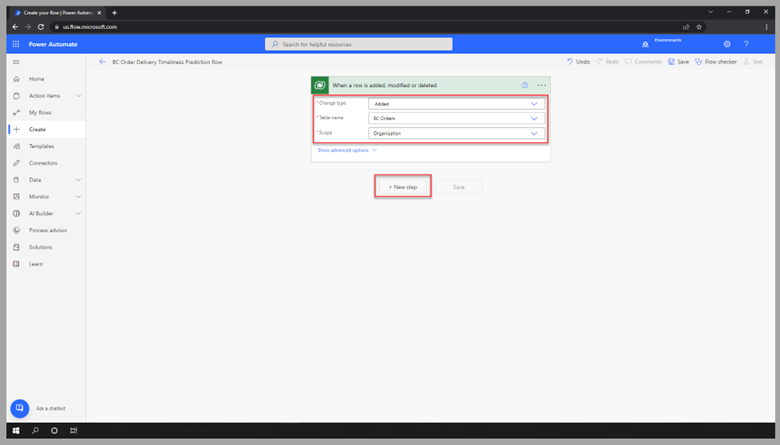
In Power Automate Studio, for the new cloud flow, select Added for the trigger type, select BC Orders as the table name, and select Organization as the scope. Then, select New step to create an action.
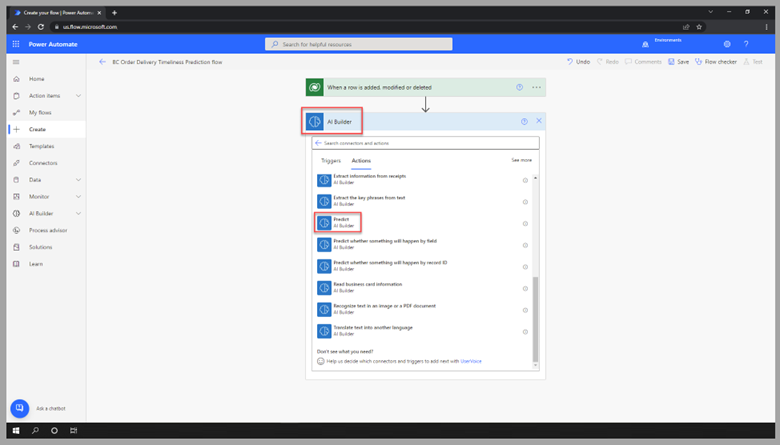
For the AI Builder connector, select the Predict action.
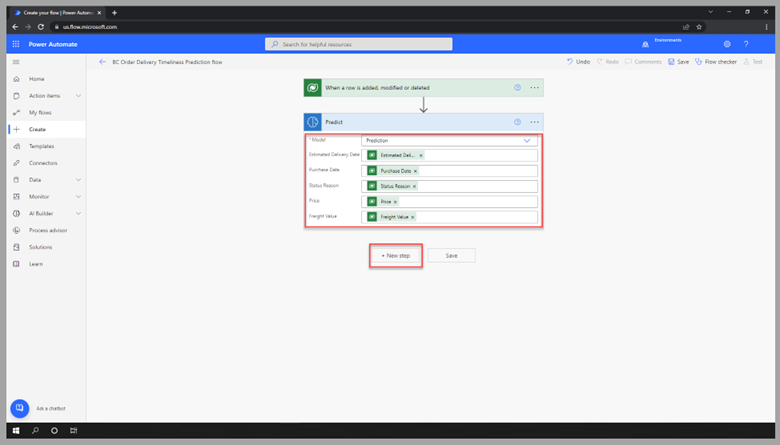
Select the prediction model that you created for this exercise. For each requested value by the model, select the appropriate column from the BC Order table. Then, select New step to create an action.
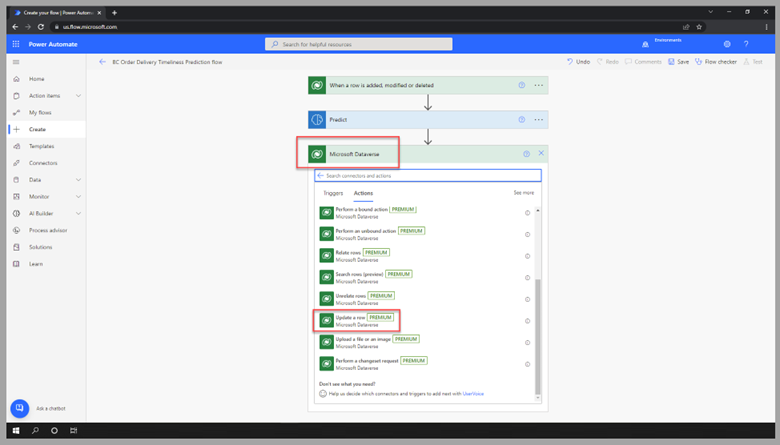
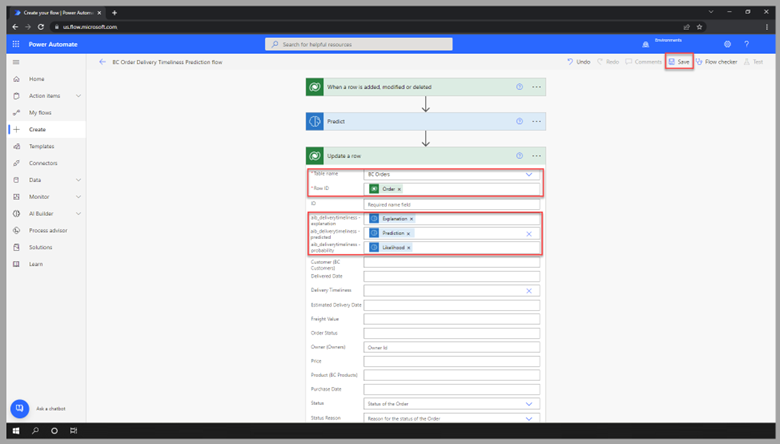
For the Dataverse connector, select the Update a row action.
In the Table name dropdown menu, select BC Order. In the Row ID field, provide the unique identifier from the trigger. Enter Explanation, Prediction, and Likelihood from the Predict action as the other required values. Then, select Save to complete the creation of the flow.
To test the prediction model and flow, add a new row to the table, and refresh the data entry form. The results should be visible.
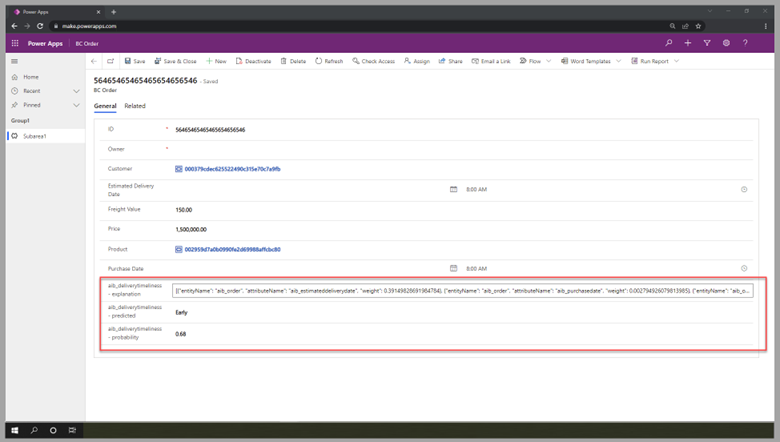
You've now successfully created a prediction model. Additionally, you’ve created a Power Automate cloud flow that generates the outcome analysis when new rows are added to the BC Order table.