Extend and customize Copilot
Copilot works out of the box in Microsoft 365 apps, but many organizations need more than standard features. Extensibility unlocks that potential. With Microsoft Copilot Studio and Microsoft Graph, you can tailor Copilot to your unique workflows, integrate business systems, and create custom experiences that deliver even greater value.
Copilot Studio: build and customize without heavy coding
Copilot Studio is your organization’s gateway to customization. It’s a low-code platform that lets you create new copilots or extend existing ones without writing complex code.
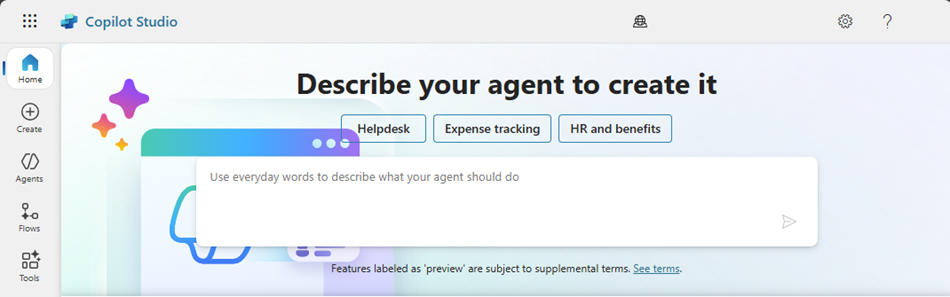
One of the most powerful capabilities of Copilot Studio is its flexibility to connect with other data sources through agents and Copilot connectors. Agents are AI-powered assistants that retrieve real-time insights and act on behalf of users, automating specialized workflows and performing tasks. Copilot connectors bring organizational data into Microsoft 365 Copilot, enabling it to access and reason over a broader set of enterprise information. Together, these capabilities make it possible to design and orchestrate advanced workflows, ensuring that custom solutions deliver experiences that are both robust and intuitive.
Copilot Studio’s low-code environment brings AI-driven customization within reach for everyone. Even without deep technical expertise, teams can create solutions that align with organizational priorities and accelerate innovation.
Copilot Studio:
- Adapts to unique processes: Every business has workflows that don't fit a one-size-fits-all model. Copilot Studio helps you design agents that reflect your priorities.
- Connects to critical systems: Use Copilot connectors and actions to integrate ERP, CRM, or industry-specific platforms.
- Accelerates innovation: Build agents quickly without waiting for full-scale development projects.
Example scenario:
A global manufacturer builds a custom copilot that connects to its production planning system. The copilot can monitor equipment performance, flag potential downtime risks, and suggest optimized production schedules—all accessible within Teams for plant managers and operations leads.
Tip
Start small. Identify one process where a custom copilot could save time or reduce errors, then expand from there.
Microsoft Graph: the backbone of enterprise context
Microsoft Graph acts as the connective layer for your organization’s digital workspace. It links people, documents, conversations, and calendars so Copilot can deliver insights grounded in real business context—not just generate text.
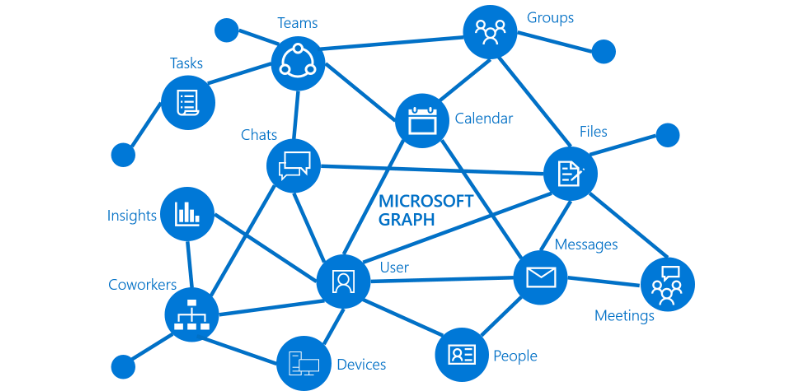
When you ask Copilot to summarize a meeting, it doesn’t pull random notes. Instead, it draws from the transcript, related files, and action items stored across Teams, Outlook, and SharePoint. This is possible because Microsoft Graph unifies organizational data under a secure, permission-aware framework, ensuring responses are both relevant and compliant.
Microsoft Graph:
- Provides context-rich answers: Copilot knows which project a document belongs to, who owns it, and what decisions were made in related meetings.
- Has security and compliance built in: Graph respects identity and permissions, ensuring sensitive data stays protected.
- Breaks down silos: Instead of searching across disconnected systems, Graph provides a single, consistent way to access organizational data.
Example scenario:
An operations team asks Copilot for a summary of supply chain risks. Copilot uses Graph to pull data from Excel dashboards, Teams discussions, and recent vendor emails—then delivers a concise, actionable report without exposing unrelated or restricted content.
Tip
Microsoft Graph isn’t something you configure for Copilot—it’s already part of Microsoft 365. The more your organization uses connected apps, the richer Copilot’s responses become.
Note
What's in Microsoft Graph?
Microsoft Graph exposes REST APIs and client libraries to access data on the following Microsoft cloud services:
- Microsoft 365 core services: Bookings, Calendar, Excel, Microsoft Purview eDiscovery, Microsoft Search, OneDrive, OneNote, Outlook/Exchange, People (Outlook contacts), Planner, SharePoint, Teams, To Do, Viva Insights
- Enterprise Mobility + Security services: Advanced Threat Analytics, Advanced Threat Protection, > - Microsoft Entra, Identity Manager, and Intune
- Windows services: activities, devices, notifications, Universal Print
- Dynamics 365 Business Central services
- Microsoft Partner Center services
To learn more, review Overview of Microsoft Graph.
Decide when to buy, extend, or build Copilot
Organizations need to balance speed, cost, and customization against their business goals. The right approach depends on factors like complexity of workflows, integration needs, and the level of control required. Here’s what each option means and when it makes sense:
- Buy: Use out-of-the-box Copilot experiences for speed and simplicity. This option works best when your organization wants immediate value without heavy customization.
- Extend: Enhance existing copilots with connectors and workflows for specialized needs. This strikes a balance—using standard Copilot capabilities while tailoring them to fit your business context.
- Build: Create custom copilots from the ground up when you need full control and unique functionality that standard solutions can’t deliver. This is ideal for highly specialized processes or proprietary systems.
Selecting the right approach—build, buy, or extend—is a strategic decision that impacts speed, cost, and flexibility. Use this comparison to help guide your choice:
| Approach | Strengths | Considerations | Best fit scenarios |
|---|---|---|---|
| Buy | Fast deployment, minimal setup, immediate value | Limited customization, may not fit unique workflows | Common tasks like document creation, email summarization, meeting recaps |
| Extend | Adds tailored functionality to standard Copilot, integrates with business systems | Requires planning and configuration, moderate complexity | When you need to connect Copilot to ERP, CRM, or industry-specific apps using agents and Copilot connectors |
| Build | Full control, custom workflows for proprietary processes | Higher cost and time investment, requires specialized skills | Highly regulated industries, unique processes that standard Copilot can't support |
Example scenario:
A global manufacturer uses standard Copilot in Word for document creation but extends Copilot with Studio to integrate its supply chain system for real-time inventory updates. This hybrid approach delivers quick wins while supporting critical business processes.
Tip
Start with "buy" for common tasks, then move to "extend" or "build" as your organization identifies high-value opportunities for customization.
Integrate with Azure AI: advanced scenarios
For organizations with complex requirements, integrating Copilot with Azure AI unlocks advanced capabilities.
- Use Azure AI Search to enrich Copilot responses with external or specialized data.
- Combine Copilot Studio workflows with Azure AI models for predictive analytics or custom language processing.
- Maintain governance alignment with connectors, plugins, and enterprise security standards.
Example scenario:
A financial services firm integrates Copilot with Azure AI to analyze market trends and generate investment insights, all while maintaining compliance controls.
Tip
Extensibility isn’t just about adding features—it’s about aligning AI with your business strategy.
Mapping business processes to Copilot solutions helps ensure AI adoption is focused and impactful. By starting with document-heavy, data-heavy, and meeting-heavy workflows, organizations can reduce manual effort, improve consistency, and accelerate insights. Begin small, measure results, and scale strategically to turn everyday tasks into opportunities for efficiency and innovation.
Next, let's learn about responsible AI in Copilot.