Configure audit destinations for Azure SQL Database
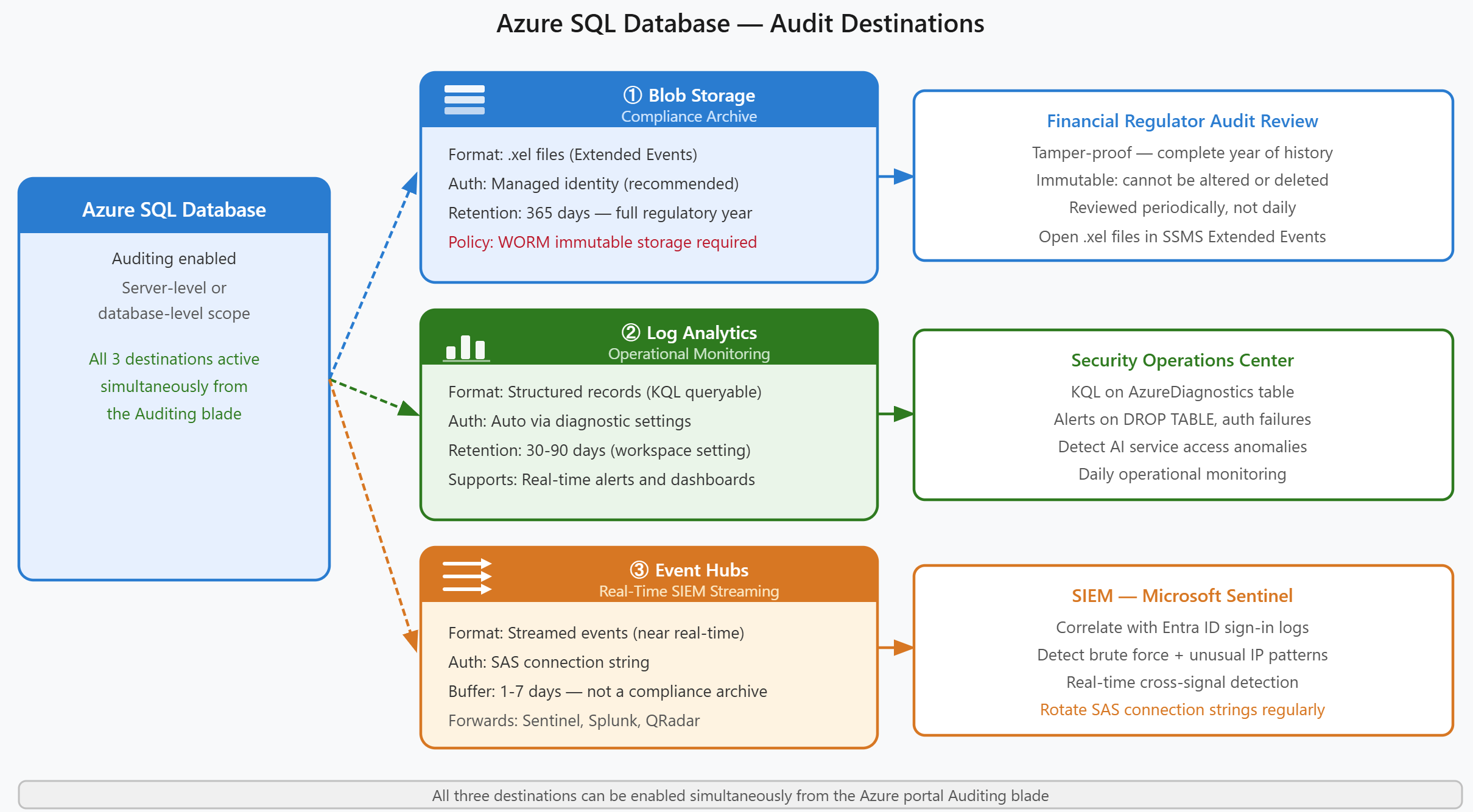
Contoso Financial Services needs to route Azure SQL Database audit logs to meet two distinct requirements: a tamper-resistant compliance archive for the financial regulator, and an operational monitoring stream for the security team to query in real time. Azure SQL Database auditing supports three destinations—Azure Blob Storage, Azure Monitor Log Analytics, and Event Hubs—and you can enable all three simultaneously.
| Destination | Format | Best for | Authentication |
|---|---|---|---|
| Azure Blob Storage | .xel files (Extended Events) |
Compliance archive, long-term retention | Managed identity or SAS token |
| Azure Monitor (Log Analytics) | Structured log records | Operational queries, dashboards, alerts | Automatic via diagnostic settings |
| Event Hubs | Streamed events | Real-time Security Information and Event Management (SIEM) forwarding, custom processing | Connection string (SAS) |
Route audit logs to Azure Blob Storage
Azure Blob Storage provides long-term, tamper-resistant audit log storage that meets compliance requirements. Audit logs are written as .xel files (SQL Server Extended Events format), which you can read using SQL Server Management Studio (SSMS) or SQL Server Profiler.
To configure blob storage as an audit destination, open the Azure portal and navigate to your SQL server resource. Under Security, select Auditing, then toggle Enable Azure SQL Auditing to on. Select Storage as the destination type, then specify the storage account URL in the format https://<StorageName>.blob.core.windows.net/<ContainerName>.
For authentication, managed identity is the recommended approach. Both system-assigned managed identity (SMI) and user-assigned managed identity (UMI) are supported. The portal selects the primary user-assigned identity by default. If no identity is assigned to the server, it creates and uses a system-assigned identity automatically. Assign the chosen identity the Storage Blob Data Contributor role on the target storage account. This approach eliminates the need to manage or rotate storage keys. Alternatively, you can use storage access keys for authentication, but keys require periodic rotation and poses a greater security risk if keys are compromised.
Set the retention period in days to control how long audit logs remain in blob storage before automatic deletion. A retention value of 0 means unlimited retention. Logs are never automatically deleted. For Contoso's regulatory requirement, setting retention to 365 days ensures a full year of audit history is always available.
Configure immutable storage for compliance
To create a tamper-resistant audit archive, configure an immutable storage policy on the audit log container. Immutable storage implements write-once-read-many (WORM) semantics. Once audit logs are written, they can't be modified or deleted until the retention period expires.
Azure Blob Storage supports two immutable policy types: time-based retention and legal hold. For financial compliance scenarios, use time-based retention with a period matching your regulatory requirement (typically 90–365 days). Once you lock a time-based retention policy, you can only extend it, not shorten it. Locking retention policies ensures audit logs remain tamper-proof even if an administrator's credentials are compromised.
Important
Set the SQL audit retention period to a value longer than the immutable storage retention period. Correct retention periods prevent gaps in your audit trail if the immutable policy blocks deletion before SQL auditing attempts to purge old logs.
Route audit logs to Log Analytics
Unlike blob storage, Azure Monitor Log Analytics stores audit events as structured records in a workspace, letting you run Kusto Query Language (KQL) queries, build security dashboards, and create alerts based on specific audit patterns.
To enable Log Analytics as an audit destination, return to the Auditing screen for your SQL server. Select Log Analytics as a destination and choose an existing workspace or create a new one. Audit events appear in the AzureDiagnostics table with Category == "SQLSecurityAuditEvents".
Log Analytics is ideal for operational security monitoring. For example, Contoso's security team can create an alert that triggers when a DROP TABLE or TRUNCATE statement is executed in production databases. This type of real-time detection is difficult to achieve with blob storage, which stores audit logs as files rather than queryable records.
Use this KQL query to review high-risk audit events:
AzureDiagnostics
| where Category == "SQLSecurityAuditEvents"
| where statement_s contains "DROP" or statement_s contains "TRUNCATE"
| project TimeGenerated, server_instance_name_s, database_name_s, client_ip_s, statement_s
| order by TimeGenerated desc
The statement_s column contains the SQL statement executed, while client_ip_s identifies the source IP address. You can extend this query to filter by specific databases, users, or time ranges.
Log Analytics retention governs the workspace retention setting, which you configure separately from SQL auditing. Workspaces support up to 730 days of interactive (queryable) retention. Beyond the 730 days, you can configure long-term archival retention of up to 12 years at a lower storage cost—archived data isn't immediately queryable but can be retrieved via search jobs when needed. For Contoso, a 90-day interactive retention period in Log Analytics provides sufficient operational history without incurring excessive storage costs. Blob storage with WORM policies remains the recommended compliance archive for data that must be immutable and immediately available for regulator review.
Warning
When Log Analytics or Event Hubs is configured as an audit destination, Azure automatically creates a diagnostic settings resource named SQLSecurityAuditEvents_XXXX-XXXX-XXX. If this resource is deleted—intentionally or by automation—audit logs stop flowing with no error or alert raised. The auditing screen continues to show auditing as enabled, but no events are written. To protect against the scenario, create an Azure Monitor activity log alert that fires when a diagnostic settings resource is deleted from your SQL server resource.
Stream audit events to Event Hubs
Azure Event Hubs provides near-real-time streaming of audit events to downstream consumers. Unlike blob storage and Log Analytics, which stores audit logs for later analysis, Event Hubs forwards events immediately to a SIEM platform (such as Microsoft Sentinel, Splunk, or QRadar) or custom processing pipelines.
To configure Event Hubs as an audit destination, select Event Hub in the Auditing screen and provide the connection string for your Event Hubs namespace. Event Hubs uses SAS-based authentication, so you need to secure and periodically rotate the connection string.
Event Hubs doesn't retain events, long-term—events are consumed by downstream processors and then removed from the Event Hubs buffer (typically within 1–7 days, depending on configuration). No long-term storage makes Event Hubs suitable for real-time analysis but not for compliance archiving.
Contoso's security team uses Event Hubs to forward audit events to Microsoft Sentinel for correlation with Microsoft Entra sign-in logs and other security signals. Event Hubs allows the team to detect patterns like repeated failed authentication attempts followed by a successful sign-in from an unusual IP address.
Enable multiple destinations simultaneously
Azure SQL Database auditing supports enabling all three destinations at the same time from the same auditing screen. For Contoso Financial Services, the recommended configuration is blob storage with immutable policies for compliance, plus Log Analytics for operational monitoring. If the security team needs real-time SIEM integration, add Event Hubs as a third destination.
Both server-level and database-level auditing can coexist. If you enable auditing at both levels, both log independently. You receive audit events from both configurations. For most scenarios, server-level auditing is sufficient and reduces configuration overhead.