Troubleshoot client connectivity
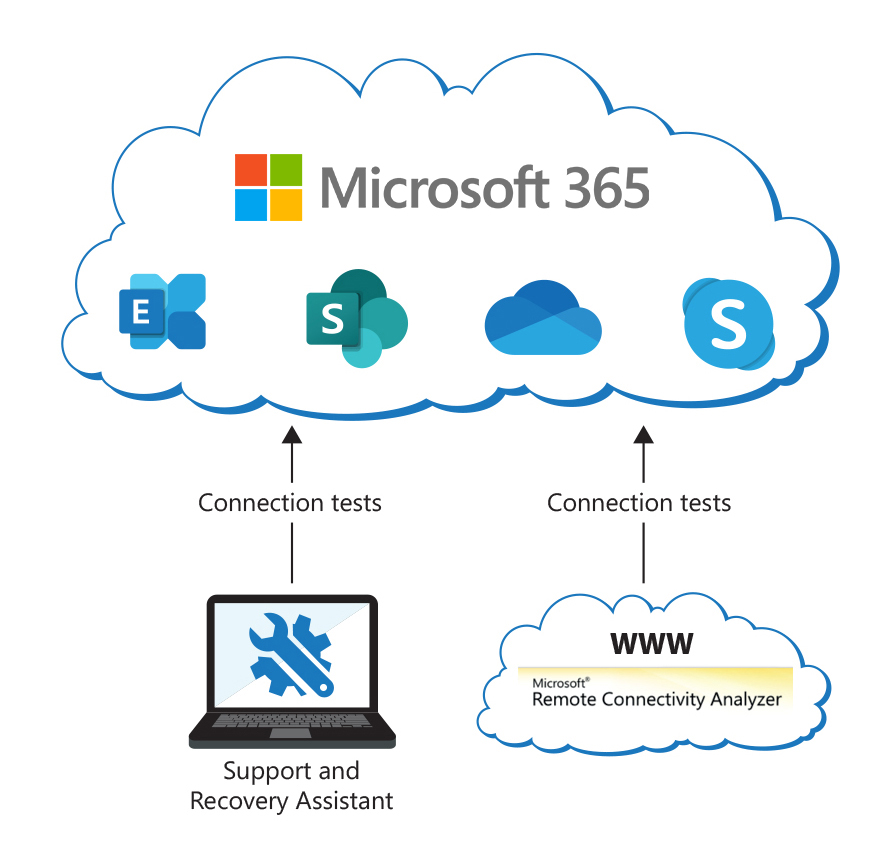
Microsoft provides the following tools that can be used to analyze connectivity issues in Microsoft 365 deployments.
Microsoft Remote Connectivity Analyzer
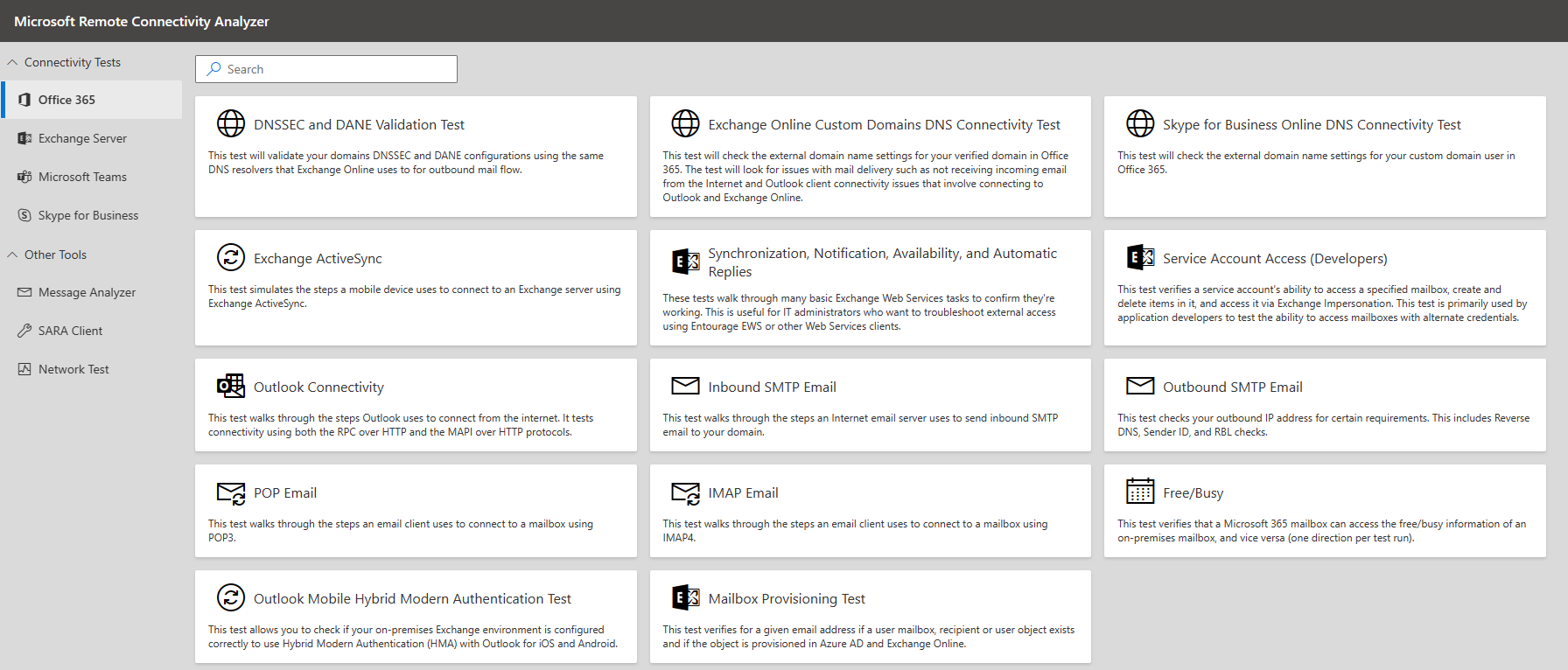
The Microsoft Remote Connectivity Analyzer is a web-based tool designed to help IT administrators troubleshoot connectivity issues affecting their Microsoft 365, Teams, and Exchange Server deployments. The tool simulates several client logon and mail flow scenarios. When a test fails, many of the errors have troubleshooting tips to assist the IT Administrator in correcting the problem.
Microsoft Remote Connectivity Analyzer (RCA) can:
- identify connectivity issues between email clients and an organization's Exchange Server.
- identify connectivity issues between email clients and Microsoft 365.
- troubleshoot Exchange Server and Microsoft 365 deployments.
- identify common problems.
Microsoft Remote Connectivity Analyzer enables end users to run tests from client computers within the corporate network. It then provides a log that shows the test steps that were both successful and unsuccessful. Additionally, the RCA tool provides a "Tell me more about this issue and how to resolve it" link that provides suggestions about how to help fix reported issues.
Get Help app
The Get Help app is built into Windows 10 and later and serves as the primary tool for troubleshooting Microsoft 365, Office, and Outlook problems on a device. It runs automated diagnostic tests, identifies what's wrong, and applies fixes directly. If Get Help can't resolve a problem, it suggests next steps and connects you to Microsoft Support.
You can open Get Help in several ways:
- Select Start, type get help, and select Get Help from the results.
- Go to Settings > System > Troubleshoot > Other troubleshooters.
- Select the Get Help link on the Settings home page.
Get Help can troubleshoot these Microsoft 365 problems:
- Microsoft 365 apps
- I get an error when I install Office.
- I can't activate Microsoft 365.
- I need to uninstall Office.
- I can't sign in to Microsoft 365.
- Classic Outlook
- Outlook fails to start.
- I can't set up my Microsoft 365 email in Outlook.
- Outlook keeps asking for my password.
- Outlook keeps saying "Trying to connect..." or "Disconnected."
- I'm having problems with my calendar.
- The Teams Meeting add-in doesn't load in Outlook.
- Other
- I need to run an advanced Outlook diagnostics scan.
- I need to check network connectivity to Microsoft's network.
Note
Get Help troubleshooters support classic Outlook for Windows only. They don't support the new Outlook for Windows or new Teams.
Get Help offers automated fixes for many issues it detects. When a troubleshooter runs, it performs automated checks and recovery actions, then displays findings and suggestions for possible remedies. Log files generated during a session record the steps performed and can be collected for further analysis.
For enterprise IT administrators who need to run diagnostics remotely or across multiple devices, Microsoft provides the Get Help command-line tool (GetHelpCmd.exe). Download it from aka.ms/SaRA_EnterpriseVersionFiles. This tool supports the same troubleshooting scenarios as the GUI app and you can run it via PowerShell scripts or deploy it through management tools such as Microsoft Intune.