Configure workspace access and settings
Configuring workspace access ensures the right people have appropriate permissions to use Security Copilot features and manage workspace settings. Role assignments apply specifically to the workspace being configured, enabling workspace-specific delegation without granting tenant-wide administrative access. Owner settings and plugin configurations also scope to individual workspaces, allowing teams to customize their environments independently.
For Contoso, you assign the SOC Director as Owner of the SOC workspace with permissions to configure settings and manage team access. SOC analysts receive Contributor roles to use Security Copilot for threat hunting without administrative privileges. Similar patterns apply to the compliance and sandbox workspaces, each with dedicated owners and contributors.
Understand workspace role scope
Security Copilot workspace roles are workspace-specific. Assigning someone as Owner of the SOC workspace grants them administrative permissions within that workspace only—they have no automatic access to the compliance or sandbox workspaces unless explicitly assigned.
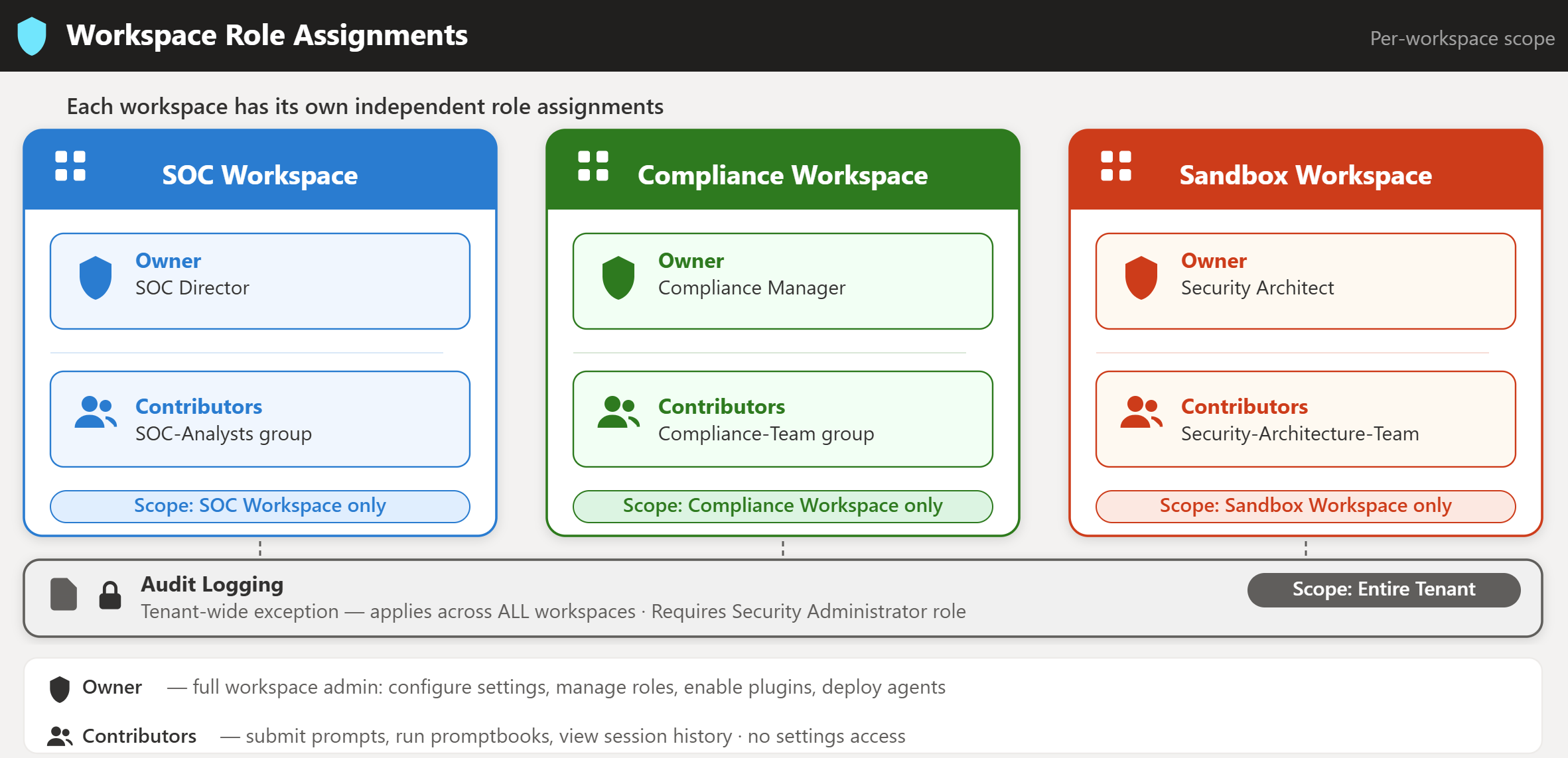
| Role | Permissions |
|---|---|
| Owner | Configure workspace settings, manage roles, enable plugins, deploy agents, manage capacity |
| Contributor | Use Security Copilot features, submit prompts, run promptbooks, view session history |
This workspace-scoped model enables delegation. The SOC Director manages the SOC workspace independently, the Compliance Manager controls the compliance workspace, and the Security Architect governs the sandbox workspace—all without requiring tenant-wide administrative roles.
Assign workspace roles
Both Owner and Contributor assignments follow the same procedure—switch to the target workspace, navigate to Owner settings, and add a role assignment. You can assign roles to individual users, groups, Microsoft Entra roles, or managed identities.
To assign a role:
- Sign in to Security Copilot and switch to the target workspace.
- Select the home menu icon, then select Owner settings.
- Under Role assignments, select Add role assignment.
- Select the role (Owner or Contributor).
- Select the identity type (User, Group, or Role).
- Search for and select the identity.
- Select Add.
Note
When a user is added as owner or contributor to a workspace, it can take up to 5 minutes for the new workspace to appear in their workspace list.
Apply this procedure to each workspace using the Contoso assignments:
| Workspace | Owner | Contributor group |
|---|---|---|
| Contoso-SOC-Workspace | SOC Director | SOC-Analysts |
| Contoso-Compliance-EU | Compliance Manager | Compliance-Team |
| Contoso-Sandbox | Security Architect | Security-Architecture-Team |
Using groups for Contributor assignments simplifies administration—adding someone to the group automatically grants workspace access without individual role assignment.
Configure owner settings
Owner settings control workspace behavior for capacity, data sharing, file uploads, and audit logging. All settings apply specifically to the workspace being configured, with one exception: audit logging.
Capacity management - view current capacity association, adjust provisioned and overage Secure Compute Units (SCUs), and switch to different capacity resources. Changes apply only to the current workspace.
Data sharing preferences - change whether the workspace contributes prompt and response data to service improvements. This setting applies per workspace: the sandbox can opt in while production workspaces opt out.
File upload permissions - specify who can upload files to use as knowledge sources during sessions: owners only, or all contributors. The SOC workspace might allow all analysts to upload threat intelligence reports, while the compliance workspace restricts uploads to compliance officers only.
Audit logging - enables logging of Security Copilot activities to Microsoft Purview. Unlike all other owner settings, audit logging applies tenant-wide across all workspaces and only is changed by a Security Administrator.
Configure workspace-level plugin settings
Plugin configuration determines which data sources and services Security Copilot can access within a workspace. Workspace-level plugin management allows each workspace to have a different plugin set—the SOC workspace can enable Defender XDR and Microsoft Sentinel plugins for threat hunting, while the compliance workspace enables Purview and Microsoft Entra plugins for compliance monitoring, and the sandbox enables experimental plugins before organization-wide deployment.
To enable plugins for a workspace, switch to that workspace, select Sources from the prompt bar, and select Manage plugins. Toggle on the plugins relevant to the team's use cases.
Plugin decisions apply only to the current workspace. Enabling a plugin in the SOC workspace doesn't automatically enable it in any other workspace.
Now that workspace access and settings are configured, you're ready to assign workspaces for integrated Microsoft Security agents to route agent traffic to specific workspaces.