Assign workspaces for integrated agents
Integrated Microsoft Security Copilot agents operate within Microsoft security portals—Defender XDR, Purview, Intune, and Microsoft Entra—providing embedded Security Copilot experiences where security professionals already work. As an administrator with multiple workspaces, you designate which workspace receives agent traffic from each product. This tenant-wide configuration routes all agent interactions from a specific product to the assigned workspace.
For Contoso, you route the Defender XDR agent to the SOC workspace since threat detection aligns with SOC operations. You route the Purview agent to the compliance workspace where compliance officers monitor data governance.
| Product | Contoso assignment | Rationale |
|---|---|---|
| Microsoft Defender XDR | Contoso-SOC-Workspace | Threat hunting and incident response align with SOC operations |
| Microsoft Purview | Contoso-Compliance-EU | Data governance monitoring aligns with compliance team |
| Microsoft Intune | Contoso-SOC-Workspace | Endpoint security overlaps with SOC threat detection |
| Microsoft Entra | Contoso-Compliance-EU | Identity governance aligns with compliance oversight |
Understand agent workspace routing
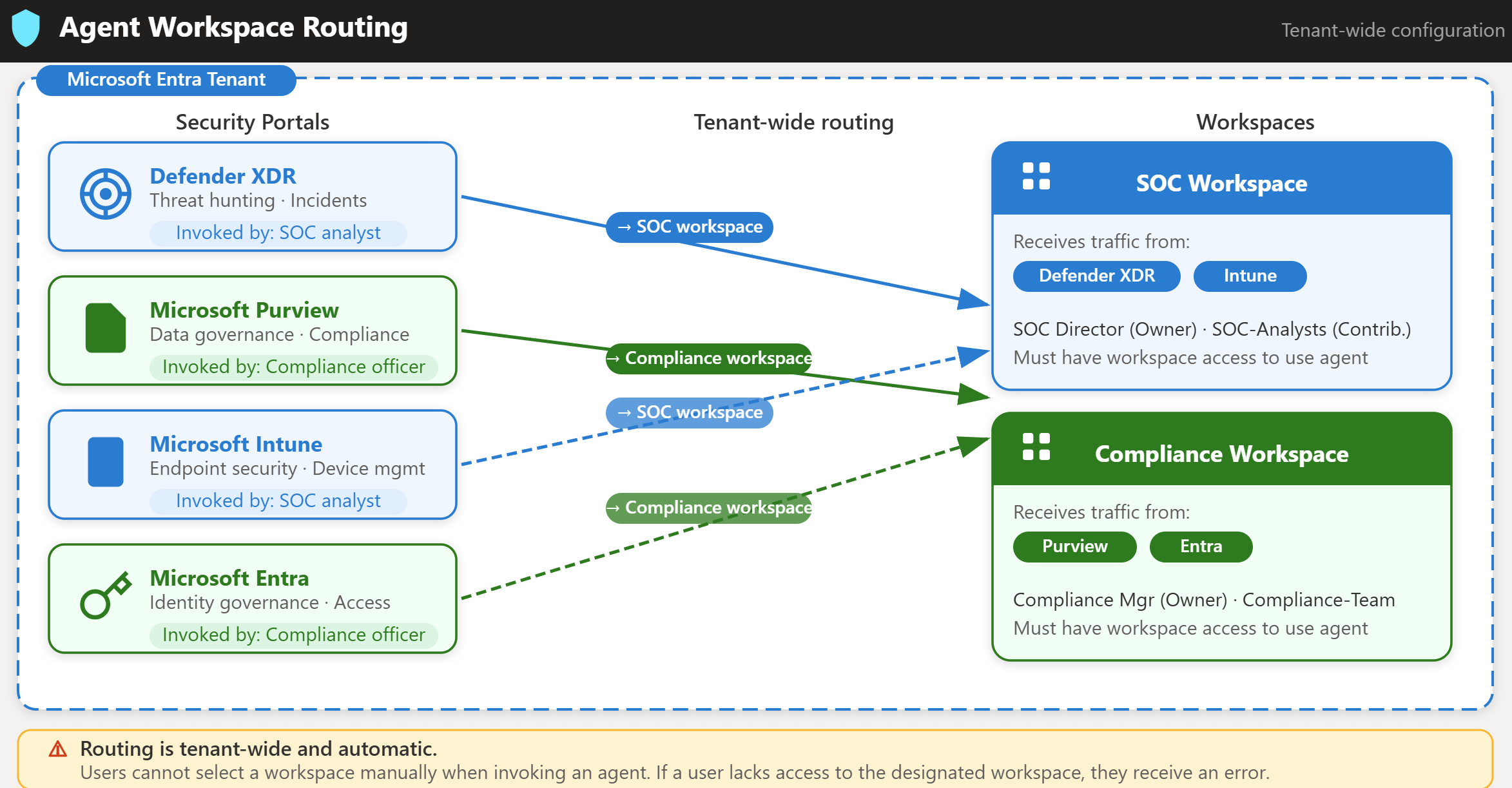
When users invoke Security Copilot capabilities from within a Microsoft security portal—for example, investigating an incident in the Defender portal—those interactions route to the designated workspace for that product. The user doesn't manually select a workspace; the system routes the request based on the administrator's configuration.
If no explicit assignment is made, all embedded experience traffic routes to the default workspace, which is the oldest workspace in your tenant. Explicit agent workspace assignment overrides this default.
The assignment is tenant-wide. All users invoking Defender XDR agent capabilities route to the same workspace, regardless of their individual workspace preferences. Users must have access to the designated workspace—if a user invokes the Defender agent but lacks Contributor or Owner access to the SOC workspace, they encounter an error.
Assign agent workspaces
The assignment procedure is the same for each product. Use the following steps, then repeat for each product using the Contoso values in the table.
- Sign in to Security Copilot at
https://securitycopilot.microsoft.com. - Select the home menu icon.
- Navigate to Owner settings > Workspaces for Microsoft Security Copilot agents.
- For each product, select the dropdown and designate the target workspace.
Manage agent workspace changes
As organizational needs evolve, you can need to reassign agents to different workspaces. Before switching an agent's workspace assignment, turn off any scheduled or automatic agent triggers in the current workspace. After switching, reconfigure agents in the new workspace.
Warning
New agent setups in the destination workspace can't access to previous workspace-specific data such as feedback or session memories. Plan migrations carefully to avoid disrupting operational workflows.
Now that agent workspaces are assigned, you're ready to monitor and manage workspace capacity to optimize costs and ensure availability.