Verify multicloud coverage and validate protection
After Contoso creates connectors for on-premises, AWS, and GCP environments, your next step is confirming that coverage is active. You want to ensure posture assessment is running, CWPP plans are active, compliance standards are assigned, and resources are visible in inventory. The output is what you bring to the CISO before the compliance audit.
Review connector health in Environment Settings
The primary health dashboard for all multicloud connections is Defender for Cloud > Environment settings. Every connector you create appears here, mapped to its Azure subscription.
Each connector row shows a Connectivity status column with one of three states:
| Status | Meaning |
|---|---|
| Healthy | Authentication succeeds and scans complete without errors |
| Has issues | A configuration or permission problem is preventing full coverage |
| Connecting | Initial handshake in progress (normal for newly created connectors) |
Select the status value for any connector to open the Environment details page. This page is the primary troubleshooting view—it lists each specific issue detected, describes the cause, and in many cases provides a downloadable remediation script.
Tip
After creating a new connector, check Environment details within the first hour. Configuration issues appear before the first scan completes, letting you resolve problems early rather than waiting hours to discover missing coverage.
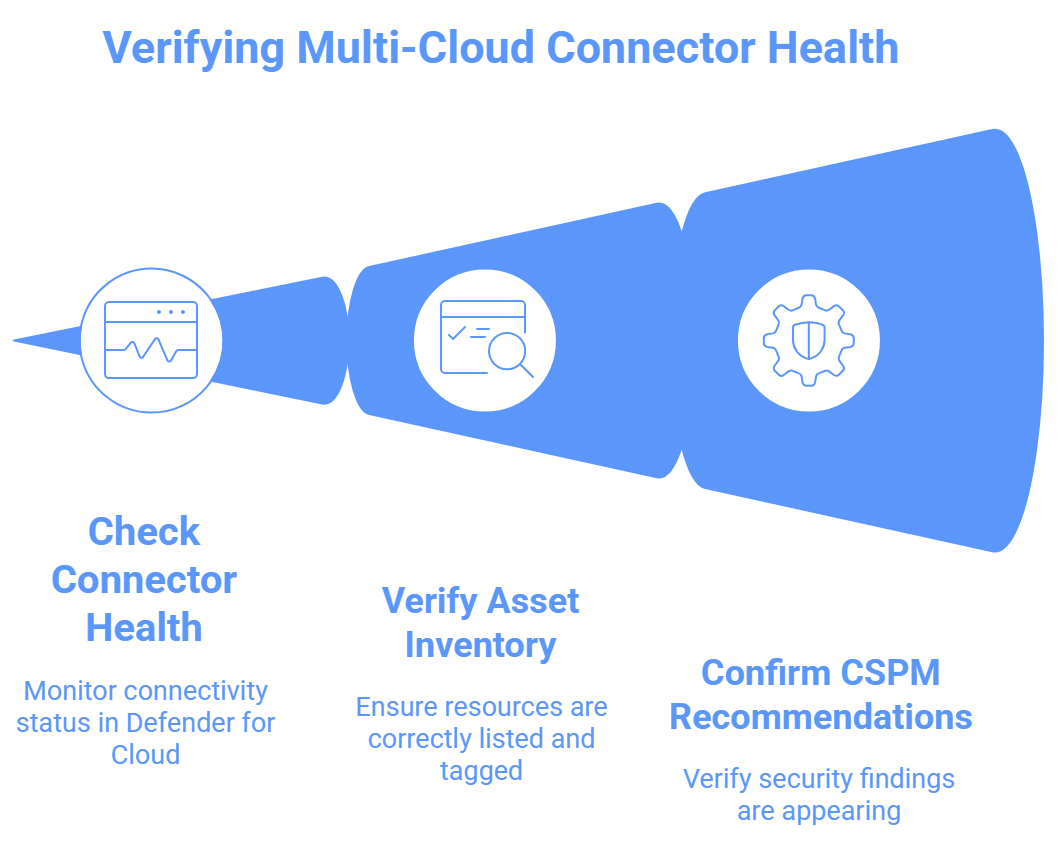
Verify the asset inventory
After connector creation, allow up to six hours for the first scan to complete, then navigate to Defender for Cloud > Inventory to verify resources from all connected environments appear.
Each resource shows an icon indicating its source cloud. Filter by Cloud to scope the view to AWS or GCP resources. Verify:
- EC2 instances appear for the AWS connector, tagged with the correct AWS account ID and region
- GCP Compute Engine VMs appear for the GCP connector, tagged with the GCP project
- Arc-enabled servers appear for on-premises machines with Arc deployed
- Each resource shows a populated Health state column
An empty health state column indicates the resource was discovered and awaits its first posture assessment. Health state populates after the first full scan cycle completes.
Confirm CSPM recommendations surface
CSPM recommendations for AWS and GCP resources appear in Defender for Cloud > Recommendations alongside Azure recommendations. In the Recommendations screen, use the Cloud filter to scope the view to AWS or GCP and verify findings appear for resources in your connected accounts.
For a newly connected AWS account, expect findings across EC2, S3, IAM, and CloudTrail configuration. For GCP, expect findings across Compute Engine, Cloud Storage, IAM, and GKE if Defender for Containers is enabled.
If no recommendations appear after six hours, return to Environment Settings and verify the connector shows Healthy status. Missing recommendations typically indicate a scan failure caused by missing IAM permissions.
Check autoassigned compliance standards
Two compliance standards are automatically assigned when connectors are created, with no manual setup required:
- AWS Foundational Security Best Practices: applied to every subscription containing an AWS connector
- GCP Default: applied to every subscription containing a GCP connector
Verify both appear in Defender for Cloud > Regulatory Compliance, each showing a compliance score calculated from CSPM findings across your connected accounts.
Note
Compliance data freshness for AWS and GCP resources updates on a 4-hour minimum interval. Newly onboarded environments can show incomplete compliance data until several scan cycles complete. Allow 12 to 24 hours after initial onboarding for stable compliance posture data.
Validate CWPP plan activation
CWPP plan validation requires verifying that plans are active at the connector level—not just that they were selected during connector creation.
In Environment settings, select a connector to view its configuration. The connector detail view shows which Defender plans are toggled on for that connector. Confirm:
- Defender for Servers: shows as active if you enabled it
- Defender for Containers: shows as active for EKS (AWS) or GKE (GCP) if selected
- Auto-provisioning settings: verify Arc autoprovisioning for virtual machines shows as enabled
Connector-level plan settings override subscription-level defaults for resources in the connected environment. A plan disabled at the subscription level can still be active for AWS or GCP resources when enabled on the connector.
Resolve common connectivity issues
| Issue | Environment | Remediation |
|---|---|---|
| Missing IAM permissions | AWS | Generate an updated CloudFormation template with current plan selection and redeploy as a stack update |
| Required APIs not enabled | GCP | Enable the five required APIs manually in the GCP Console, or allow the GCloud script to run again |
| SSM Agent missing | AWS (Defender for Servers) | Install AWS SSM Agent on EC2 instances and attach the AmazonSSMManagedInstanceCore policy |
| OS Config agent disabled | GCP (Defender for Servers) | Enable the Google Cloud OS Config API and ensure Compute Engine VMs have OS Config enabled |
| Partial regional coverage | AWS | Add missing regions to the AWS connector configuration in Environment Settings |
| Arc agent not deploying | AWS or GCP | Verify SSM Agent (AWS) or OS Config (GCP) is operational; check for org policy restrictions blocking agent installation |
For Arc-enabled on-premises servers showing as disconnected in Inventory, verify outbound connectivity to Azure Arc endpoints on port 443 and check that the Connected Machine agent service is running on the machine.
With all environments validated and showing active coverage, Contoso's security team delivered what the CISO requested: unified visibility and protection across on-premises, AWS, and GCP environments in a single Defender for Cloud view. In the next unit, you check your understanding of connecting hybrid and multicloud environments to Defender for Cloud.