Deploy plans at scale and verify coverage
Contoso Financial Services doesn't manage one subscription—they manage dozens, spread across multiple business units and environments. Enabling plans subscription-by-subscription through the portal doesn't scale, and the Secruity Officer (CISO) needs assurance that protection is consistent across the entire estate. Here, you learn how to deploy protection at management group level. Then you enforce configurations with Azure Policy, verify coverage across your entire environment, and optimize costs with resource-level control.
| Deployment approach | Scope | Best for |
|---|---|---|
| Management group enablement | All current and future subscriptions | Enterprise-wide consistent protection |
| Azure Policy enforcement | Compliance reporting and governance | Regulated environments requiring audit trails |
| Coverage workbook verification | Estate-wide visibility | Security audits and gap analysis |
Enable protection across a management group
The most efficient way to deploy Defender plans at scale is to enable them at the management group level. When you select a management group in Environment Settings instead of an individual subscription, the plans you enable apply automatically to all child subscriptions—including subscriptions created after you configure the plans.
To enable plans at the management group level, navigate to Microsoft Defender for Cloud > Environment settings, then select the management group rather than drilling into an individual subscription. Choose which plans to enable, and Defender for Cloud propagates those settings down the management group hierarchy. This approach ensures that new subscriptions inherit protection automatically, eliminating coverage gaps when teams deploy new resources.
Security administrators use this capability to enforce consistent protection across business units. With a single configuration at the root or intermediate management group level, you establish the baseline protection standard for the entire organization.
Note
When you enable plans at the management group level, subscriptions that already have a plan enabled retain their existing configuration. The management group setting applies to subscriptions without explicit settings.
Enforce plan enablement using Azure Policy
Management group enablement provides deployment efficiency, but it doesn't prevent someone from disabling a plan at the subscription level. Azure Policy adds an enforcement and compliance layer that makes protective coverage auditable and enforceable.
Defender for Cloud provides built-in Azure Policy initiative definitions for each Defender plan. When you assign one of these policy initiatives to a management group or subscription, Azure Policy evaluates whether the specified plan is enabled. If a subscription doesn't have the required plan active, the policy marks that subscription as "Noncompliant" in Azure Policy's compliance dashboard.
This compliance signal is essential in regulated environments where security governance requires proof that plans are consistently enforced. Assign the policy initiative at the management group level enforcing the requirement across all child subscriptions. Then use Azure Policy > Compliance to generate reports showing which subscriptions meet the requirement and which need remediation. This combination gives security teams both preventive control and audit evidence.
Tip
Use Azure Policy's built-in remediation tasks to automatically enable plans on noncompliant subscriptions. Built-in remediation closes the enforcement loop without manual intervention.
Verify coverage with the Coverage workbook
After enabling plans at scale, you need visibility into protected resources. The Coverage workbook is Defender for Cloud's purpose-built audit tool for understanding plan coverage across your entire estate.
Access the Coverage workbook through Microsoft Defender for Cloud > Workbooks > Coverage workbook. The workbook displays plan enablement status across your subscriptions and resources through four views: Relative coverage shows the percentage of subscriptions with each plan enabled, Absolute coverage shows each plan's status per subscription, Detailed coverage shows other settings required for full plan value, and Additional information explains each toggle. You can filter by Azure, AWS, or GCP environment to scope the view to a specific cloud.
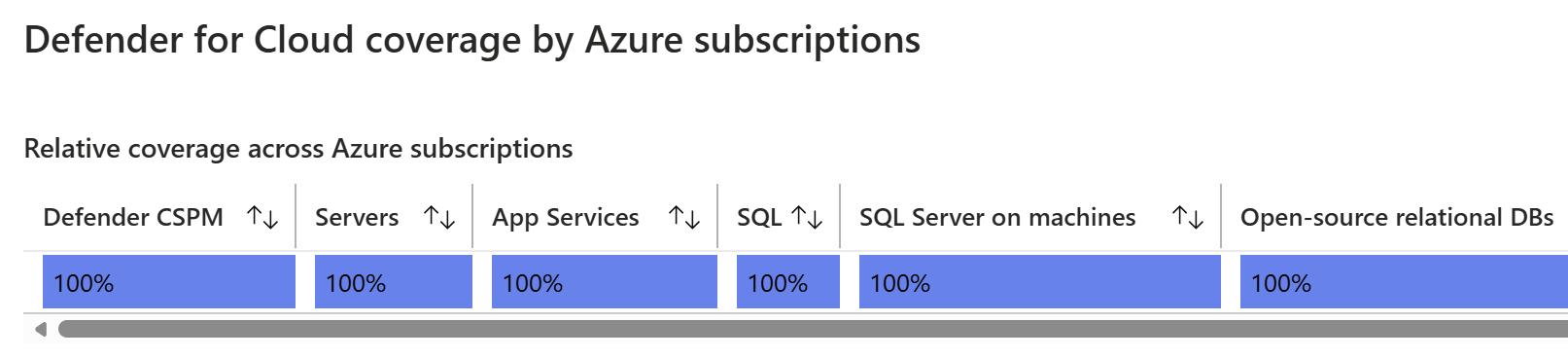
Use the Coverage workbook immediately after deploying plans at scale to confirm no subscriptions were missed during rollout. Security teams also use this workbook as evidence during audits, demonstrating comprehensive protection coverage to compliance officers and regulators.
Note
Management group settings apply as the default for all child subscriptions. You can override plan settings at the individual resource level. An example is excluding a dev/test VM from Defender for Servers Plan 2 or disabling malware scanning on low-sensitivity storage accounts. Resource-level settings always take precedence over subscription and management group defaults.