Draft engaging emails using Copilot in Microsoft Outlook
Important
Copilot in Outlook only supports work or school accounts, and Microsoft accounts using outlook.com, hotmail.com, live.com, and msn.com email addresses. Microsoft accounts using another email provider such as Gmail, Yahoo, or iCloud can still use Outlook, but don't have access to Copilot features in Outlook.
Managing email at scale requires more than speed. It requires judgment about what needs your attention, when to respond, and how your message will land.
Copilot in Microsoft Outlook supports each of those decisions through a connected workflow: triaging your inbox, summarizing conversations, drafting responses, and refining your writing before you send.
Triage your inbox with Copilot
Before you write anything, you need to understand what actually requires a response.
Copilot in Outlook lets you ask natural language questions about your mailbox and calendar so you can identify priority messages without manually scanning your inbox.
Open Copilot using the Copilot icon in the navigation bar or ribbon. Then ask targeted questions such as:
- Show me emails where I'm on the To line that I haven't replied to.
- Find emails from [name] this week.
- Do I have any meetings tomorrow afternoon?
- What emails from my manager are still unread?
Copilot returns results in the chat panel with links to matching messages. This shifts inbox review from scrolling to querying so you can focus on what needs attention first.
Tip
Copilot also answers calendar questions. Ask it What's on my calendar for Thursday? or Do I have any conflicts next week? without switching to the calendar view.
Tip
You can ground Copilot responses by adding content to your prompt. Select an email or highlight specific text and insert it into the chat. This produces more focused, context-aware results. Available in Outlook for Windows and web.
Copilot can also take action on messages, not just find them. Use action-based prompts to manage your inbox directly:
- Pin my emails from my manager.
- Archive all unread emails from [name] today.
- Flag this message.
- Mark this email as unread.
Copilot completes the action in Outlook. When a command affects more than five messages, it displays a confirmation before proceeding.
Tip
To reduce inbox noise before querying, consider turning on Prioritize my inbox. Copilot reviews incoming messages and assigns a priority (high, normal, or low) to each one, with a brief reason visible in the reading pane. Turn it on from Outlook's Settings > Copilot > Prioritize. Once on, you can filter or sort your inbox by Copilot priority and customize the criteria in Settings—for example, "it's from my manager" or "it mentions the quarterly review."
Summarize email threads and attachments
Once you've identified a message, the next step is understanding it quickly.
Select Summary by Copilot (or Summarize, depending on your Outlook version) above an email to generate a summary of the thread. Copilot highlights key points and identifies actions where possible.
After reviewing the summary, ask follow-up questions to get specific details:
- What decision was made about the timeline?
- Are there any dates I should be aware of?
- What did [name] say about the budget?
This follow-up is especially useful when you're returning to a thread after time away, or when you've been added to a conversation mid-way and need context quickly.
Tip
Copilot can also summarize attachments. After selecting Summary by Copilot on a thread that includes PDF, PowerPoint, or Word files, select Summarize a file to generate a summary. This quick overview lets you assess whether a document needs your full attention before you open it.
Draft an email using Copilot
Once you know which emails need a response, Copilot can help you draft it.
- Select Home > New mail.
- In the email body, select Help me write.
- Enter a prompt describing what you want to communicate, then select Generate.
- If the draft isn't right, select the on-screen Open Copilot icon next to your message, then use the Adjust options to change the tone or length, or enter a new prompt and select Generate again.
- When you're satisfied, select Keep it, then edit and send.
Your prompt quality directly affects the output. Be specific about the context, recipient, and purpose:
- Draft a reply to the project team confirming we can meet the revised deadline, and ask them to send updated task assignments by Friday.
- Write an email to the client summarizing the three key outcomes from yesterday's review call.
- Compose a message to my manager requesting approval to move the launch date by one week, with a brief explanation.
Tip
To refine part of a message, highlight a section and ask Copilot to rewrite just that content. This lets you improve specific sections without regenerating the full draft.
Tip
For more iterative drafting, use Copilot directly in the message. Select Help me write or Help me reply to open chat alongside your draft and update it in real time.
Personalize drafts with Custom Instructions
Instead of repeating tone and style preferences in every prompt, you can define them once.
Select the ellipsis (...) in the Copilot pane, then go to Settings > Personalization > Customize Copilot and enter your preferences for tone, structure, or context. For example:
Use a professional but direct tone. Keep responses concise. Include a short context line when writing to external contacts.
Copilot applies these instructions automatically to all future drafts. Update them as your communication needs evolve.
Refine your draft with Coaching by Copilot
Before sending an important message, review it.
Select the Open Copilot icon in the message, then choose Coaching by Copilot from the resulting menu. Copilot analyzes your draft and suggests improvements to tone, clarity, and structure.
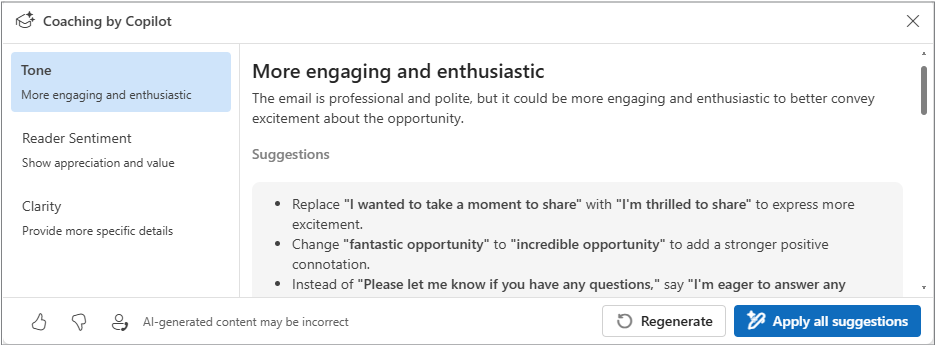 You can:
- Apply suggestions individually for full control
- Select Apply all suggestions for a quick, consistent refinement pass
Use Apply all when the draft is already close. Review individually when tone or phrasing needs careful judgment.
For deeper feedback, use Writing Coach in Microsoft 365 Copilot Chat.
Writing Coach provides a more detailed, iterative review and is best when:
- The message is long or complex
- You need to significantly adjust tone for a specific audience
- You want to refine the draft through multiple passes
Open Copilot Chat and search for Writing Coach in the Agent Store, or select it from your recent agents if you've used it before. Paste your draft, describe your goal, and iterate on the feedback.
Note
Writing Coach is most effective when you focus on one request at a time. Apply feedback before moving to the next refinement.