Power Apps data sources
When you're learning to use Power Apps, there are several data source options available at no extra cost. Power Apps can connect to hundreds of data sources, though some require additional licensing. This unit highlights some of the most popular options.

SharePoint
SharePoint enables you to build data lists and document libraries. A SharePoint list functions like a table and can serve as a backend data source for your app. Document libraries allow for storing documents or reading table data, such as spreadsheet files from OneDrive.
SharePoint lists can be simple single-column lists (for example, dropdown data) or multi-column lists with complex structures. Multiple SharePoint lists or document libraries can be connected to a single app.
Key design considerations when using SharePoint as a data source:
- Use simple column types such as Text, Number, Yes/No, or Date and time. Avoid complex SharePoint column types unless necessary.
- Avoid mandatory columns in SharePoint. Required inputs can be enforced within the app.
- Use simple column names without special characters or spaces. You can apply display names within the app.
- SharePoint lists don't have relational table support. Create key fields manually if relationships are needed.
- SharePoint is subject to a delegation limit. Queries returning more data than this limit may result in incomplete results, indicated by a warning icon in the app.
Excel
Excel is a non-premium data source supported by Power Apps. Excel tabular data can also be imported into SharePoint or Dataverse.
Important considerations:
- Data must be formatted as a table in Excel. Unformatted data won't be accessible from Power Apps.
- Image columns must be labeled with "[image]" to appear in galleries. Fields may need adjustment for correct data display.
- If the Excel file is open by another user, read/write operations may be blocked. For apps with multiple users, Excel isn't recommended as a live data source.
Excel is useful for learning scenarios and smaller datasets, though SharePoint is more robust.
Dataverse
Microsoft Dataverse is the most powerful and scalable data source available for Power Apps. When an environment includes Dataverse, data tables are available directly within the same environment as your apps. Power Apps enables easy creation and import of Dataverse tables.
Key benefits:
- No API configuration is needed—data access is native.
- Supports large datasets and can be scaled with additional licensing.
- Provides high-performance querying and automatic table relationships.
- Enables building connected data experiences across multiple tables.
- Fully supports Copilot for natural language-based app generation.
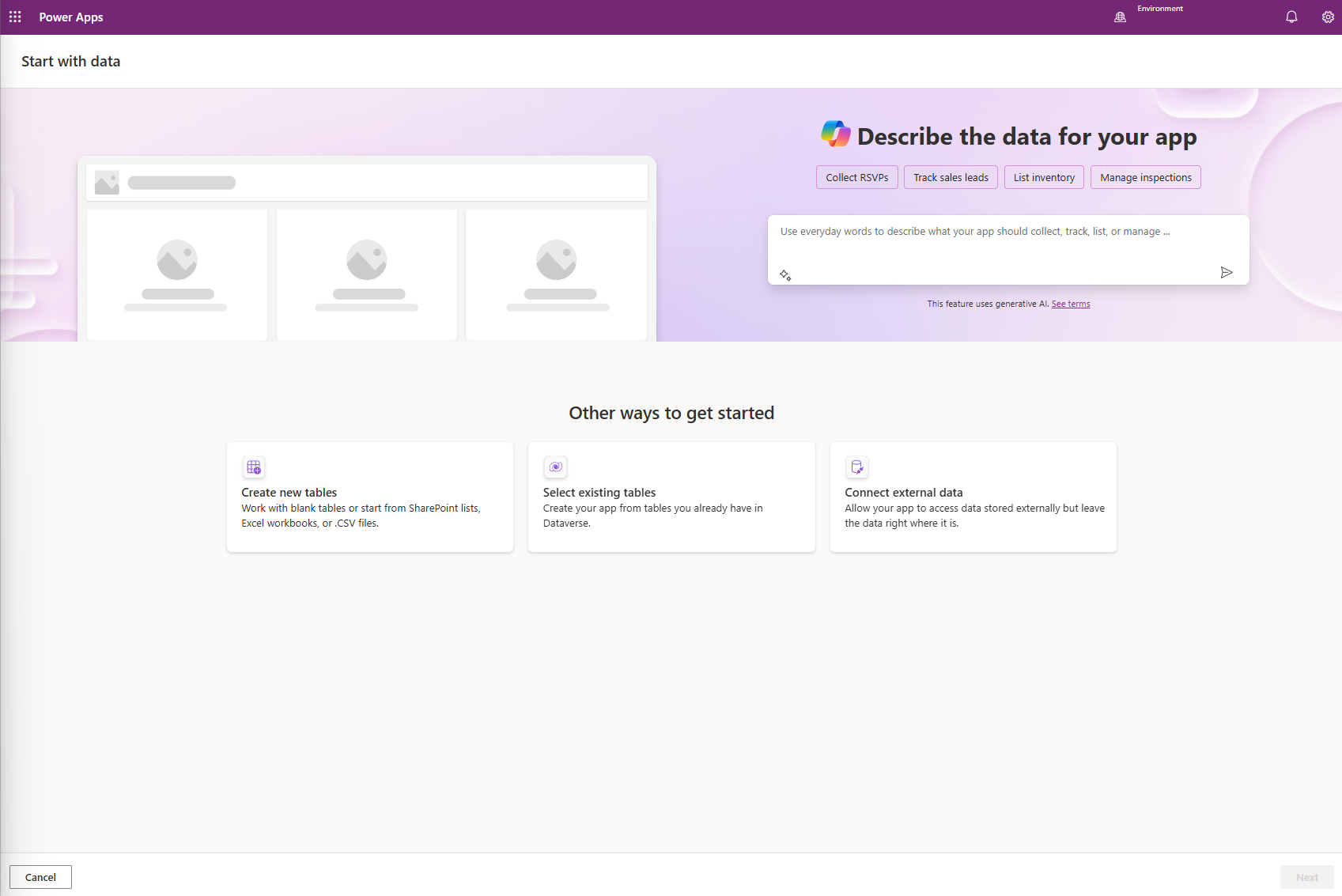
From the Power Apps Maker Portal, use Start with data to create or select Dataverse tables. This provides full access to Power Apps generative AI features.
SQL
SQL is a premium data source suited for large-scale apps. Many organizations already manage business data in SQL, and it can be connected to Power Apps easily.
- If hosted in the cloud (for example, Microsoft SQL Server), connecting is straightforward.
- If hosted on-premises, you can use an on-premises Data Gateway to securely connect Power Apps to local SQL databases.
SQL supports relational data and large volumes, making it ideal for enterprise-grade solutions.
Evaluate and recommend connectors
Beyond the four data sources covered in this unit, Power Apps can connect to hundreds of external services through connectors — prebuilt integrations with systems like Microsoft Teams, Outlook, Salesforce, ServiceNow, and many others.
Connectors fall into two categories:
- Standard connectors — Included with most Power Apps licenses. Examples include SharePoint, OneDrive, Excel Online, Teams, Outlook, and Azure Blob Storage.
- Premium connectors — Require a Power Apps Per App or Per User license. Examples include Dataverse, SQL Server, Salesforce, SAP, ServiceNow, and HTTP with Microsoft Entra ID.
When evaluating which connector to use for a given scenario, consider:
| Factor | Questions to ask |
|---|---|
| Data location | Is the data already in a Microsoft service, or does it live in a third-party system? |
| Licensing | Does the connector require premium licensing? Who will use the app, and what licenses do they have? |
| Volume and performance | How many records does the app need to handle? Some connectors support delegation (server-side filtering of large datasets); others don't. |
| Read vs. read/write | Does the app only need to display data, or will users create and update records? Not all connectors support write operations. |
| Security | Where is data stored, and who has access? Some scenarios have compliance or data residency requirements that rule out certain connectors. |
For scenarios where no prebuilt connector exists, Power Apps supports custom connectors — you can build a connector to any REST API with an OpenAPI (Swagger) definition. This is a developer-level task, but it means Power Apps can integrate with virtually any system that exposes an API.
The full connector reference is available at learn.microsoft.com/connectors. Use it when you're evaluating whether a specific system can connect to Power Apps and whether that connection requires premium licensing.
Summary
This unit introduced four common data source options and the broader connector ecosystem:
- SharePoint and Excel are available without extra cost. They're ideal for learning and small to medium data volumes.
- Dataverse and SQL are premium options. They support large datasets, relationships, and advanced scenarios. Dataverse also enables Copilot features.
- Beyond these four, Power Apps connects to hundreds of services through standard and premium connectors. Custom connectors extend this further to any REST API.
In the next unit, you'll build an app from Excel using Copilot.