Analyze security recommendations with risk prioritization
Contoso Healthcare's security team has enabled Defender CSPM and reviewed their Cloud Secure Score. With hundreds of security recommendations now generated across their Azure workloads — virtual machines, storage accounts, databases, containers, and AI services — they need a systematic approach to prioritize remediation efforts.
| Risk Factor | What It Evaluates | Example |
|---|---|---|
| Internet exposure | Whether the resource is reachable from the public internet | Azure OpenAI endpoint with public access enabled |
| Data sensitivity | Presence of sensitive, confidential, or regulated data | Storage account containing patient health records |
| Lateral movement potential | Whether an attacker could use this resource to reach other assets | Virtual machine with overly permissive network rules |
| Attack path involvement | Whether the issue appears in a chain leading to critical assets | Misconfigured identity that grants access to sensitive databases |
Understand how risk factors determine recommendation priority
Defender for Cloud assesses security recommendations using a dynamic risk engine that considers multiple environmental factors per asset, not just the severity of the underlying misconfiguration or vulnerability. This context-aware approach means two resources with identical security issues can receive different risk levels based on their operational context.
Defender for Cloud assigns each recommendation one of five risk levels: Critical, High, Medium, Low, or Not evaluated. Critical and High recommendations demand immediate attention because they combine severe misconfigurations with high-risk environmental factors. Medium and Low recommendations indicate issues that you can address during regular maintenance cycles. The Not evaluated status appears for resources not covered by the Defender CSPM plan or for new recommendations still being assessed by the engine.
Consider a concrete example from Contoso Healthcare's environment. An Azure OpenAI instance with a public endpoint and access to patient health records receives a Critical risk level for the "Azure AI Service endpoint should use private connectivity" recommendation. The same misconfiguration on a non-internet-facing development instance with synthetic data receives a Low risk level.
Note
Risk prioritization columns appear only when the Defender CSPM plan is enabled. Without this plan, risk level and risk factor columns appear blurred in the recommendations interface.
Navigate and filter the recommendations page
The recommendations page in the Microsoft Defender portal provides a centralized view of all security findings across your multicloud environment. To access recommendations, sign in to the Microsoft Defender portal at security.microsoft.com, navigate to Exposure Management > Recommendations, and select the Cloud tab.
At the top of the page, three summary cards provide an at-a-glance overview of your security posture. The Cloud Secure Score card displays your overall security health based on active recommendations. The Score history card tracks your Secure Score changes over the last seven days, helping you identify trends and measure improvement. The Recommendations by risk level card summarizes the number of active recommendations categorized by severity: Critical, High, Medium, and Low.
The left navigation pane organizes recommendations into three security categories. Misconfigurations shows configuration-related security issues such as overly permissive access controls or missing encryption settings. Vulnerabilities displays software vulnerabilities requiring patches or updates. Exposed Secrets identifies credentials and secrets that might be compromised. Selecting a category updates both the recommendations list and the summary cards to reflect only that category's findings.
At the top of the recommendations list, you can apply filters to narrow your view. The Exposed asset filter shows only resources accessible from the internet. The Asset risk factors filter lets you select specific risk conditions such as data sensitivity or lateral movement potential. The Environment filter lets you focus on Azure, AWS, or GCP resources. The Workload filter isolates specific workload types including AI, databases, virtual machines, and storage. The Recommendation maturity filter controls whether you see preview or generally available recommendations.
The recommendations page supports three view options: Recommendation per asset shows one row per affected resource ordered by risk level, Recommendation title aggregates all instances of the same recommendation type with a count of affected resources, and Group by resource groups all findings for the same asset together.
When you select a recommendation row, a side panel opens with four key tabs: Overview (recommendation description, exposed asset, risk level distribution), Remediation steps (actionable configuration guidance), Map preview (related attack paths passing through this asset), and Related initiatives (compliance frameworks such as the Microsoft Cloud Security Benchmark).
Note
Defender for Cloud is transitioning from grouped recommendations — where related findings appeared under a single parent item — to individual per-resource recommendations. During this transition, you may see both formats on the page. Recommendations marked as Preview don't yet affect your Secure Score. This is expected behavior and will resolve as the transition completes.
Identify AI-specific security recommendations
Defender CSPM generates security recommendations specifically for AI workloads discovered in the AI Bill of Materials (AI BOM) — an inventory of all AI application components, data sources, and artifacts across your environment. To view which AI workloads and models are included in your AI BOM, use the "AI workloads and models in use" prebuilt query template in Cloud Security Explorer, which you explore in depth in the next unit.
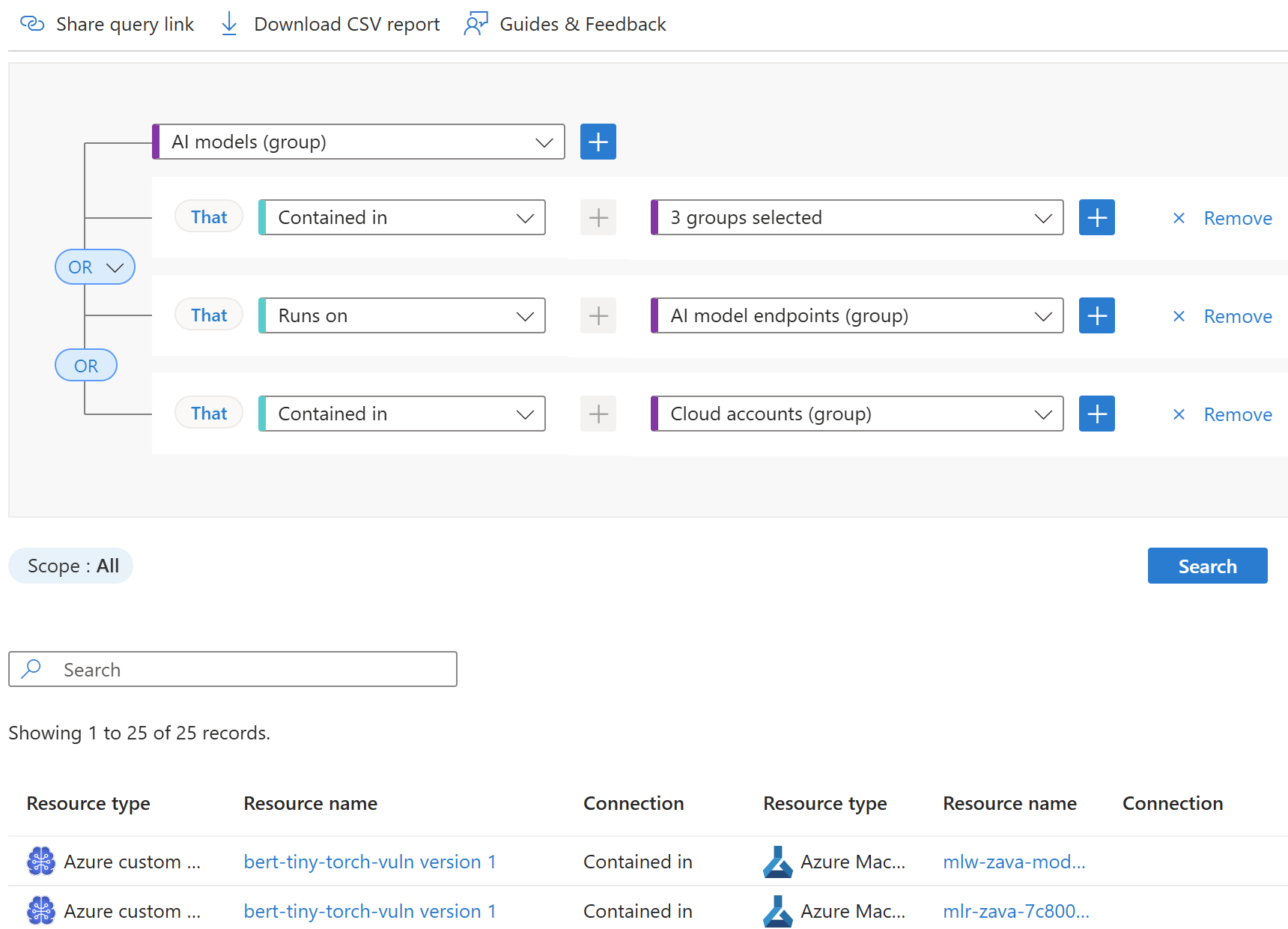
AI-specific recommendations cover identity and access controls for Azure AI services, network exposure settings, and infrastructure configuration. To view AI recommendations, select the Misconfigurations category from the left navigation and apply the Workload filter with the value AI. This filter displays recommendations targeting Azure OpenAI Service, Azure AI Foundry, Azure Machine Learning, and multicloud AI services such as Amazon Bedrock and Google Vertex AI.
Defender for Cloud performs Infrastructure as Code (IaC) scans during the development lifecycle and continuously assesses deployed AI resources. The AI security posture capabilities detect four critical IaC misconfigurations:
- Use Azure AI Service private endpoints prevents public internet traffic from reaching AI services by requiring all connections to flow through Azure Private Link
- Restrict Azure AI Service endpoints limits which networks can reach the service by configuring network rules and firewall policies
- Use managed identity for Azure AI Service accounts eliminates stored credentials by allowing AI services to authenticate using Azure-managed identities
- Use identity-based authentication for Azure AI Service accounts removes API key reliance by requiring Microsoft Entra ID authentication
AI endpoint exposure carries elevated risk because AI models can be exploited to exfiltrate sensitive data from grounding data, fine-tuning datasets, or model outputs — even if underlying databases are properly secured. Because of this risk, AI-related recommendations frequently appear in attack paths, and Defender for Cloud continuously generates recommendations to address them before they can be exploited.
Work with a recommendation — the investigation workflow
When you discover a Critical finding in your environment, a structured investigation workflow helps you understand the full scope of the risk and plan effective remediation. Consider a scenario where Contoso Healthcare's recommendations page displays a Critical finding: "Storage accounts should restrict public network access" affecting four storage accounts across their clinical and administrative environment.
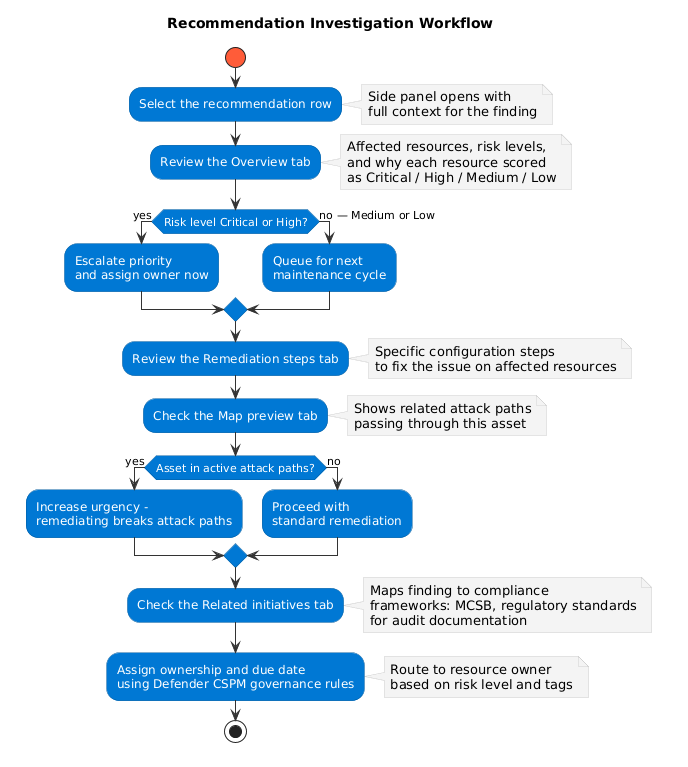
Select the recommendation row. The side panel opens, providing detailed context about the finding.
Review the Overview tab. You see which storage accounts are affected and why each received its risk level. The account with internet exposure and sensitive patient records is rated Critical; another with internet exposure but only operational logs is rated High. The remaining accounts are Medium and Low based on lower exposure and data sensitivity.
Review the Remediation steps tab. The guidance explains what needs to be done: disable public network access on each storage account, configure firewall rules to allow only trusted networks and Azure services, and audit SAS tokens for excessive permissions. For Contoso Healthcare's Critical account, this means coordinating with the clinical data team to confirm application connectivity before disabling public access.
Check the Map preview tab. You discover the Critical storage account appears in two attack paths. The first path shows an attacker using compromised credentials to access the internet-exposed account and exfiltrate patient records directly. The second path shows lateral movement from the storage account into the clinical application tier through a service connection with overly permissive network rules. Because this asset appears in active attack paths, remediation urgency increases significantly.
Check the Related initiatives tab. You confirm which compliance frameworks this affects. The finding maps to Microsoft Cloud Security Benchmark controls for network security and data protection, as well as specific requirements in your healthcare regulatory standards. This documentation helps you justify the remediation work during compliance audits.
With this investigation complete, you can assign remediation ownership and set due dates using Defender CSPM governance rules. Governance rules allow you to automatically route recommendations to specific owners based on resource tags or manually assign them during triage. For Contoso Healthcare, the Critical storage account finding is assigned to the Data Platform team with a 48-hour due date, while the Medium SAS token finding is assigned to the Development team for resolution during the next maintenance window.
Understanding how to triage recommendations by risk level and investigate the full context of a security issue — whether for storage, compute, networking, or AI workloads — provides the foundation for effective remediation.