Hunt for risks with cloud security explorer
Contoso Healthcare's security team has reviewed recommendations and attack paths, gaining insight into known risks. Now they want to go further—proactively hunting for risk patterns that may not yet surface in the standard recommendations list. For example, are there VMs with known vulnerabilities that also have internet exposure and access to sensitive storage accounts? Are there identity permissions that could enable lateral movement to the AI services? Here, you learn to use Cloud Security Explorer to build custom graph-based queries that uncover hidden risk combinations in your environment.
| Query Component | Purpose | Example |
|---|---|---|
| Resource type | Starting point for your query | Virtual machines, Storage accounts, Azure AI services |
| Filter conditions | Criteria that narrow results | Internet exposed, has vulnerabilities, contains sensitive data |
| Relationship filters | Connections between resources | VM "has access to" Storage account |
| Results | Assets matching all conditions | Specific resources requiring remediation |
Understand cloud security explorer and the security graph
Cloud Security Explorer uses the cloud security graph, Defender for Cloud's context engine that maps relationships between resources, identities, data, network exposure, and security findings. Unlike recommendations that surface algorithmically determined risks, the explorer lets you bring your own questions to the data.
The security graph is updated through snapshot publishing, a method of refreshing data at regular intervals. Snapshot publishing ensures that your workload configuration data remains fresh with daily updates.
With this foundation, you build custom multi-resource queries to find risk combinations that standard recommendations might miss. For example, you can query "find all VMs with high-severity vulnerabilities that are internet-exposed and have access to storage accounts containing sensitive data." This type of query reveals compound risks — situations where multiple factors combine to create significant exposure.
Navigate and build queries in Cloud Security Explorer
Cloud Security Explorer is accessed through the Azure portal, providing a dedicated interface for proactive risk hunting.
Note
Cloud Security Explorer is available in the Azure portal. Sign in at portal.azure.com and navigate to Microsoft Defender for Cloud > Cloud Security Explorer.
Building a query follows a structured workflow that transforms security questions into actionable results:
- Select a resource type from the dropdown menu (for example, Virtual machines, Storage accounts, Azure AI services).
- Select the + button to add filter conditions (for example, internet exposed, has high-severity vulnerabilities, connected to storage).
- Add additional resource types and relationship filters as needed to create chained conditions.
- Select Search to run the query against the security graph.
- Review the results—each row represents an asset matching all specified conditions.
- Select Download CSV report to export results for remediation tracking or reporting to stakeholders.
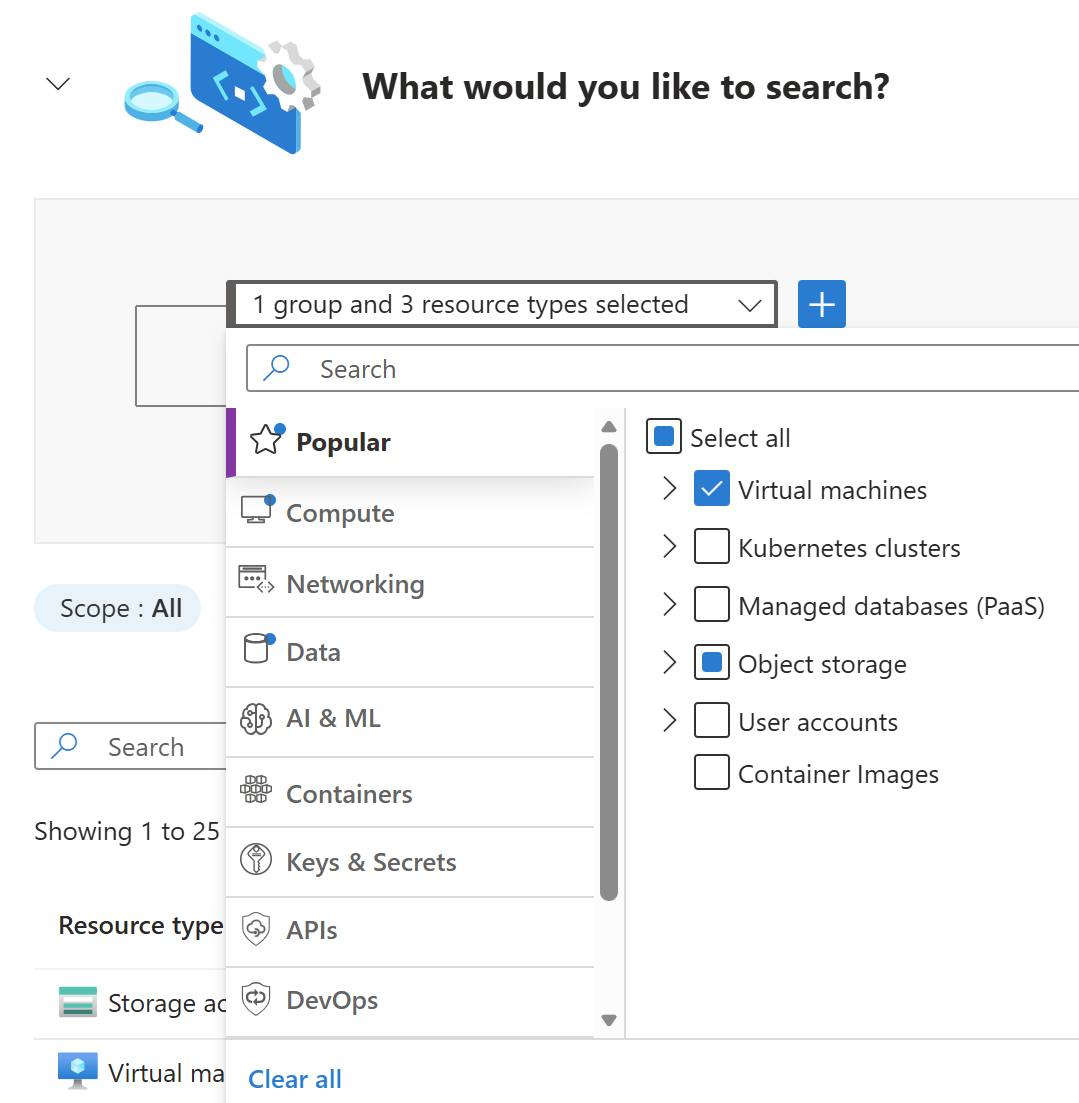
Filters are grouped into logical categories including asset type, exposure, permissions, vulnerabilities, network connections, and lateral movement potential.
You can chain multiple resource types using relationship filters to model real attack scenarios. For example, construct a query for a VM that "has access to" a storage account, which "contains" sensitive data. This chaining capability mirrors how attackers move through environments, exploiting relationships between resources to reach high-value targets.
Use query templates for common risk patterns
The bottom of the Cloud Security Explorer page provides prebuilt query templates that cover common risk scenarios preconfigured for immediate use. Templates eliminate the need to construct queries from scratch, offering a practical starting point for establishing regular proactive hunting practices.
Templates cover scenarios such as:
- Internet-exposed VMs with high-severity vulnerabilities
- Storage accounts with sensitive data that are accessible from the internet
- Resources with exposed secrets (credentials, tokens, or keys found in environment variables or code)
- Resources with managed identity permissions that could enable lateral movement across the tenant
To use a template, find it at the bottom of the Cloud Security Explorer page and select Open query. The template pre-populates the query builder with filters and conditions, which you can modify before selecting Search.
When AWS or GCP cloud connectors are active and Defender CSPM is enabled on those accounts, the same explorer interface supports multicloud queries. Organizations with hybrid cloud architectures can extend these hunting practices across all connected cloud platforms.
Share and export query results
Queries can be shared with team members using the Share query link button, which copies a shareable URL to your clipboard. When a query reveals a risk cluster, share the link with workload owners or governance teams to ensure coordinated response. Select Download CSV report to export results for remediation tracking or reporting.