Configure self-service password reset in Microsoft Entra ID
Even with passwordless methods deployed for high-privilege accounts, many users still rely on passwords. At Contoso, password resets account for a large share of help desk volume, especially for frontline and contractor populations. Self-service password reset (SSPR) shifts this recurring task from the help desk to a secure self-service flow.
Enable SSPR and verify licensing requirements
Before users can reset their own passwords, enable SSPR in Microsoft Entra ID and confirm licensing. In Microsoft Entra admin center > Entra ID > Password reset > Properties, choose the SSPR scope:
None: Disabled for all usersSelected: Enabled for members of a specific security groupAll: Enabled for all users in the tenant
Most organizations should start with Selected and use a pilot group to validate registration, communication, and writeback behavior.
Licensing determines available features:
| License | Cloud SSPR | Password writeback |
|---|---|---|
| Microsoft Entra ID Free | Not available | Not available |
| Microsoft Entra ID P1 | Yes | Yes |
| Microsoft Entra ID P2 | Yes | Yes |
| Microsoft 365 Business Premium | Yes | Yes |
Configure SSPR authentication methods
Configure SSPR methods in Microsoft Entra admin center > Entra ID > Password reset > Authentication methods.
Key policy guidance:
- Require 2 methods for reset where possible to reduce account takeover risk.
- Avoid using security questions as a primary method.
- Remember that passkeys and FIDO2 are sign-in credentials and aren't used directly in password reset challenges.
| Method | SSPR-eligible |
|---|---|
| Microsoft Authenticator (TOTP) | Yes |
| Microsoft Authenticator push notification | Yes |
| Mobile phone (SMS/voice) | Yes |
| Office phone | Yes |
| Email (external) | Yes |
| OATH hardware token | Yes |
| Security questions | Yes |
| Passkey / FIDO2 key | No |
Important
Microsoft has announced retirement of security questions for SSPR in March 2027. Transition users to stronger supported methods before that date.
Enforce registration and configure password writeback
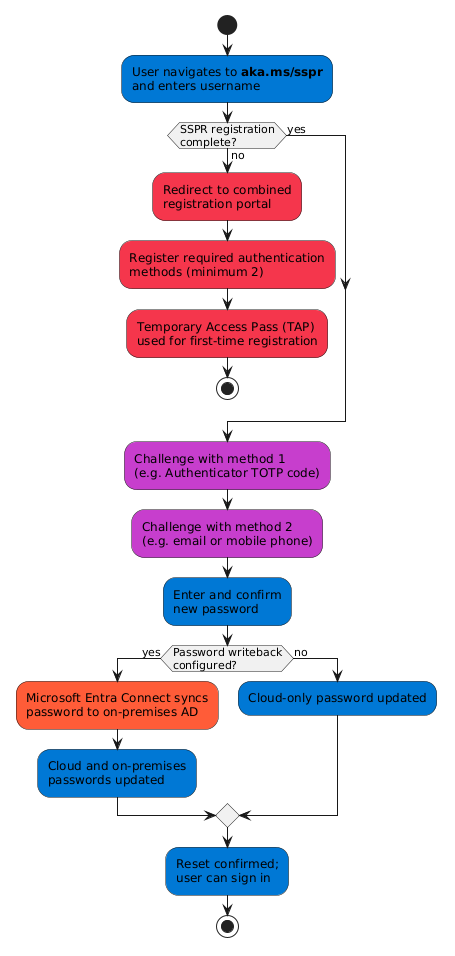
Use Conditional Access targeting Register security information to enforce registration. For first-time users or recovery scenarios, issue a Temporary Access Pass (TAP) to bootstrap secure enrollment.
Enable password writeback in Password reset > On-premises integration if your organization uses on-premises Active Directory. Without writeback, cloud and on-premises passwords can diverge.
Monitor SSPR activity and support AI-powered helpdesk agents
In Password reset > Activity, review:
- Registration status and method enrollment
- Reset attempt volume and outcomes
- Common failure reasons
Use trends to improve onboarding communications and close method-registration gaps.
Tip
If Contoso uses AI helpdesk agents, direct users to https://aka.ms/sspr for credential workflows instead of collecting sensitive input through the bot.
Administrator-specific SSPR constraints
Administrator accounts have stricter reset protections than standard users:
- Administrators must use two authentication methods for reset.
- Security questions aren't allowed for administrator reset scenarios.
- Email-based reset isn't recommended for privileged users because mailbox compromise can become an escalation path.
For Contoso, place privileged accounts in a dedicated group and apply stricter SSPR method controls (for example, Microsoft Authenticator plus phone-based verification).
B2B guest user behavior
B2B guests typically reset passwords in their home tenant, not in the resource tenant where they were invited. In practice:
- Guest SSPR behavior follows the guest user's home organization policy.
- Method registration is managed in the home tenant.
- Access issues in Contoso may still depend on partner-tenant SSPR readiness.
For smooth operations, Contoso should document this dependency in partner onboarding and support runbooks.
Troubleshooting common SSPR issues
Use this quick triage checklist for the most common failures:
- User can't access SSPR portal: Send the direct URL
https://aka.ms/sspr. - User not in SSPR scope: Verify the user is included in the selected SSPR group or tenant-wide scope.
- User hasn't registered required methods: Prompt registration via combined registration or CA registration enforcement.
- No SMS or voice verification received: Validate phone number format and carrier delivery.
- Writeback not updating on-premises password: Confirm writeback is enabled and sync health is normal.
- Account unlock fails in hybrid scenarios: Verify on-premises connector permissions and unlock configuration.
With SSPR configured, privileged constraints enforced, guest behavior understood, and troubleshooting documented, Contoso can reduce support load while maintaining strong recovery security.