Manage cryptographic keys in Azure Key Vault
A key unrotated for three years isn't just a policy violation—it's an exposure window. If the key was ever visible to an unauthorized party, attackers had three years to use it. The remediation starts with understanding what Azure Key Vault supports for cryptographic keys and how to keep them current through automation.
Note
The operations in this unit—creating keys, configuring rotation policies, and importing BYOK keys—require the Key Vault Crypto Officer role on the vault. For human operators, assign this role as a PIM-eligible assignment rather than a permanent active assignment. Just-in-time activation enforces the justification trail and limits the window of standing access to cryptographic key material.
Compare key types and protection levels
Azure Key Vault supports three cryptographic key types, each serving a distinct purpose.
RSA keys are asymmetric keys used for encryption, decryption, digital signatures, and key wrapping. Key Vault supports sizes of 2,048 bits, 3,072 bits, and 4,096 bits. RSA-2048 is the minimum for production use; RSA-4096 is appropriate for long-term data protection or where extended assurance is required.
Elliptic curve (EC) keys are asymmetric keys used for digital signatures. The supported curves are P-256, P-384, P-521, and P-256K (secp256k1). EC keys produce smaller key material at equivalent security strength compared to RSA, making them efficient for certificate operations and signing workloads.
Symmetric (octet) keys are used for symmetric encryption. Software-protected octet keys support 128-bit, 192-bit, and 256-bit sizes. Unlike RSA and EC keys, octet keys can't be HSM-backed in the Key Vault Premium service—they're supported as HSM keys only on Azure Key Vault Managed HSM.
Both RSA and EC keys are available in software-protected and HSM-protected variants. The protection level you choose depends on your compliance posture.
Evaluate software and HSM key protection
Software-protected keys are processed and stored in software within the Key Vault service. They're encrypted at rest using service-managed encryption, but the key operations occur in software.
HSM-protected keys are generated, stored, and processed entirely within hardware security modules (HSMs) validated to FIPS 140-3 Level 3. Key operations execute inside the HSM boundary; the private key material never exists in software memory. When a compliance framework—such as PCI DSS, HIPAA, or a FedRAMP High authorization—mandates FIPS 140-3 Level 3 hardware protection for cryptographic keys, HSM-backed keys are the requirement, not an option.
HSM-protected keys require the Premium SKU for Azure Key Vault. The Standard SKU supports software-protected keys only. HIPAA's technical safeguard requirements mandate hardware-level protection for keys used in patient record encryption. To meet that requirement, deploy a Premium vault and create RSA-HSM or EC-HSM keys.
Implement Bring Your Own Key (BYOK)
Some organizations operate under regulatory requirements that go beyond the default cloud key management model. They must demonstrate that key material was generated within a boundary they controlled, and that the cloud provider could never access the plaintext key. Bring Your Own Key (BYOK) addresses this requirement.
In a BYOK scenario, you generate the key material inside your own on-premises or external HSM. You then transfer that key into Azure Key Vault Premium or Azure Key Vault Managed HSM without the key ever appearing in plaintext outside an HSM boundary.
The transfer mechanism uses a Key Exchange Key (KEK). The process works as follows:
- You generate a KEK as an RSA-HSM key inside your Key Vault Premium instance. The KEK must have only the
importkey operation permitted—theimportoperation is mutually exclusive with all other key operations. - You download the KEK public key as a
.pemfile to a computer connected to your on-premises HSM. - On the offline computer, you use your HSM vendor's BYOK tool to encrypt (wrap) your Customer Key using the KEK public key, producing a BYOK file.
- You upload the BYOK file to Key Vault. Inside the Key Vault HSM, the KEK private key unwraps the Customer Key, and the key material is imported directly into HSM protection.
At no point, does your Customer Key appear in plaintext outside an HSM. The KEK never leaves the Key Vault HSM boundary. The result: your key material lives in Azure Key Vault, but you—not the cloud provider—generated and controlled its origin.
BYOK is supported for RSA-HSM and EC-HSM key types with supported HSM vendors including Thales, Entrust (nShield), Fortanix, IBM, Marvell, Utimaco, and others. Check the vendor list in the reference documentation to confirm support for your specific HSM model before planning a transfer.
Note
BYOK requires your source HSM to allow key wrapping (exporting keys in encrypted form). Exporting is typically disabled by default on HSMs for security. Work with your HSM vendor to enable it for the transfer, and ensure only authorized personnel can perform the operation.
Configure key autorotation
Manual rotation relies on humans remembering to act. Autorotation removes that dependency. Azure Key Vault supports rotation policies on individual keys that instruct the service to create a new key version automatically at a defined interval.
A rotation policy on a key specifies:
- Rotation time: how frequently Key Vault creates a new version. Set rotation time based on your compliance requirements and operational risk tolerance.
- Expiry time: the lifetime of each key version after which Key Vault marks it as expired. For fully automated rotation, expiry must also be set.
- Notification time: the number of days before expiry at which Key Vault publishes a near-expiry event to Azure Event Grid.
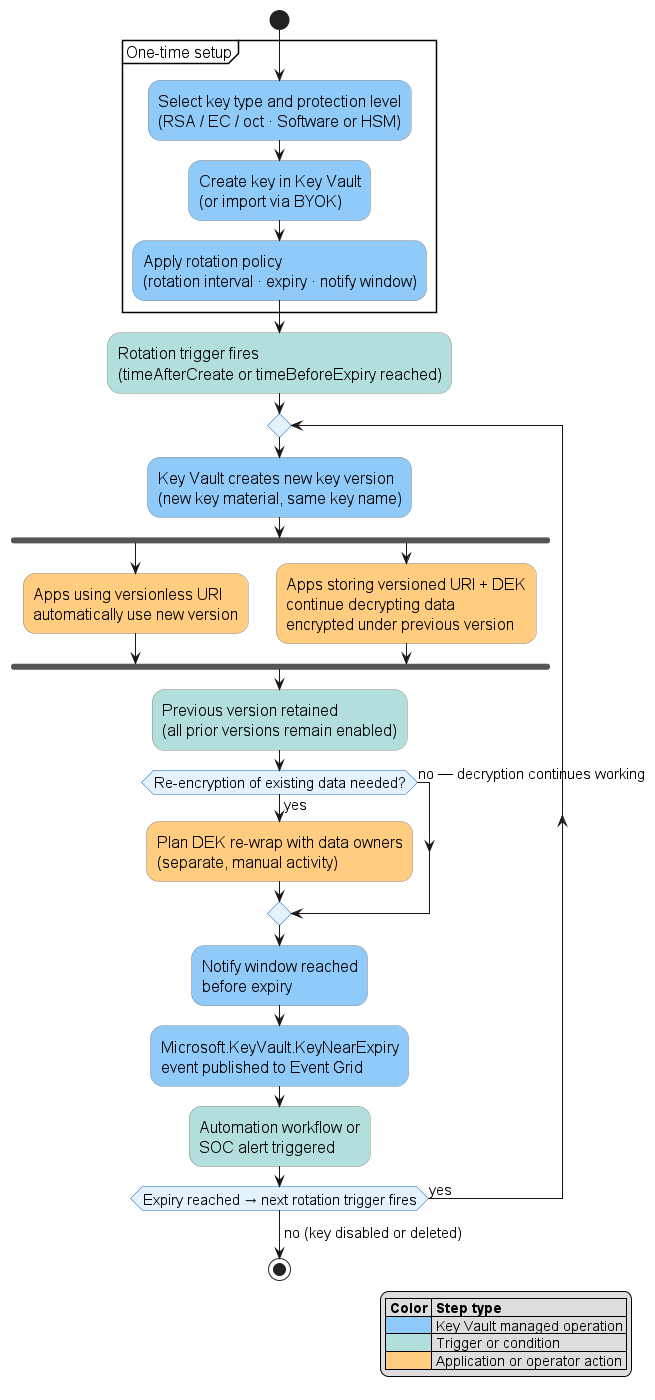
When Key Vault creates a new key version through rotation, applications that reference the key by its versionless URI (using only the vault URL and key name, without a specific version) automatically receive the latest version. No application configuration change is needed at rotation time. Applications that reference a specific version URI are unaffected—they continue using the pinned version.
{
  "lifetimeActions": [
    {
      "trigger": { "timeAfterCreate": "P18M" },
      "action": { "type": "Rotate" }
    },
    {
      "trigger": { "timeBeforeExpiry": "P30D" },
      "action": { "type": "Notify" }
    }
  ],
  "attributes": {
    "expiryTime": "P2Y"
  }
}
This policy rotates the key 18 months after creation and notifies 30 days before the two-year expiry date. The Azure CLI command to apply it:
az keyvault key rotation-policy update \
  --vault-name <vault-name> \
  --name <key-name> \
  --value ./rotation-policy.json
Examine key versioning and encrypted data
When a key rotates, Key Vault creates a new key version but retains all previous versions. Retaining previous versions is critical: data that was encrypted using the previous key version remains possible to decrypt because that version is still present in the vault.
Applications using the versionless URI always encrypt new data with the latest version. However, for data encryption scenarios—where a data encryption key (DEK) is wrapped by the Key Vault key—store the versioned URI alongside the encrypted data so decryption always uses the exact key version that wrapped the DEK. Existing data remains encrypted under its original version until you explicitly re-encrypt it. Re-encrypting existing data to bring it under the new key version is a separate, planned activity—it isn't automatic, and it isn't required for decryption to continue working. Plan re-encryption in consultation with your data owners, especially for large data sets like patient record archives.
Important
Key rotation generates a new key version with new key material. Both the old and new key versions must remain enabled until any dependent services updated their data encryption key (DEK) wrapping to use the new version. Disabling the old key version before DEK rewrapping is complete, breaks decryption for any data still wrapped under the old version.
Configure key expiry and Event Grid notifications
In addition to autorotation, you can set NotBefore and Expires attributes on individual key versions to control their operational window. A key version with a future NotBefore date isn't usable until that date—useful for pregenerating a replacement key during a planned cutover. A key version with a past Expires date signals to consuming services that it should no longer be used for new operations.
To receive proactive notifications before expiry triggers, configure Event Grid integration in your rotation policy's notification time. When a key approaches expiry, Key Vault publishes a Microsoft.KeyVault.KeyNearExpiry event to Event Grid. Subscribe an automation workflow to that event to trigger proactive rotation, alert the security team, or both.
To set up the Event Grid subscription:
- In the Azure portal, open your Key Vault and select Events.
- Select + Event Subscription.
- Under Event Types, select
Microsoft.KeyVault.KeyNearExpiry. - Configure an endpoint—an Azure Function, Logic App, or webhook—to handle the event.