Examine groups in Microsoft 365
- 9 minutes
Organizations commonly utilize groups to manage and organize sets of users collectively. For instance, when assigning a team to a group, the group can facilitate permissions management on a SharePoint team site. Additionally, the group enables the distribution of messages to all its members. Group membership is based on Microsoft Entra ID accounts. As an admin, your team creates some groups to manage conditional access, devices, and other resources.
Many groups are created by members of your organization for collaboration using Teams, SharePoint, and other collaboration tools. While membership in these groups can be highly dynamic, you still manage the underlying Microsoft Entra ID accounts, including enforcing conditional access, using ID Protection, and other controls to protect your organization.
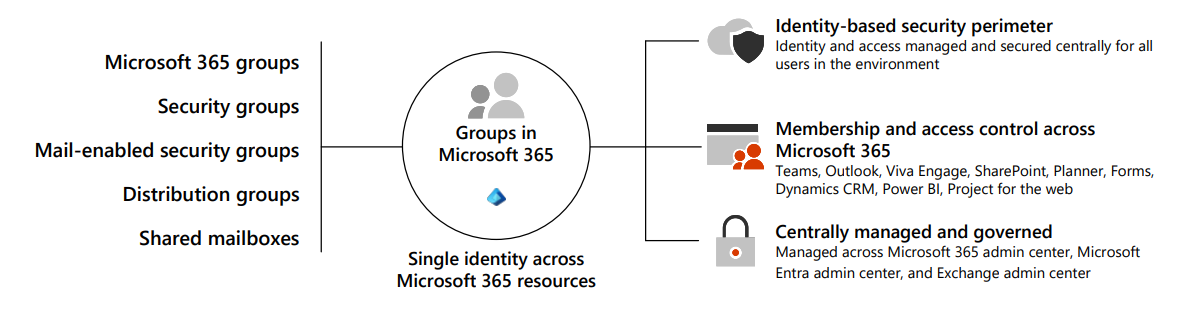
The following table offers an overview of different group types and their creation locations within Microsoft 365.
| Group Type | Description | When to use? | Where to create it? |
|---|---|---|---|
| Microsoft 365 group | A Microsoft 365 group is the recommended group type. It includes a group email and shared workspaces, making it ideal for collaboration. It's similar to distribution groups because it has its own mailbox, and its members receive email messages sent to the group. However, it differs from distribution groups in that it allows teams to collaborate by providing them with a shared workspace for email, conversations, files, and calendar events. | When you want to provide distribution list capabilities and other collaboration features. The best option for team work. | - Microsoft 365 admin center - Microsoft 365 admin app - Microsoft Entra admin center - Exchange admin center - Outlook (also known as the Groups app in Outlook) |
| Distribution group | In Microsoft 365, a distribution group is also known as a distribution list. Organizations primarily use it for sending notifications to a group of people. You do so by associating a single email address with the distribution group. An organization's email system or mail server distributes messages sent to the group's email address to all members of the group. | When you want to distribute messages using the group only. | - Microsoft 365 admin center - Microsoft 365 admin app - Exchange admin center |
| Mail-enabled security group | When you mail-enable a security group, it means the group has an associated email address, and members of the group can send and receive emails using that address. This design enables the group to function as a mailing list or distribution group. Message delivery works the same as with a distribution group. In other words, an organization's email system or mail server distributes messages sent to the security group's email address to all members of the group. You can also use a mail-enabled security group to assign group permissions to various resources, such as SharePoint. For example, by adding a mail-enabled security group to SharePoint, you can grant the group's members access permissions to SharePoint sites, libraries, lists, or individual items within SharePoint. Mail-enabled security groups can't be dynamically managed, nor can they contain devices. |
When you want to use the group for both permissions and mail distribution. | - Microsoft 365 admin center - Microsoft 365 admin app - Exchange admin center |
| Security group | A security group provides a convenient way to manage and assign permissions to multiple users simultaneously. A security group can grant access permissions to resources such as OneDrive and SharePoint. | When you only require a group to grant permissions. | - Microsoft 365 admin center - Microsoft 365 admin app - Microsoft Entra admin center |
| Dynamic distribution group | A dynamic distribution group automatically manages its membership based on predefined criteria or filters. In a traditional distribution group, users manually manage membership. In a dynamic distribution group, Microsoft 365 dynamically updates its member list based on specific attributes or conditions. You create and manage dynamic distribution groups in Exchange Online. With Exchange Online, administrators can define the criteria or rules for dynamic distribution groups using PowerShell or the Exchange admin center. They can base these rules on user attributes such as department, location, job title, or custom attributes. Microsoft 365 automatically calculates and updates the membership of the dynamic distribution group based on these rules. |
When you want to have a flexible distribution list that changes membership automatically. | - Exchange admin center |
| Shared mailbox | Shared mailboxes are used when multiple people need access to the same mailbox, such as a company information or support email address, reception desk, or other function that might be shared by multiple people. Users with permissions to the group mailbox can send as or send on behalf of the mailbox email address if the administrator has given that user permissions to do that. This feature is useful for help and support mailboxes because users can send emails from "Contoso Support" or "Building A Reception Desk." | When multiple people need to access the same mailbox, such as a support email address. | - Microsoft 365 admin center - Microsoft 365 admin app - Exchange admin center |
Collaboration spaces for Microsoft 365 groups
A Microsoft 365 group consists of the following objects:
- a shared Outlook Inbox
- a shared calendar
- a SharePoint Teams Site
- a SharePoint document library
- Planner
- Power BI
- Yammer (if you created the group from Yammer)
- a Team (if you created the group from Teams)
- a roadmap (if you have Project for the web
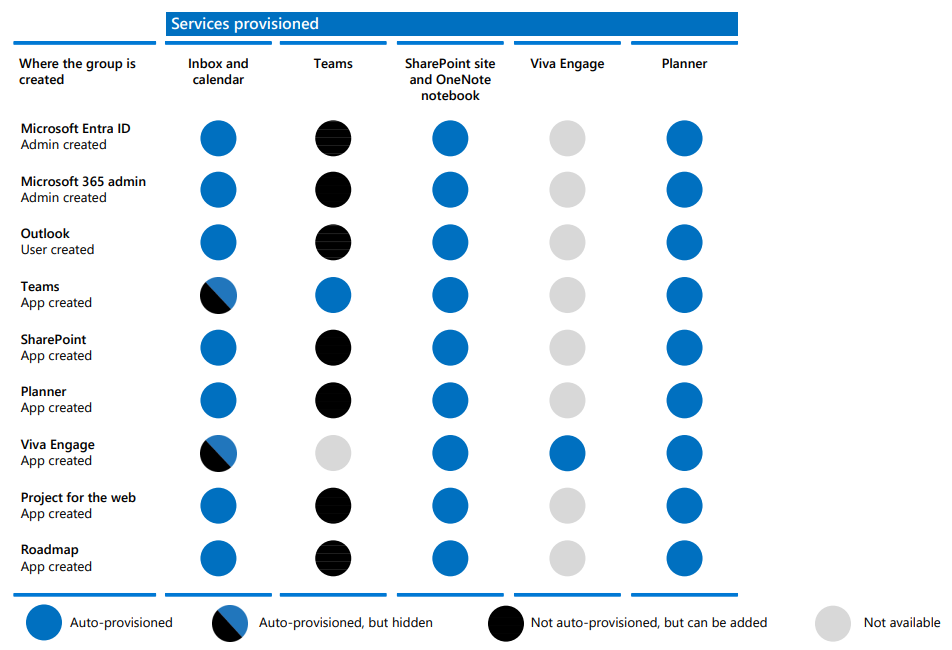
Collaboration spaces for Microsoft 365 groups differ based on where the Microsoft 365 group is created. While users can create Microsoft 365 groups in Outlook, other apps create them behind the scenes when users create Teams, SharePoint team sites, Planner plans, and Viva Engage groups.
Note
Teams and Viva Engage can't be connected to the same group.
How Microsoft 365 Groups work with Teams
Microsoft 365 Groups is the cross-application membership service in Microsoft 365. At a basic level, a Microsoft 365 group is an object in Microsoft Entra ID with a list of members and a coupling to related workloads including a SharePoint team site, shared Exchange mailbox, Planner, and OneNote notebook. You can add or remove people to the group just as you would any other group-based security object in Active Directory. By default, users in Microsoft 365 can create and manage groups. For more information about Microsoft 365 Groups, see Learn about Microsoft 365 Groups.
When you create a team, a Microsoft 365 group is created to manage team membership. The group's related services, such as a SharePoint site, mailbox, and so on, are created at the same time. People who create teams can choose to use an existing Microsoft 365 group if they're an owner of that group. Each channel in the team has a separate folder in the document library. Creating folders directly in the document library doesn't create channels in the team.
When you create a Microsoft 365 group in the Teams admin center, Outlook, or SharePoint, the group mailbox is visible in Outlook. When you create a team in Teams, the group mailbox is hidden by default. You can use the Set-UnifiedGroup cmdlet with the HiddenFromExchangeClientsEnabled parameter to make a mailbox visible.
Group membership
If you remove a member of a team, they're removed from the Microsoft 365 group as well. Removal from the group immediately removes the team and channels from the Teams client. If you remove a person from a group using the Microsoft 365 admin center, they can no longer access the other collaborative aspects such as SharePoint Online document library, Viva Engage group, or shared OneNote. However, they can still access the team's chat functionality for approximately two hours.
As a best practice for managing team members, add and remove them from Teams to ensure that permissions updates for other group-connected workloads occur quickly. If you add or remove team members outside of Teams (by using the Microsoft 365 admin center, Microsoft Entra ID, or Exchange Online PowerShell), it can take up to 24 hours for changes to be reflected in Teams.
Deleting groups and teams
When you delete a Microsoft 365 group, the system removes the mailbox alias for persistent Outlook/OWA conversations and Teams meeting invites. It also marks the SharePoint site for deletion. It takes approximately 20 minutes between the removal of a team and its effect on Outlook. Deleting a team from Teams removes it immediately from view to all users who are members of the team. If you remove members of a Microsoft 365 group that's connected to Teams, there could be a delay of approximately two hours before the team is removed from view in Teams for the affected people who were removed.
For details about groups and teams end of lifecycle options, see End of lifecycle options for groups, teams, and Viva Engage and Archive or delete a team in Microsoft Teams.
Knowledge check
Choose the best response for each of the questions below.
Check your knowledge
Feedback
Was this page helpful?
No
Need help with this topic?
Want to try using Ask Learn to clarify or guide you through this topic?