Create a Microsoft 365 group naming policy
Organizations can use a group naming policy to enforce a consistent naming strategy for groups created by its users. A naming policy can help users identify the function of the group, membership, geographic region, or who created the group. The naming policy can also help categorize groups in the address book. You can use the policy to block users from using specific words in group names and aliases.
The naming policy applies to groups that users create across all groups workloads, such as Outlook, Microsoft Teams, SharePoint, Planner, Yammer, and so on. Microsoft 365 applies the policy to both the group name and group alias. It also applies it when a user creates a group, and when a user edits the group name, alias, description, or avatar for an existing group. You create the Microsoft 365 group naming policy in Microsoft Entra ID by using the Microsoft Entra admin center.
Important
A Microsoft 365 group naming policy only applies to Microsoft 365 groups. It doesn't apply to distribution groups created in Exchange Online. To create a naming policy for distribution groups in Exchange Online, see Create a distribution group naming policy in Exchange Online.
The Microsoft 365 group naming policy consists of the following features:
- Prefix-Suffix naming policy. You can use prefixes or suffixes to define the naming convention of groups (for example: "US_My Group_Engineering"). You can configure the prefixes and suffixes as either fixed strings or user attributes like [Department] that can get substituted based on the user who creates the group.
- Custom Blocked Words. You can upload a set of blocked words specific to your organization. In turn, Microsoft 365 blocks your users from using those words in Microsoft 365 groups they create. For example: "CEO, Payroll, HR".
Licensing requirements
To use a Microsoft Entra naming policy for Microsoft 365 Groups, an organization must have a Microsoft Entra Premium P1 license or Microsoft Entra Basic EDU license for each unique user and each guest who is a member of one or more Microsoft 365 groups. However, it's not necessary to assign the license to the users.
The Microsoft Entra Premium P1 license provides extra features for managing Microsoft 365 Groups, such as dynamic membership and self-service group management. On the other hand, the Microsoft Entra Basic EDU license is a lower-cost alternative that provides basic functionality for managing Microsoft 365 Groups. The Microsoft Entra Basic EDU license is primarily intended for recognized educational institutions. It includes features that are relevant to educational institutions, such as user management, group creation, and collaboration capabilities.
In summary, an organization needs to have a valid license for each user who is a member of one or more Microsoft 365 groups in order to use the Microsoft Entra naming policy for Microsoft 365 Groups. The specific license required depends on the organization's needs and the features they require for managing Microsoft 365 Groups.
This licensing requirement also applies to the administrator who creates the groups naming policy.
Prefix-Suffix naming policy
Prefixes and suffixes can either be fixed strings or user attributes.
Fixed strings
You can use short strings that can help you differentiate groups in the GAL and left navigation of the group workloads. Some of the common prefixes suffixes include keywords like 'Grp_Name', '#Name', '_Name'.
User attributes
You can use attributes that help identify who created the group, such as [Department]. You can also use attributes to identify the location of the user who created the group, such as [Country].
Examples of user attributes include:
- Policy = "GRP [GroupName] [Department]"
- User's department = Engineering
- Created group name = "GRP My Group Engineering"
Supported Microsoft Entra ID attributes are [Department], [Company], [Office], [StateOrProvince], [CountryOrRegion], and [Title].
- The system considers unsupported user attributes as fixed strings, such as [postalCode].
- The system doesn't support extension attributes and custom attributes.
Microsoft recommends that organizations use attributes that have values filled in for all users. It also recommends that organization don't use attributes that have longer values.
Microsoft 365 group naming policy considerations
Organizations should keep the following considerations in mind when creating a Microsoft 365 group naming policy:
During policy creation, you should restrict the total prefixes and suffixes string length to 53 characters.
Prefixes and suffixes can contain special characters supported in group names and group aliases. When the prefixes and suffixes contain special characters that the system doesn't allow in the group alias, the system only applies them to the group name. As such, the prefixes and suffixes applied to a group name wouldn't match the ones applied to the group alias.
Note
The system permits a period (.) or a hyphen (-) anywhere in the group name, except at the beginning or end of the name. The system permits an underscore (\\\\\\\_) anywhere in the group name, including at the beginning or end of the name.
If you use Yammer Office 365 connected groups, avoid using the following characters in your naming policy:
@, #, [,], <, and >. If these characters are in the naming policy, regular Yammer users can't create groups.
Microsoft recommends that organizations employ the following best practices when developing a group naming policy:
- Use short strings as suffix.
- Use attributes with values.
- Don't be too creative. The system allows a maximum name length of 264 characters.
- Upload your organization specific blocked words to restrict usage.
Custom blocked words
You can enter a comma separated list of blocked words that the system blocks in group names and aliases.
The system doesn't perform substring searches. In other words, the system requires an exact match between the user entered name and the custom blocked words to trigger a failure.
If you create a blocked word list, you should keep in mind the following conditions:
- The blocked words are case-insensitive.
- When a user enters a blocked word, the group client displays an error message with the blocked word.
- There are no character restrictions in the blocked words used.
- The system allows a maximum of 5000 blocked words.
Administrator override
Microsoft 365 exempts some administrators from these policies, across all group workloads and endpoints. This exempted administrators can create groups with these blocked words and with their desired naming conventions. The system exempts the following administrator roles from the group naming policy.
- Global Administrator
- Partner Tier 1 Support
- Partner Tier 2 Support
- User Account Administrator
Set up the naming policy
You must complete the following steps to create a Microsoft 365 group naming policy:
- In the Microsoft 365 admin center, select Show all, and then under the Admin centers section in the left-hand navigation pane, select Identity.
- In the Microsoft Entra admin center, select Groups in the left-hand navigation pane, and then select Group settings.
- In the Groups | General window, under Settings in the middle pane, select Naming policy.
- In the Groups | Naming policy window, the Blocked words tab is displayed by default. Select the Group naming policy tab that appears next to it.
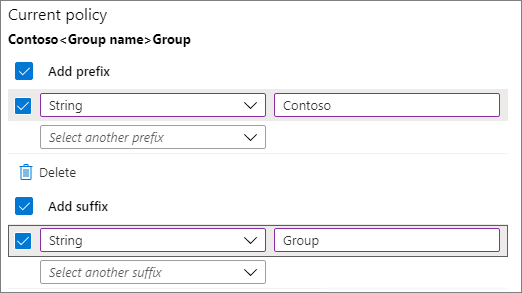
- Under Current policy, select the appropriate check boxes if you want to require a prefix or suffix or both.
- For each selected check box, select its corresponding drop-down field and choose between Attribute and String. Then specify the attribute or string.
- Select Save on the menu bar at the top of the window.