Create access reviews for groups and apps
Access to groups and applications for employees and guests changes over time. To reduce the risk associated with stale access assignments, administrators can use Microsoft Entra ID to create access reviews for group members or application access. If you need to routinely review access, you can also create recurring access reviews.
Prerequisites
- Microsoft Entra ID Governance or Microsoft Entra Suite (Microsoft Entra ID Premium P2 provides limited capabilities)
- Identity Governance Administrator or Global Administrator
Create one or more access reviews
Sign in to the Microsoft Entra admin center as at least an Identity Governance Administrator.
Browse to ID Governance > Access reviews.
Select New access review to create a new access review.
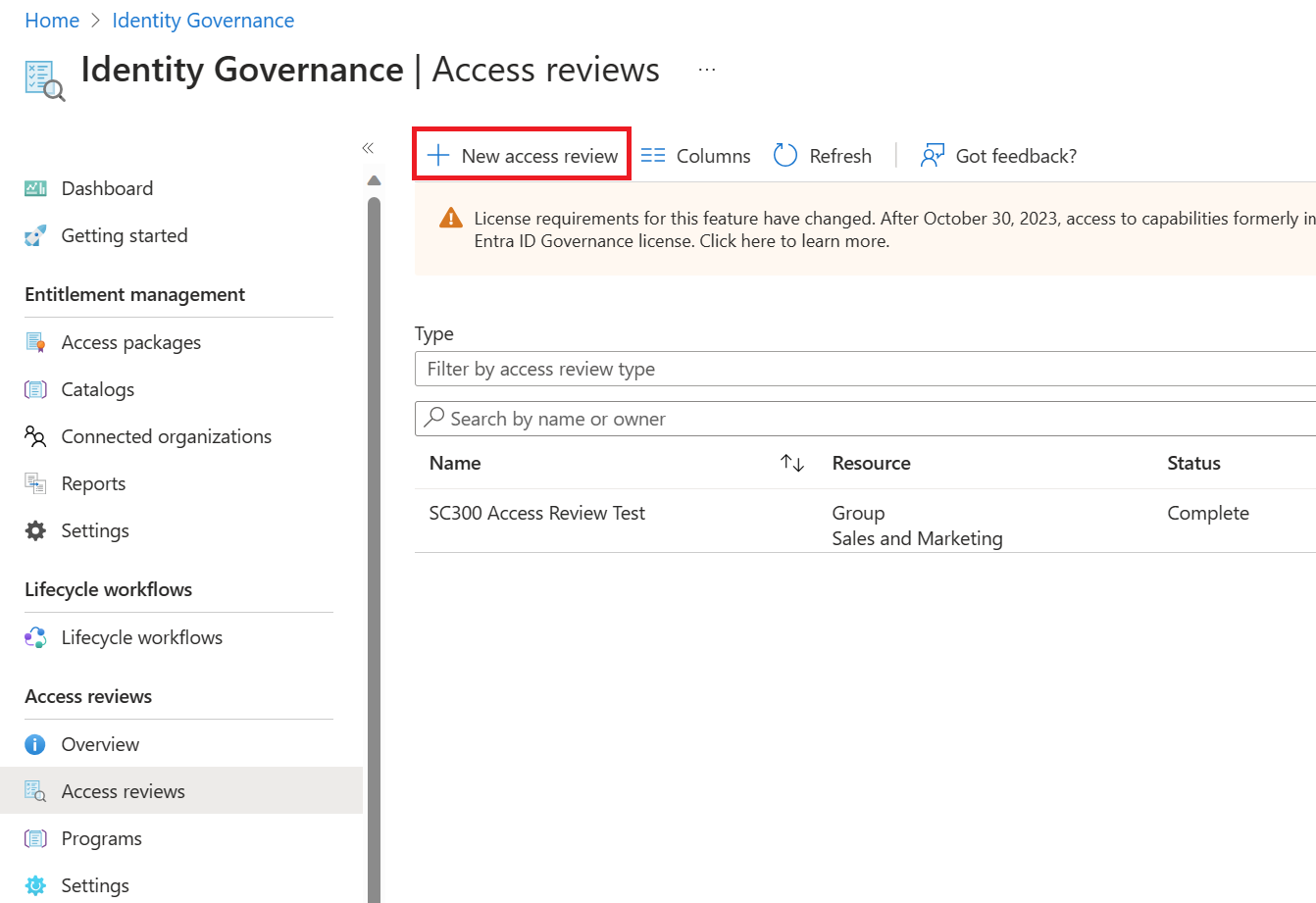
On the Access reviews template screen, select Review access to a resource type.
In the Select what to review box, select the resource you want to review.
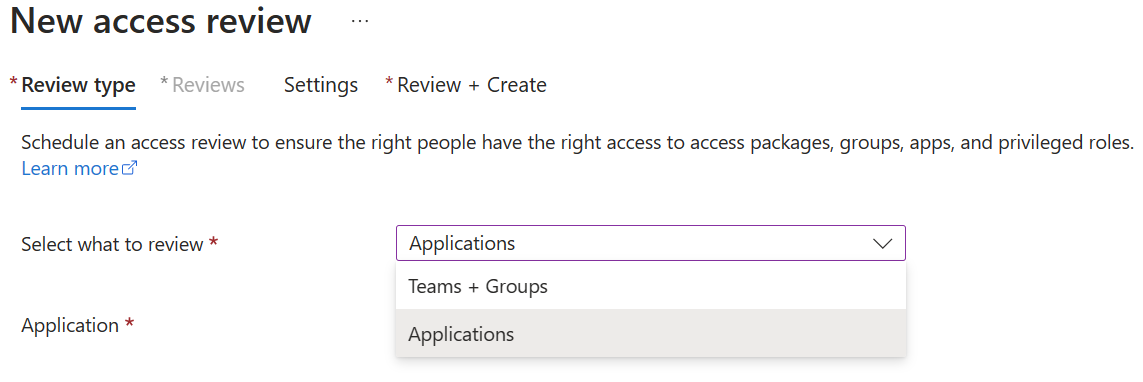
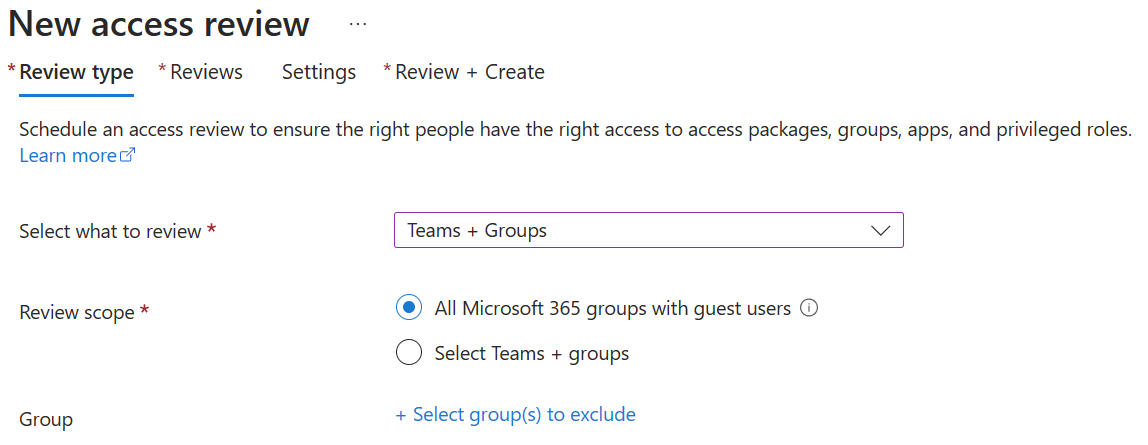
If you selected Teams + Groups, you have two options:
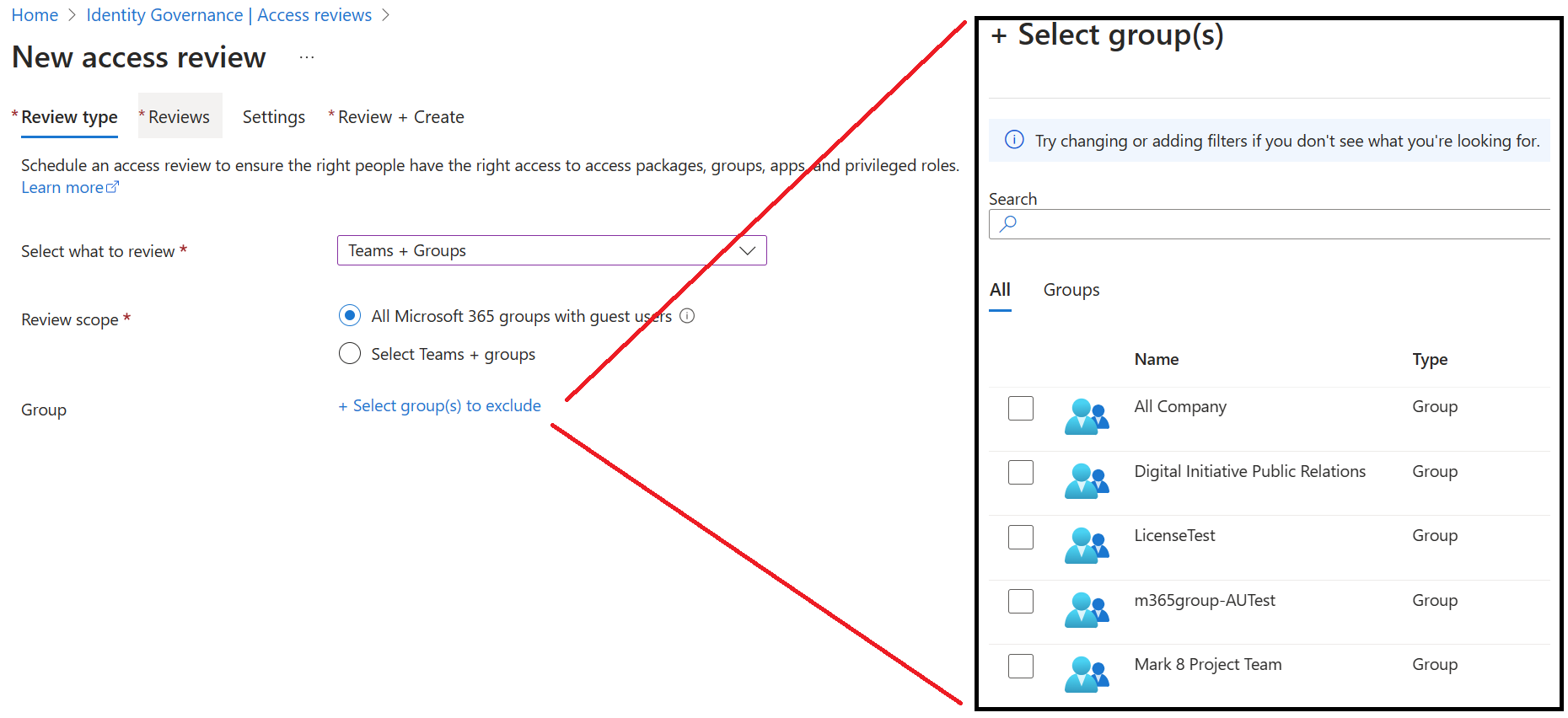
All Microsoft 365 groups with guest users. Select this option if you want to create recurring reviews on all your guest users across all your Microsoft Teams and Microsoft 365 groups in your organization. You can choose to exclude certain groups by selecting Select group(s) to exclude.
Select teams + groups. Select this option if you want to specify a finite set of teams or groups to review. A list of groups to choose from appears on the side of the screen.
If you selected Applications, select one or more applications.
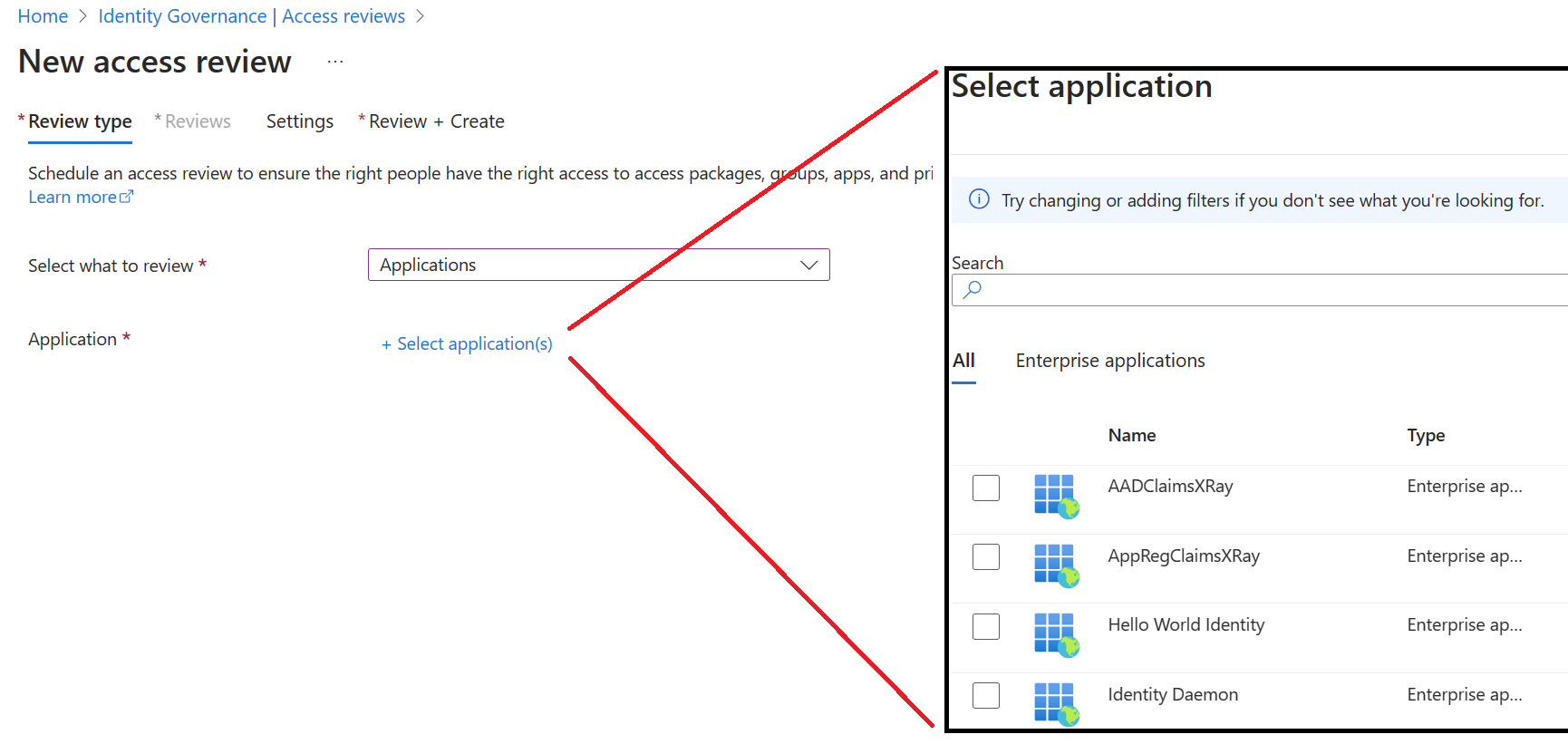
Select a scope for the review. Your options are:
Guest users only. Limits the review to Microsoft Entra B2B guest users in your directory.
Everyone. Scopes the review to all user objects associated with the resource.
Note
If you selected All Microsoft 365 groups with guest users, your only option is to review Guest users only.
If you're reviewing group membership, you can also target only inactive users. In the Users scope section, select Inactive users (on tenant level) and specify the number of days inactive (up to 730 days).
Select Next: Reviews.
In the Select reviewers section, select one or more people to perform the access reviews. You can choose from:
- Group owner(s) (only available when performing a review on a team or group)
- Selected user(s) or groups(s)
- Users review their own access
- Managers of users. If you choose Managers of users or Group owner(s), you can also specify a fallback reviewer. Fallback reviewers are asked to complete a review when the user has no manager in the directory or the group has no owner.
In the Specify recurrence of review section, you can specify a frequency such as Weekly, Monthly, Quarterly, Semi-annually, Annually. You then specify a Duration, which defines how long a review is open for input from reviewers. For example, the maximum duration that you can set for a monthly review is 27 days to avoid overlapping reviews. You might want to shorten the duration to ensure that your reviewers input is applied earlier. Next, you can select a Start date and End date.
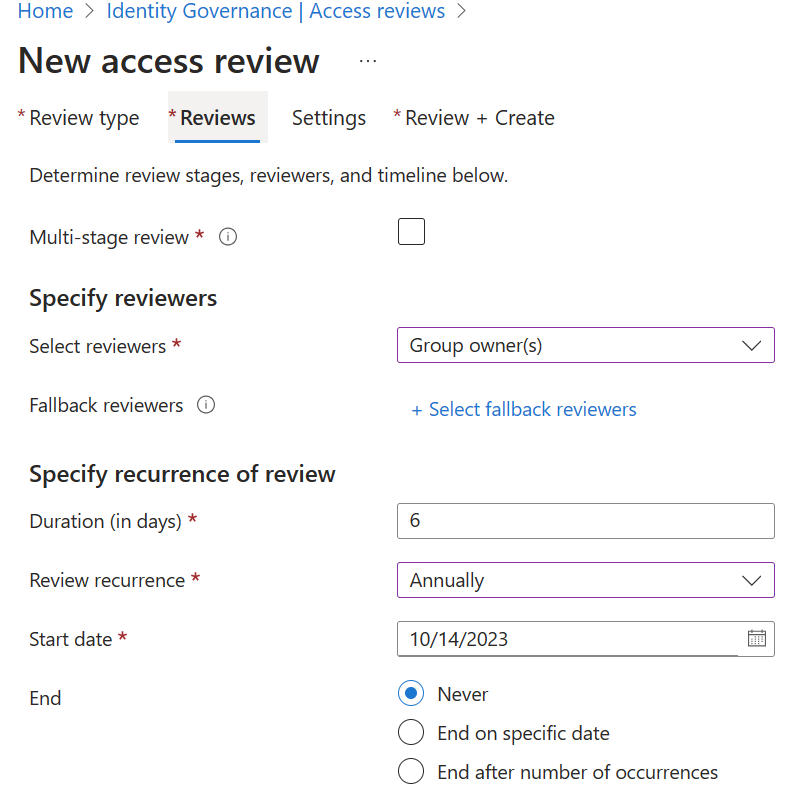
Select Next: Settings.
In the Upon completion settings, you can specify what happens after the review completes.
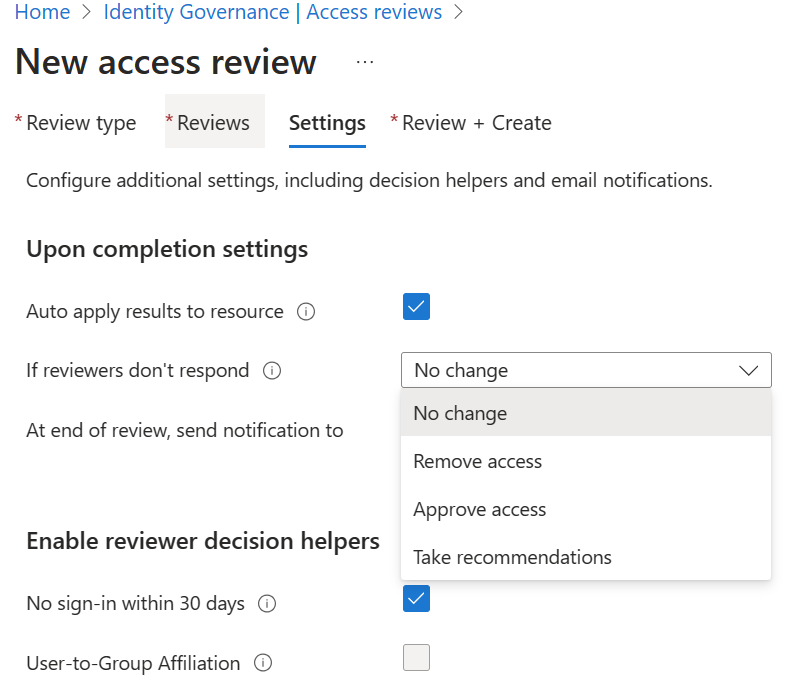
If you want to automatically remove access for denied users, set Auto apply results to resource to Enable. If you want to manually apply the results when the review completes, set the switch to Disable. Use the If reviewers don't respond list to specify what happens for users that aren't reviewed by the reviewer within the review period. This setting doesn't change users who were reviewed manually. If the final reviewers' decision is Deny, then the user's access is removed.
- No change - Leave user's access unchanged
- Remove access - Remove user's access
- Approve access - Approve user's access
- Take recommendations - Take the system's recommendation on denying or approving the user's continued access
Use the Action to apply on denied guest users to specify what happens to guest users if they're denied.
- Remove user’s membership from the resource removes denied user’s access to the group or application being reviewed. Tenant sign-in continues to work.
- Block user from signing in for 30 days, then remove user from the tenant blocks the denied users from signing in to the tenant, regardless if they have access to other resources. If there was a mistake or if an admin decides to re-enable one’s access, they can do so within 30 days after the user is disabled. If there's no action taken on the disabled user accounts, they're deleted from the tenant.
- Action to apply on denied guest users isn't configurable on reviews scoped to more than guest users. It's also not configurable for reviews of all Microsoft 365 groups with guest users. When not configurable, the default option of removing user's membership from the resource is used on denied users.
In the Enable review decision helpers section, choose whether your reviewer receives recommendations during the review process.
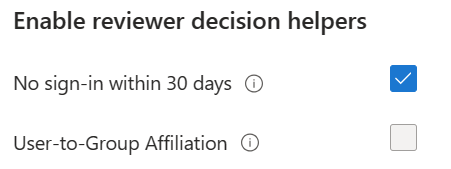
In the Advanced settings section, you can choose the following
- Set Justification required to Enable to require the reviewer to supply a reason for approval.
- Set email notifications to Enable to have Microsoft Entra ID send email notifications to reviewers when an access review starts, and to administrators when a review completes.
- Set Reminders to Enable to have Microsoft Entra ID send reminders of access reviews in progress to reviewers who haven't completed their review. These reminders are half-way through the duration of the review.
- The content of the email sent to reviewers is autogenerated based on the review details, such as review name, resource name, and due date. If you need to communicate additional information, such as extra instructions or contact information, specify these details in the Additional content for reviewer email section. The information you enter is included in the invitation and reminder emails sent to assigned reviewers.
- Select Access Review Agent (Preview) to allow reviewers to complete the access review in Microsoft Teams using natural language, insights, and recommendations. This option requires more setup—see the Access Review Agent unit for details.
Select Next: Review + Create.
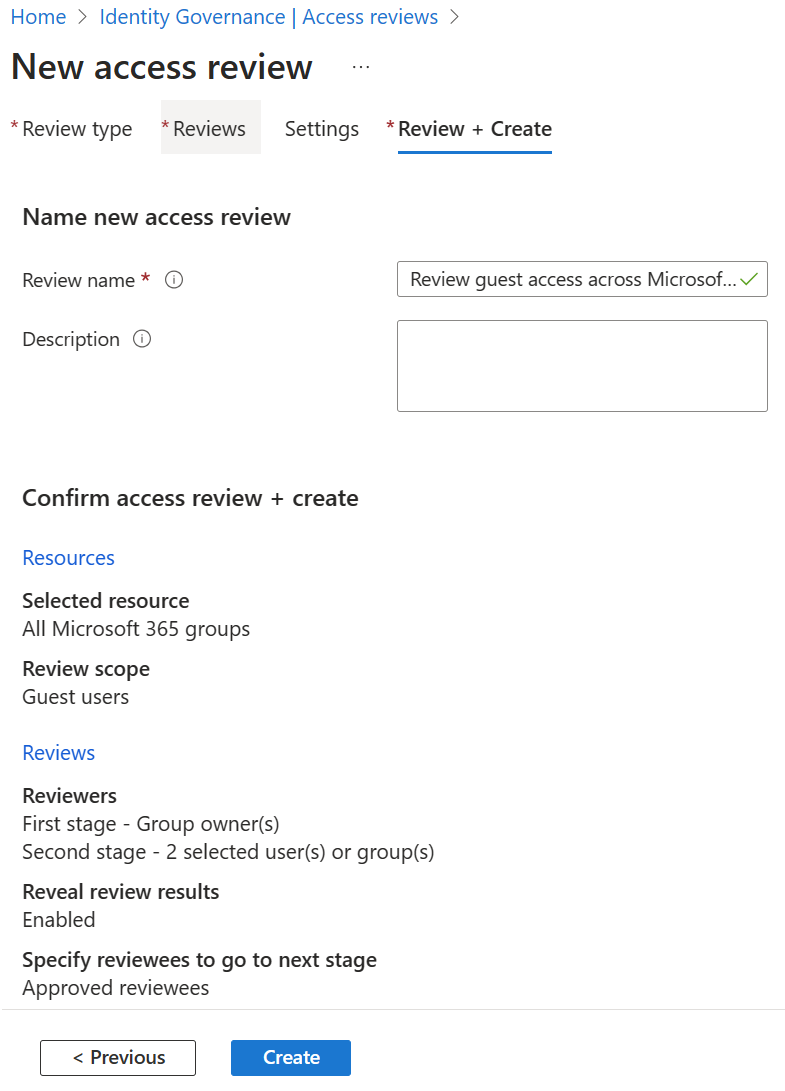
Name the access review. Optionally, give the review a description. The name and description are shown to the reviewers.
Review the information and select Create.
Start the access review
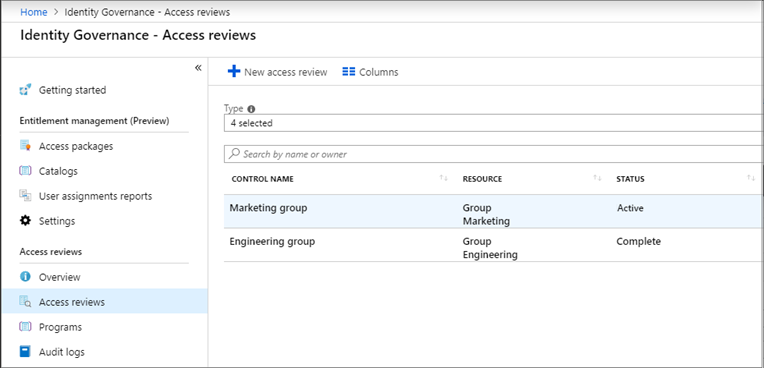
Once you specified the settings for an access review, select Start. The access review appears in your list with an indicator of its status.
By default, Microsoft Entra ID sends an email to reviewers shortly after the review starts. If you choose not to have Microsoft Entra ID send the email, be sure to inform the reviewers that an access review is waiting for them to complete. You can show them the instructions for how to review access to groups or applications. If your review is for guests to review their own access, show them the instructions for how to review access for yourself to groups or applications.
If you assigned guests as reviewers and they haven't accepted the invite, they don't receive an email from access reviews because they must first accept the invitation.
Access review status table
| Status | Definition |
|---|---|
| NotStarted | Review was created, user discovery is waiting to start. |
| Initializing | User discovery is in progress to identify all users who are part of the review. |
| Starting | Review is starting. If email notifications are enabled, emails are being sent to reviewers. |
| InProgress | Review started. If email notifications are enabled, emails are sent to reviewers. Reviewers can submit decisions until the due date. |
| Completing | Review is being completed, and emails are being sent to the review owner. |
| Auto-Reviewing | Review is in a system reviewing stage. The system is recording decisions for users who weren't reviewed based on recommendations or preconfigured decisions. |
| Auto-Reviewed | Decisions are recorded by the system for all users who weren't reviewed. Review is ready to proceed to Applying if Auto-Apply is enabled. |
| Applying | There will be no change in access for users who were approved. |
| Applied | Denied users, if any, are removed from the resource or directory. |
| Failed | Review couldn't progress. This error could be related to the deletion of the tenant, a change in licenses, or other internal tenant changes. |
Create reviews via APIs
You can also create access reviews using APIs. What you do to manage access reviews of groups and application users in the Microsoft Entra admin center can also be done using Microsoft Graph APIs.