Explore the Access Review Agent in Microsoft Entra
Historically, access reviews are a manual process that can lead to potential errors and mistakes. Reviewers don't always have access to records and data to make review decisions, and often don't have enough time to complete the review. What if there was an agent that could help with the task?
Access Review Agent in Microsoft Entra
Empower your reviewers to make fast and accurate access decisions. The Access Review Agent with Microsoft Entra ID Governance delivers insights and recommendations so reviewers can complete their work through a simple conversation, right inside Microsoft Teams.
How the agent works
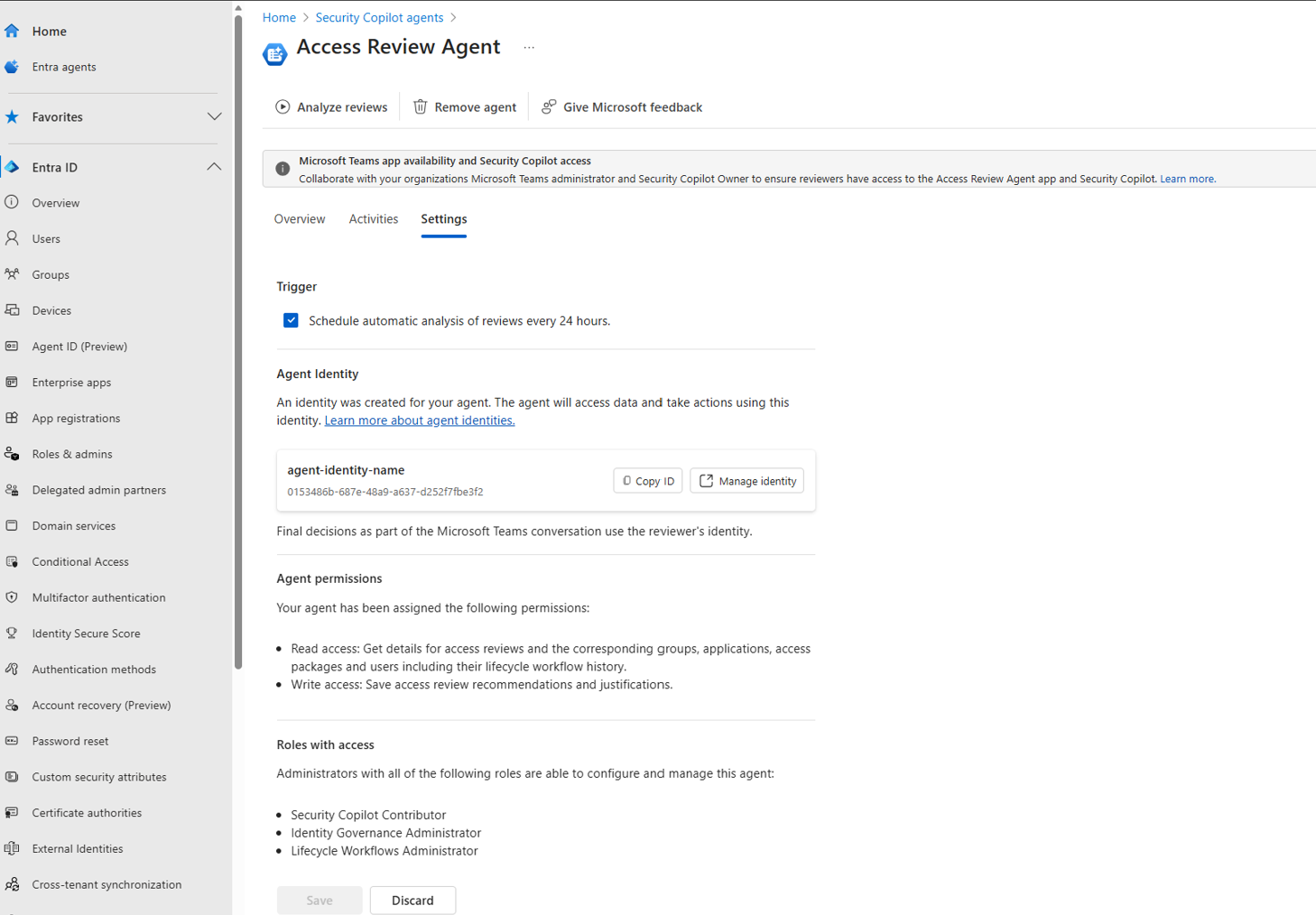
The Access Review Agent proactively scans for active access reviews in your tenant. The agent then analyzes identified reviews by gathering extra insights, and generates a recommendation (approve / deny). The recommendation also includes a justification summary for each decision. The agent guides reviewers, in natural language, through the review process in Microsoft Teams. As the agent guides them through the review, they're able to review the agent's reasoning behind the recommendations, ask questions in the context of the review itself, and finally make their own informed decision. The agents recommendation (approve / deny) for each decision relies on a deterministic scoring mechanism powered by multiple signals.
The agent considers the following signals:
- User inactivity: If the user signed in (recently)
- User-to-Group affiliation: If the user has a low affiliation with other users who have this access
- Account enabled: If the user's account is enabled (accountEnabled property)
- Employment status: If the user's employment ended (employeeLeaveDateTime property)
- Lifecycle workflow history: If the user has a mover workflow ran for them in the past 30 days
- Decisions from previous reviews: For recurring reviews, decisions from previous review iterations are considered
- Access request history: For access package assignment reviews, the request and approval history is considered
Prerequisites
To use the Access Review Agent in Microsoft Entra, you need:
- Microsoft Entra ID Governance or Microsoft Entra Suite licenses.
- Onboard to Security Copilot with at least one security compute unit (SCU).
- Admins must have at least all the following roles to set up and manage the agent in the Microsoft Entra admin center:
- Identity Governance Administrator
- Lifecycle Workflows Administrator
- Security Copilot Contributor in Security Copilot
- For reviewers to use the Access Review Agent, they must have access to Microsoft Teams and must have an active access review assigned. They need to have the assigned role: -Security Copilot Contributor
Limitations
Once agents are started, they can't be stopped or paused. It might take a few minutes to run. We recommend running the agent from the Microsoft Entra admin center.
Enabling the Access Review Agent
With an account that has at least all the following roles, sign in to the Microsoft Entra admin center:
- Identity Governance Administrator
- Lifecycle Workflows Administrator
- Security Copilot Contributor
From the new home page, select Go to agents from the agent notification card.
- You can also select Agents from the left navigation menu.
Select View details on the Access Review Agent tile.
Select Start agent to begin your first run.
- A message that says "The agent is starting its first run" appears in the upper-right corner. The first run might take a few minutes to complete.
Enable the access review agent for existing group and application access reviews
To update an existing access review for the Access Review Agent, perform the following steps:
Sign in to the Microsoft Entra admin center as at least an Identity Governance Administrator.
Browse to ID Governance then Access reviews.
Select the access review you want the agent to support.
On the access review overview page, select Settings under Manage (one time review), or Settings under Series (recurring review).
Under Advanced Settings, check the box on the setting that says Access Review Agent (Preview).
Select Save.