Refine and enhance your presentation
A well-structured first draft is a starting point, not a finished product. In this unit, you'll move from draft to delivery-ready by refining your text, stress-testing your narrative, building a visual story, polishing visuals directly in PowerPoint, and preparing a clear executive summary before you share.
Refine your text
When you select any text box in PowerPoint, a rewrite options button appears alongside it. Selecting it surfaces several ways to refine your content. The key is choosing the right one for the job:
| Option | When to use it |
|---|---|
| Auto-rewrite | Text needs general improvement for grammar, flow, or clarity issues. Use this option when the content is right but the phrasing isn't. |
| Condense | A slide is overloaded with text. Adjust the tone to sound more polished while keeping the core message. |
| Make professional | Text reads too casually for the audience. Use this option to make text sound more professional without changing its length. |
| Custom prompt | Tell Copilot in your own words how to revise the text. For example, you could say Make this funny and easy to read. |
| Visualize as a list | Converts a paragraph into bullet points. |
Select your preferred option, review the suggestion, and select Keep it to apply or Regenerate to try again.
For more targeted edits, open the Copilot pane from the Home ribbon and prompt it directly:
- Tailor the content on slide 4 for a non-technical executive audience.
- Break this paragraph into three bullet points without losing any key data.
- Rewrite the opening slide to lead with the business outcome, not the product feature.
Tip
If you want to add content to the deck at this stage—such as a slide covering a topic you didn't include in your original prompt—ask Copilot in the pane: Add a slide about [topic]. The more specific your prompt, the better the result.
Use Copilot to review and coach your presentation
Before you present, you want to know where your deck is weak. Copilot offers two complementary ways to do this: the Explain feature for reviewing individual objects, and the Copilot pane for coaching you on narrative and logic at the presentation level.
Understand your own content with Explain
If your deck contains content that was synthesized from multiple source files such as financial data, technical specifications, market research, there's a real chance some of it's unfamiliar or unclear to you. The Explain feature lets you right-click any object on a slide and get an immediate, contextual explanation without leaving PowerPoint.
Right-click any text box, table, image, or entire slide and select Explain. Copilot returns a plain-language breakdown of what the content means and where it fits. This feature is useful when reviewing slides generated from complex source documents before a high-stakes presentation.
Use Copilot as your presentation coach
The Copilot pane can do more than edit slides; it can validate your thought process. You can use it to stress-test your narrative before you present:
- What questions is an executive audience likely to ask after slide 6?
- Is there a logical gap between slides 4 and 5? How should I bridge them?
- Which claim in this presentation is most likely to face pushback, and what data could I add to support it?
- Does the narrative flow of this deck match a problem-solution-outcome structure?
These prompts position Copilot as a critical reviewer, not just a content generator. The goal isn't to have Copilot rewrite your deck. It's to surface the questions your audience may ask, so you can address gaps before the room does.
Build your visual story
Visuals don't just illustrate a point. They reinforce it. Copilot in PowerPoint, combined with Designer, gives you two distinct image sources: AI-generated images and your organization's approved brand library. Knowing which to use, and how to prompt for each, is where your presentations start to look intentional rather than generic.
Generate images with Designer
When you need a visual that doesn't exist in your asset library, ask Copilot to create one. In the Copilot pane, use the prefix Create an image and describe what you want with enough specificity to get a useful result.
Remember, the gap between a vague prompt and a useful one is descriptive detail.
| Prompt | Result |
|---|---|
| Create an image of a team meeting. | Generic office photo |
| Create a photorealistic image of a diverse group of professionals reviewing a data dashboard in a modern open-plan office, warm natural light, optimistic tone. | A scene that reinforces your message |
Think about what the image needs to say alongside the slide text. If your slide makes a claim about global expansion, an image of a single city skyline undercuts it. Prompt for what your message requires.
Use brand images from your organization's asset library
If your organization's administrator has configured a SharePoint Organization Asset Library (OAL) or a Templafy integration, you have access to a curated library of approved images directly in Copilot. This is the right source for customer-facing and executive presentations where brand compliance matters.
Ask Copilot in the pane:
- Add an image of our headquarters from the brand library.
- Find an approved image showing a customer support interaction.
Copilot searches the connected asset library and returns matching images for you to review and insert. If you're not sure what's available, start with a broad search and refine from there. Your administrator can tell you whether your organization has an OAL or Templafy connection configured.
Tip
To start with your organization's branded template before generating content, open your .potx template file first, then use Create presentation from file in the Copilot pane. Copilot uses existing layouts and apply your brand design throughout. See Use your organization's branding with Copilot in PowerPoint for setup requirements.
Prepare your executive summary before you share
Before you distribute a deck to stakeholders who won't attend the live presentation, generate a summary that gives them the key takeaways in a form they can read in under two minutes.
- Select the Copilot button from the ribbon to open the Copilot pane.
- Type Summarize this presentation and select Send.
Copilot reads the full deck and returns a structured summary with citations showing which slides each point came from.
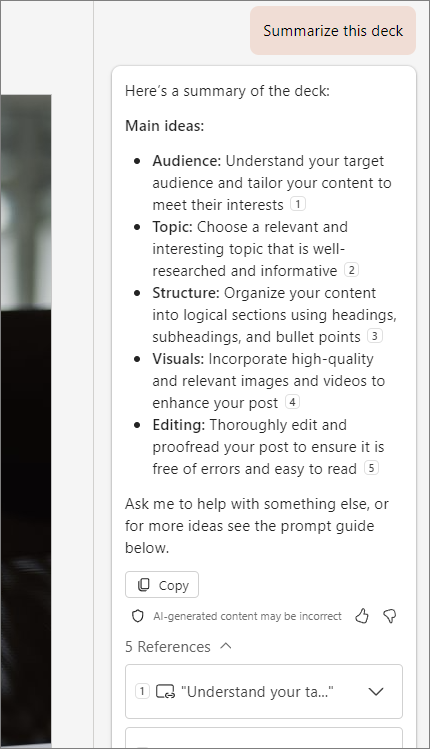
You can copy this summary directly into an email body, a Teams message, or a Loop page as a preread for stakeholders. For a more tailored output, be specific about your audience:
- Summarize this presentation for a CFO audience. Focus on financial impact and ROI.
- Give me a three-bullet executive summary of this deck's key recommendations.
The summary feature works best as a pre-read step. It helps you confirm that the key message is clear, consistent, and aligned across the entire deck.